Terminal Settings
Click the "Settings" button in the upper right corner of the client to enter the terminal configuration interface.
1. Cloud Platform Settings
Cloud platform settings are the primary configuration items for connecting to cloud desktops.
- Address and Port: Used to fill in the xSpace management component address and port.
- Detailed Configuration: For detailed guidance on filling in cloud platform addresses and first-time connection, please refer to the Access Settings section.
Note: If supported
2. System Settings
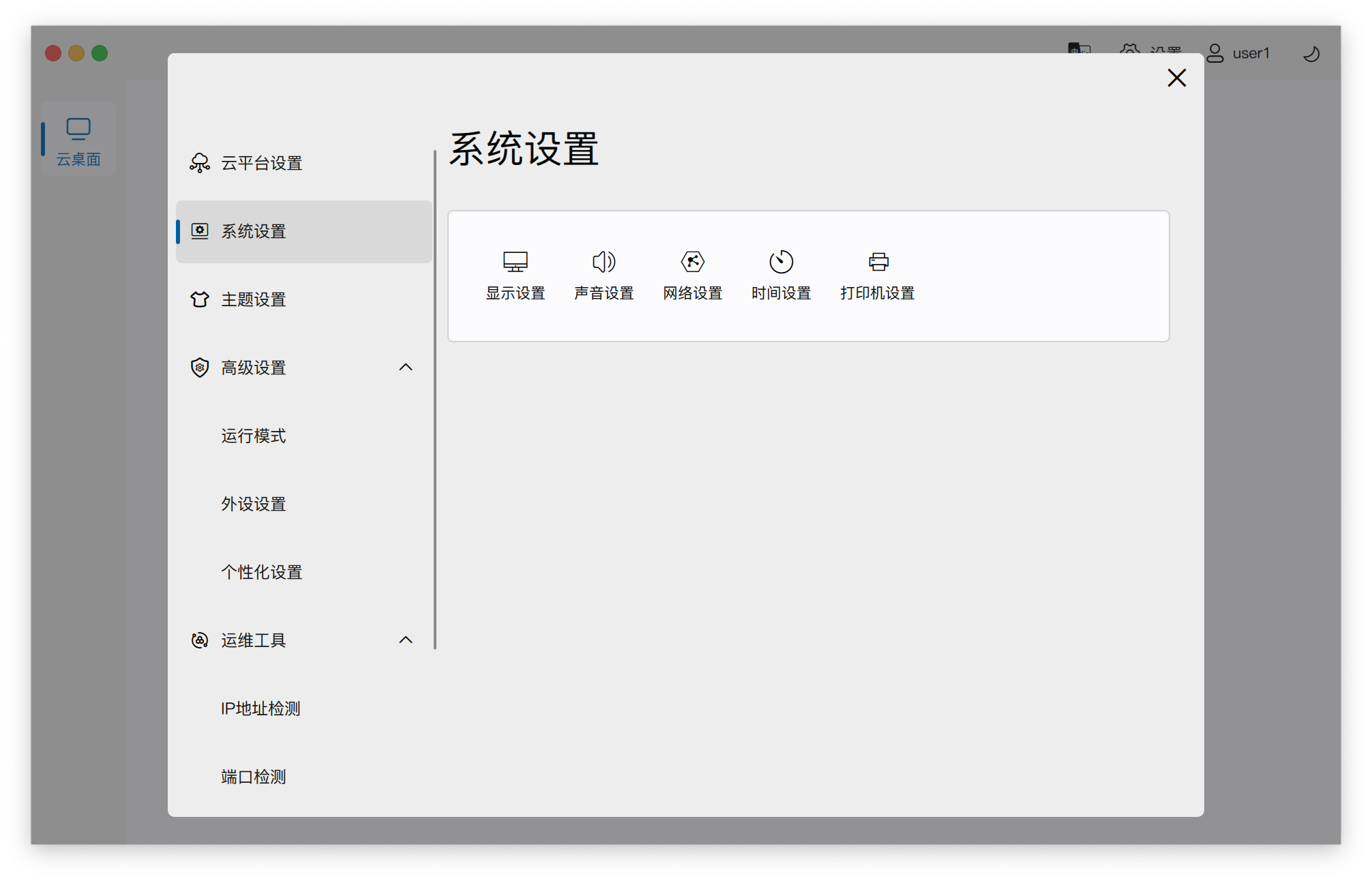
The system settings module is the entry point for managing the client's local base environment.
-
PC Client: Only provides entry points for control panel functions, including display settings, sound settings, network settings, time settings, and printer settings. Clicking the corresponding module will directly invoke the corresponding function in the local operating system's control panel.
-
Thin Client (TC):
- Control Panel: The logic is similar to the PC client, used to open the thin client's local OS control panel for device management.

- Network Settings: Redesigned for thin clients. Wired networks can view address information, configure static or dynamic (DHCP) addresses; WiFi networks can be enabled/disabled, signal sources selected, and addresses viewed. Note: If the thin client is not equipped with a WiFi module, the WiFi network function is unavailable.

3. Theme Settings
Used to adjust the client interface's visual appearance and interactive performance.
-
Appearance Theme: Adjustable theme color style, such as switching between dark/light backgrounds.
-
Performance Optimization (for Thin Clients):
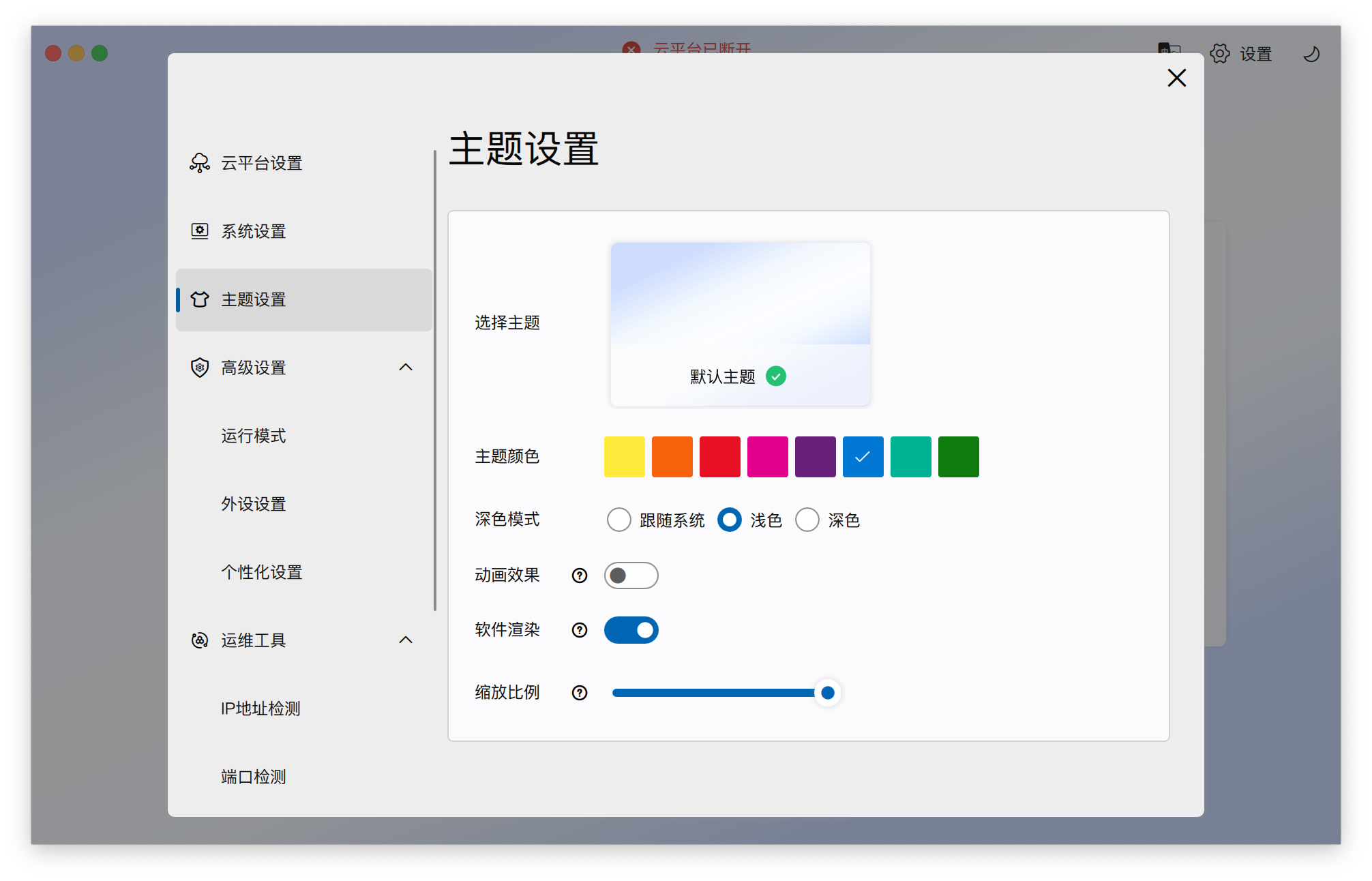
- Animation Effects: Recommended to disable on weaker processor devices to save CPU resources.
- Software Rendering: When enabled, it can reduce the processor overhead of non-core work interfaces.
- Scaling Ratio: If interface buttons or text are too small, you can enlarge the display ratio here.
Note: Due to hardware performance limitations, some thin clients have software rendering enabled by default and animations disabled. Please do not adjust these configurations arbitrarily, as it may lead to slow display of login pages and desktop cards, affecting the visual experience.
4. Advanced Settings
Includes in-depth configuration for running mode, peripherals, and personalized behavior.
-
Running Mode:
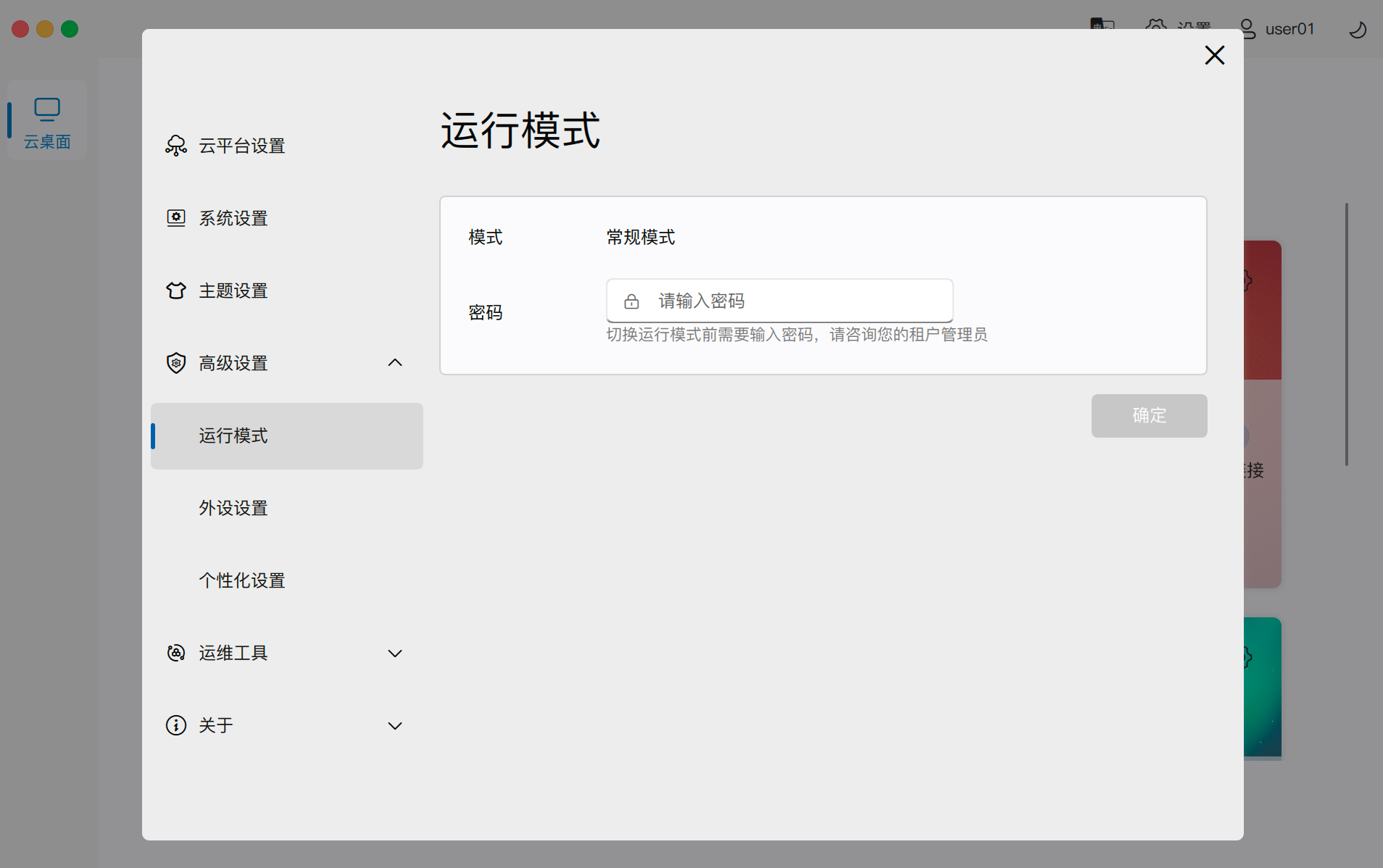
- Normal Mode: The default client running state.
- Console Switching: On thin clients, after entering running mode and inputting the password, the local console can be opened to perform advanced O&M and troubleshooting operations. Do not easily disable Kiosk mode on thin clients.
-
Peripheral Settings:
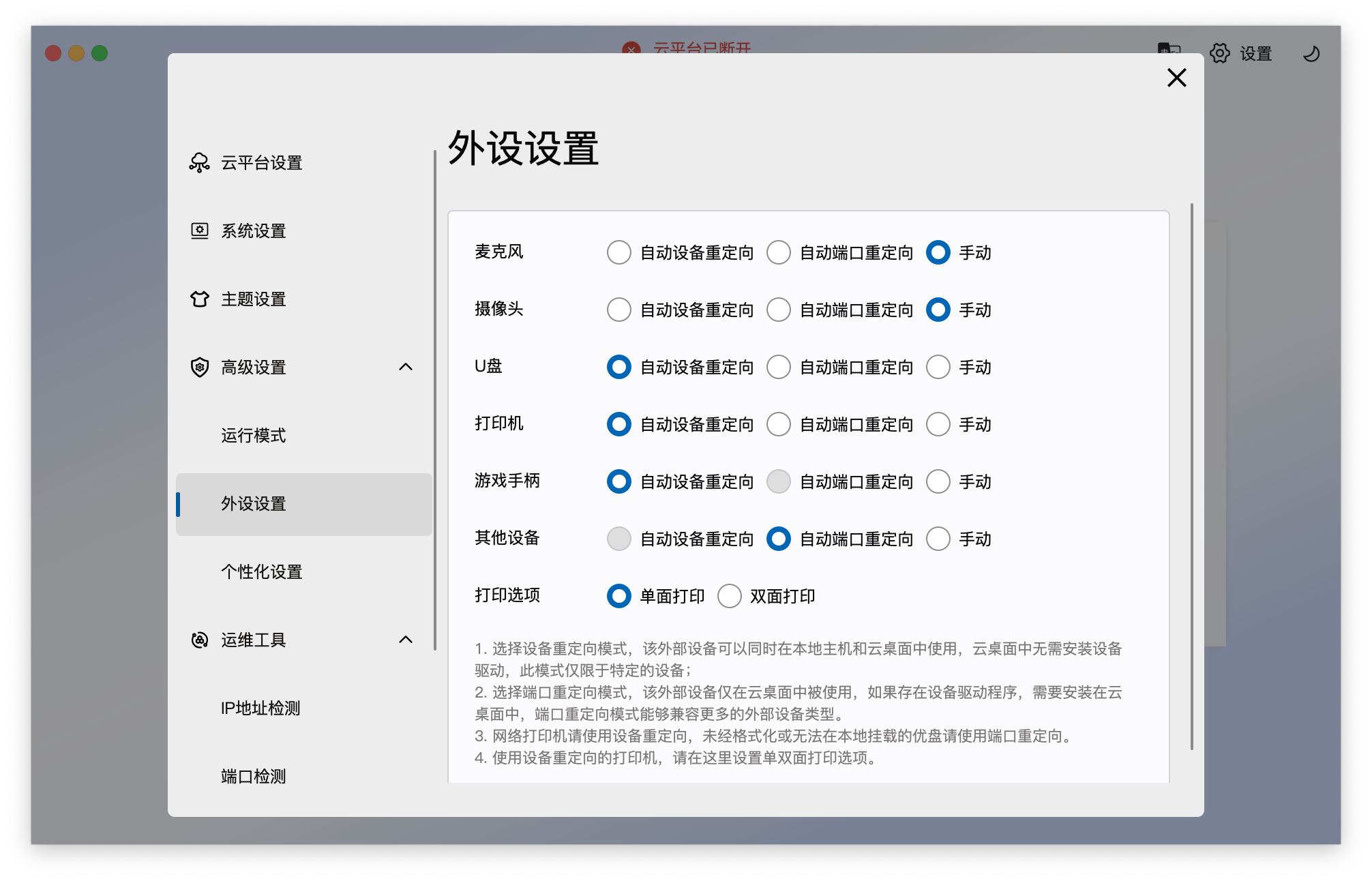
- Preset Habits: Default passthrough modes for different devices can be preset according to personal habits.
- Setting Restrictions: Peripheral settings are only allowed to be configured before client login; they will be locked and cannot be modified after login.
-
Personalization Settings:
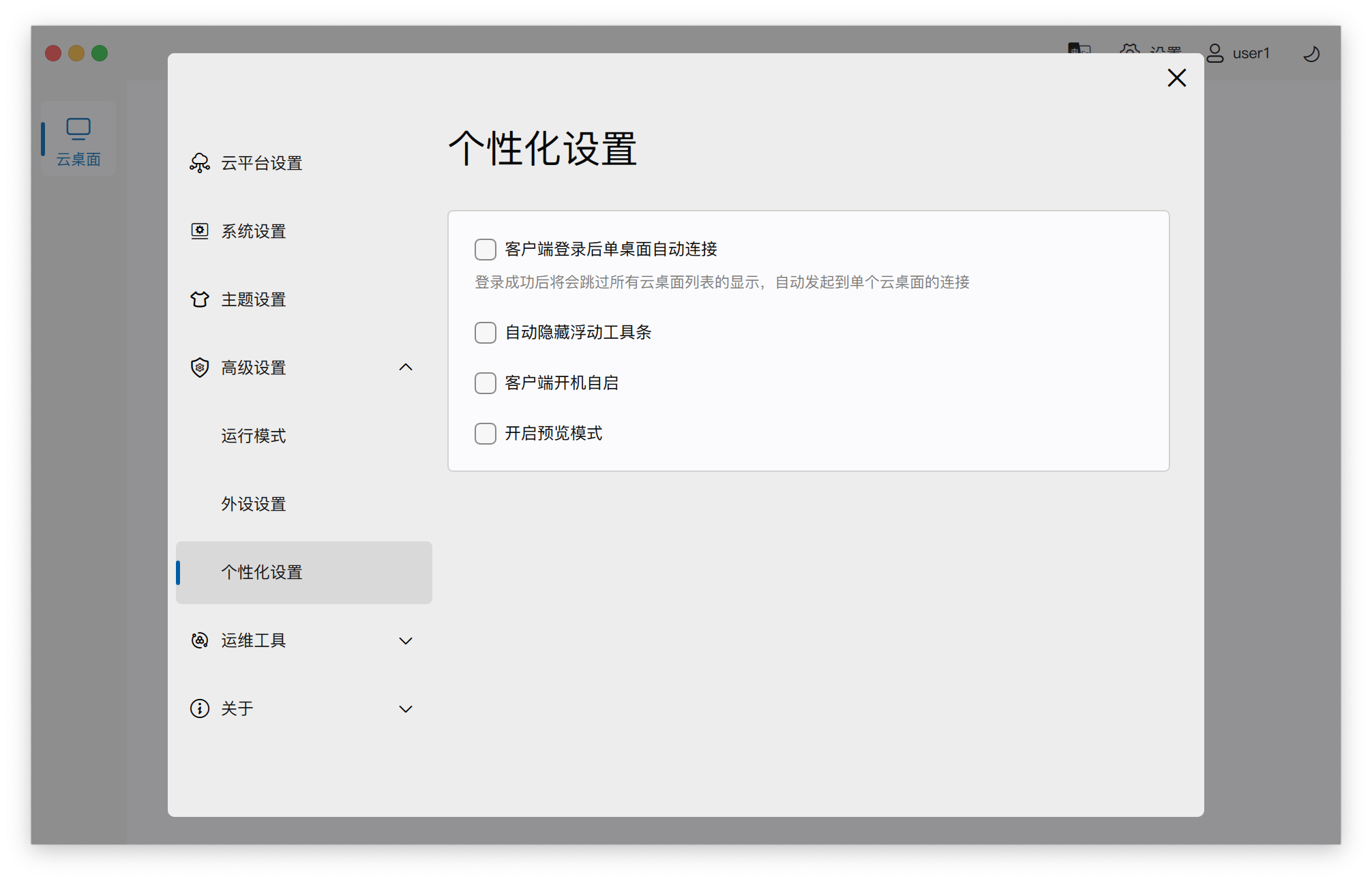
- Single Desktop Auto-Connect: When enabled, if there is only one desktop under the username, after login, it will skip the desktop card list and directly connect to the desktop. This provides an immersive experience but loses desktop power on/off, network diagnosis, and connection configuration functions. You can switch back to card mode by disabling this option.
- Auto-start on Boot: When checked, the client will automatically launch when the local host boots. Combined with auto-login and auto-connect, it can achieve a fully automated connection to the cloud desktop without manual intervention.
5. O&M Tools
Provides a series of self-troubleshooting tools for self-testing when connection is abnormal.
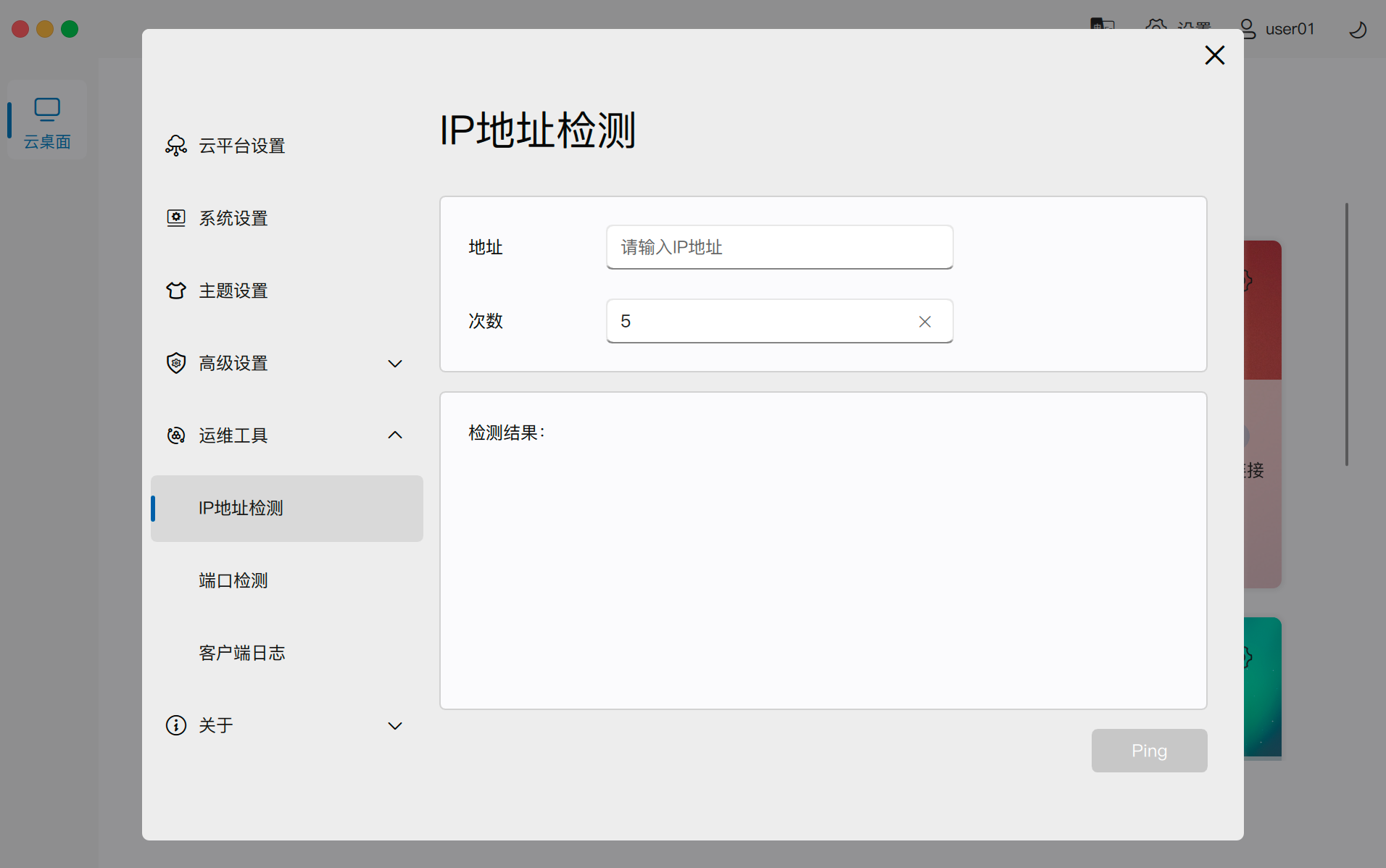
- IP Address Detection: Tests connectivity to the server using standard Ping tools.
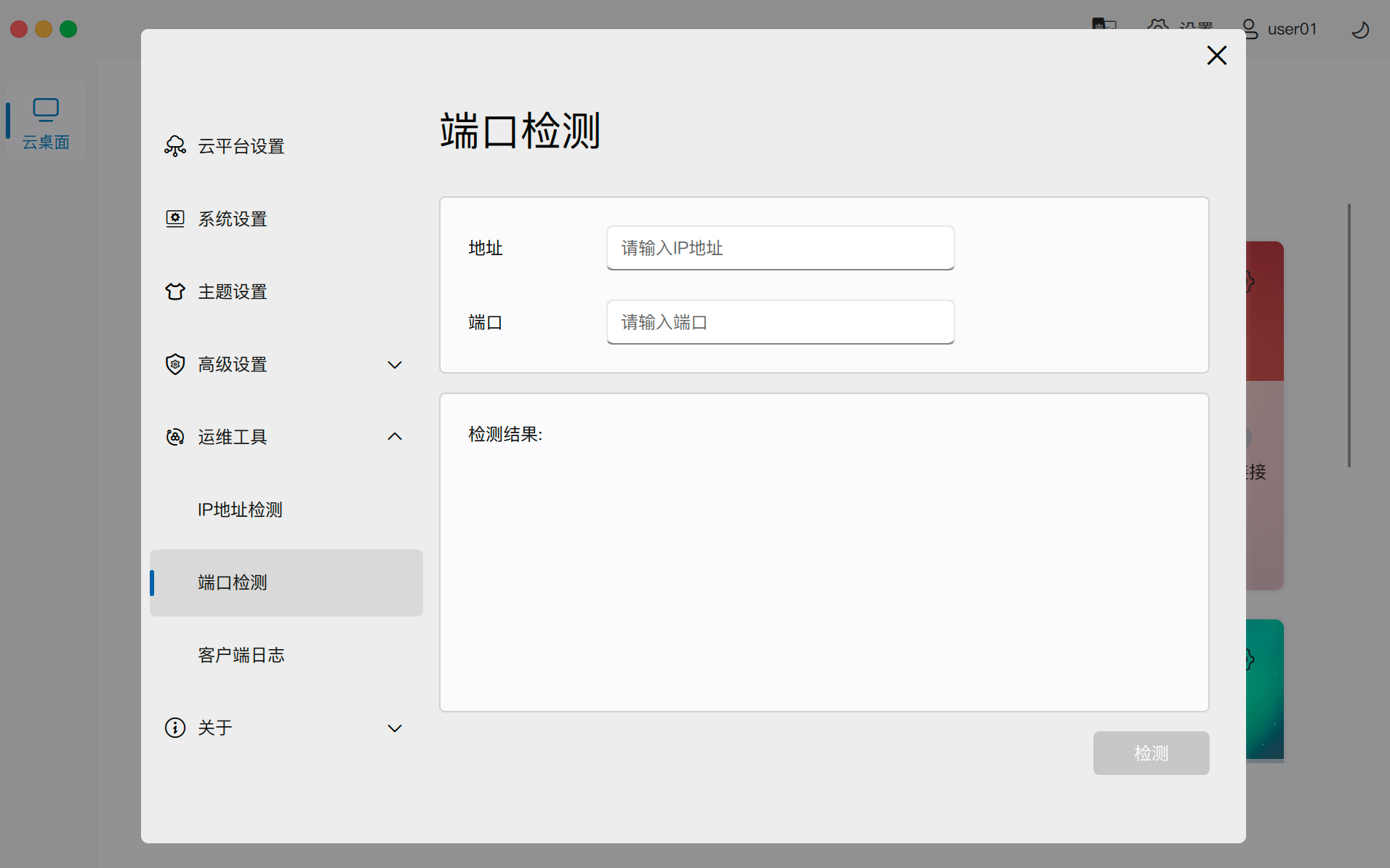
- Port Detection: Performs TCP Ping verification on specified business ports.
-
Client Logs:
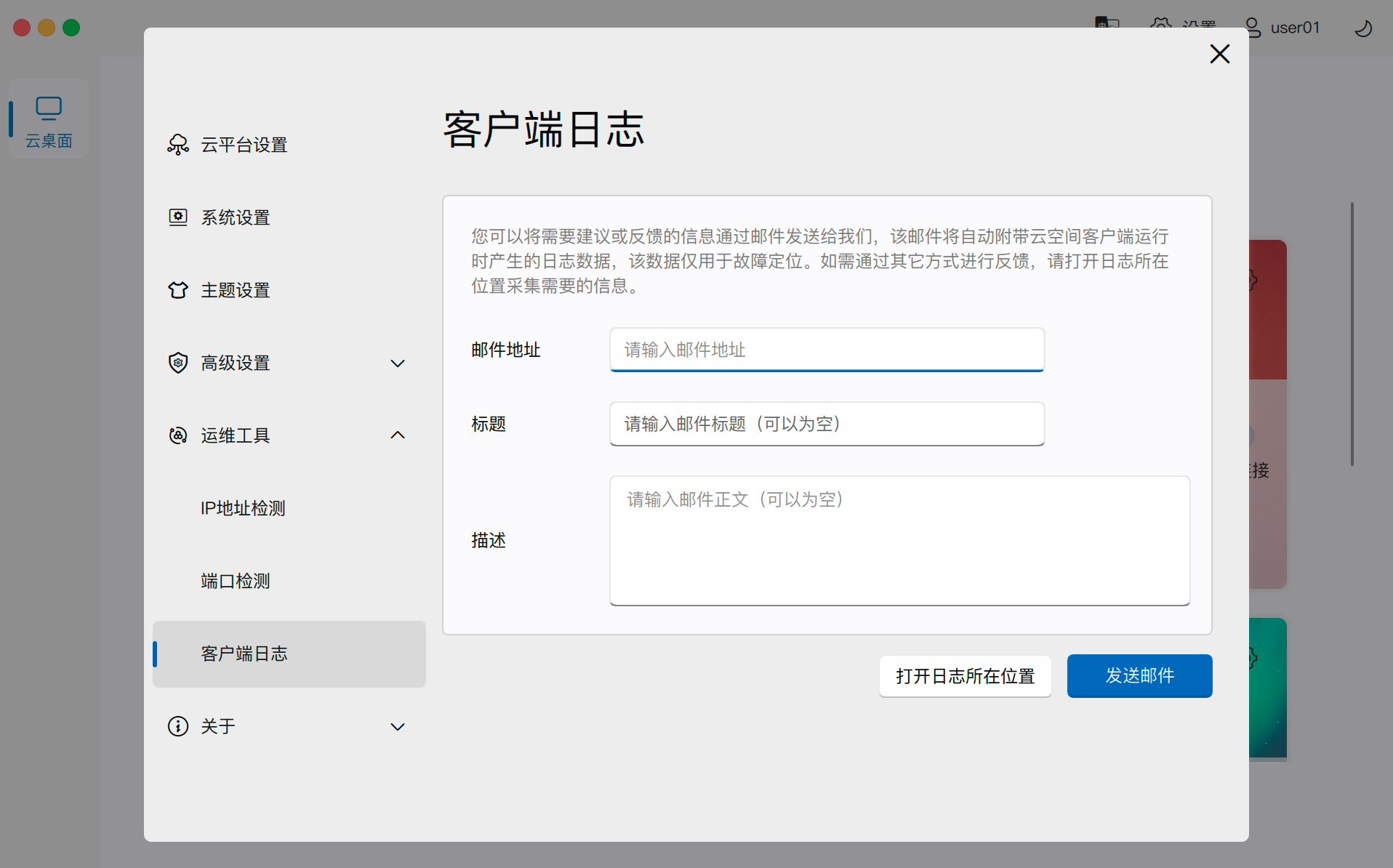
- Log Sending: Supports packaging and sending local logs to technical support personnel via email.
- View Restrictions: PC clients can directly open the log folder; thin clients, due to Kiosk mode restrictions, do not allow access to the local file system, and thus cannot open logs.
6. About
Provides client version information and local hardware diagnostic data.
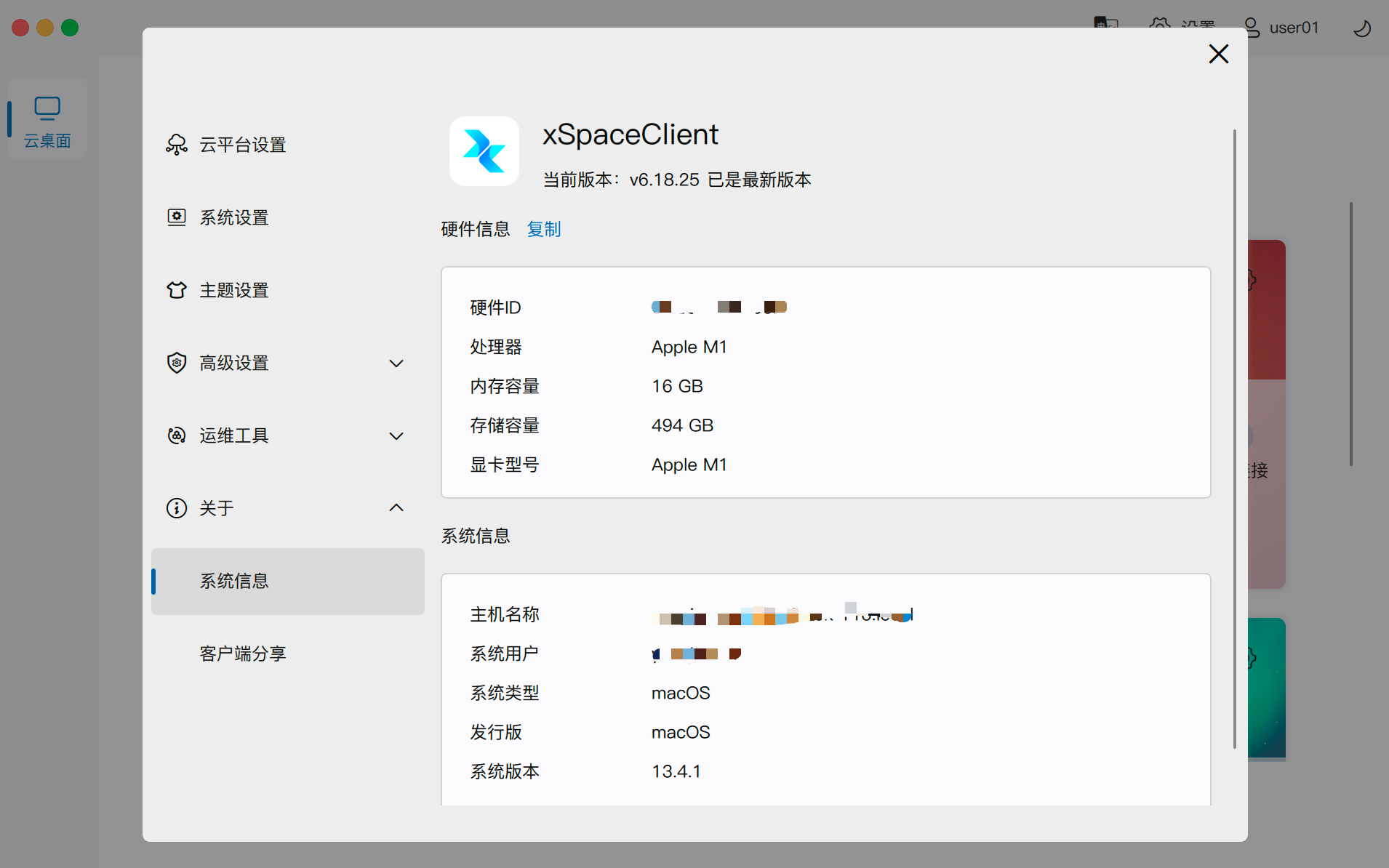
- System Information: You can view the current client version number, hardware ID, processor, memory, storage capacity, and local operating system version details.
- Version Upgrade: The client supports automatic update detection. When an upgrade pop-up prompt appears, follow the interface guide to perform the upgrade operation to ensure the use of the latest protocol optimizations.