Access Settings
After the xSpace client is installed, the cloud platform access settings must first be configured to inform the program of the cloud desktop management component address information that the client needs to access, in order to establish a communication connection.
1. Configuration Methods
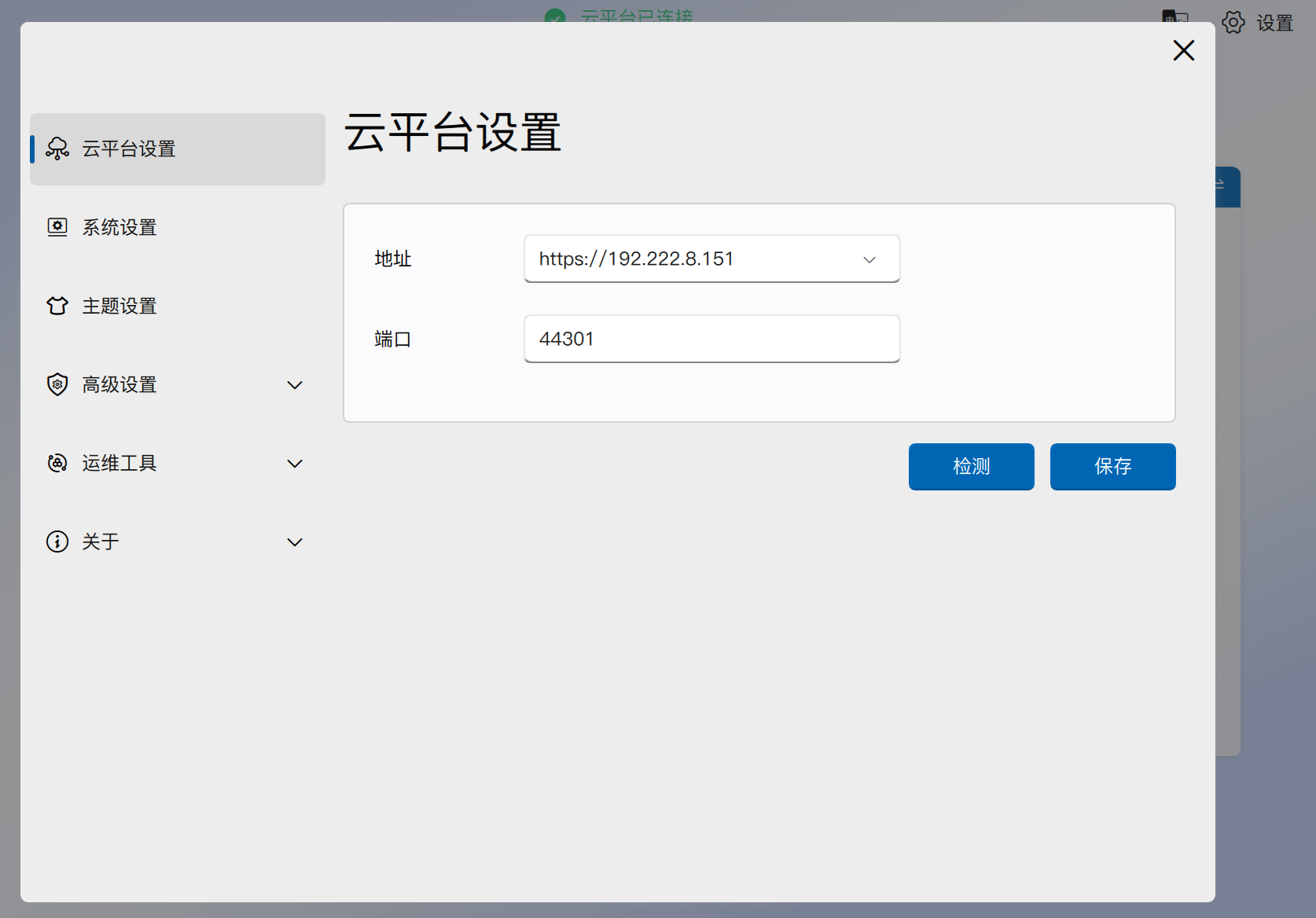
Open the installed xSpace client, click the gear-shaped "Settings" button in the upper right corner of the login interface, enter the Cloud Platform Settings interface, and configure according to the following instructions:
1.1 Address
Fill in the IP address or domain name of the cloud desktop environment management component in the input box.
1.2 Port
Fill in the client API service port number that the cloud desktop management component listens to externally (default is 44301).
1.3 Internal Network Access
The client accesses using the internal network address of the master management node.
1.4 Public Network Access
The client accesses using the public network mapped address of the master management node, even if the client is actually on the internal network.
1.5 Multi-Address Management
- Add and Save: The client supports saving multiple cloud platform address configurations. Clicking the "Save" button not only stores the newly entered address information but also means selecting and activating the currently displayed address as the runtime connection environment.
- Delete Address: For address entries that are no longer needed, you can click the "x" sign at the end of the address bar to delete them from the history.
- Single Selection Usage: Although multiple configurations can be stored, only one cloud platform environment can be selected and used at a time.
2. Connectivity Test
After completing the configuration, you can click the "Detect" button to test connectivity.
⚠️ Important Note:
- Detection Does Not Equal Save: Clicking the "Detect" button is only used to verify in real-time whether the currently entered address is accessible, and does not automatically save the address. After configuration, be sure to manually click the "Save" button.
- Status Restrictions After Login: After a user successfully logs in to xSpace, if this settings interface is re-entered, the system will not allow adding or modifying cloud platform addresses to ensure session stability. The "Save" button will be automatically grayed out and disabled. At this point, only "Detect" operations are allowed.
Note: If detection fails, please test if
pingto the cloud platform address is normal locally on the client, and contact the IT administrator to confirm parameter accuracy. ```