Login Authentication
After the xSpace client is installed and correctly configured with the xSpace management component address, you can log in to xSpace with the account assigned by the administrator.
1. Language Settings
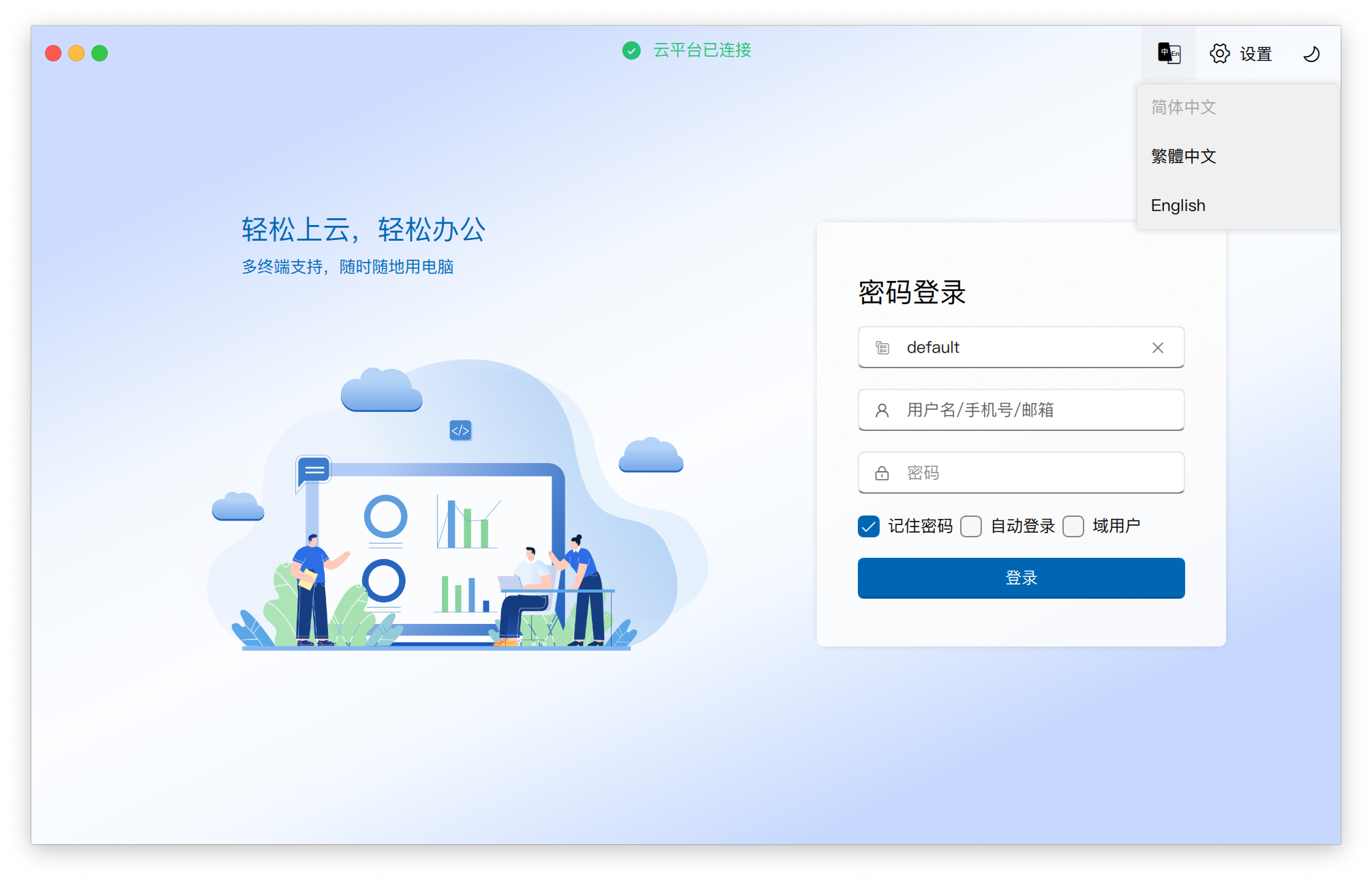
The client supports multi-language switching to adapt to the usage needs of users in different regions:
- Supported Languages: Currently supports Simplified Chinese, Traditional Chinese, and English.
- Operation Method: The interface language can be switched on demand from the login interface.
2. Login Version Distinction
Before logging in, please first distinguish between Enterprise Edition and Personal Edition to avoid account mismatch. If there is no explicit toggle button on the client interface, you can determine by whether the tenant name is filled in:
- Enterprise Edition: Used by regular government and enterprise users. The tenant name must be filled in during login.
- Personal Edition: Essentially, the tenant administrator logging into the client. The tenant name does not need to be filled in during login.
3. Login Methods
The system supports two login methods: Password Login and SMS Verification Code Login. Currently, two-factor authentication is not supported (i.e., a two-step login with password first, then SMS, is not yet supported).
3.1 Password Login
For regular government and enterprise private network users, please switch to the Enterprise Edition interface to log in:
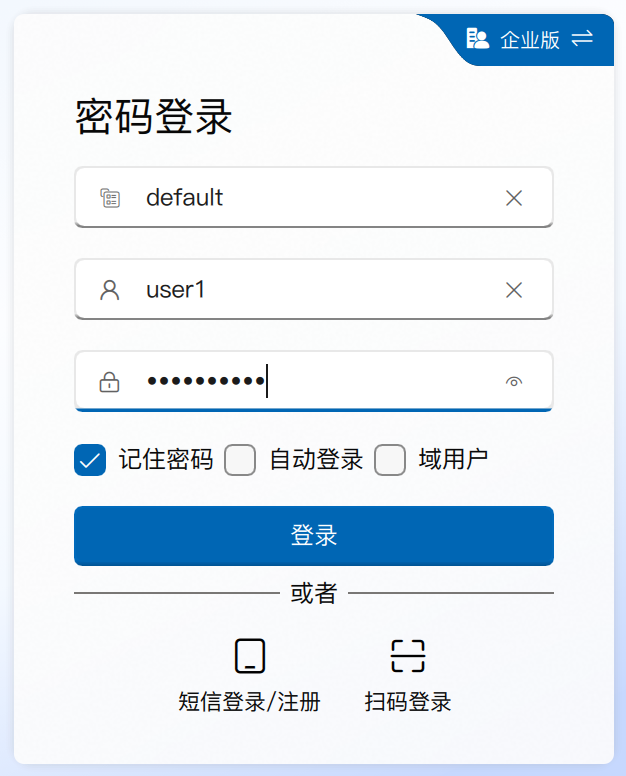
- Multi-dimensional Input: In the username input field, you can freely enter username, email, or mobile number. The system will automatically determine the input type and match the corresponding account.
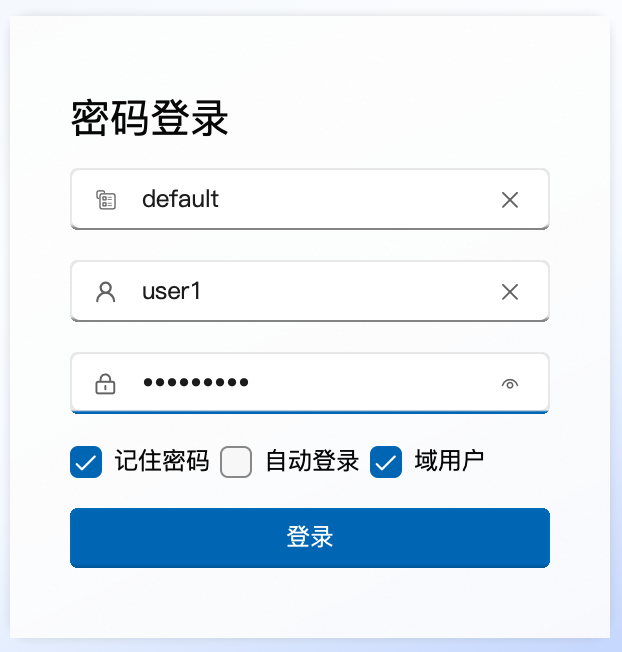
- Domain User Login: Please pay special attention to the account type informed by the administrator. If it is an AD account, remember to check "Domain User" on the interface; if it is a local account, it does not need to be checked.
3.2 SMS Verification Code Login
- Preconditions: The management component backend system has configured and enabled the SMS function.
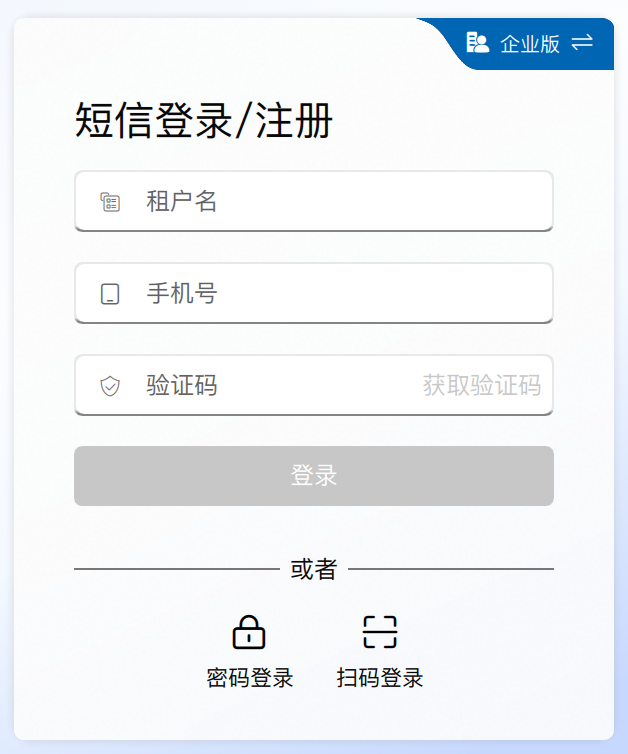
- Operation Process: Click "SMS Login/Register", enter the tenant name and mobile number, complete the slider verification code protection check, then click "Get Verification Code".
- Validity Period: SMS verification codes have a validity period. They will expire after the validity period and need to be re-sent.
4. Auxiliary Login Functions
Note: The following functions are only effective for successfully logged-in records. Unsuccessfully logged-in accounts will not be recorded.
- Automatically Remember Tenant/Username: The system will automatically record the tenant name + username of the last successful login. Each cloud platform address is recorded independently and will be automatically pre-filled when switching cloud platforms.
- Remember Password: Only supported by password login. When checked, the password will be encrypted and stored locally on the client. The next time the client is opened or the cloud platform is switched, the password will be automatically pre-filled.
- Auto-Login: Only supported by password login. When checked, the client will automatically perform the login operation upon startup.
5. Security Protection and Password Policy
5.1 Password Brute-Force Protection
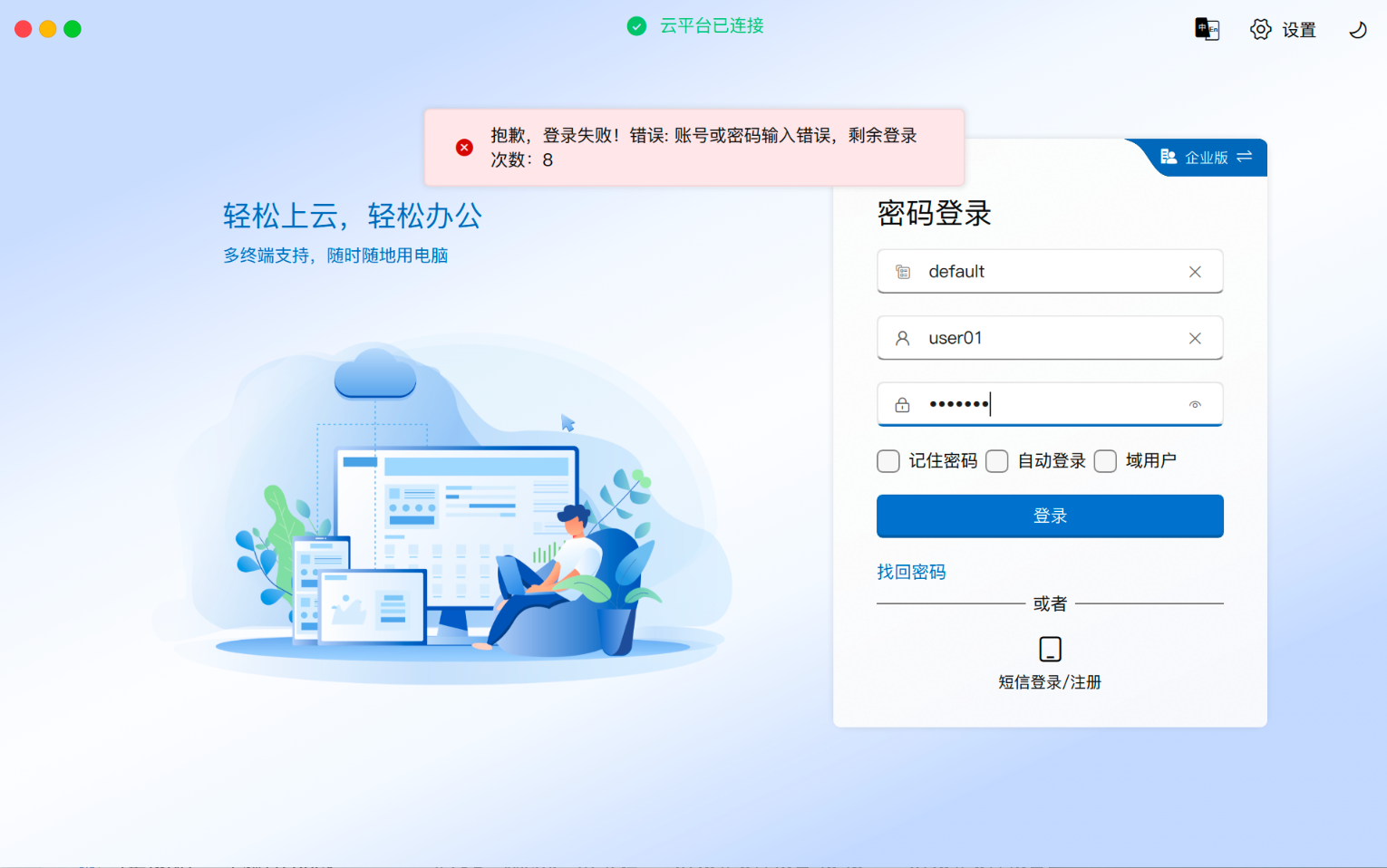
If an incorrect password is entered, the system will record the number of errors. If the number of consecutive failures exceeds the threshold configured by the management component, penalty time will begin, during which further attempts will not be allowed. If a login is successful midway, the failure count will automatically reset to zero.
5.2 Force Password Change
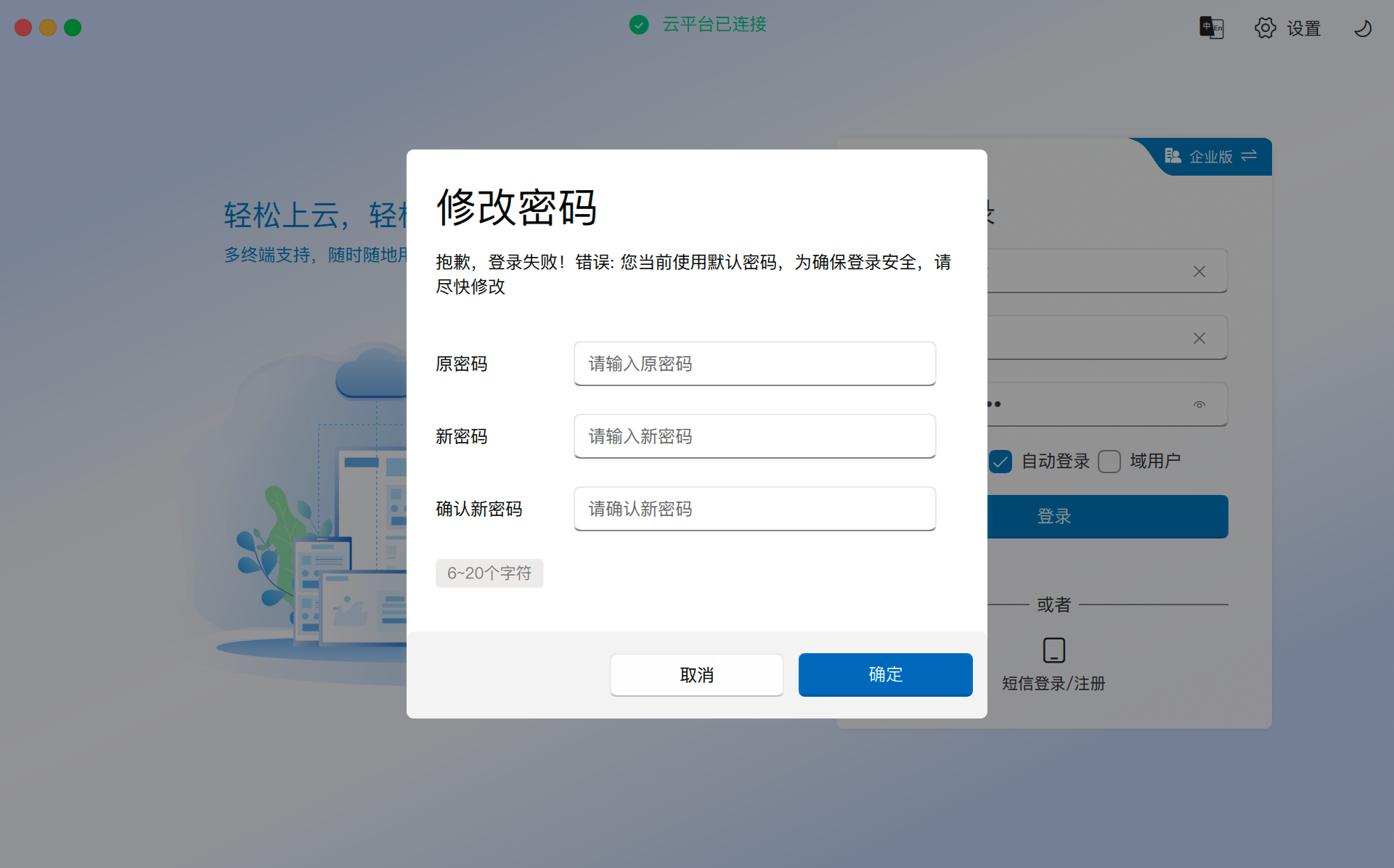
According to backend policy requirements (e.g., force change default password, expired password, etc.), even if the password is entered correctly, a new password must be reset as prompted by the client's pop-up dialog box. Login is only possible after successful reset. This policy is effective for both local users and AD users.
6. Thin Client Specific Operations
The thin client's login interface is basically the same as the soft client, with the main differences being:
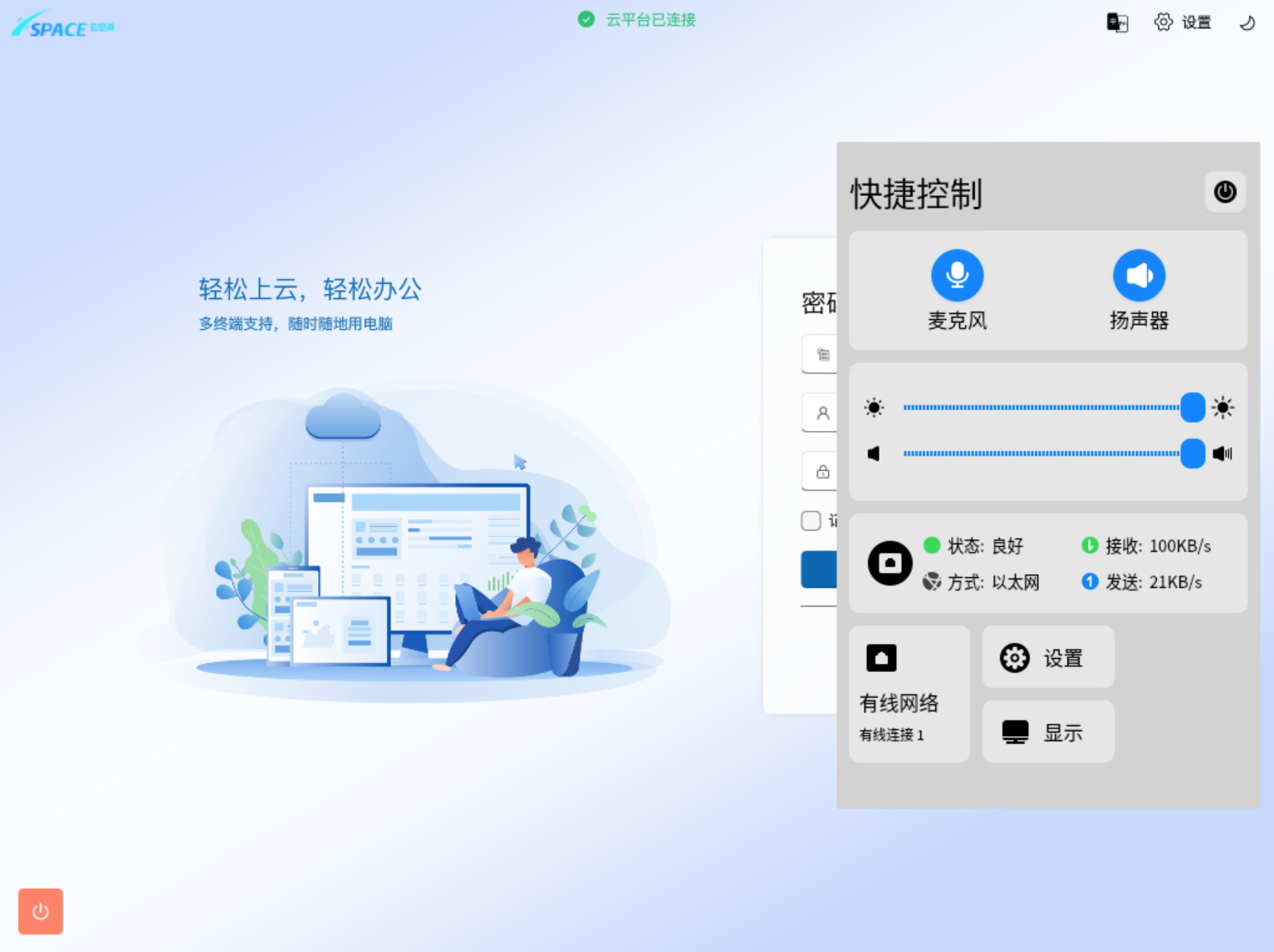
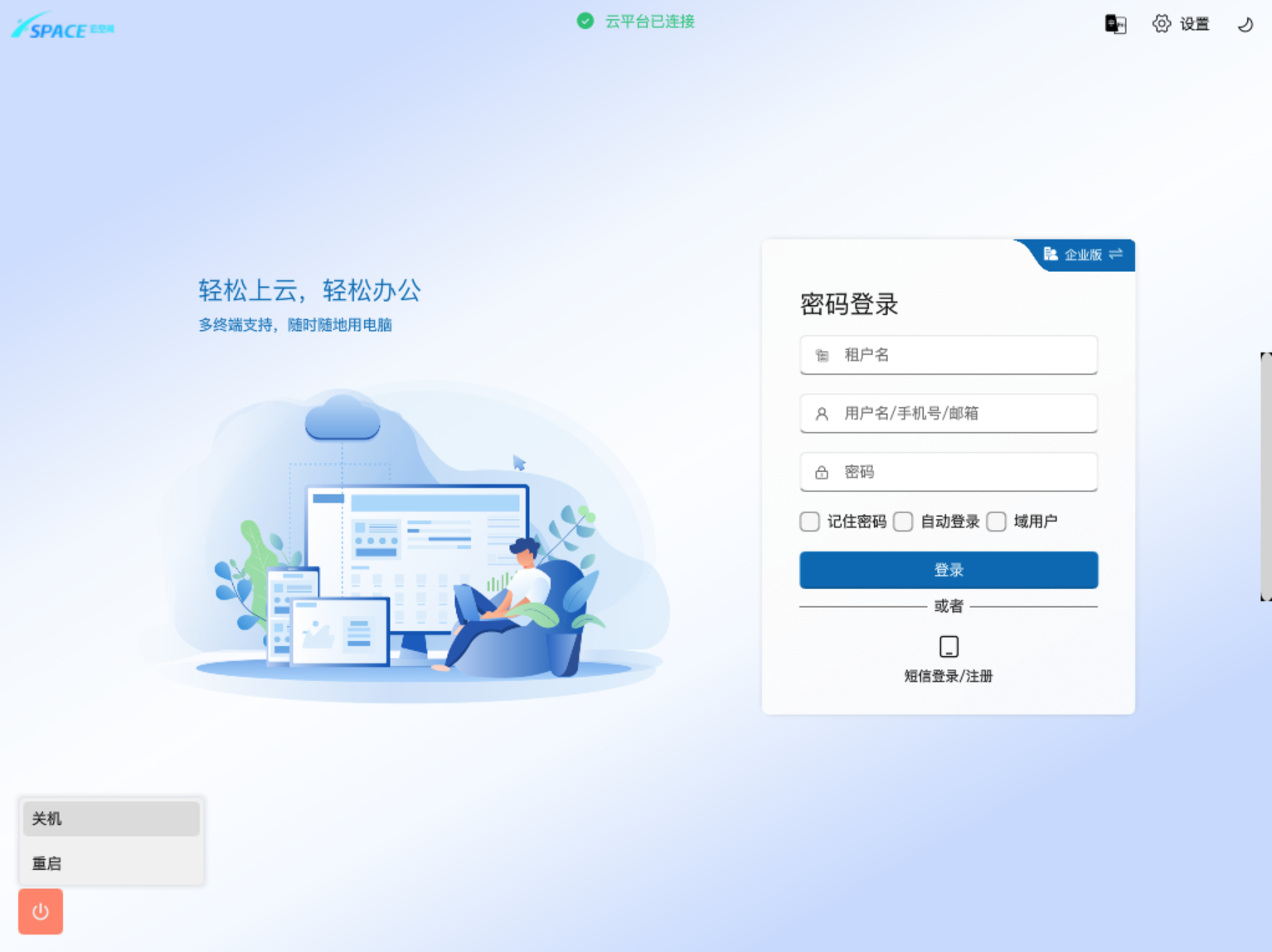
- Power Operations: There is a set of power buttons in the lower left corner of the thin client interface, which can be used to shut down or restart the hardware device.
Important Note:
Thin client power operations only affect the local hardware device. Performing shutdown or restart operations on the thin client will not affect the normal running state of the cloud desktop.
- Control Panel: For thin clients using the domestic innovated UOS operating system, you can click the pop-up menu on the right side of the screen to access the system's built-in control panel.