Using Printers
xSpace supports using printers through various methods. Depending on the printer type (USB or network) and the access device (PC or thin client), different configuration strategies are recommended.
1. USB Printers
-
Thin Client (TC) Scenario: It is usually recommended to use "Port Redirection" for direct passthrough.
- Advantages: Identified as native hardware within the cloud desktop, and eliminates the trouble of installing drivers locally on the thin client.
-
PC/Laptop Scenario: If simultaneous support for local host and cloud desktop printing is required, "Device Redirection" is recommended.
- Note: In this mode, the printer driver must be installed on the local computer.
2. Network Printers
2.1 Access Recommendations: Direct Connection vs. Redirection
In a local area network cloud desktop environment, the recommended access strategies for network printers are as follows:
-
Preferred Method: Desktop Direct Connection If the cloud desktop network can directly access the printer IP, it is recommended to add the network printer directly within the desktop.
- Advantages: Best performance, and retains advanced printer features (e.g., automatic duplex, A3 paper selection, color management, etc.).
- Disadvantages: Difficult to manage through cloud platform policies, posing a risk of data leakage through printing.
-
Alternative Method: Device Redirection If printing behavior needs to be audited for security and compliance, device redirection must be used.
- Disadvantages: "Print Queue Redirection" may lose some advanced printing options.
2.2 Redirection Configuration Steps
When using device redirection (network printer), it must first be ensured that the local host can properly drive and use the printer.
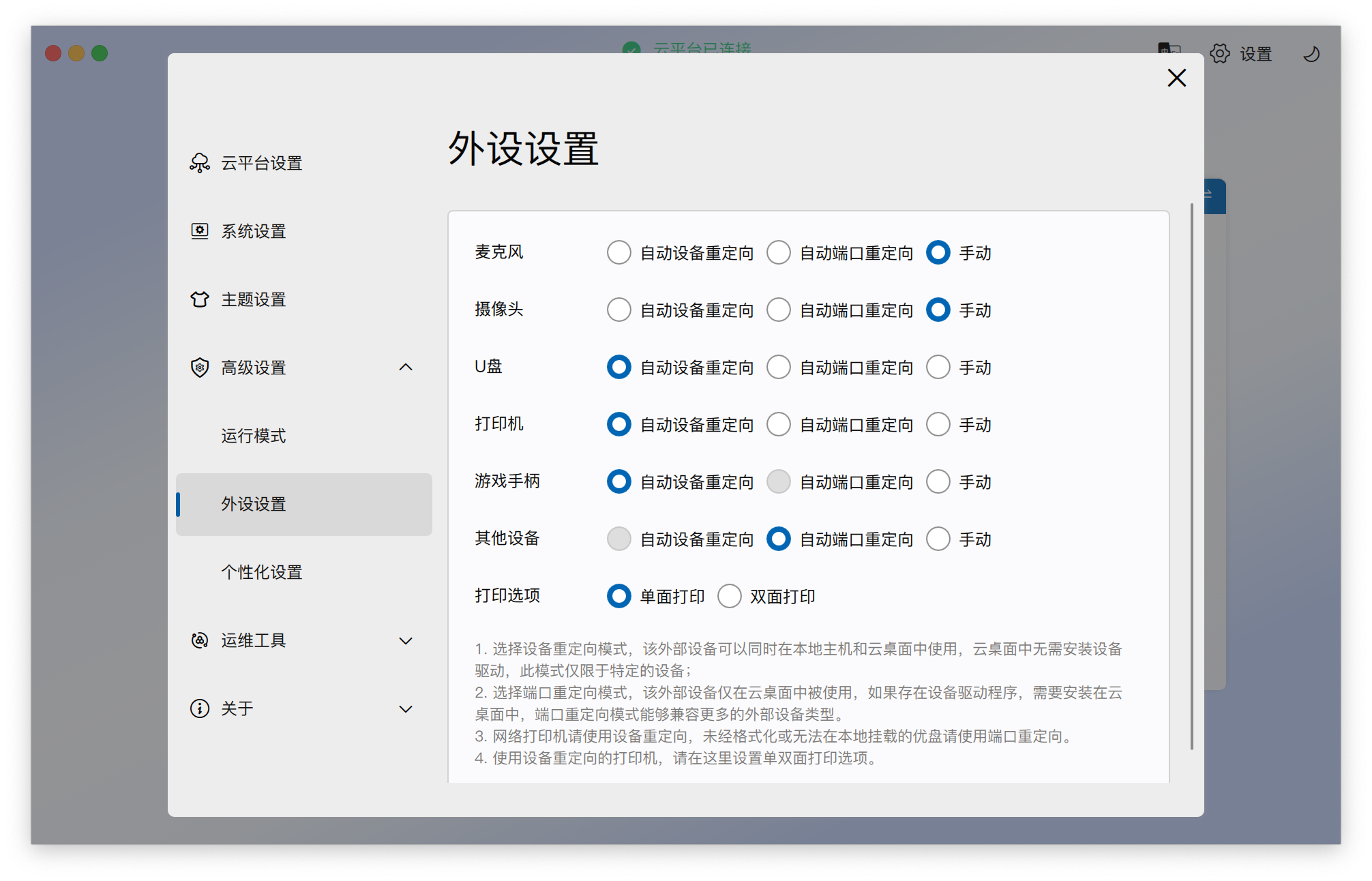
- Single/Double-sided Printing Settings: If support for specific page logic is required, please pre-set it in "Advanced Settings -> Peripheral Settings" before connecting to the desktop.
3. Thin Client (TC) Printer Management
3.1 Driver Installation
If redirecting a network printer to a cloud desktop via a thin client, the Linux version driver for the printer needs to be installed locally on the thin client:
- Refer to Troubleshooting Guide -> 2. Thin Client Local Debugging to enter the local terminal window.
- Copy the driver package to the terminal via USB drive or network.
- Execute installation (refer to driver's accompanying documentation for specific commands).
- Verification: Execute
/usr/sbin/lpinfo -mto view the list of installed drivers.
3.2 Printer Add/Remove
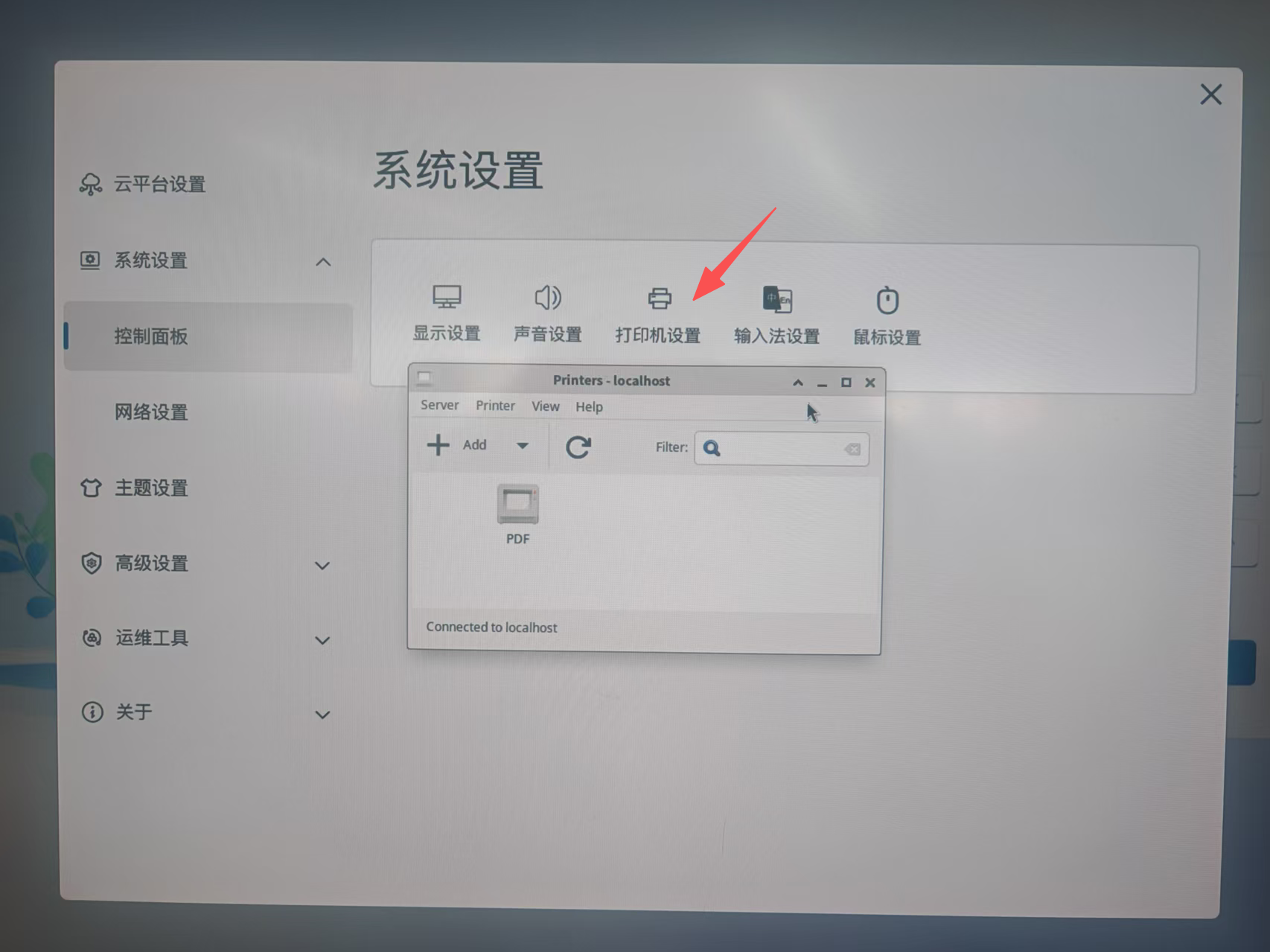
On the thin client, the local printer management window can be opened via "Terminal Settings -> System Settings -> Control Panel -> Printer Settings" to manage the addition and removal of installed printers.
4. Performing Prints in Cloud Desktop
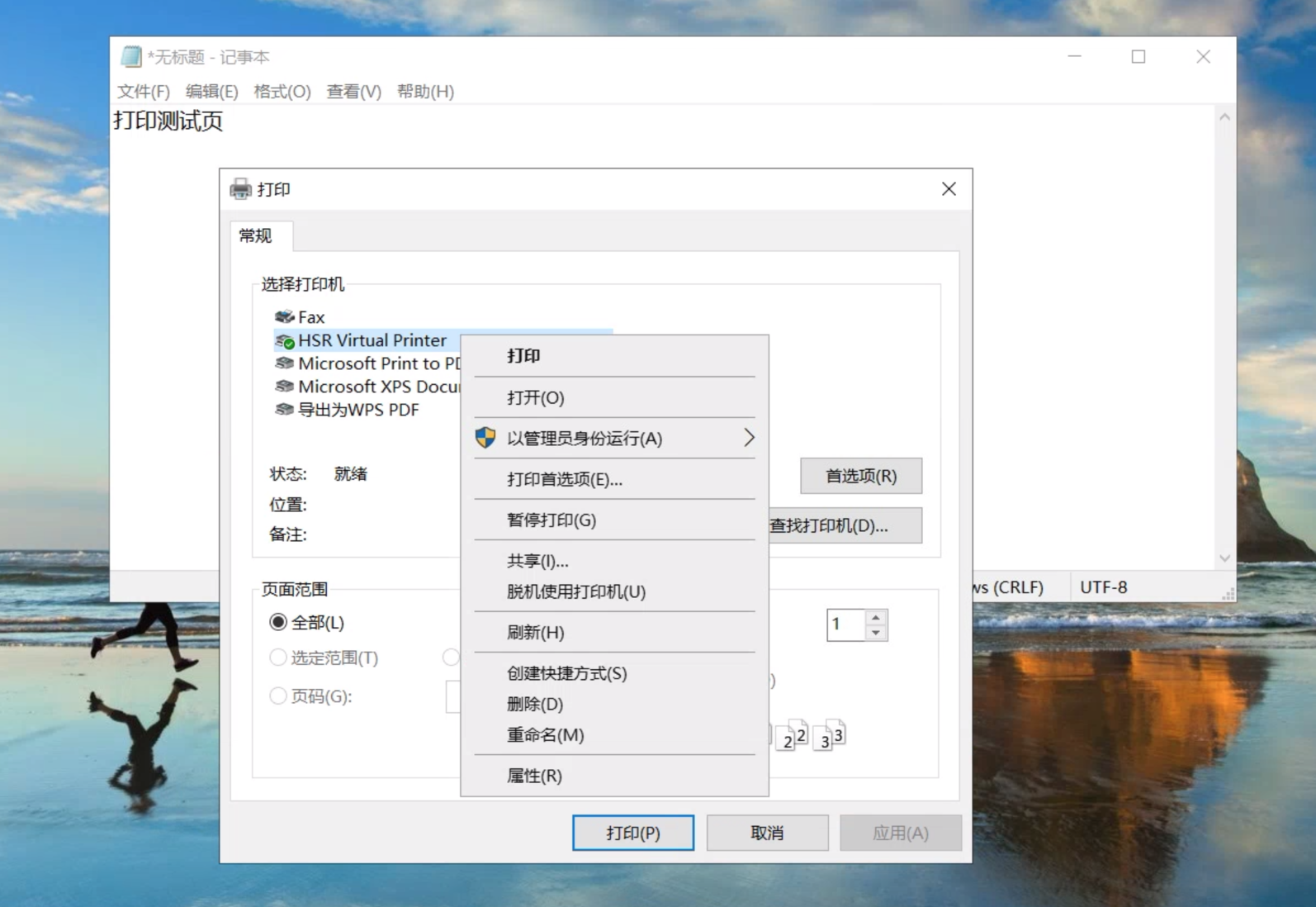
When using "device redirection", the cloud desktop does not directly display the printer's real name, but implements it through a virtual forwarding layer:
- Select Device: Please select "HSR Virtual Printer" in the printing options. It is recommended to set it as the default printer.
- Working Principle: Documents sent to this virtual printer are automatically redirected to the selected physical printer locally.