Setting Cloud Desktops
Click the gear button in the upper right corner of the desktop card to open "Desktop Settings" from the dropdown menu. The various configuration options in the "Desktop Settings" dialog box directly affect the final in-desktop experience after connection. Therefore, it is strongly recommended to understand the background of these options before connecting to a cloud desktop.
Important Feature Notes:
- Independence: Desktop settings only affect the currently corresponding desktop; configurations between desktops do not interfere with each other.
- Non-synchronicity: Desktop settings are only saved locally on the current client and are not synchronized to the cloud. If logging in on other devices or clients, these settings will not be automatically synchronized and will remain at their default values.
1. Display Settings
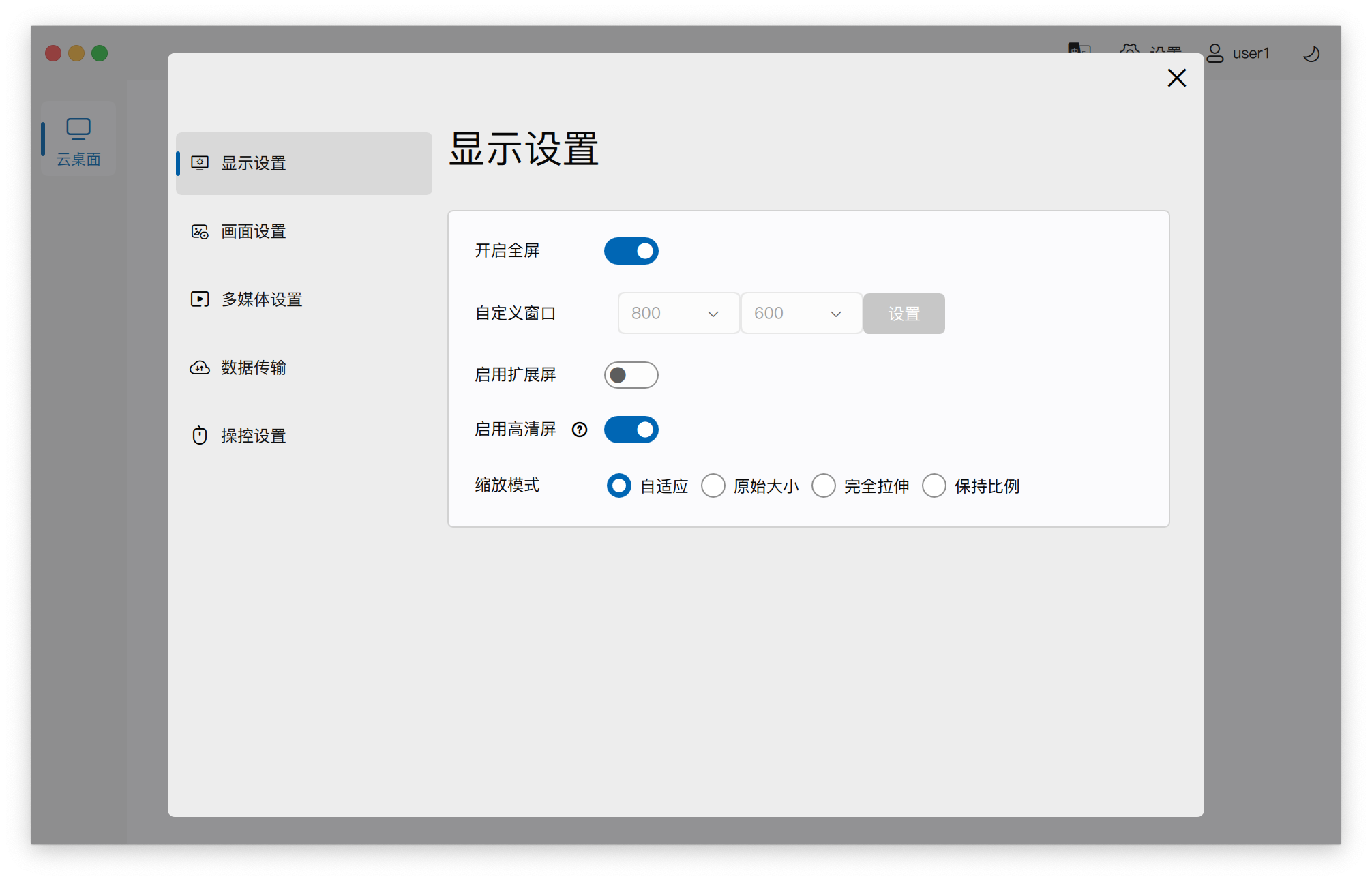
- Enable Full Screen: Checked by default, the remote desktop session window will be displayed in full screen. Unchecking it allows opening in a normal window, but on thin clients, it will be forced to full screen.
- Custom Window: Only effective when "Enable Full Screen" is unchecked. You can manually set the size of the remote desktop session window.
-
Enable Extended Display: When two monitors are connected locally, checking this option will also enable extended display for the cloud desktop.
- Layout Configuration: The relative positions of the main and secondary screens need to be pre-configured in the local operating system's display settings.
- Master-Slave Relationship: Determined by the position of the xSpace client's main window. The screen where the main window is located becomes the main screen, and the other becomes the extended screen.
-
Enable HD Display: A Retina HD display mechanism specifically provided for macOS clients.
- Clarity: When enabled, the remote desktop will automatically adjust to higher clarity in conjunction with the client screen characteristics.
- Usage Recommendation: Since Innovated Kylin and UOS desktops do not support dynamic scaling adjustment, if enabling this option results in icons/text appearing too small within the desktop, it is recommended to disable it.
-
Scaling Mode: Controls the resolution of the cloud desktop window content. It can also be adjusted in real-time from the floating toolbar after connecting.
- Adaptive (Default): Desktop resolution will automatically adjust based on the client's resolution or window size.
- Original Size: Maintains the current resolution inside the cloud desktop, without changing due to connection or window size adjustments.
- Full Stretch: The display is forcibly stretched horizontally and vertically to fill the screen, which may cause distortion or blurriness.
- Maintain Aspect Ratio: Stretches the display while maintaining the aspect ratio, which may result in black bars horizontally or vertically.
2. Screen Settings
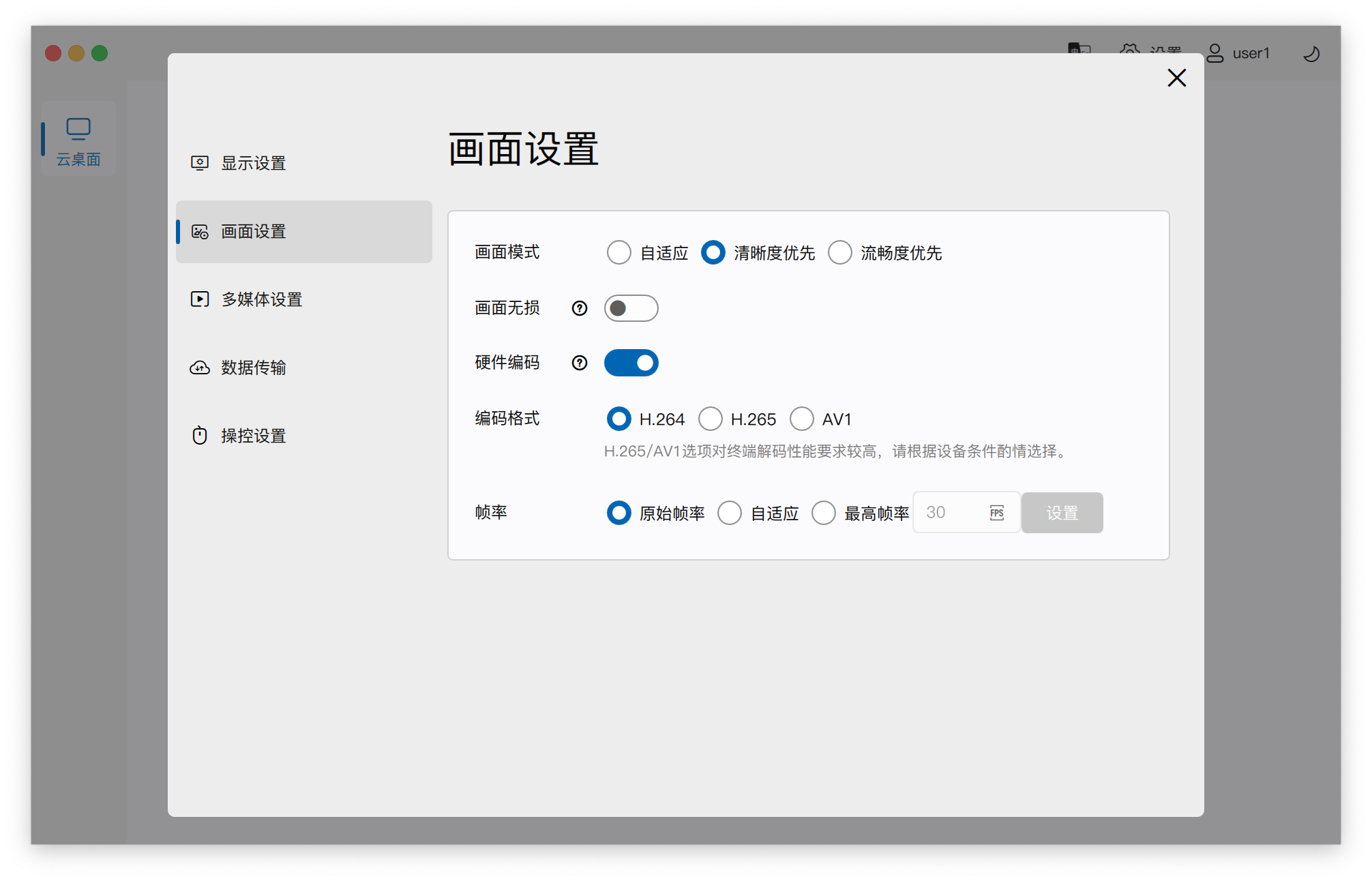
- Screen Mode: You can choose Adaptive, Clarity Priority, or Smoothness Priority.
-
Lossless Display: Enables YUV444 image encoding mechanism.
- Recommendation: Recommended to enable when "Clarity Priority" is also enabled, but it will increase network bandwidth consumption by approximately 10%.
- Effect Confirmation: Due to hardware encoding/decoding limitations, whether it can ultimately be enabled depends on the display in the floating toolbar status bar after connection.
-
Hardware Encoding: Enables GPU hardware encoding inside the remote desktop. If no GPU is available, it automatically reverts to software encoding (CPU), in which case smoothness is usually better than software encoding.
-
Encoding Format:
- H264: The most common encoding format, with the strongest compatibility.
- H265: Better bandwidth consumption than H264, but requires hardware encoder support.
- AV1: An encoding with extremely high compression ratio, only supported by NVIDIA 40 series and above graphics cards for hardware encoding.
- Note: If the cloud desktop cannot enable hardware encoding for H265 or AV1 and resorts to software encoding, it will significantly reduce encoding speed and increase display latency. Therefore, if hardware encoding is not supported, it is not recommended to manually enable H265 or AV1.
-
Frame Rate: When bandwidth is limited or hardware performance is insufficient, the frame rate can be limited to ensure a basic experience.
3. Multimedia Settings
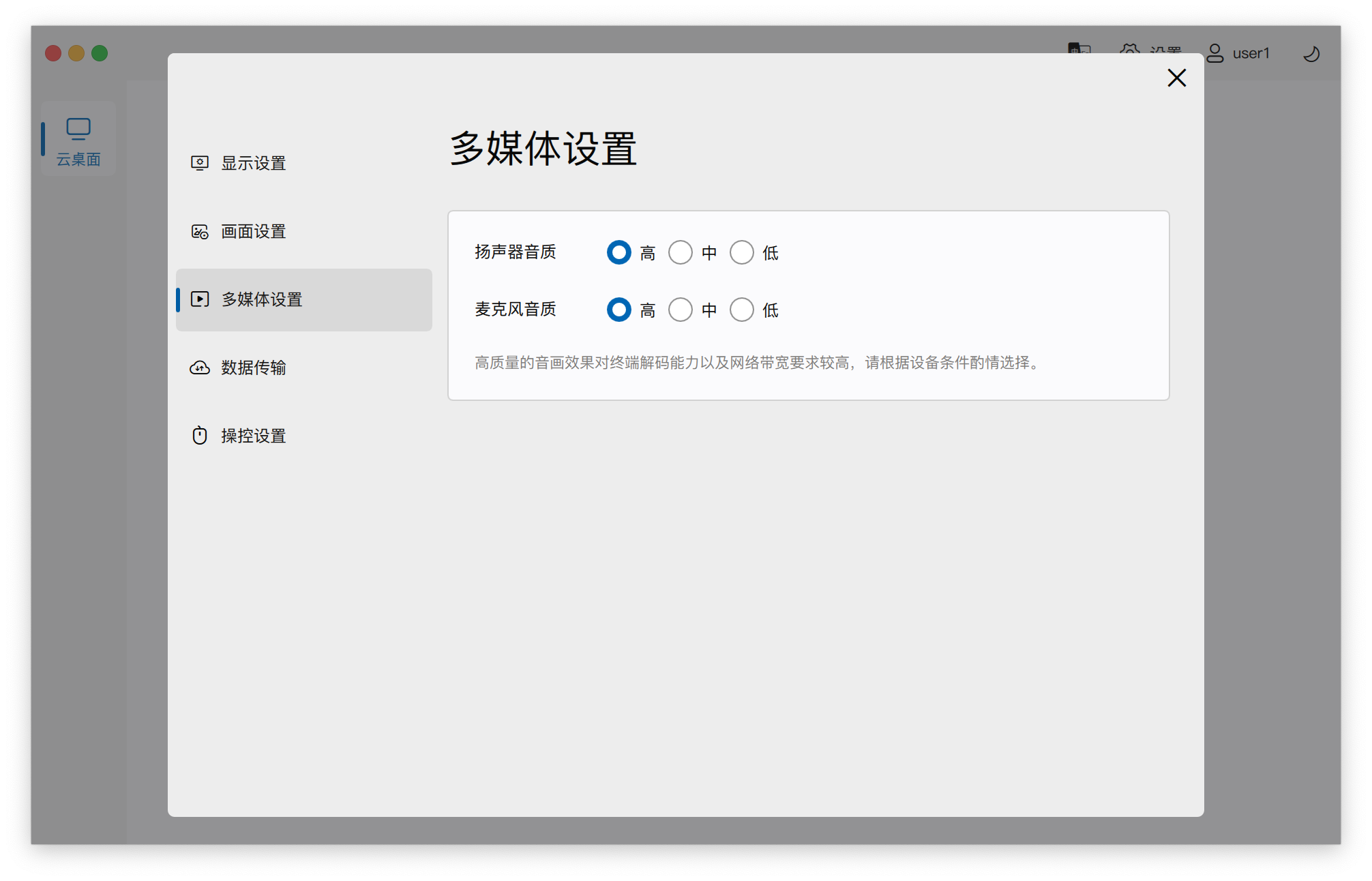
- Provides audio quality adjustment for speakers and microphones. Please note that high-quality audio mode has relatively high network bandwidth requirements.
4. Data Transfer
-
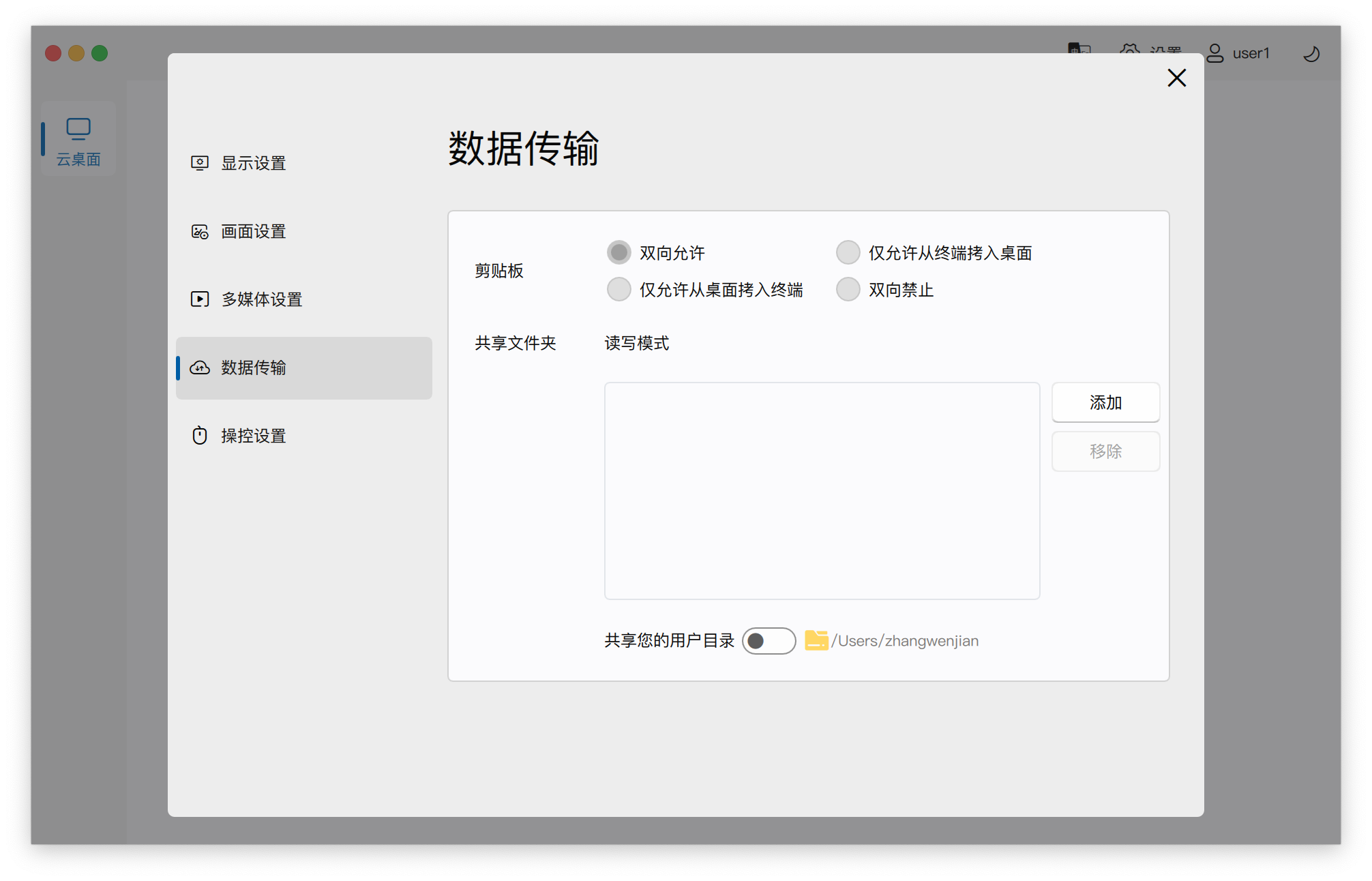
Clipboard (Clipboard Redirection): Its read/write permissions are controlled by administrator policy groups. Only the current policy status can be viewed on the client.
- Convenient Operation: In addition to traditional
Ctrl+C/Ctrl+Vhotkeys and right-click menus, in scenarios where a Windows client is connected to a Windows desktop, it supports copying between local and cloud desktops by dragging and dropping files/folders directly after windowing the desktop. - macOS Restrictions: Due to macOS system security control mechanisms, clipboard redirection from within the cloud desktop to the macOS client host is not currently supported.
- Convenient Operation: In addition to traditional
-
Shared Folders (Folder Redirection):
- Manual Addition: When the policy is not disabled, local client directories can be manually added.
- Access Path: After connecting to the desktop, the shared folder can be seen under "This PC -> Network Locations".
-
USB Drive Sharing: If "Device Redirection" mode is used for local USB drives, its permission control mechanism is the same as shared folders.
5. Control Settings
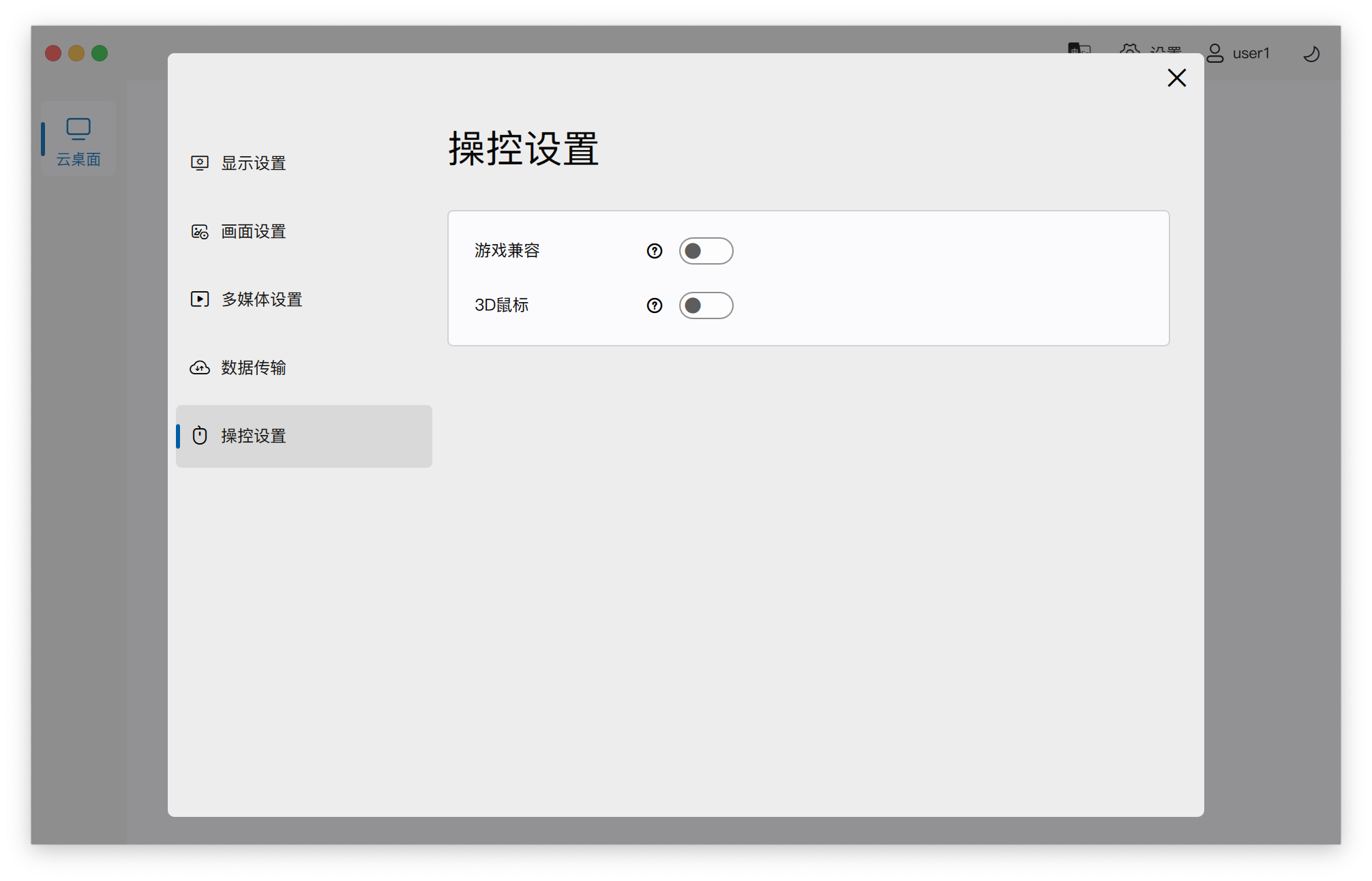
- Game Compatibility: When enabled, the Windows desktop's built-in physical or virtual graphics card will be used, not the IDD graphics card. Arbitrary resolution adjustment is not supported in this mode.
-
3D Mouse: Optimized for 3D games or design software.
- Normal Mode (Absolute Mouse): The client sends absolute mouse coordinates, and the cursor follows.
- 3D Mode (Relative Mouse): The client sends relative mouse offset values. Suitable for scenarios like shooting games that require controlling viewpoint rotation via mouse movement.
-
Disable Hotkeys: Thin client (TC) option only, used to block special hotkeys of the local operating system.