Viewing Cloud Desktops
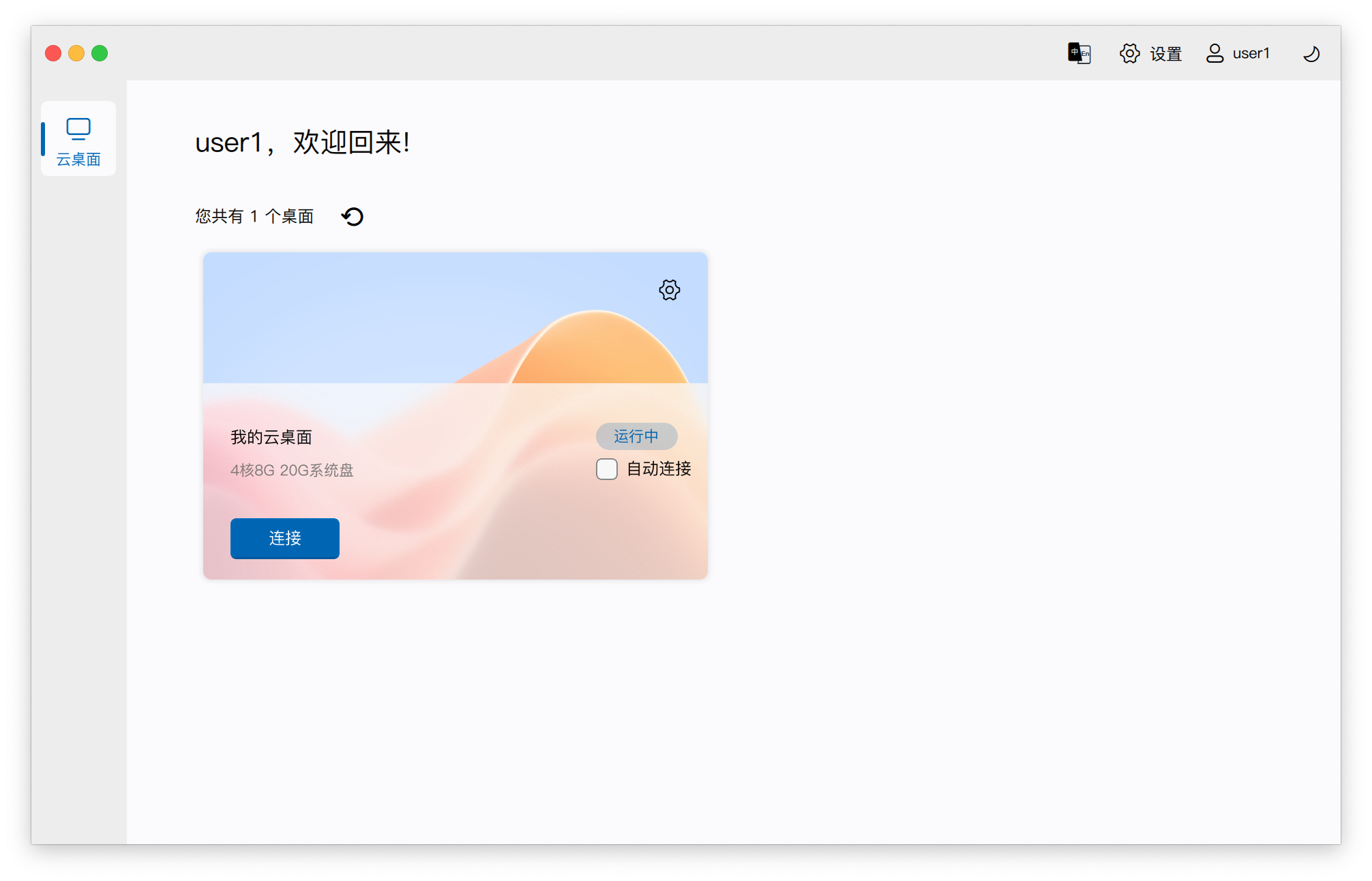
After successful login, the cloud desktop resources assigned to the current user will be displayed as cards in the "Cloud Desktops" section of the client's workbench window.
If no cloud desktop resources have been assigned to this username, a message indicating no available cloud desktops or a prompt to apply for cloud desktop resources from the administrator will be displayed. Please contact the administrator for assistance based on the actual situation.
1. Desktop Card Display Description
1.1 Visuals and Classification
- Background Difference: The background of the desktop card will vary depending on the type of internal operating system. For example, Windows desktops and Kylin desktops will have distinct visual differences.
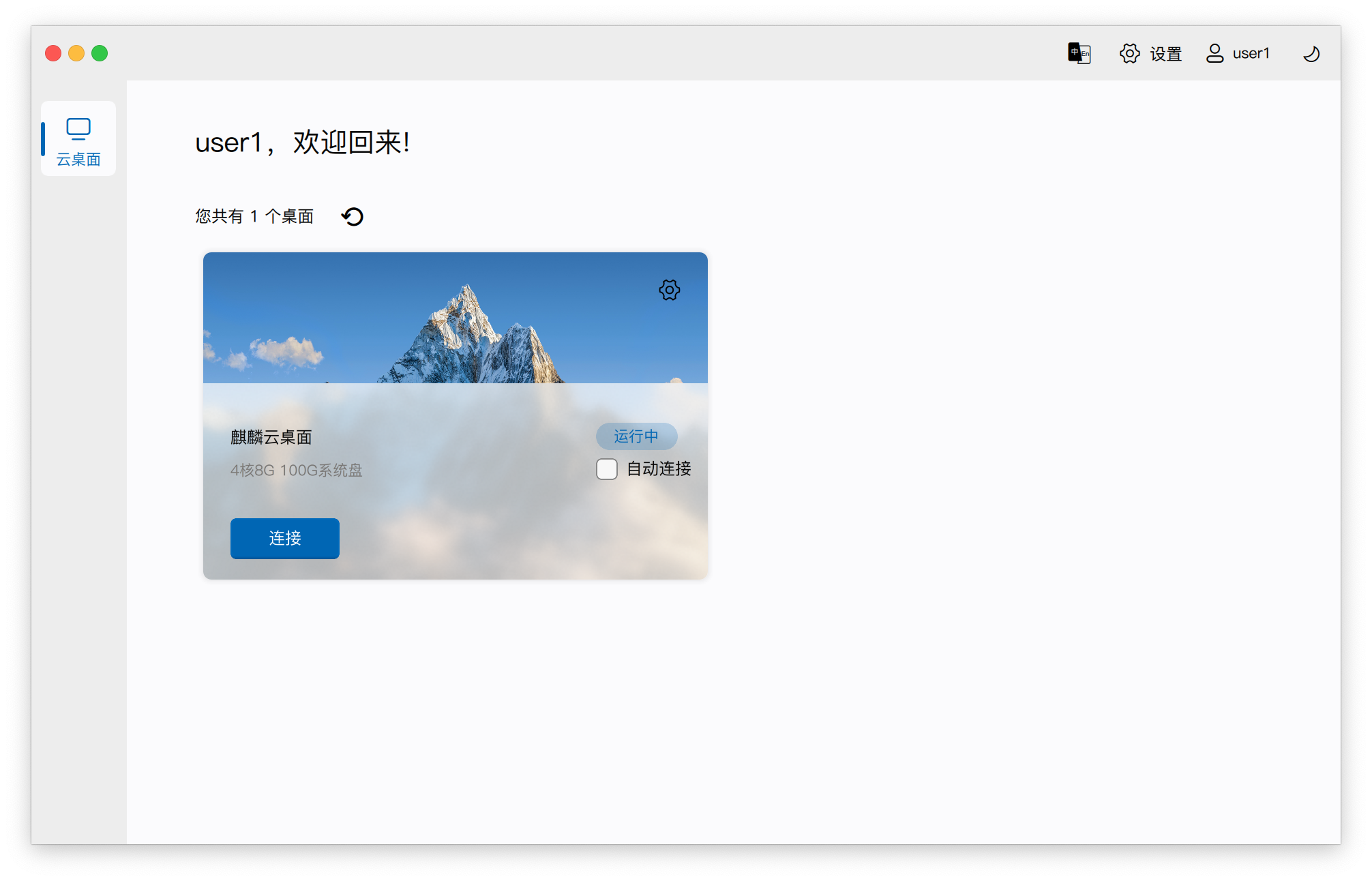
- List Capacity: The interface lists a maximum of 8 desktops. If there are more than 8 desktops assigned to the user, the 9th and subsequent desktops will not be listed, and a corresponding prompt message will be displayed.
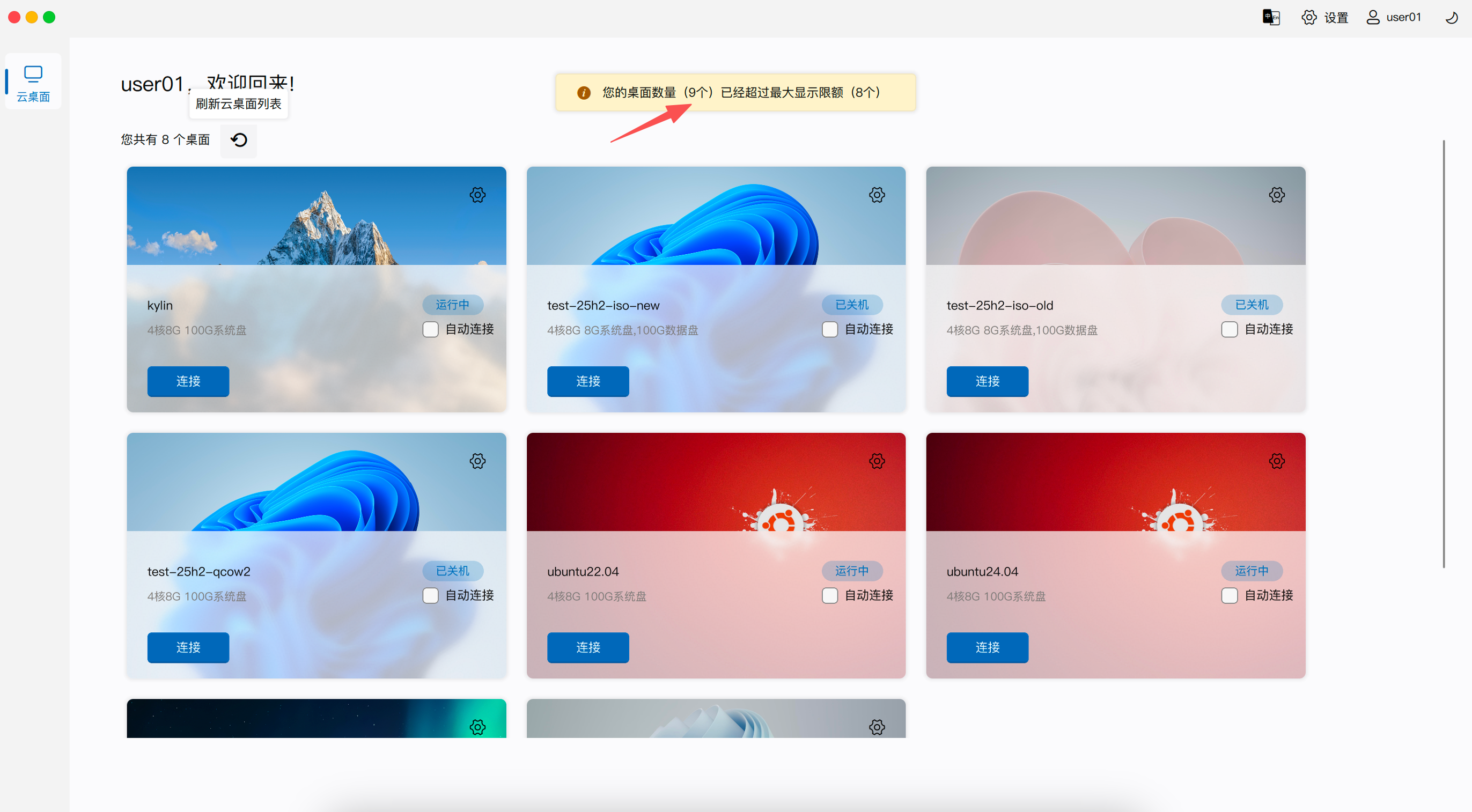
- Sorting Order: Cards are displayed by default in ascending order of desktop name. To customize the card list order, you can adjust the desktop name using the "Rename" function.
1.2 Information Display and Status Identification
-
Configuration Information: The card intuitively displays the desktop's hardware specifications, including CPU cores, memory size, system disk size, and data disk size. If the desktop is equipped with a graphics card, the graphics card model and video memory size will also be displayed.
-
Status Identification:
- Normal Status: Displays the desktop's current power and connection status in real-time.
- Dynamic Desktop Pool Status: For dynamic pool desktops, specific statuses like "awaiting assignment" will be displayed.
- Hosted Desktop Special Case: Hosted desktops will always show "Running", even if they are actually powered off (because the actual power status of the instance cannot be obtained externally).
- Frozen: Desktops in a frozen state will display "Frozen". Power-on operations and connections are no longer allowed in this state.
1.3 Access Gateway Dial-up Status
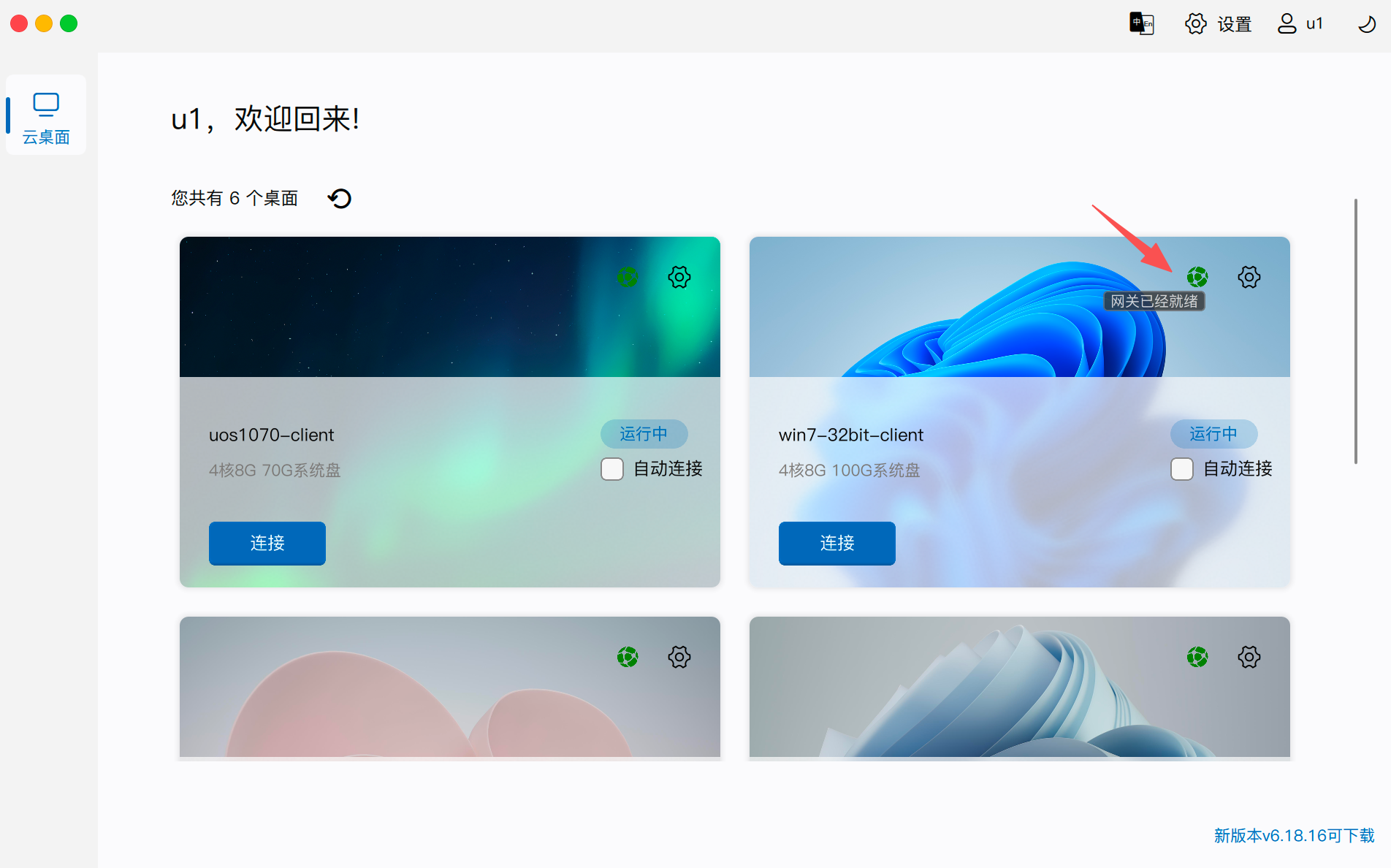
When the client connects from the public network and the desktop configuration allows connecting via an access gateway from the public network, a network icon will appear in front of the "Settings" gear in the upper right corner of the desktop card:
- Icon Flashing: Indicates that the system is dialing up and connecting to the gateway.
- Icon Turns Green: Indicates that dial-up is successful, and a gateway connection has been established.
- Icon Turns Red: Indicates that dial-up failed. If dial-up fails, it is recommended to try "logging out and logging in again" to retry.
2. List Refresh Mechanism
The desktop list will automatically refresh periodically to synchronize newly assigned, unassigned, or status-changed resources. You can also manually trigger a list update by clicking the Refresh button on the interface (located next to the text "You have X desktops").
3. Desktop Details
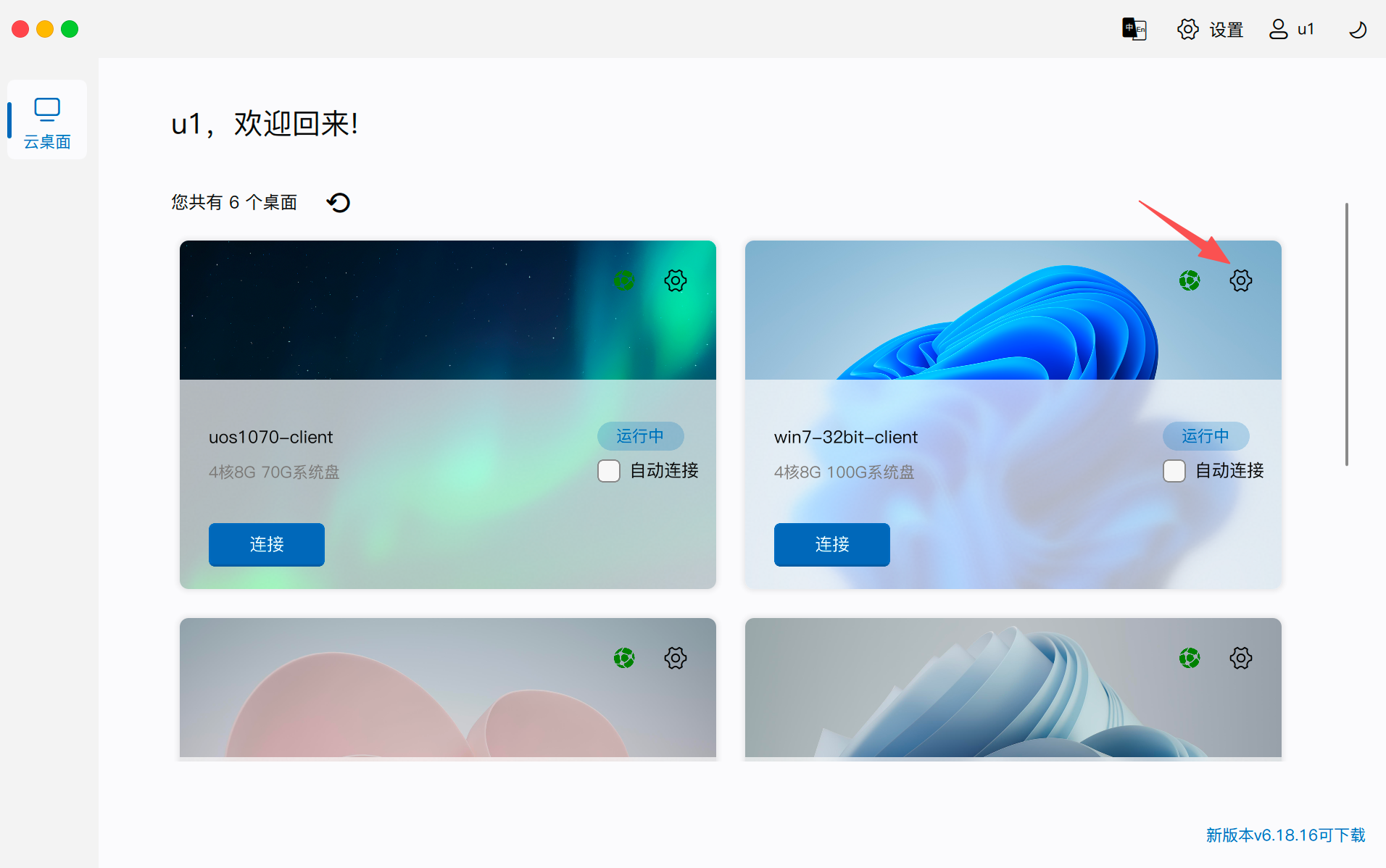
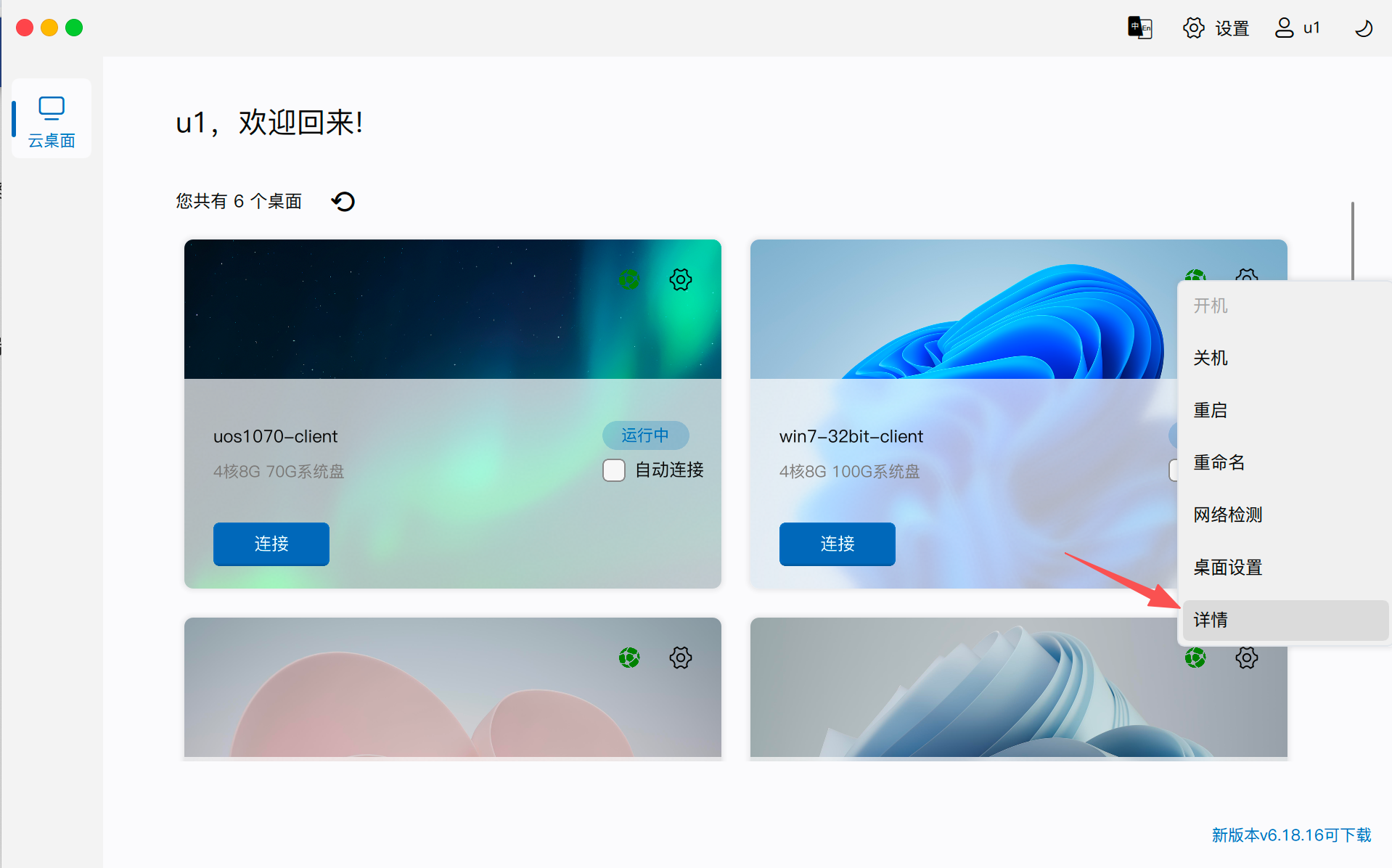
Click the gear button in the upper right corner of the desktop card and select "Details" to open the "Desktop Details" window. The information here is particularly useful for assisting in locating connection issues:
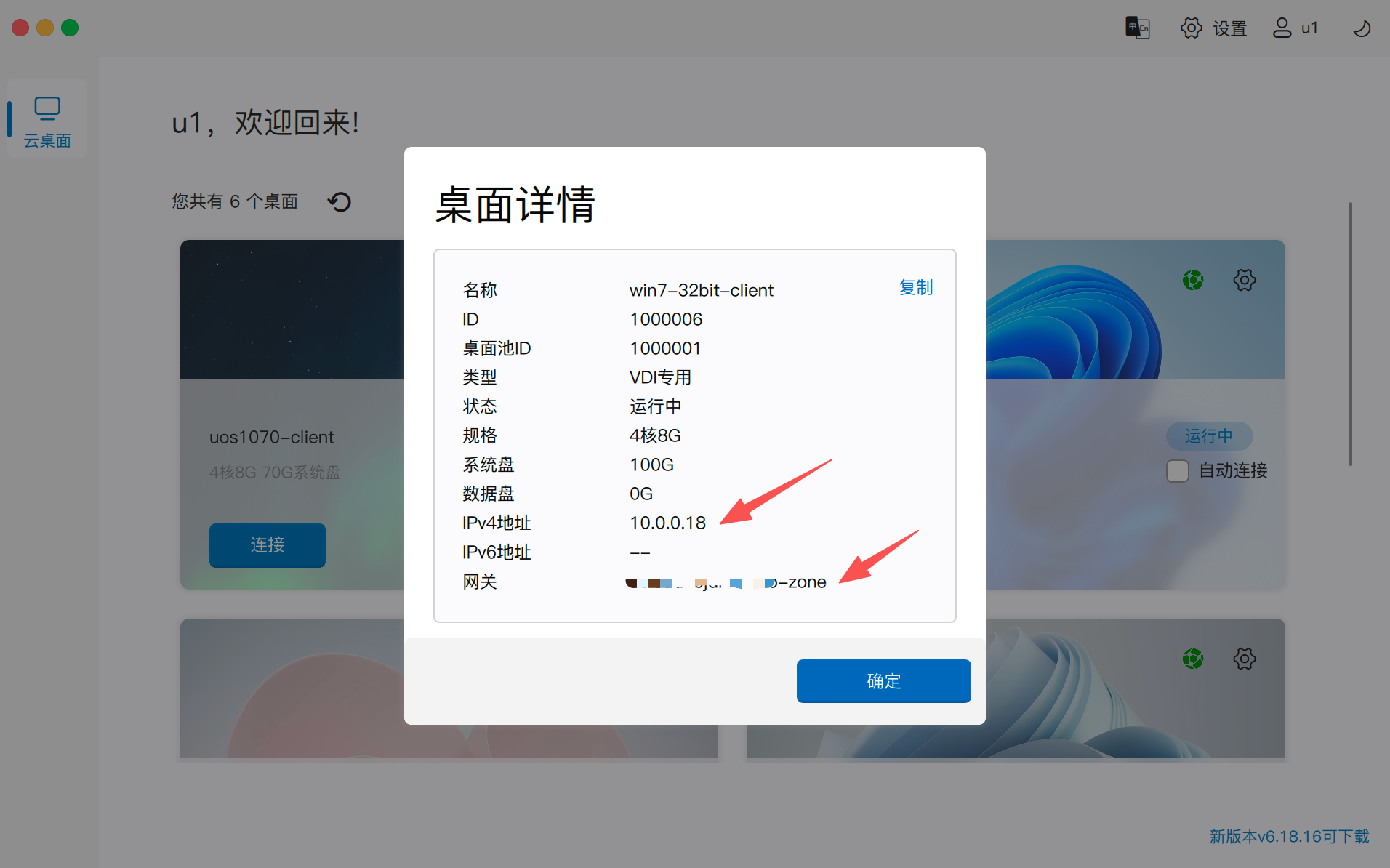
- IP Address Identification: If no IP address is displayed in the details, it means that the cloud desktop is certainly unreachable.
- Connection Path Determination: If the details include gateway information, it means the client will connect to the desktop via the gateway.
- Full Parameter View: You can view detailed data such as desktop name, ID, desktop pool ID, type, status, specifications (CPU/memory), system disk/data disk size, IPv4/IPv6 address.