Peripheral Redirection
After successfully entering the cloud desktop, through the "Device Button" in the floating toolbar above the desktop session, you can open the device management dialog box to manage local peripherals for on-demand passthrough.

In this dialog box, you can view the local device list (including physical and logical devices), current connection status, and connection mode in real-time, and manually perform "Connect" or "Disconnect" operations.
1. Passthrough Mode Comparison and Selection
In cloud desktop scenarios, peripheral passthrough is divided into two modes: "Device Redirection" and "Port Redirection". In terms of performance, device redirection mode is usually much higher than port redirection mode.
| Feature | Device Redirection | Port Redirection (USB Redirection) |
|---|---|---|
| Working Principle | Shared mode. Passes through local device functionality to the remote end. | Exclusive mode. Completely maps the physical port to the remote end. |
| Transmission Performance | Extremely high performance. For example, when an unthrottled USB drive is used, read/write speeds can exceed 60MB/s. | Lower performance. Due to protocol encapsulation overhead, USB drive read/write speeds are usually within 10MB/s. |
| Local State | Local and remote ends can be used simultaneously. | The local device will be "removed", and the remote end will have exclusive use. |
| Driver Requirements | No driver installation required within the remote desktop. | Original manufacturer's driver must be installed within the remote desktop. |
| Applicable Devices | Clipboard, folders, print queues, cameras, microphones, gamepads, etc. | Ukeys, fingerprint scanners, scanners, CD/DVD burners, etc. |
| Dependent Service | HSRServer (Port: 15702) | USBRedirect (Port: 5703) |
2. Usage Recommendations and Precautions
2.1 Mode Selection Logic
- Performance and Function-Oriented (Device Redirection Preferred): If you are only concerned with the device's functionality (e.g., accessing files on a USB drive, camera video) and desire higher read/write performance, it is recommended to use "Device Redirection".
- Hardware and Compatibility-Oriented (Port Redirection Required): If applications within the remote desktop must recognize specific manufacturers and models of hardware (e.g., online banking Ukeys, professional fingerprint recognition), then "Port Redirection" must be used, even if its transmission efficiency is lower.
-
USB Drive Special Case:
- Formatted: It is recommended to use device redirection (folder mode) for optimal read/write bandwidth.
- Unformatted: Can only be passed through using "Port Redirection".
2.2 Troubleshooting
- Service Check: If "Port Redirection" fails, please check if the
USBRedirectagent software package is installed in the remote desktop and confirm that the network policy has opened port 5703. - Policy Restrictions: If neither mode works, please contact the administrator to confirm whether passthrough permissions for such devices have been disabled via policy groups.
3. Personalized Peripheral Settings
To avoid repetitive manual operations, you can configure your personal usage habits in the client's "Advanced Settings -> Peripheral Settings":
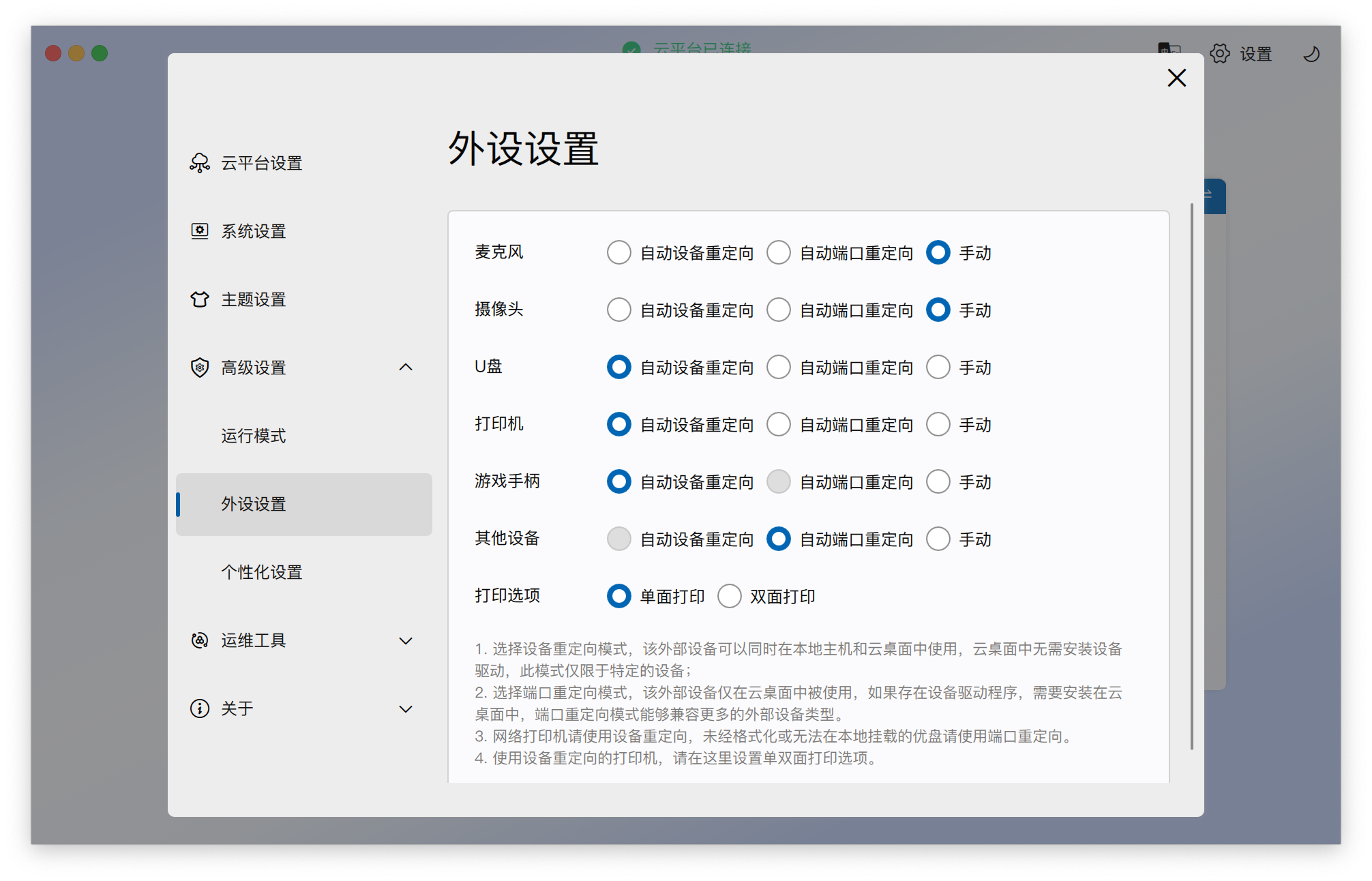
- Automatic Redirection: For example, setting a USB drive to "Automatic Device Redirection" will automatically pass it through to the current cloud desktop.
⚠️ Precautions: The "automatic redirection" mechanism here is only effective when the client is connected to a single cloud desktop. If the client is connected to multiple cloud desktops simultaneously, the system will not be able to automatically identify the target desktop. In this case, the automatic mechanism will be invalid, and the user needs to manually select the target desktop for redirection.
4. Operating Instructions
Special Reminder
- Interaction Restrictions: When the "Device Management" window is in the foreground pop-up state, you will not be able to operate the cloud desktop display. Please complete device configuration and close this window before continuing to use the desktop.
- Window Position: Do not drag the device management window to an extended screen (secondary screen) for operation, to avoid display or interaction anomalies. ```