Floating Toolbar
After successfully entering the cloud desktop, a floating toolbar can be seen at the top of the screen, which provides basic operations commonly used during a remote desktop session.

Note: For thin client scenarios, this toolbar does not have "Exit Full Screen" and "Minimize" buttons.
Note: When using the desktop extended screen function, the floating toolbar will only appear and operate on the main screen, and does not support dragging to secondary screens for control.
1. Session Status and Performance Monitoring
1.1 Real-time Network Latency
The latency displayed on the far left of the floating toolbar is implemented via a TCP Ping from the client to the cloud desktop, emphasizing network delay. This metric does not show information such as bandwidth, packet loss, or jitter, but these network impacts will ultimately be reflected in the "display latency" metric.
1.2 Detailed Status Bar
Click "More -> Show Status Bar" in the floating toolbar button to see more status information of the current remote desktop session in the lower right corner. When providing feedback on the experience to technical support personnel, please include a screenshot of this area.
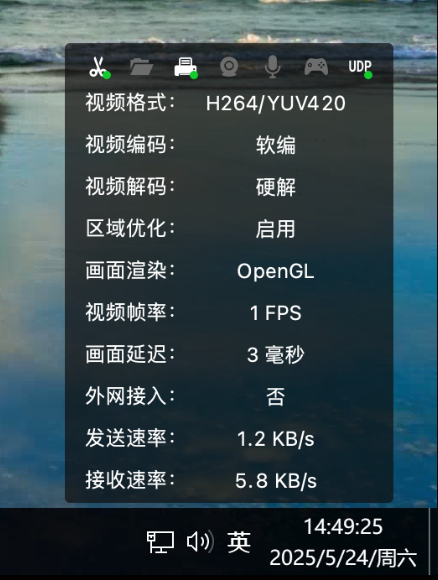
1.2.1 Local Device Redirection
This only displays the list of devices passed through in "device redirection" mode, including clipboard, folders, printers, cameras, microphones, gamepads, etc.
- Gray: Indicates that the device is not being passed through in "device redirection" mode.
- Bright White + Green Dot: Indicates that the device is being passed through in "device redirection" mode and is active.
- Bright White (No Green Dot): Indicates that the device is allowed to be redirected, but is not actually active.
1.2.2 UDP Data Channel
The icon is located at the last position in the device redirection icon row. It indicates whether the current session has UDP data channel enabled.
- Acceleration Mechanism: When enabled, it can accelerate the sensitivity of keyboard and mouse interactions, optimizing the experience for design and gaming scenarios.
- Restriction Description: Desktop sessions accessed via an SDWAN gateway do not support UDP data channels.
1.1.2 Performance Parameter Description
The main content of the status bar displays the currently effective parameter options for the cloud desktop connection session:
- Video Format: Displays the current transmitted video encoding format (e.g., H264/H265/AV1) and pixel format (e.g., YUV420/YUV444).
- Video Encoding: Indicates whether video encoding on the remote desktop is software encoding or hardware encoding.
- Video Decoding: Indicates whether video decoding on the client is software decoding or hardware decoding.
- Region Optimization: Displays whether the current screen is encoded as a whole or if incremental transmission is used for small changing regions.
- Display Rendering: Indicates the decoding and rendering mechanism used for display on the client.
- Video Frame Rate: Indicates the number of video frames transmitted to the client per second. If extended screens are enabled, two values will be displayed here: the first is the main screen frame rate, and the second is the secondary screen frame rate.
- Display Latency: Refers to the end-to-end latency from capturing the main screen image inside the desktop to the image being rendered and displayed on the client. This metric is affected not only by network conditions but also by factors such as CPU utilization inside the desktop.
- External Network Access: Indicates whether the current cloud desktop session is connected via an access gateway.
- Send Rate: Indicates the current data rate sent from the client to the remote desktop.
- Receive Rate: Indicates the current data rate received by the client from the remote desktop.
2. Session Control Operations
2.1 Exit Full Screen
Clicking the "Exit Full Screen" button on the floating bar can change the full-screen window to normal window mode. If the display mode is "Adaptive", it will trigger resolution adjustment within the remote desktop.
2.2 Leave Session
Clicking the "Leave" button on the floating bar can disconnect the remote session. At this point, the cloud will continue to keep the cloud desktop running, without affecting open application software windows.
2.3 About Information
Click "More -> About" to provide detailed version information of the remote desktop protocol components used on-site, helping technical personnel quickly gather background information.