Manage Cloud Desktops
After logging in to the client, users can perform daily management and maintenance of their personal cloud desktops via the "gear" icon button in the upper right corner of the desktop card.
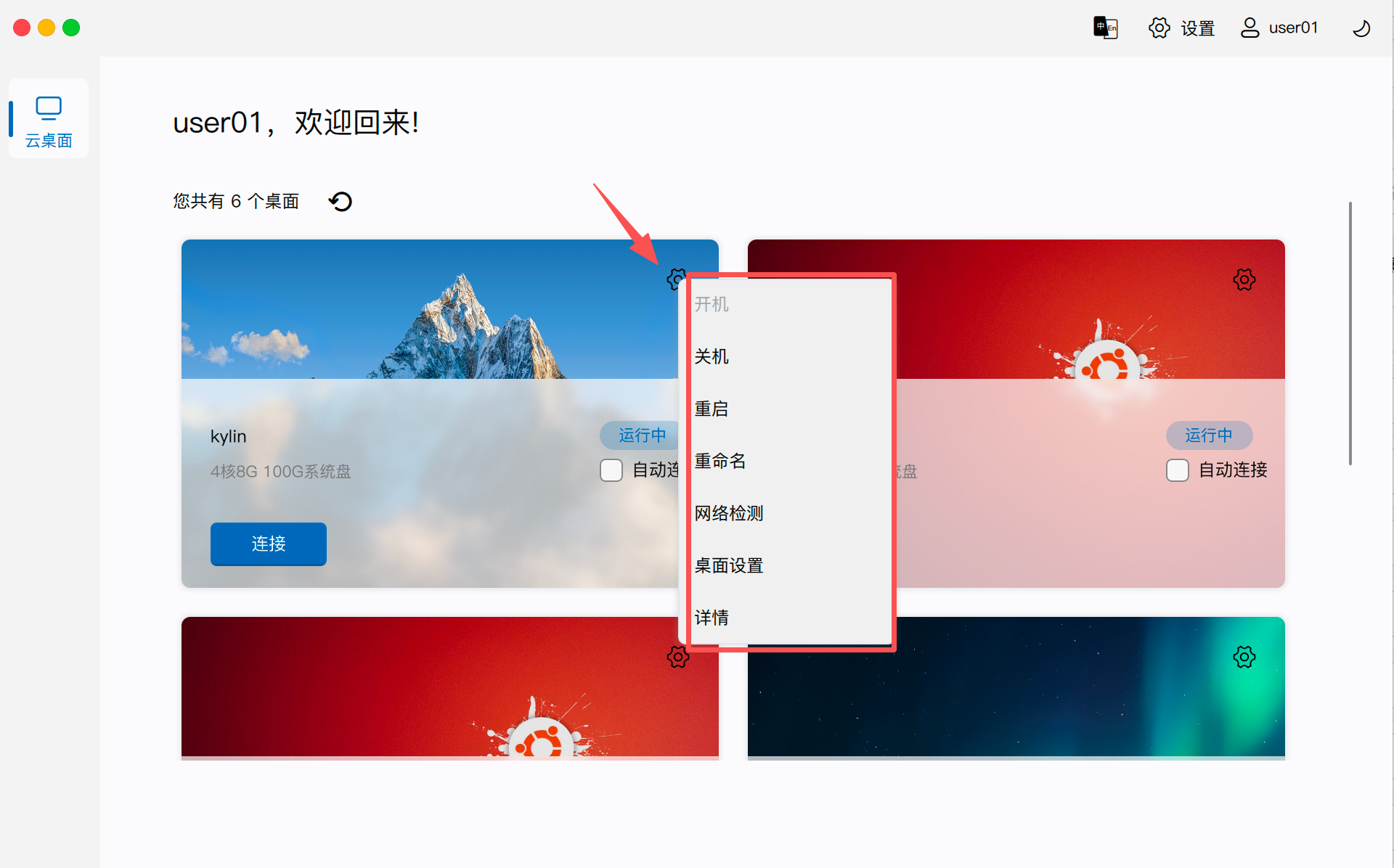
1. Power Management
Power on, power off, or restart operations can be performed via the menu items. Please note the operation permissions for different desktop types:
- Dedicated Desktops and Assigned Dynamic Desktops: Supports complete power on, power off, and restart operations.
- Hosted Desktops: Does not support power on, power off, and restart operations.
- Unassigned Dynamic Desktop Pools: Does not support power on, power off, and restart operations.
2. Desktop Renaming
Users can modify the display name of their desktop using the "Rename" function according to their usage habits:
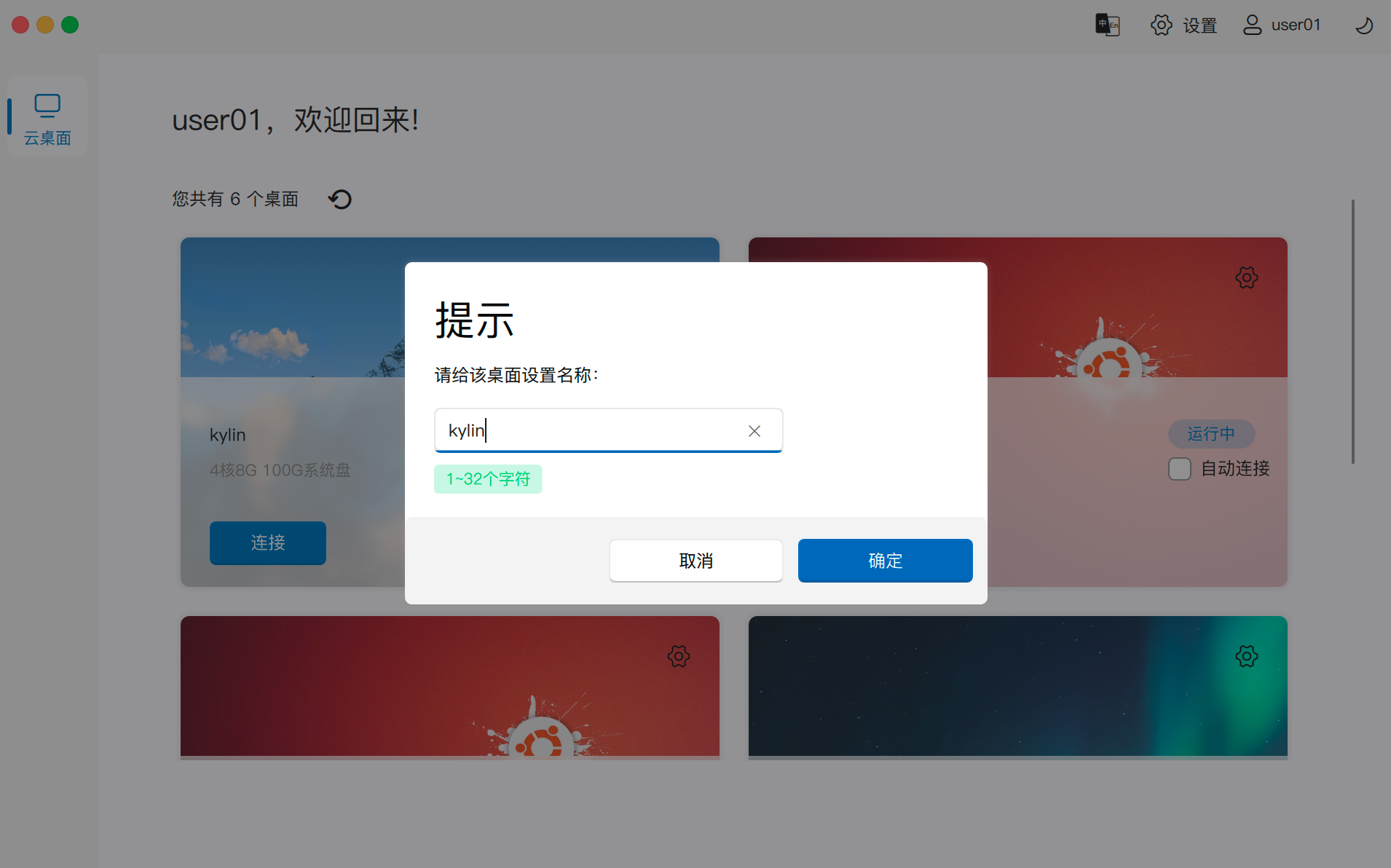
- Synchronization Mechanism: The modified name is instantly synchronized to the cloud, ensuring that the new name is used across all clients.
- Sorting Impact: Modifying the desktop name directly affects the sorting order of desktop cards in the list.
- Supported Scope: Dedicated desktops, hosted desktops, and dynamic desktops (including assigned and unassigned states) all support name modification.
- Dynamic Desktop Feature: For dynamic desktops, even if the desktop is reclaimed by the system, the user's custom name will still be retained.
3. Network Detection
When the desktop cannot connect, the "Network Detection" function can be used to check whether the desktop's network link is clear.
3.1 Detection Item Description
-
Link Detection to Cloud Desktop Network:
- Performs ICMP Ping detection for reference of link status.
- Direct Connection Scenario: Client directly Pings the desktop IP.
- Gateway Scenario: Client Pings the public IP of the access gateway.
- Note: Since firewalls may be configured to prohibit Ping, a failure in this item does not necessarily indicate a network fault and is for reference only.
-
Cloud Desktop Authentication Service Port Connectivity Detection:
- Performs TCP Ping detection, default probes port 15701 (default listening port for HSRAuth of HSRServer).
- Necessity: This port must be accessible, otherwise the desktop cannot connect.
- Logic: In direct connection, TCP Pings desktop's port 15701 directly; when going through a gateway, it requires successful gateway dial-up and detection via the SDWAN access gateway proxy.
-
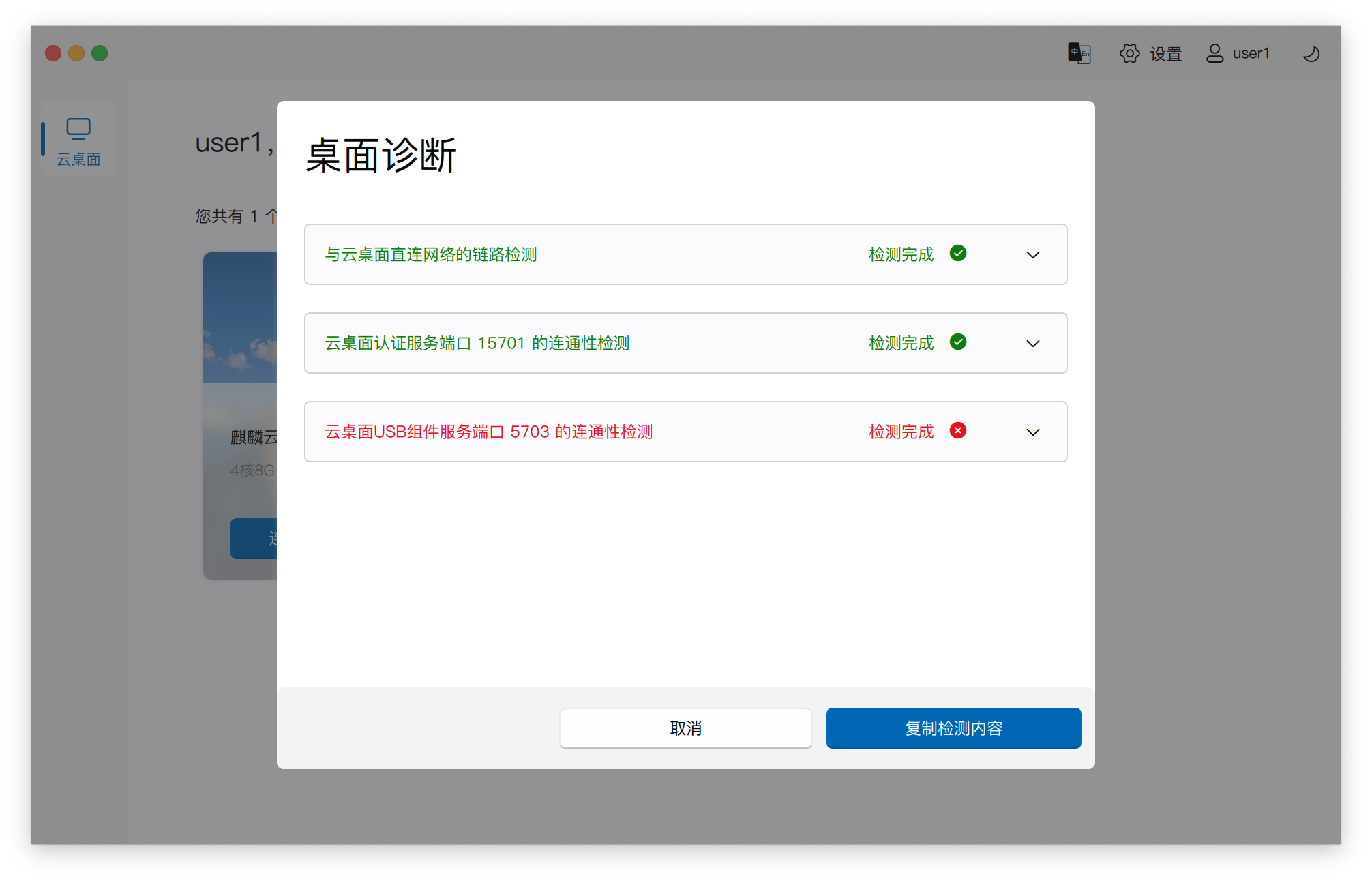
Cloud Desktop USB Component Service Port Connectivity Detection:
- Performs TCP Ping detection, default probes port 5703 (default listening port for USBRedirect service).
- Necessity: When going through a gateway, it also requires successful gateway dial-up and detection must be performed via the SDWAN access gateway proxy.
- Impact: If this port is inaccessible, the desktop can still connect, but the USB device port redirection function will be unavailable.
- For example, from the failed detection result (red cross) in the figure below, it can be seen that the network port exposed by the USB external device redirection service inside the remote desktop is inaccessible, which will affect the use of the cloud desktop's peripheral port redirection function:
3.2 Fault Reporting
Click the "Copy Detection Content" button to copy the detailed detection results and send them to O&M or technical support personnel for analysis.
4. Other Management Items
- Desktop Settings: For detailed parameter configuration, please refer to the Setting Cloud Desktops section.
- Details: For viewing specific desktop assignment and status information, please refer to the Viewing Desktops section.