Connecting to a Cloud Desktop
Click the "Connect" button on the cloud desktop card to enter the cloud desktop work environment.
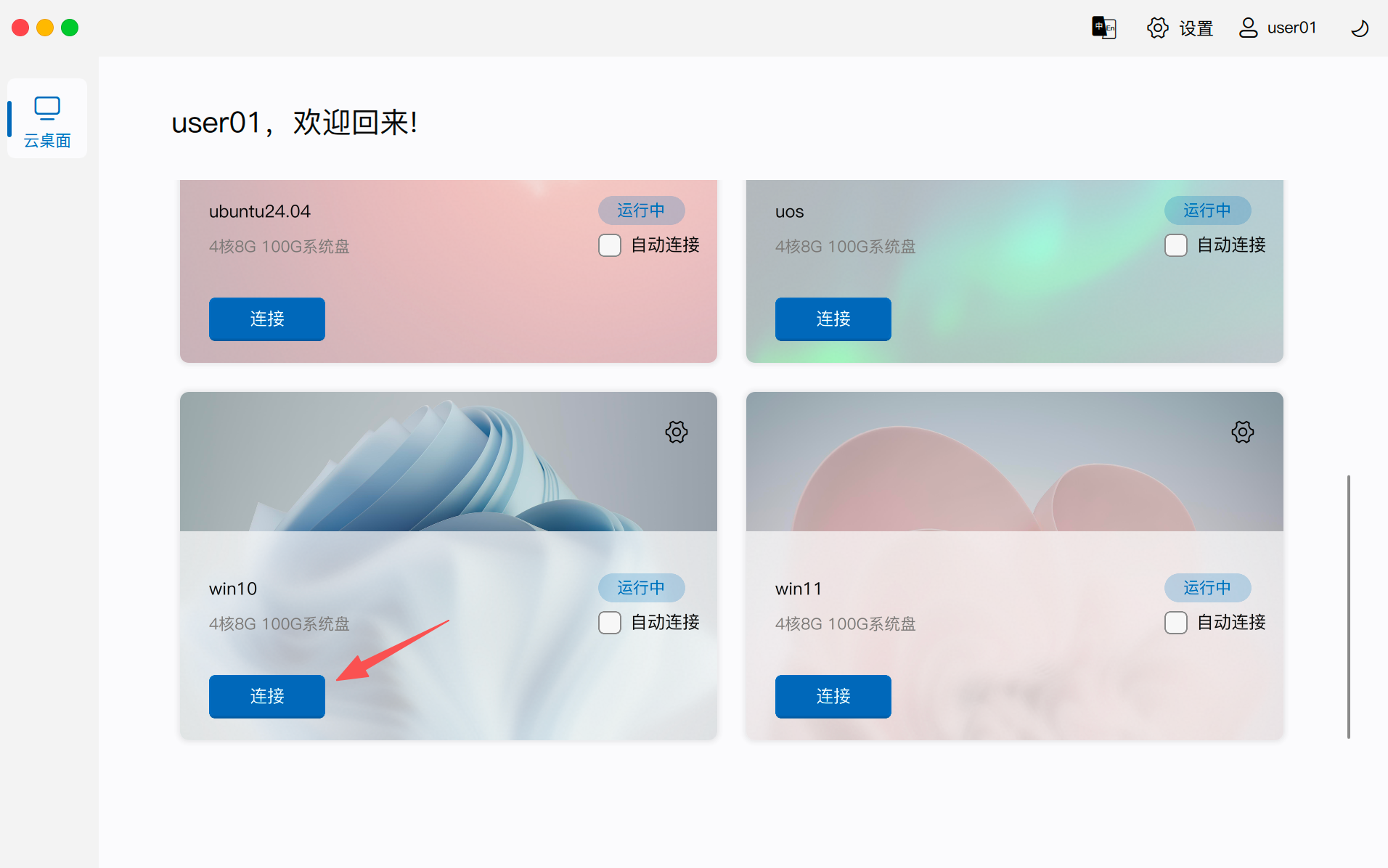
1. Connection Process and Status Description
1.1 Automatic Power-on Mechanism
If the cloud desktop is currently in the "Powered Off" state, clicking the "Connect" button will automatically trigger the power-on operation.
- Status Change: The card status will change from "Powered Off" to "Powering On".
- Connection Timing: Connection can only be successful after the desktop operating system has fully started. Since system initialization takes time, if you connect too early, it may indicate failure. Please try again later.
1.2 Connection Progress Identification
During the connection process, pressing the Esc key will cancel the current connection at any time.
During the connection process, the screen will display different progress prompts:
- Connecting: Indicates that the client is establishing a network connection with the remote desktop. During this process, the large icon in the middle of the screen will change with the desktop operating system (OS) type (e.g., Windows desktops will display their unique Logo).
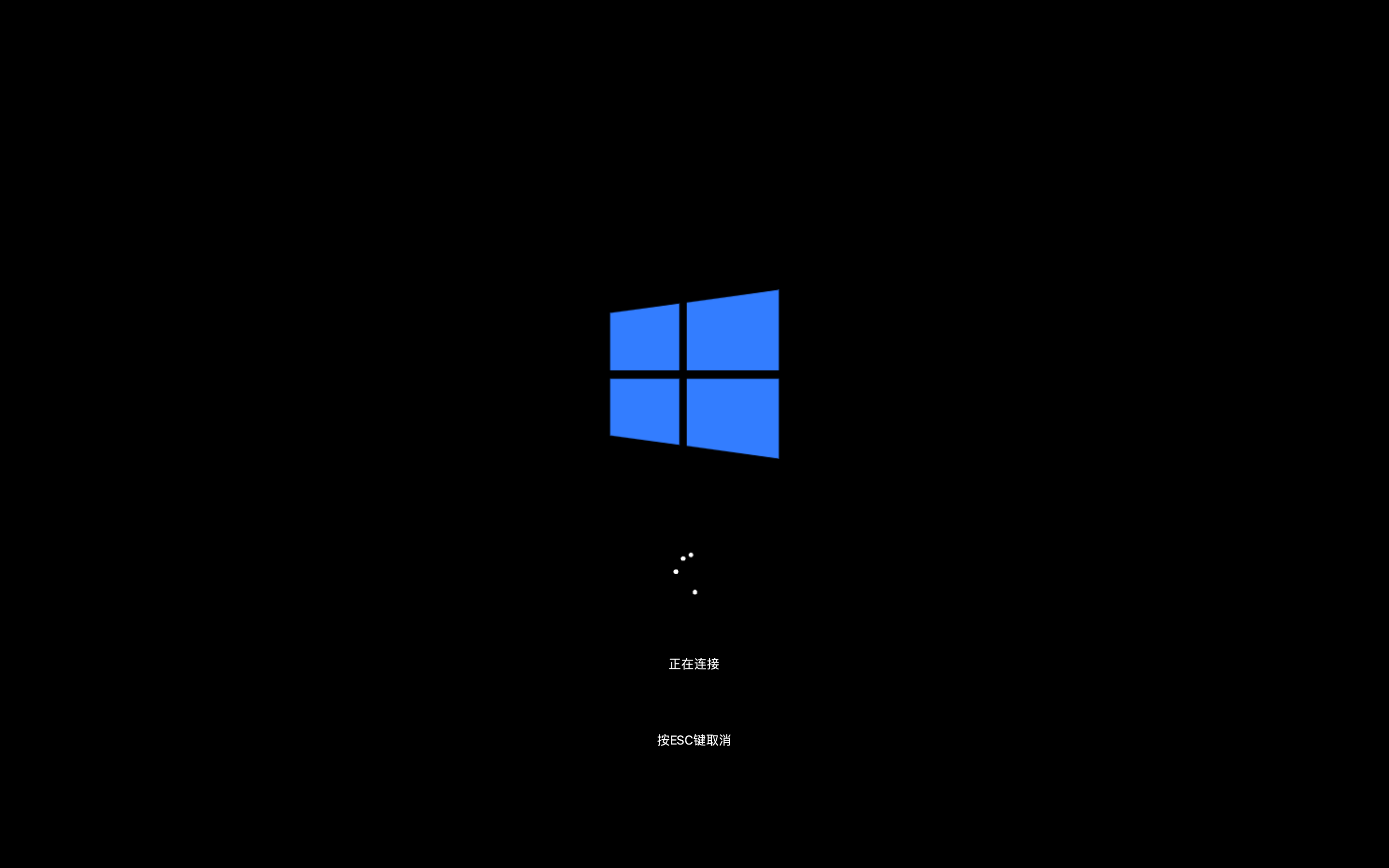
- Logging In: Indicates that the network connection has been successful, and authentication is in progress.
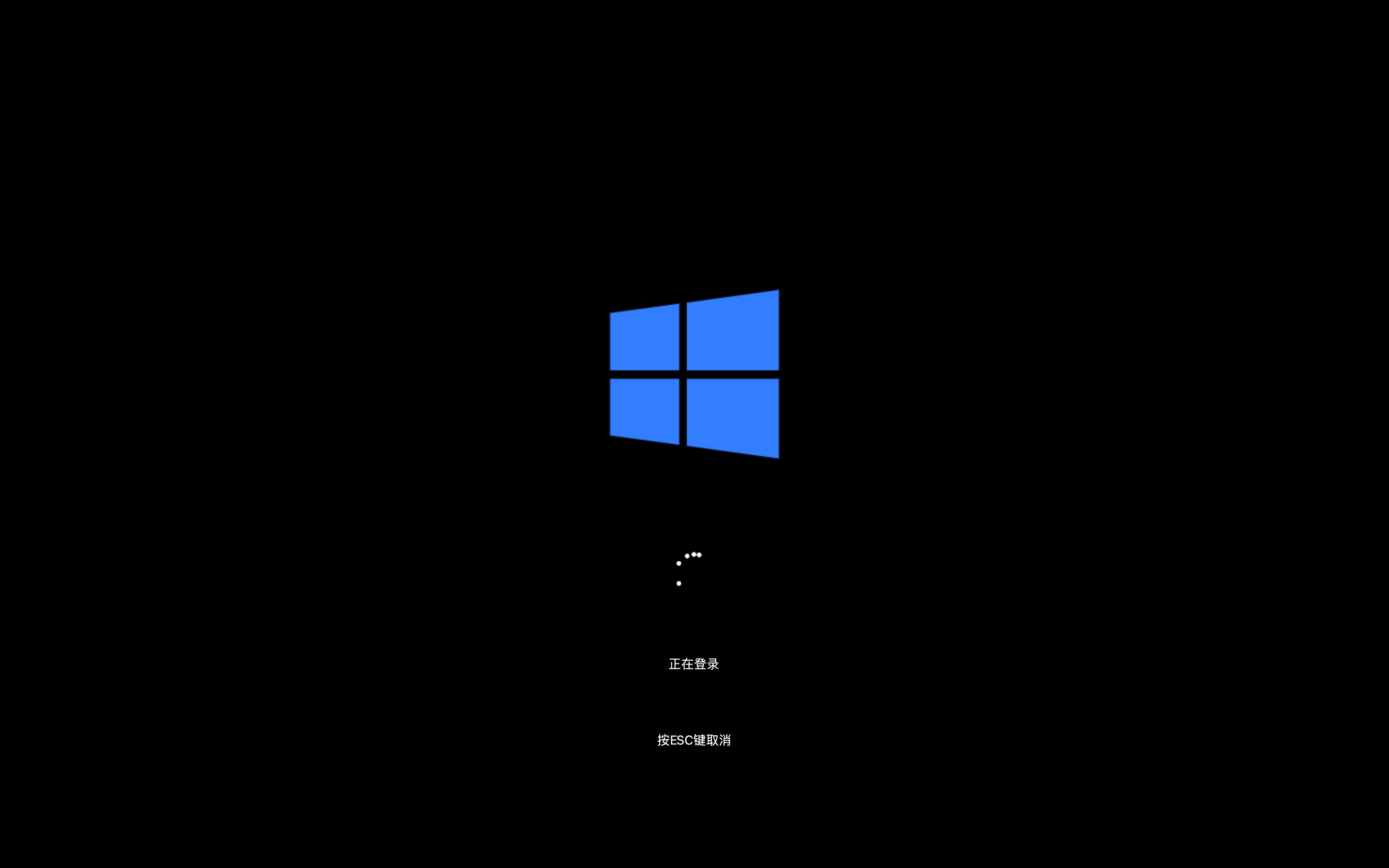
- Login Complete: After successful login, you will see the operating screen of the remote desktop.

2. Automatic Connection Settings
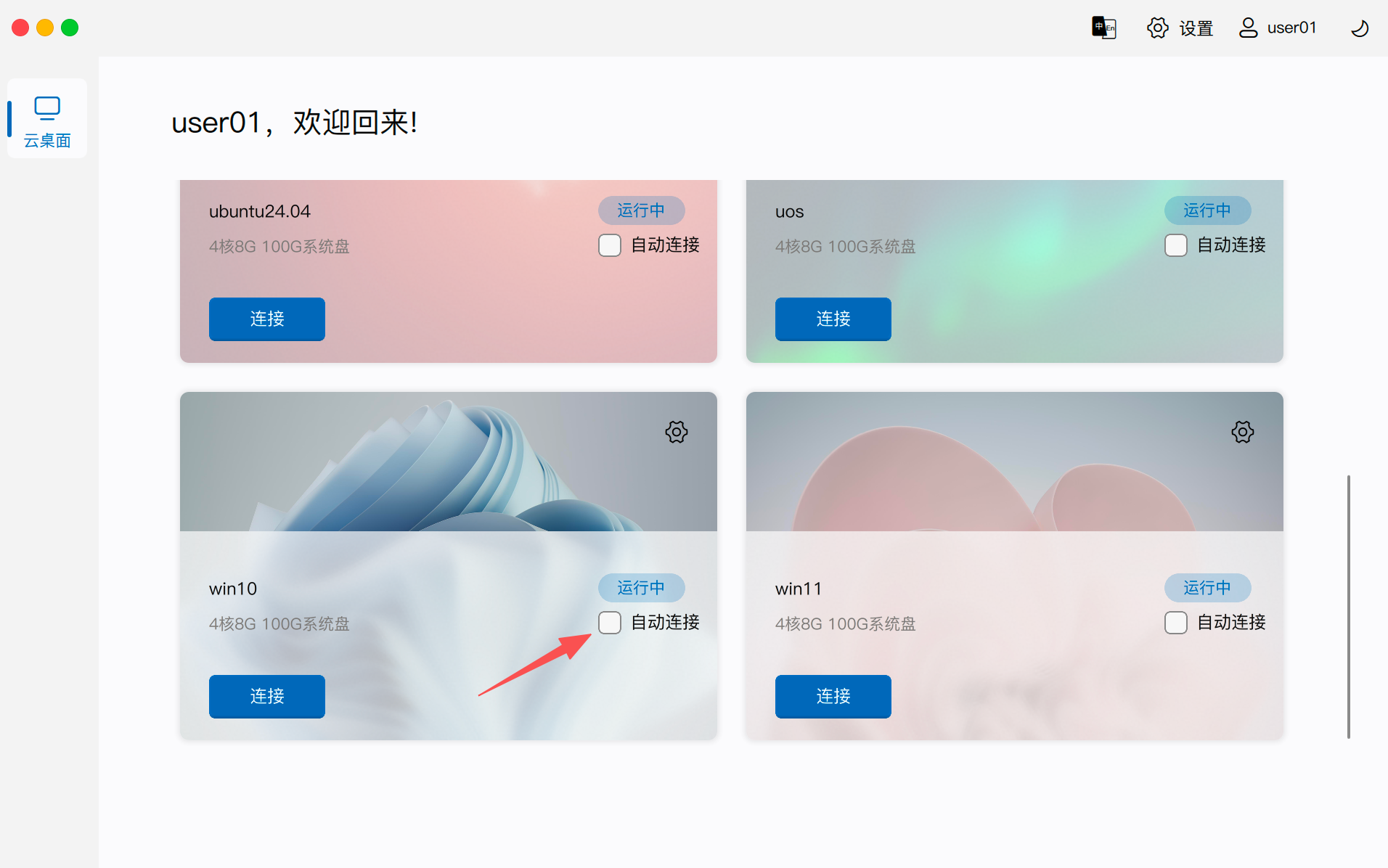
- Feature Description: If "Auto-connect" is checked on the card, when the user successfully logs into the client, it will attempt to automatically initiate a session connection to that desktop.
- Rule Restrictions: The system allows a maximum of one desktop to be selected for auto-connection. If you click desktop B when desktop A is already checked, the auto-check for desktop A will be canceled.
- Manual Mode: After unchecking all options, all desktops need to be manually connected.
3. Multi-Device Differences and Multi-Desktop Switching
3.1 Mobile Devices and Thin Clients
- Full-Screen Restriction: Only one desktop can be connected at a time, and it must be used in full-screen mode; windowed mode is not supported.
- Switching Method: You must disconnect from the current desktop before connecting to another desktop.
3.2 PC Clients
- Multi-Session Parallelism: Supports connecting to multiple cloud desktops simultaneously.
- Display Mode: Supports full-screen mode, windowed mode, and minimized window.
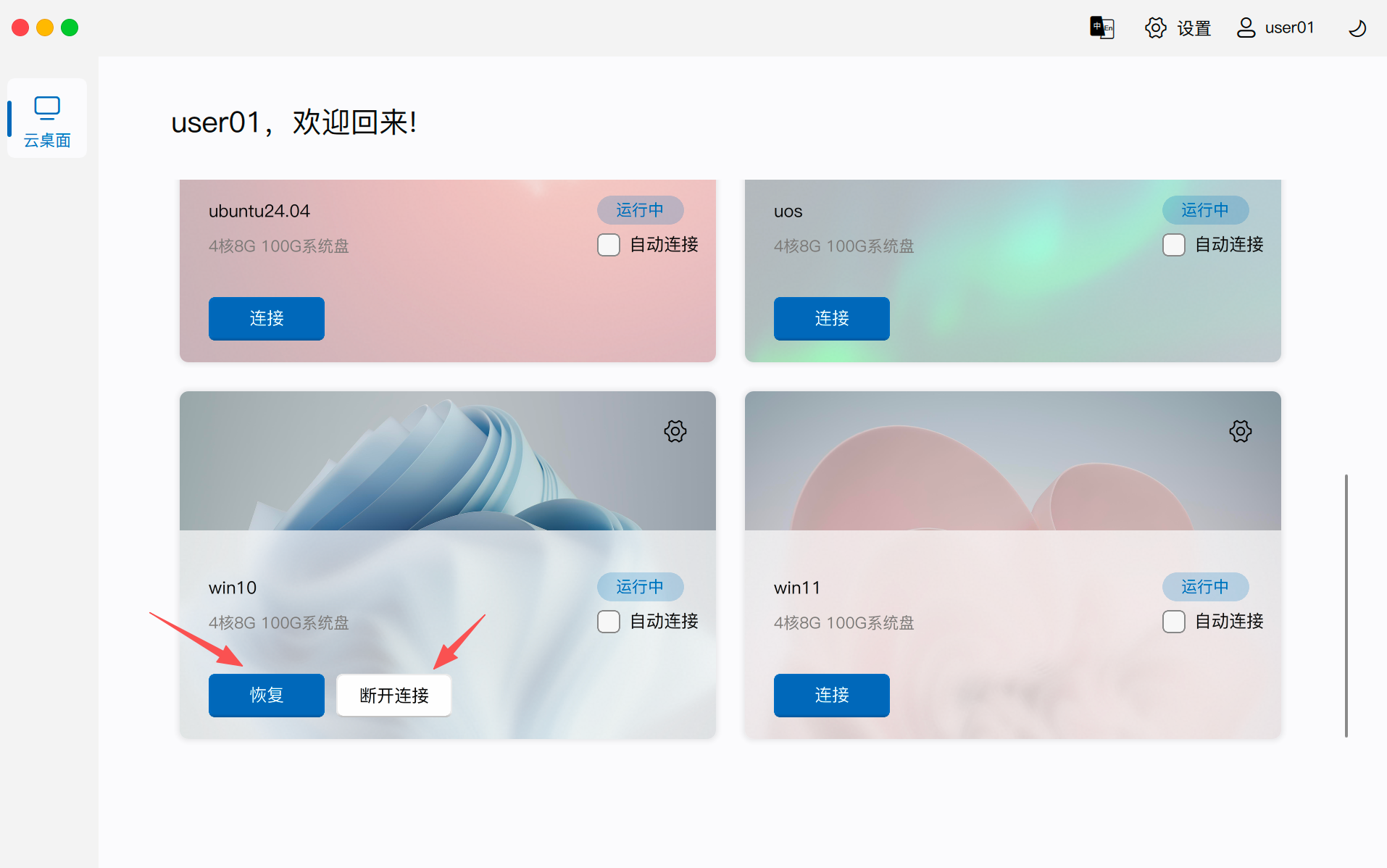
- Restore and Disconnect: When a connected desktop returns to the resource list page, the original "Connect" button will change to "Restore". Clicking "Restore" activates and switches to that desktop; clicking "Disconnect" safely exits the session.
4. Common Connection Failure Causes Analysis
4.1 Access Control Policy Restrictions (Interface will clearly prompt)
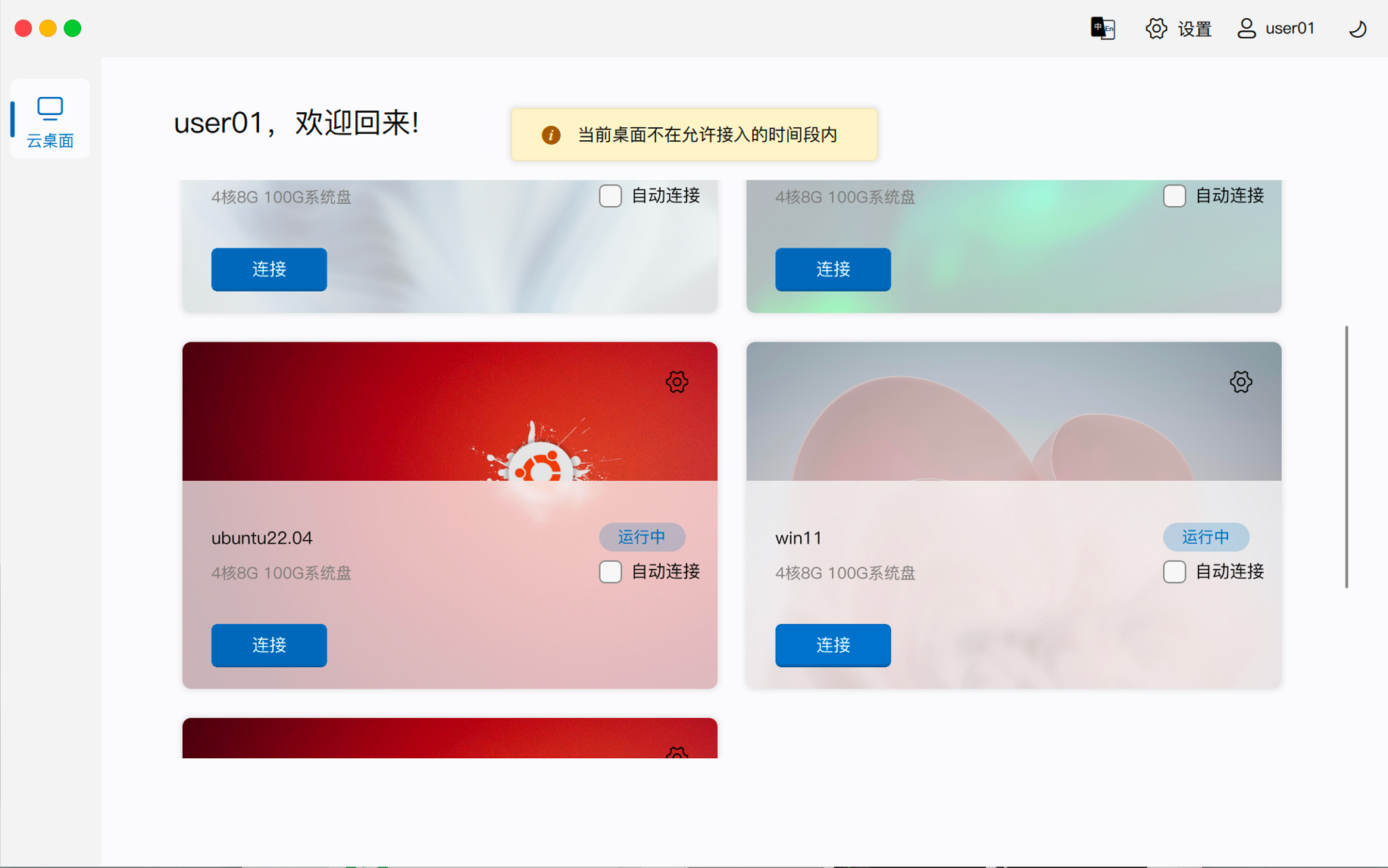
- Not within Access Time Period: The desktop is only allowed to connect within the time range set by the administrator.
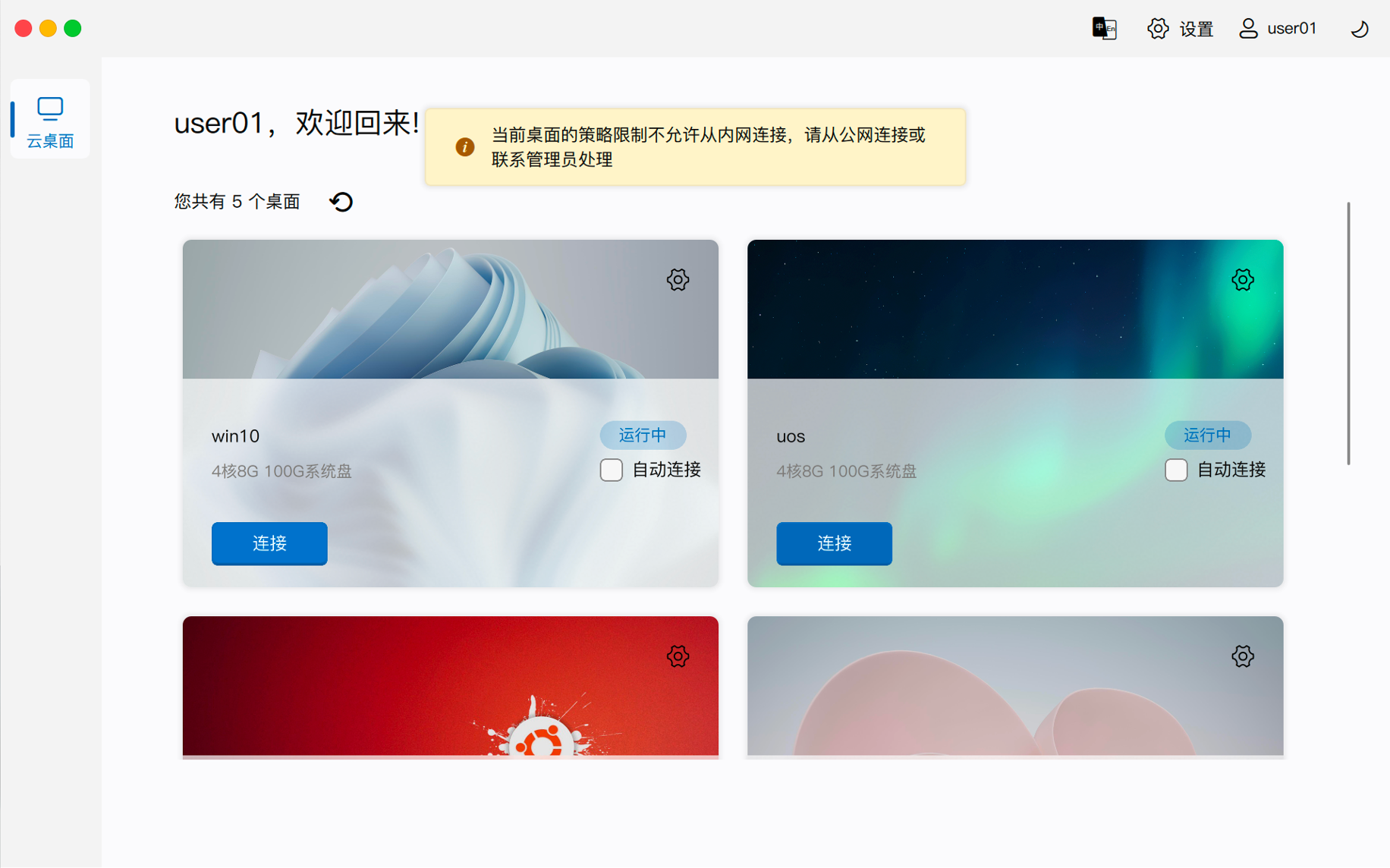
- Public Network Access Restricted: The desktop configuration does not allow clients to access via the public network.
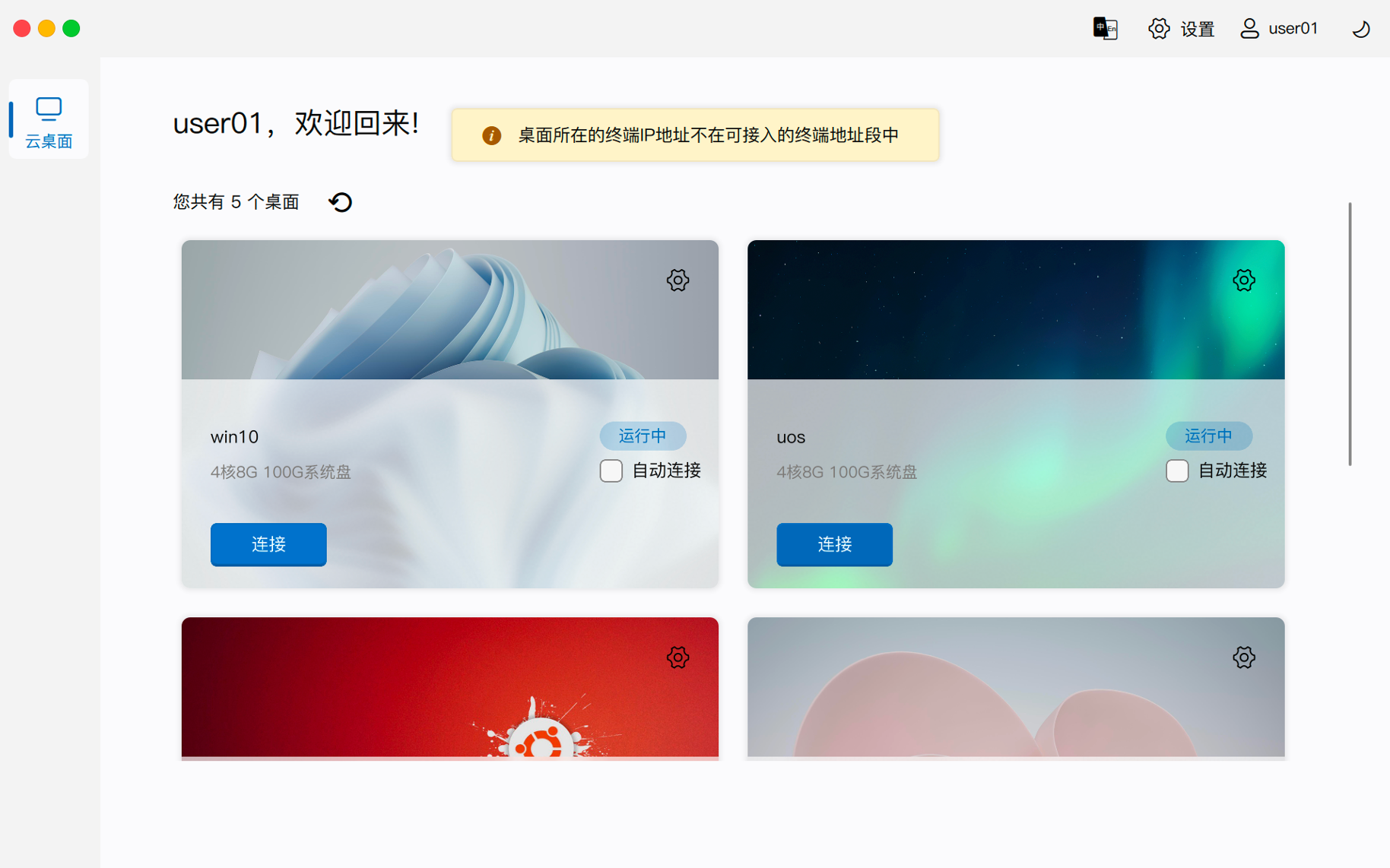
- IP Address Range Restriction: The client's current IP address range is not within the allowed whitelist.
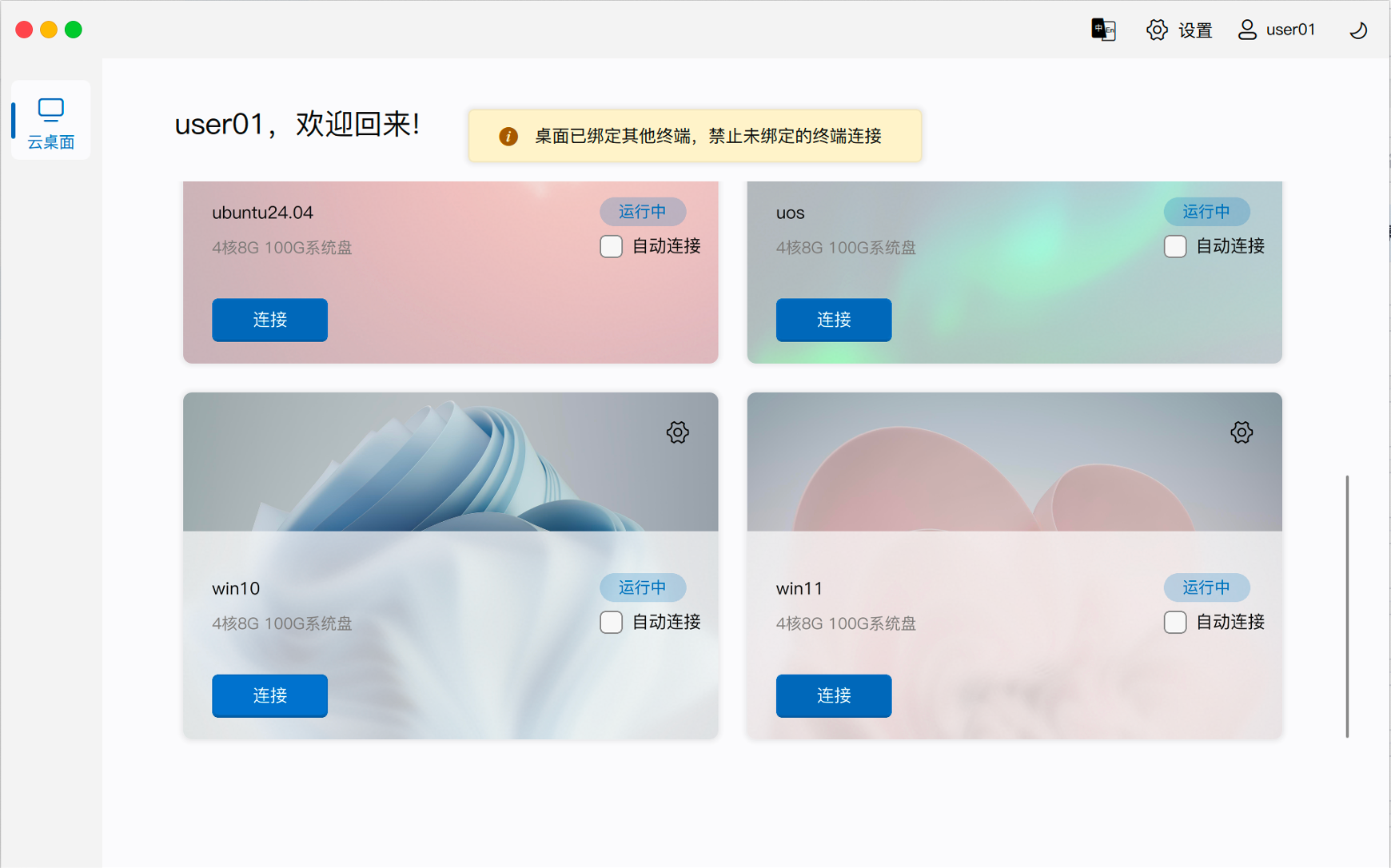
- Device Binding Restriction: The desktop is bound to another client, prohibiting access from the current client.
4.2 Network Connectivity Issues
- IP is Empty: The IP address in desktop details is empty. This usually means the desktop has not been assigned an IP, or the desktop has multiple network interfaces. For configuring access addresses for multiple network interfaces, please refer to System Console -> Cloud Platform Management -> Overview -> 2. Cloud Platform Common Parameter Configuration or System Console -> Cloud Platform Management -> Manage Cloud Platform -> 5. Project Differentiated Configuration.
- Address Mismatch: The actual IP inside the desktop does not match the IP address displayed by the management component.
- Link Disconnection:
- When direct connecting, the client and desktop IPs cannot reach each other.
- When connecting via a gateway, gateway dial-up fails or the gateway and desktop IPs cannot reach each other.
- Port Blocked/Service Not Installed:
- The HSRServer application is not installed in the desktop.
- Network security groups or firewalls block TCP 15701 port.
- Note: When performing network diagnosis, port 15701 must be open. Port 15702 is not open until the desktop connects successfully; this port only starts listening after successful connection and
HSRAgentprocess startup.
4.3 Account and Login Credential Issues
- Local Account Restrictions: The desktop account has no password set (empty password). The system does not support this password-less connection method.
- Credential Mismatch: The image/template password is empty, or the credentials stored by the management component do not match the actual account password. In this case, a pop-up prompt will appear, requiring modification of login credentials and retry.
- Account Status Abnormal: The corresponding account within the desktop has been disabled.
- Domain Authentication Conflict: The desktop effective policy requires domain account login, but the client does not use an AD domain account (e.g., "Domain User" is not checked or SMS login is used), or the desktop is not correctly joined to the AD domain.
- Microsoft Account Restrictions: Currently, in Windows desktops, connecting to a desktop already logged in with a Microsoft account is not supported. Please make sure not to log in with a Microsoft account within the cloud desktop, otherwise normal connection will be impossible.
4.4 Troubleshooting Logic Summary
- Policy-related Issues: Confirm based on interface prompts and "Desktop Details". If the IP address is empty, contact the tenant administrator for assistance.
- Gateway and Network Issues: Analyze by checking the IP in "Desktop Details", the gateway icon dial-up status, and using the "Network Detection" function. If necessary, contact the administrator to further troubleshoot via the VNC console.
- Account Issues: Ensure correct configuration of desktop login credentials, or log in to the client using the correct AD account as required by policy.
- Network Fluctuation: If a short network interruption occurs, the display and keyboard/mouse operations will stutter and trigger automatic reconnection. If the network disconnection time is too long, the connection will be automatically disconnected.