Troubleshooting
When encountering connection or operation problems during daily use of the xSpace client software, preliminary diagnosis can be performed using the client's built-in troubleshooting tools.
1. Network and Port Diagnosis
When unable to connect to the server or cloud desktop, prioritize checking the connectivity of the local network environment and the target address:
-
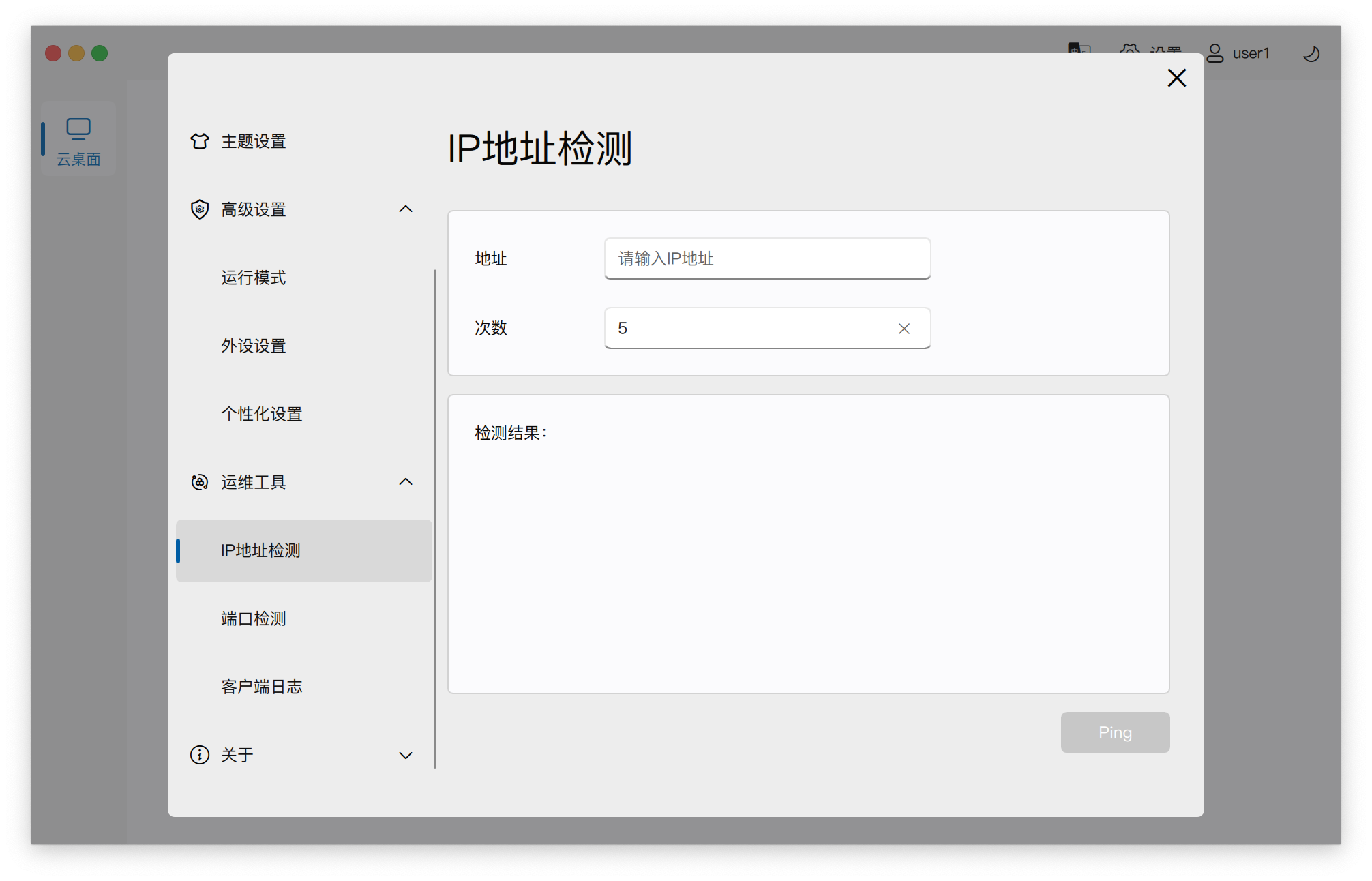
Network Link Detection: Detect whether there is latency or packet loss when the local client accesses the xSpace management component or cloud desktop address. For specific operations and parameter analysis, please refer to: User Guide -> Terminal Settings -> O&M Tools.
-
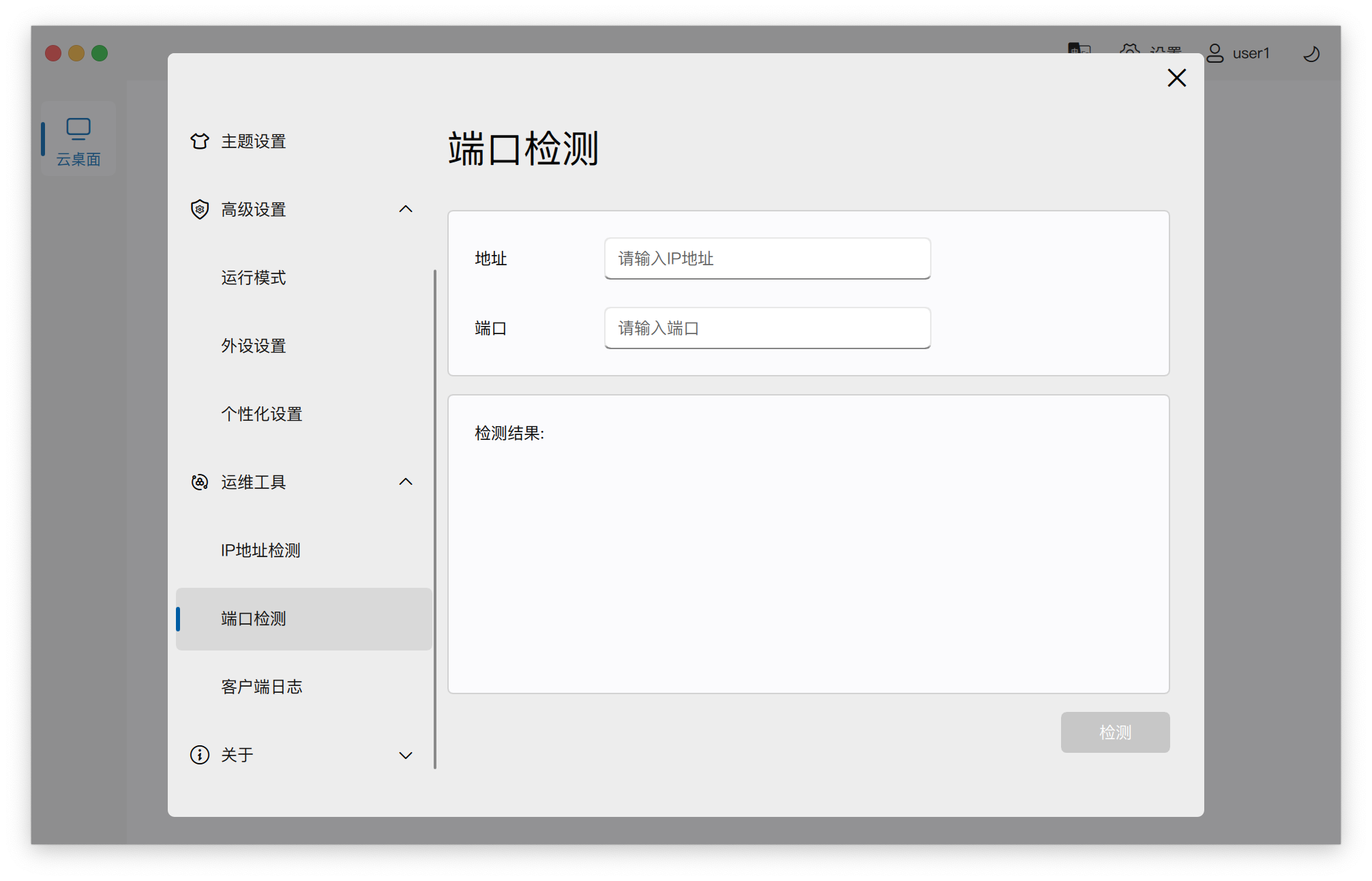
Service Port Detection: Detect whether critical business ports of the cloud desktop (e.g., authentication port 15701, USB redirection port 5703) are open. For detailed port functionality descriptions, please refer to: User Guide -> Desktop Management -> Manage Cloud Desktop -> Network Detection.
2. Thin Client Local Debugging
If you are using a thin client device and need to execute command-line tools of the local operating system for in-depth troubleshooting, please switch in the settings interface:
-
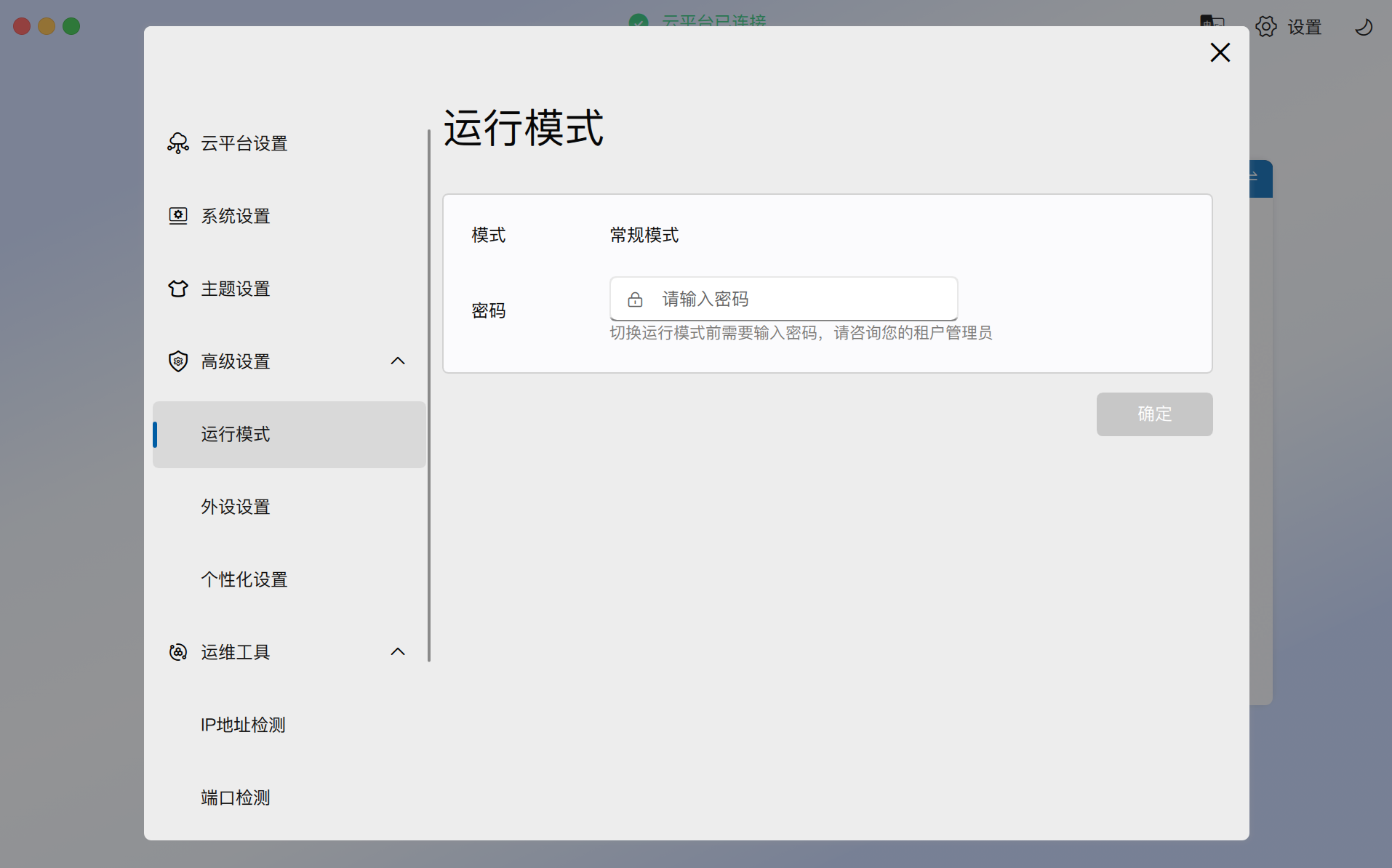
Open Local Terminal: Enter the administrator password in "Running Mode" to open the local terminal window. Please refer to: User Guide -> Terminal Settings -> Advanced Settings.
3. Log Extraction and Feedback
If the above self-checks still cannot solve the problem, it is recommended to send the on-site logs to technical support personnel for analysis.
3.1 Client Log Feedback
Click the "Settings" gear icon in the upper right corner of the client, and switch to the log feedback interface:
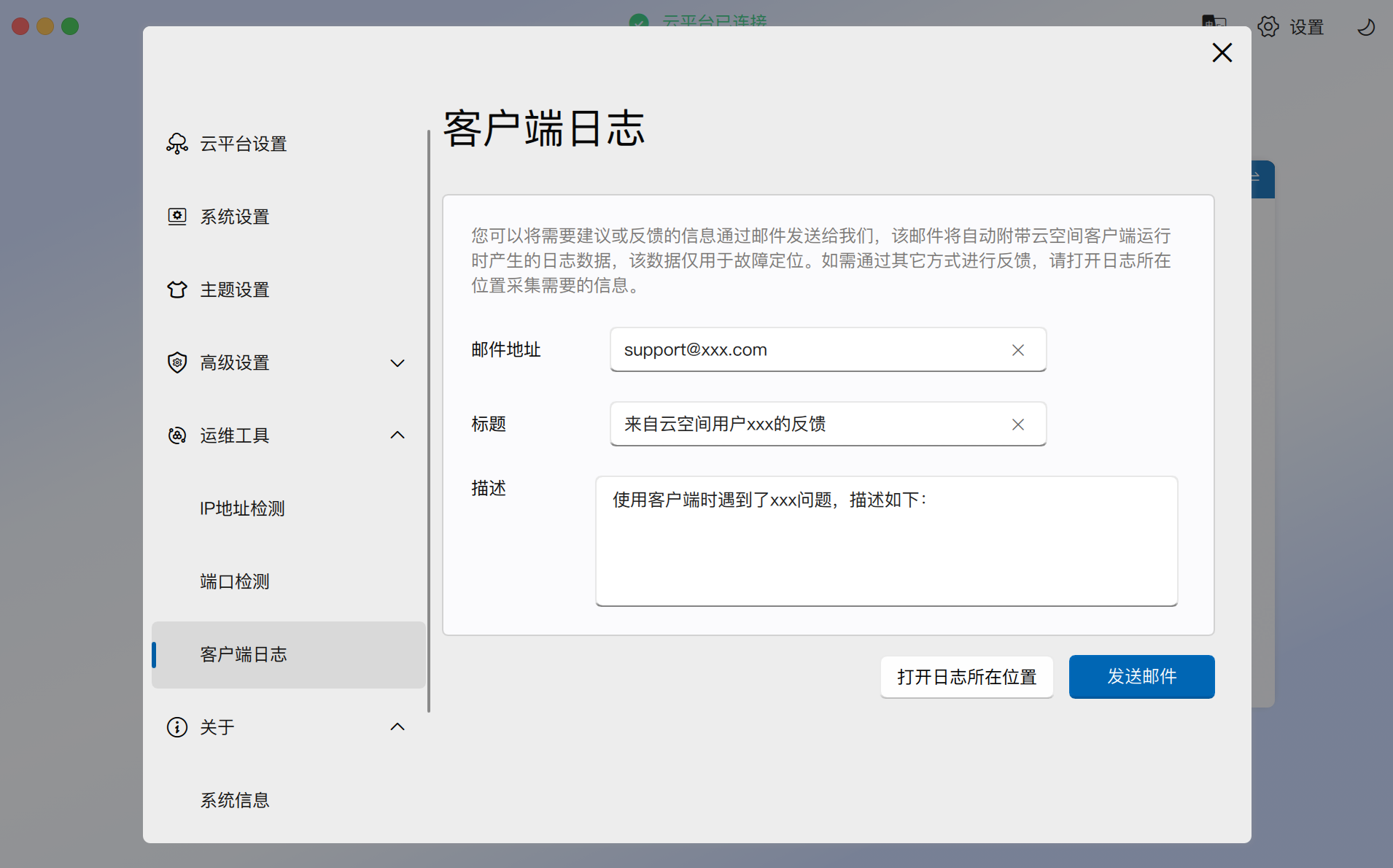
- Online Feedback: If the fault site has internet access, describe the problem phenomenon in the dialog box and click "Send Email".
- Offline Extraction: If the site has no internet access, click "Open Log Location", compress and package the log directory, and send it to technical support through other means.
3.2 Cloud Desktop Internal Log Extraction
The above method extracts client local logs. If technical support needs to analyze internal cloud desktop operation logs, please contact the tenant administrator to perform the following operations:
The tenant administrator needs to log in to the Web management backend, find the corresponding cloud desktop in "Desktop Pools", and click the "Extract Logs" button in the "More" menu.