Android Client Installation
The Android version of the Cloud Space client supports Android phones and tablets (Pad) devices, and is released in the standard .apk installation package format, allowing users to work remotely anytime, anywhere.
I. Installation Package Naming Rules (Important Distinction)
The names of the released Android installation packages contain key information such as device type, architecture, and version number. Since the UI layout and adaptation logic for phones and tablets are different, please be sure to select the correct installation package based on your device type:
- Phone Version: The installation package name contains the
phonefield, specifically optimized for operation on small phone screens. at-xspace-client-android-phone-arm64-6.16.12.common.apk -
Pad Version: The installation package name contains the
padfield, adapted for large-screen split-column display. at-xspace-client-android-pad-arm64-6.16.12.common.apk -
arm64: Indicates suitable for 64-bit ARM architecture processors (currently supported by most mainstream Android mobile devices).
- 6.16.12: Represents the software version number of the installation package.
II. Installation Steps
- Execute Installation: After downloading the installation package locally, follow the prompts of the Android system to complete the installation.
- Launch Application: After installation is complete, find and launch the "Cloud Space" App in the application list.
III. Configure Cloud Platform Address
After the first launch, if no management console address has been configured, please follow these steps (using a phone screenshot as an example; the tablet operation process is similar):
-
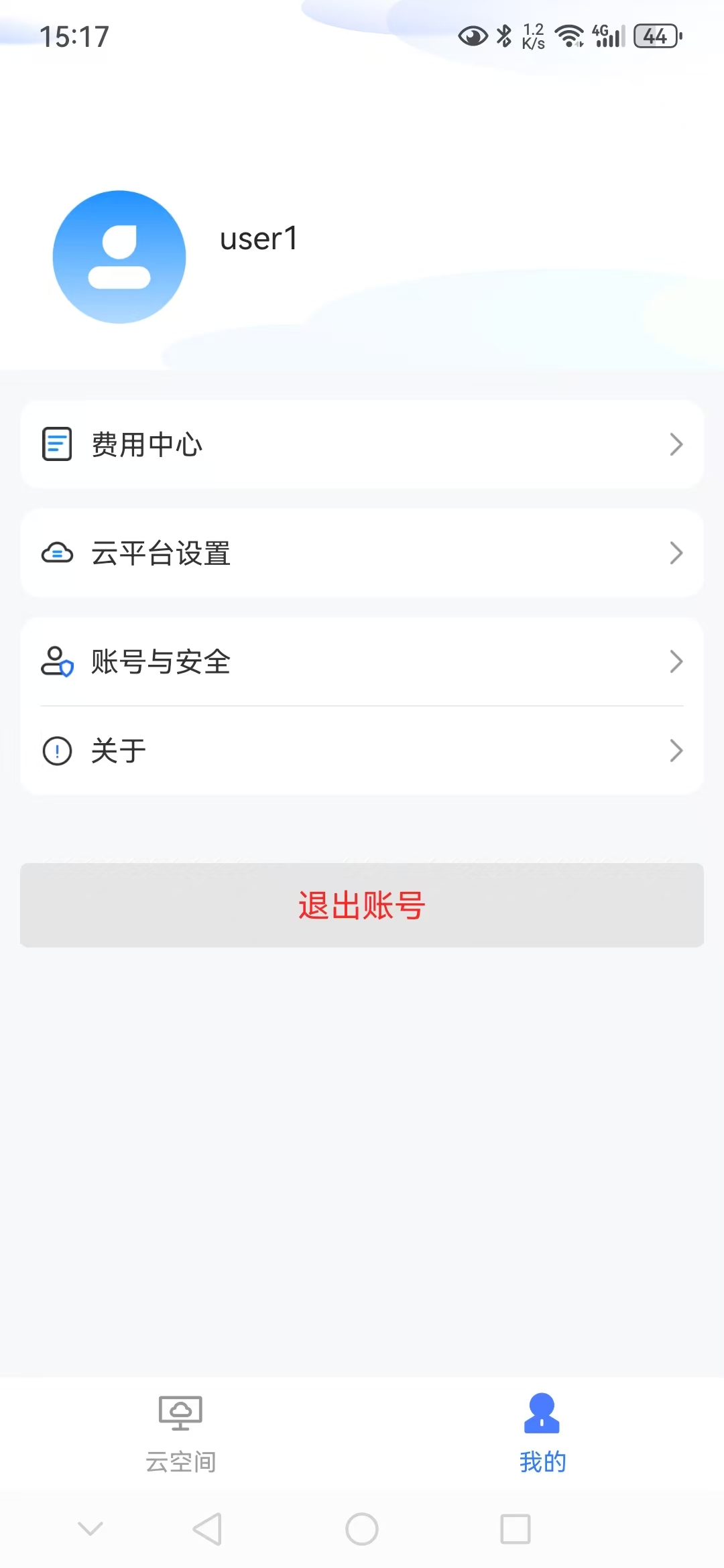
Enter Settings Interface: On the App's main interface, click "My" in the lower right corner to switch to the personal settings interface.
-
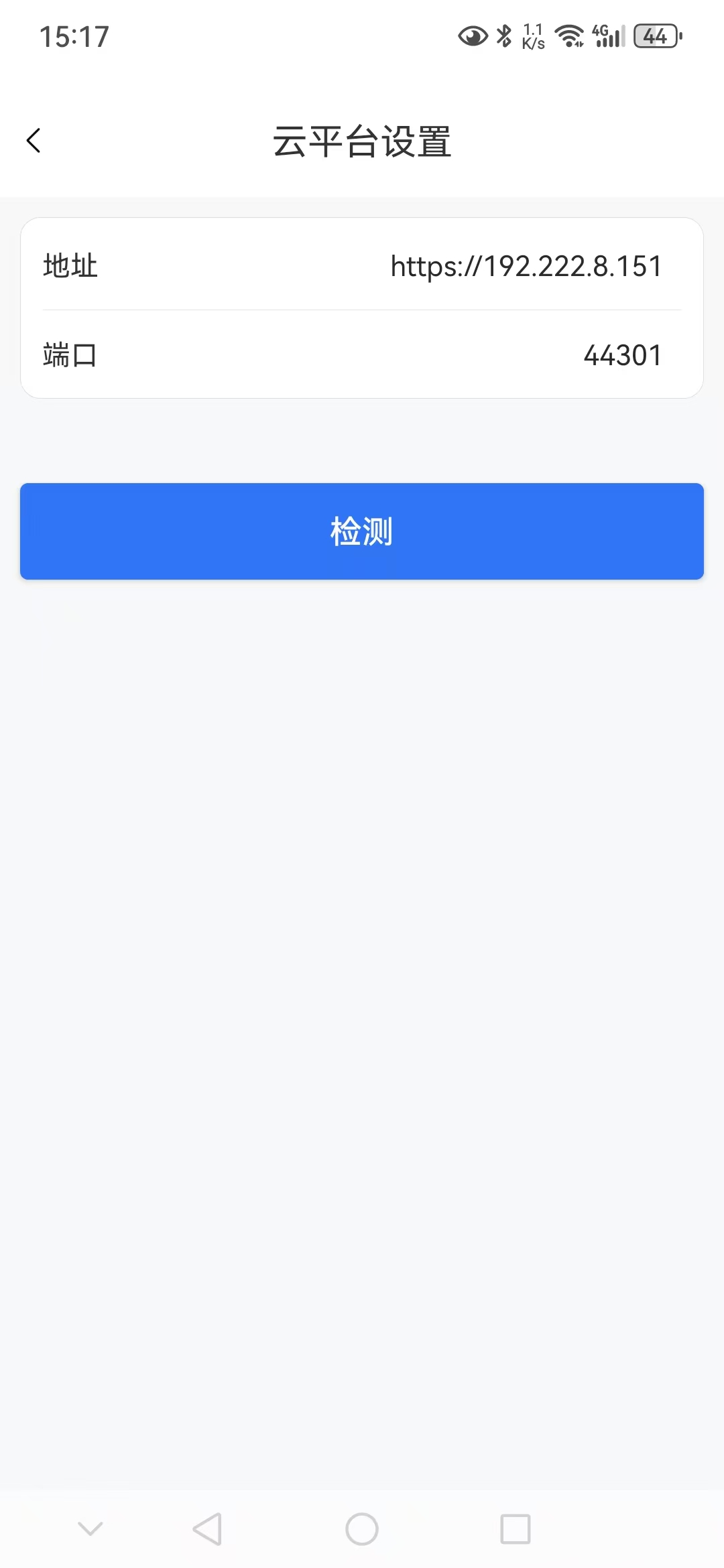
Open Cloud Platform Settings: Click the "Cloud Platform Settings" option, then fill in the actual cloud platform address (IP or domain name) and port number (default is 44301) in the pop-up interface.
-
Detect Connection Status: After entering, click the "Detect" button. After confirming that the detection result indicates normal cloud platform access, you can return to the home page login window to start using it.