Overview
After the xSpace management component is installed, deployed, and configured, the delegated O&M administrator or tenant administrator completes the configuration of resources such as users and desktops under the specified tenant. Finally, users of cloud desktops can access them through xSpace terminal hardware and software devices and use their personal cloud desktop resources.
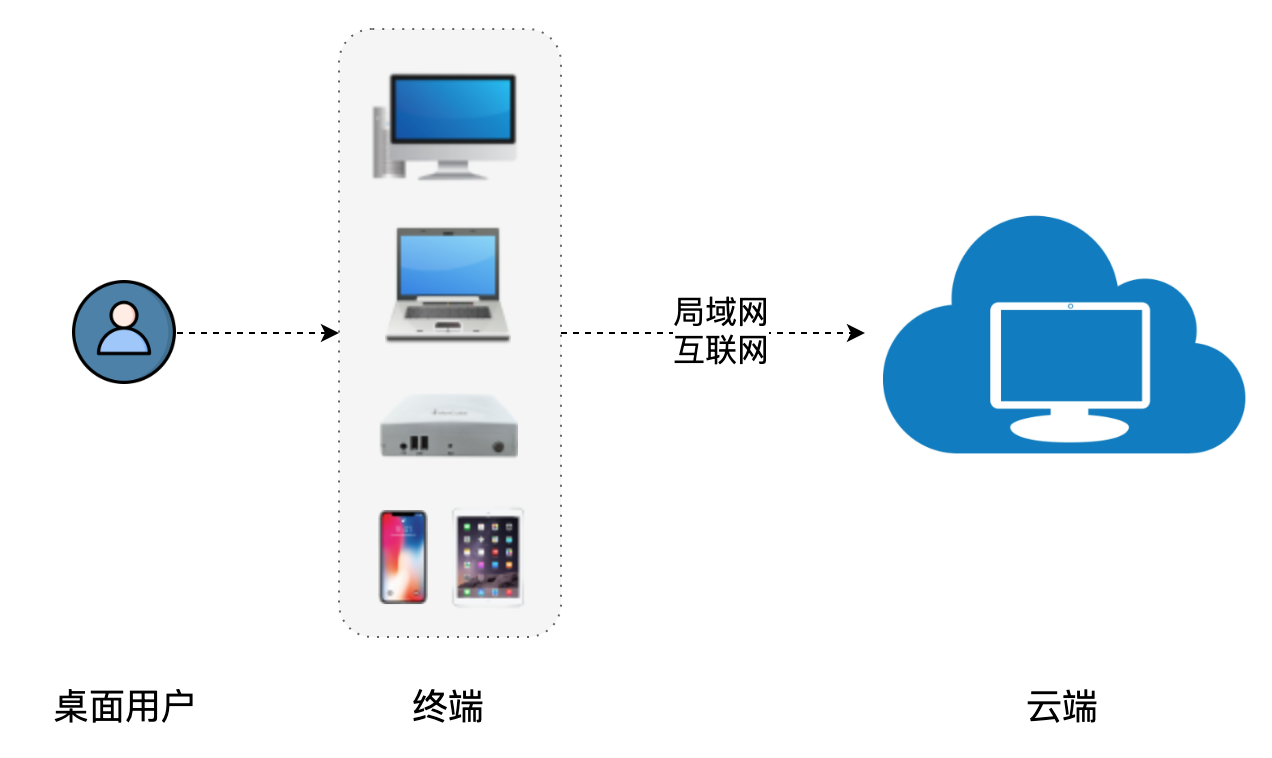
1. Cloud Terminal Definition and Functions
A cloud terminal is the entry device for accessing cloud desktops. It enables users to control remote desktop operating systems, applications, and data over the network by connecting basic I/O devices such as monitors, keyboards, and mice, as well as rich USB peripherals such as microphones, cameras, printers, and USB drives.
For the specific classification of cloud terminals, please refer to the Product Overview -> Technical Architecture -> Client section. Its main forms include:
- Software Client: Install and run the xSpace client software package on the user's personal PC or laptop.
- Thin Client (Hardware): Obtain a dedicated hardware device with the xSpace client software pre-installed, allowing users to directly power on and use it.
- Mobile Devices: Download and install officially distributed App packages on portable devices such as mobile phones and tablets for use.
2. Terminal User Configuration Guide
After completing resource distribution, administrators need to inform end-users of the following key information to ensure smooth access:
- Acquisition Method: Where to obtain thin client devices, or where to download client software.
- Connection Address: The cloud platform address and port that the client needs to configure (including internal and public network addresses and ports).
- Tenant Information: The name of the tenant they belong to.
- Authentication Credentials:
- Local User: Provide username and initial password.
- Existing AD User: Use the original AD account and password.
- New AD User: Provide a new AD account and initial password.
3. Usage Precautions
To ensure the stable operation of cloud desktops, end-users must observe the following basic precautions:
- Network Configuration: Disabling the network card within the desktop is prohibited, and manual adjustment of IP addresses is strictly forbidden.
- Account Management: Disabling system accounts within the desktop is prohibited, and unauthorized modification of system passwords is strictly forbidden.
- Power and Lock Screen: Do not perform shutdown operations on hosted desktops; do not adjust power policies, lock screen, or screen blanking policies.
- Public Network Access: If accessing via a public network, ensure that the gateway dial-up is completed before initiating a connection.
- Agent Protection: Do not uninstall the agent program (Mole), and do not stop or kill related services or processes.
4. Network Environment Requirements
During access, ensure that the network connection is normal. In addition to network bandwidth, network latency and network jitter are also critical factors affecting operational smoothness.
4.1 Real-time Monitoring Indicators
After connecting to the desktop, users should pay attention to the real-time data in the top floating toolbar:
- Network Latency: Excessive round-trip time can lead to sluggish mouse response or operational delays.
- Network Jitter: Unstable fluctuations can cause screen stuttering or audio/video desynchronization.
4.2 Scenario Bandwidth and Latency Recommendation Table
| Scenario | Recommended Bandwidth | Recommended Latency | User Behavior Example |
|---|---|---|---|
| Daily Office Work | ≥ 5Mbps | < 30ms | Using Office software for text and spreadsheet editing |
| Design and Film/Television | ≥ 30Mbps | < 30ms | 3D design, video playback |
| High Frame Rate Gaming | 50M~100Mbps | < 10ms | Running high frame rate interactive action games |
Tip: Bandwidth consumption is mainly affected by factors such as resolution, bitrate, frame rate, and whether dual monitors are connected. If abnormal latency data is found in the floating toolbar, please check the local network environment promptly.