AD Domain Integrated Authentication
AD (Active Directory) integrated authentication, based on a Windows Server environment, is the most common unified identity management mechanism in enterprise applications. Cloud Space fully supports AD domain integrated authentication, and its application scenarios are mainly divided into: client authentication login, cloud desktop joining an AD domain, and SSO automatic login when connecting to a desktop.
I. Three-Stage Logic of AD Domain Integrated Authentication
The integration of AD domains is a multi-stage system. Although each stage is functionally independent, to reduce operation and maintenance complexity, it is recommended that all three stages use the same AD domain controller.
| Stage | Description | Prerequisites |
|---|---|---|
| 1. Client Login Authentication | End-users log in to Cloud Space using an AD account on the client | Management console connects to AD domain controller and imports user accounts |
| 2. Cloud Desktop Joins AD Domain | Cloud desktop operating system (Windows only) joins the domain as a member | Management console connects to AD domain controller, and the desktop domain's AD domain controller is network-accessible |
| 3. Desktop Operating System Login | When users connect to a desktop, they use an AD account to log in and start a Windows session | The desktop has joined the domain, and "Desktop uses domain account login" is configured |
II. Client Configuration for AD Domain Controller Integration
To enable AD account login for the Cloud Space client, the tenant administrator or delegated operations administrator must first configure the correct authentication parameters in the tenant context.
2.1 Key Configuration Points for AD Domain Controller
Access "User Management -> AD Domain Settings" to set parameters:
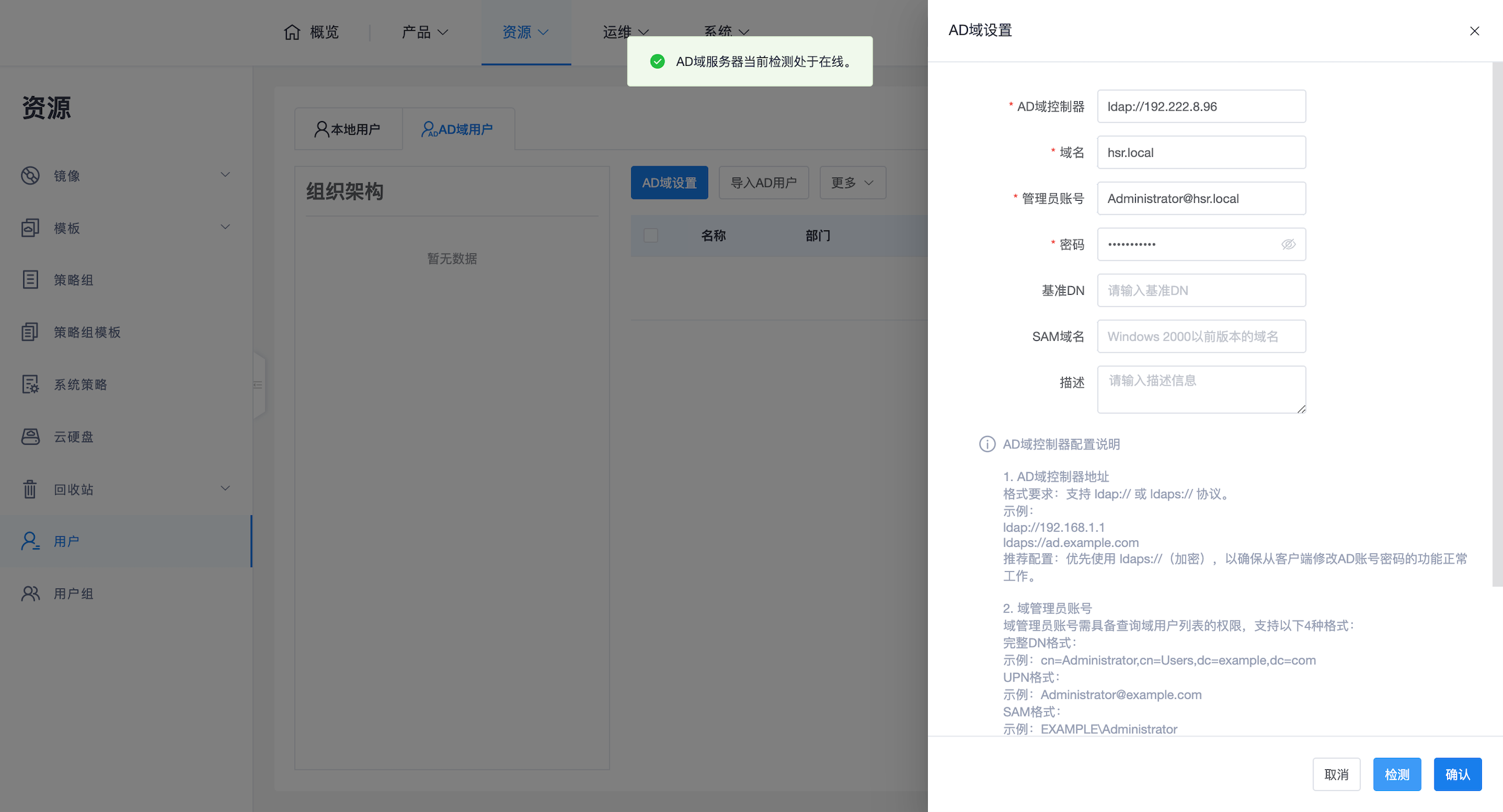
- Server Address (Protocol Selection):
- Supports
ldap://orldaps://protocols. - Strongly recommended to use
ldaps://(default port 636): Only under encrypted protocol can users perform password reset/modification operations through the client (e.g., password expiration or administrator-requested change).
- Supports
- Domain Administrator Account:
- It is recommended to create a dedicated AD administrator account with a never-expiring password for Cloud Space, avoiding mixing it with daily maintenance accounts.
- Supports DN format, UPN format, or SAM format.
- Operation and Maintenance: The administrator account registered here must ensure its long-term availability. If the password on the AD side is adjusted, be sure to return here in time to edit, update, and re-check, otherwise all domain users under this tenant will be unable to change their passwords through the client.
2.2 User Import and Detection
- Connectivity Test: After configuration, click the "Test" button. The system will test the network connectivity of the management console to the AD domain controller, as well as the correctness of the domain name, administrator account, and password.
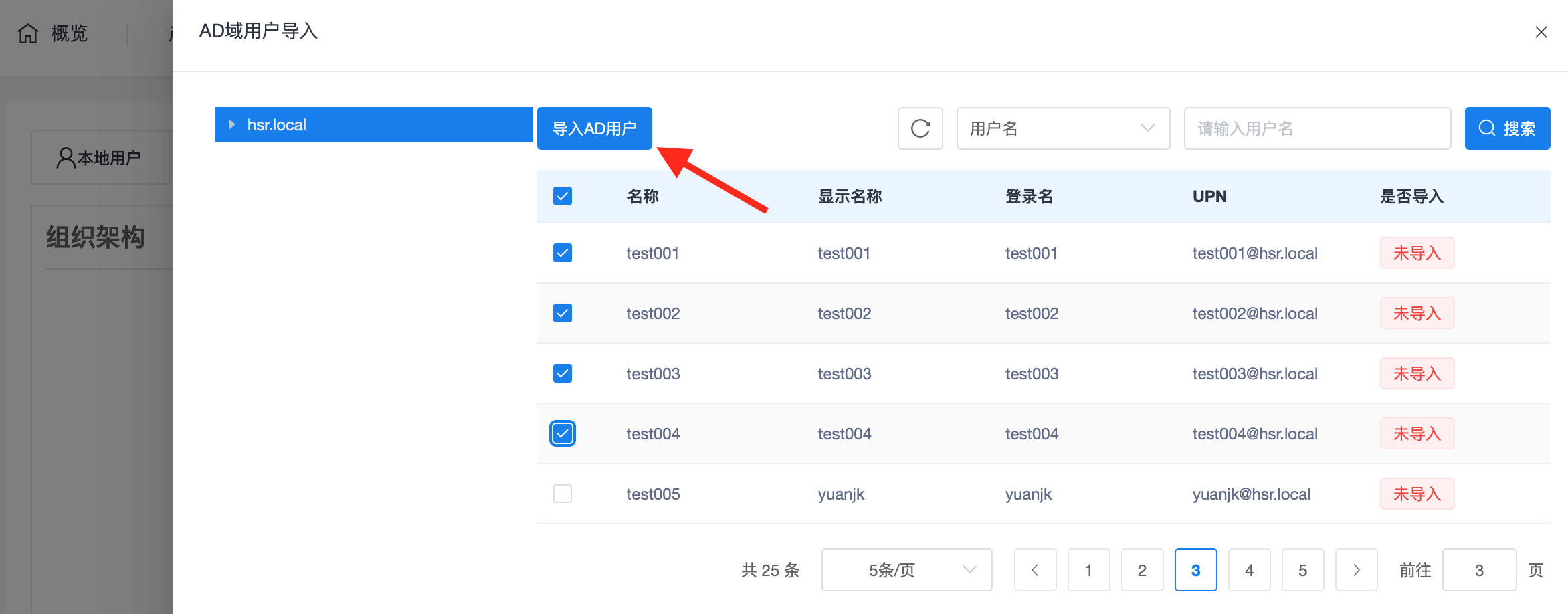
- Account Import: After successful connection, the administrator must click "Import AD Users" to manually synchronize the specific accounts that need to use cloud desktops to Cloud Space.
III. Client AD Account Login
After the tenant has completed account import, users need to check the "Domain User" option on the client login interface:

Note: When logging in with "local users" created within the tenant, do not check the "Domain User" option.
IV. Cloud Desktop Login and SSO Automation
4.1 Cloud Desktop Joins AD Domain
Currently, only Windows desktops support joining a domain:
- Manual Domain Join: Performed manually by the administrator within the desktop system.
- Automatic Domain Join: Configured when creating desktops or templates, see Desktop Pool Management -> Automatic Domain Join chapter.
4.2 Implementing Desktop Automatic Login (SSO)
If you wish to avoid entering a password a second time when connecting to a desktop, you can use the following methods:
Method A: Store Login Credentials (Applicable to local/domain users)
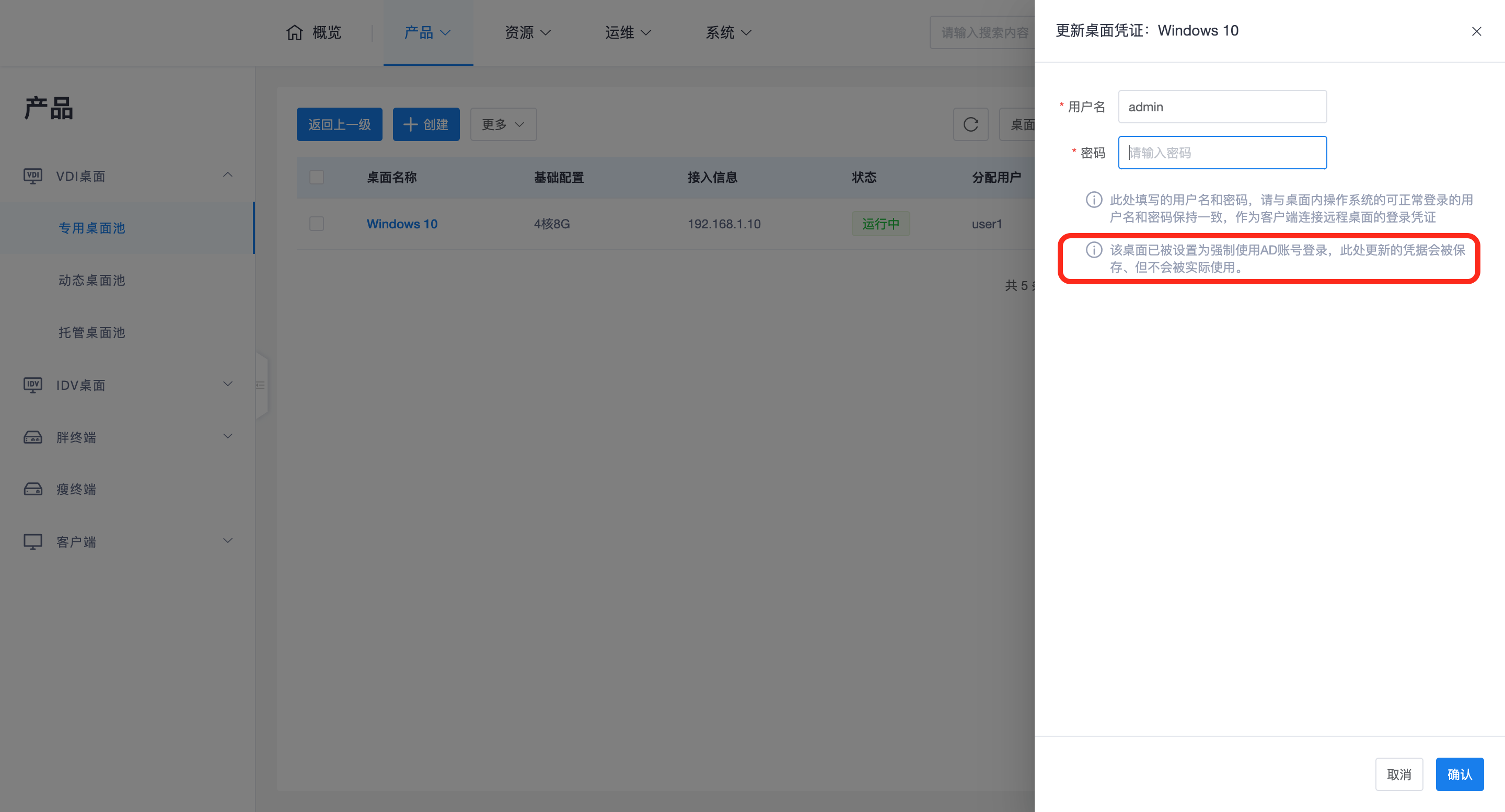
Administrators can pre-set login credentials for the desktop. Access "Desktop Pool -> Desktop -> More -> Update Credentials" and fill in the correct domain name, domain username, and password.
Method B: Credential Passthrough (AD account login only)
When a user logs in to the client using an AD account, the desktop can be forced to synchronize and use these credentials:
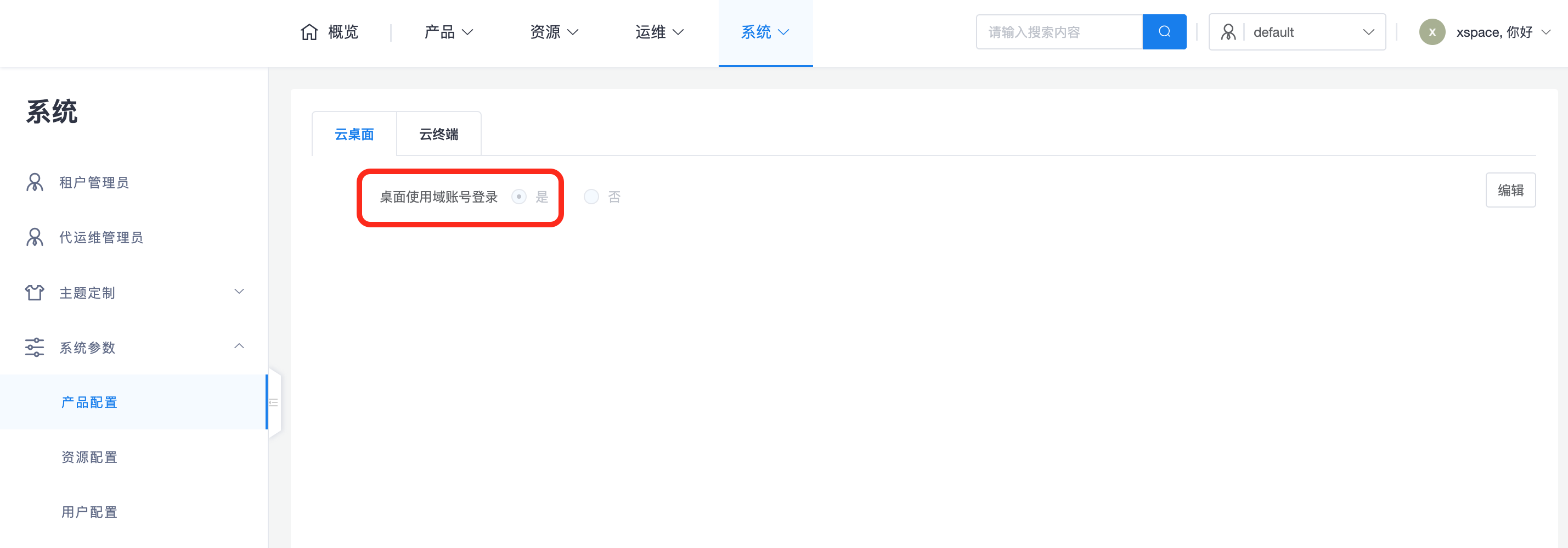
- Tenant-level Option: Enable "Desktop uses domain account login" in the tenant's "System Parameters".
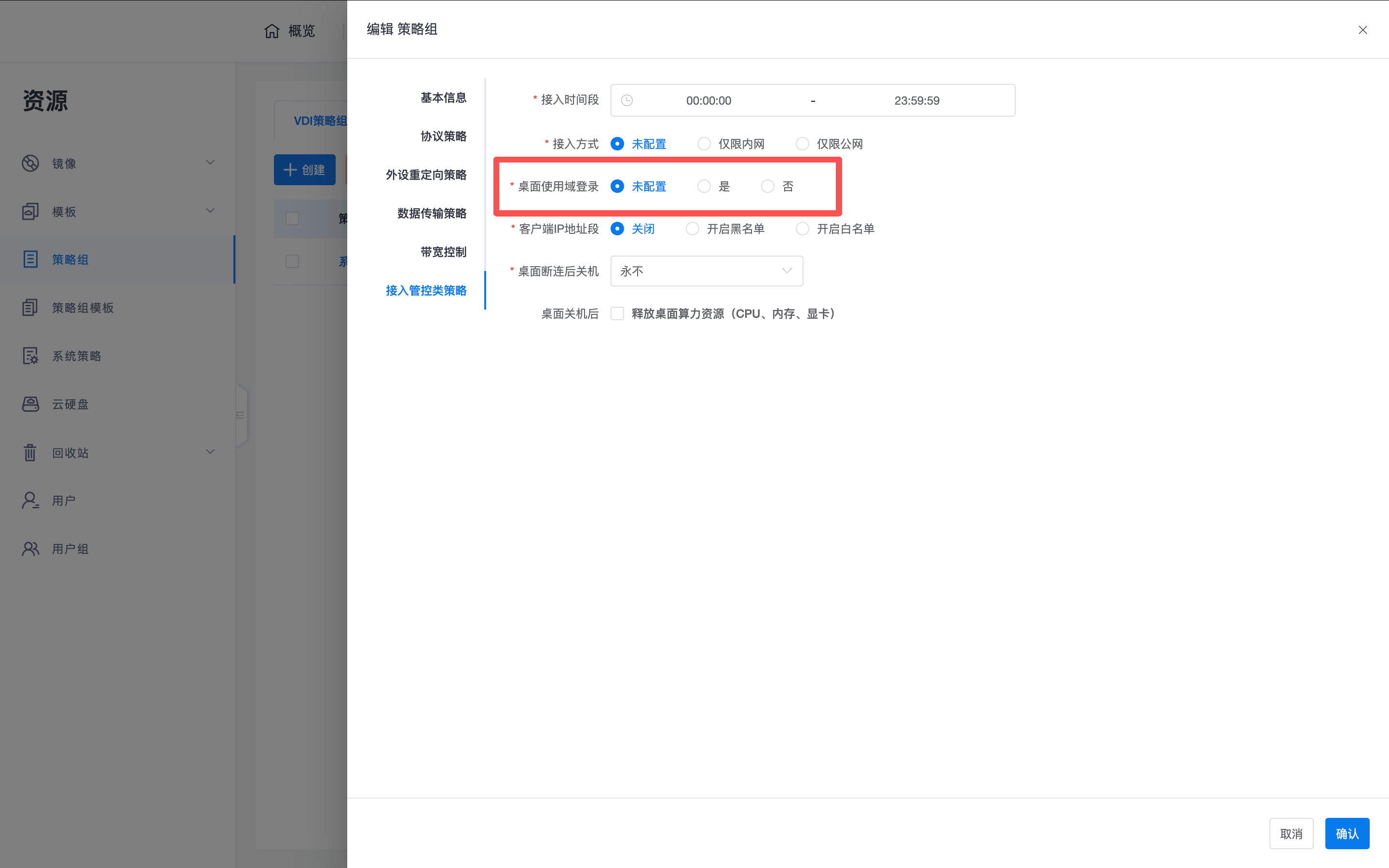
- Policy-level Option: The system will perform the final calculation based on the "Desktop uses domain login" configuration in the Policy Group:
- Not configured: Follow the "Desktop uses domain account login" configuration in the tenant's system parameters.
- Yes: Force the use of AD credentials from client login to connect to the desktop. In this case, any pre-configured login credentials for the desktop (Method A) will be ignored.
Important Warning:
- If "Desktop uses domain account login" is forcibly enabled via system parameters or policy groups, local users will no longer be able to connect to this desktop after logging into the client.
- Only AD accounts imported from the AD domain controller into Cloud Space can log in through the client.