Theme Customization
Tenant administrators can personalize the visual appearance of the management page in the tenant console. This modification only applies to the current tenant and can meet the needs of enterprise brand customized display.
1. Customization Logic and Inheritance
The system adopts a hierarchical management logic of "global presets + tenant personalization":
- Tenant Autonomy: Settings made by tenant administrators in "System -> Theme Customization" have the highest priority.
- Inheritance Mechanism: If the tenant does not perform any personalized configuration, the system will automatically inherit the global default scheme preset by the system administrator in the system console.
- Isolation: Theme customization for the current tenant will not affect the interface style of the system console or other tenants.
2. Key Configuration Items Description
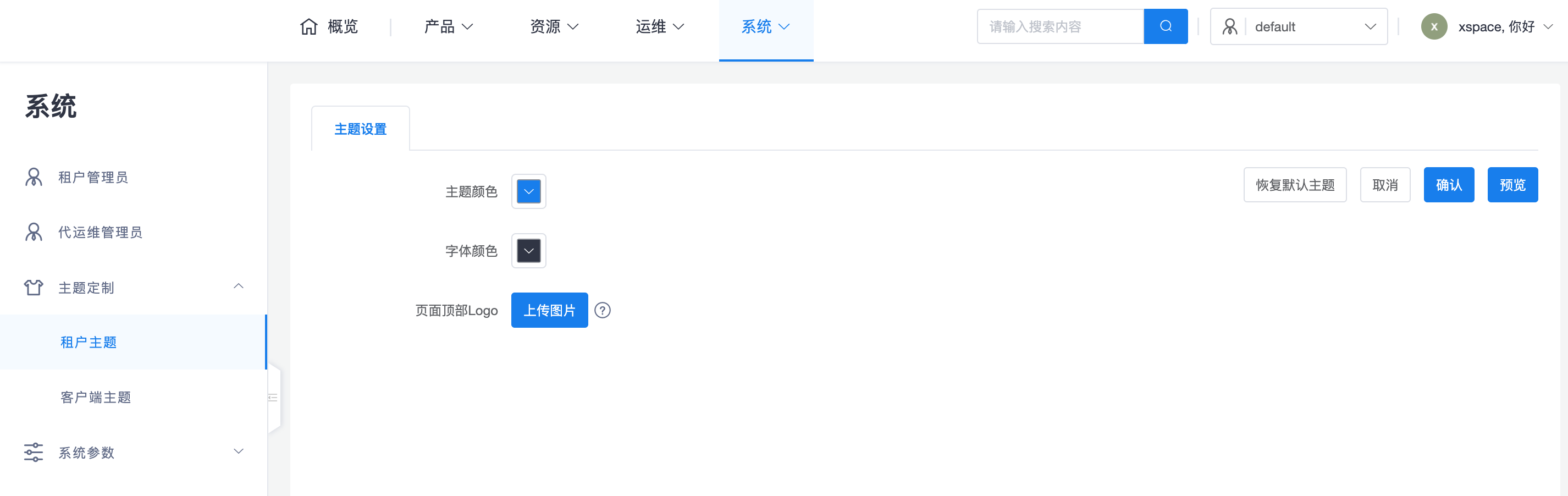
According to the tenant console's operation interface, administrators can define the following core visual elements:
| Configuration Item | Description | Specification Recommendation |
|---|---|---|
| Theme Color | Sets the main color tone of the interface, including buttons, highlight states, function icons, etc. | Recommended to conform to the enterprise's brand main color |
| Font Color | Defines the default display color of interface text | Needs attention to contrast with background color |
| Page Top Logo | Modifies the brand icon displayed in the upper left corner of the system interface after login | Format: png Size: 250 * 56px File Size: Recommended within 200KB |
3. Operation Guide and Precautions
- Instant Preview: After uploading images or adjusting colors, it is recommended to first click the "Preview" button on the right side of the interface to confirm that the visual effect meets expectations before formally applying.
- Image Compliance: When uploading the Page Top Logo, please strictly adhere to the system's prompted size (250 * 56px) and PNG format requirements to avoid visual defects such as stretching, displacement, or opaque backgrounds.
- Effect and Cache: After saving modifications, please refresh the browser page. If the interface does not update promptly, try logging out and logging back in, or clearing the browser cache and then re-viewing.
- Restore Default: If personalized adjustments are not satisfactory, administrators can click the "Restore Default Theme" button to revert to the system's preset initial visual scheme with one click. ```