System Parameters
Tenant administrators can access the "System -> System Parameters" page in the tenant console to configure system parameters specific to their tenant.
When a parameter also exists in the system console, its configuration priority within the tenant is higher than the global system configuration. For example, the "Advanced Settings Password" related to cloud terminals will override the same setting in the system console.
These configurations mainly include the following three parts:
1. Product Configuration
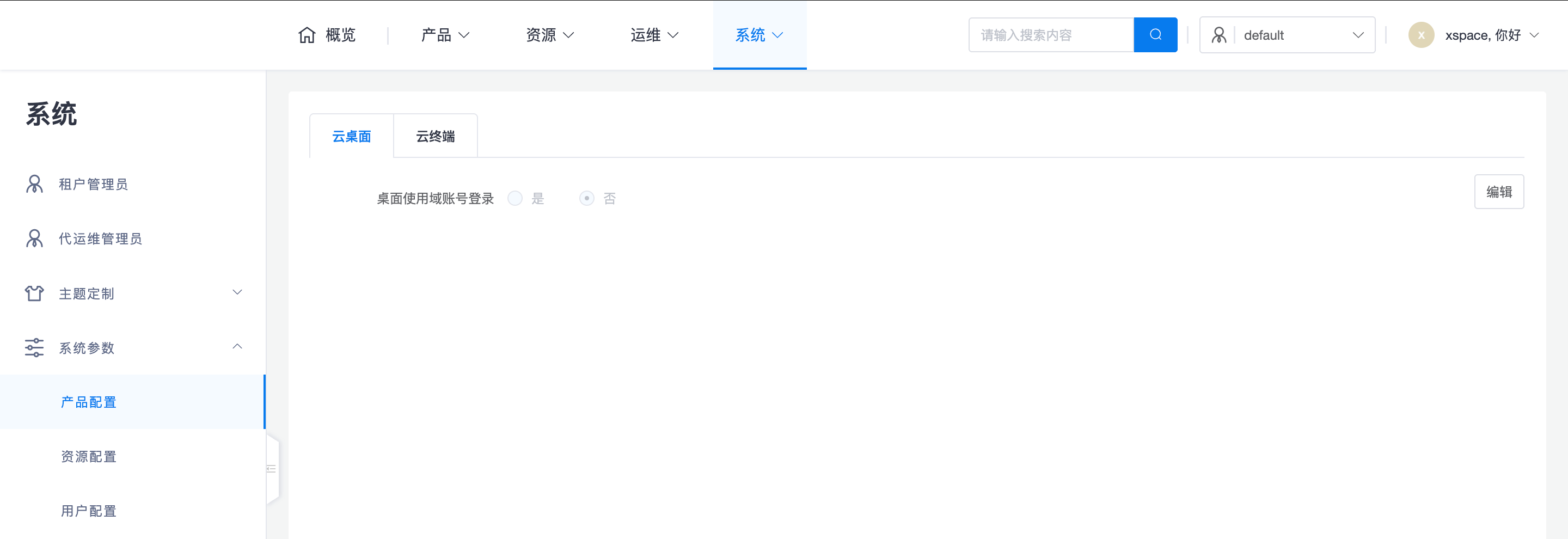
1.1 Cloud Desktop Settings
- Desktop Login with Domain Account: Controls whether cloud desktops use AD domain accounts for authentication.
- Priority Logic: This is a tenant-level switch. If this item in the policy group is "unconfigured", the setting here will be followed; if it is explicitly configured as "yes" or "no" in the policy group, the policy group's configuration will take precedence.
- Login Behavior: If the final effective result is "yes" (requiring the desktop to log in with a domain account), then only when the user logs in to the client with an AD account can they automatically log in to the desktop's internal operating system with the same AD account.
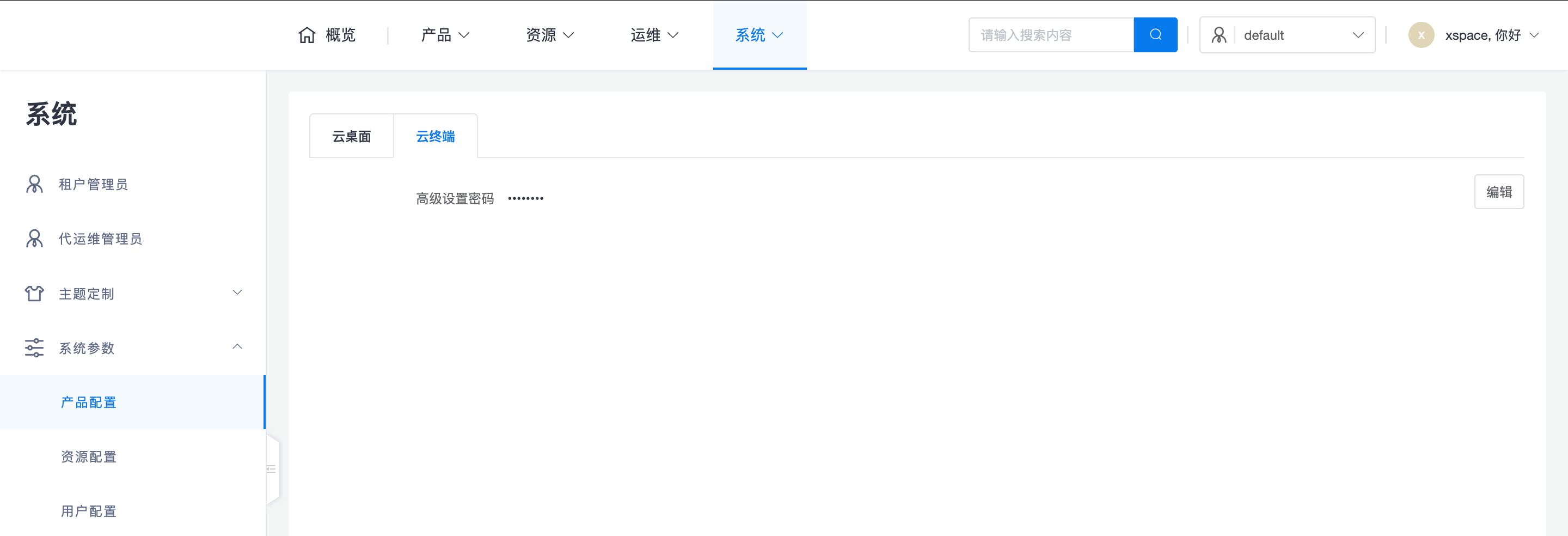
1.2 Cloud Terminal Settings
- Advanced Settings Password: Tenant administrators can uniformly set the password for entering the client's local configuration interface. This can effectively prevent end-users from privately adjusting the running mode.
2. Resource Configuration
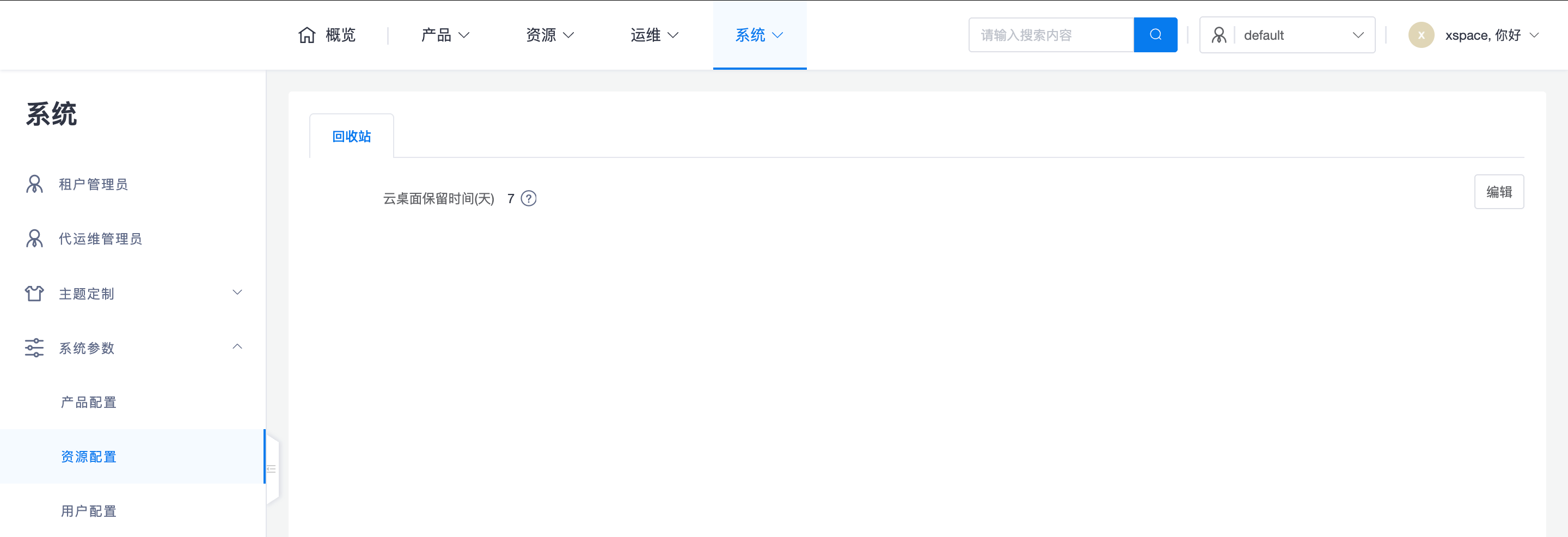
2.1 Recycle Bin Settings
- Cloud Desktop Retention Time: Specifies the number of days a cloud desktop will be retained in the "Recycle Bin" after deletion. Within this period, administrators can recover the desktop and its data at any time; after the deadline, the system will automatically and completely clear the resources to release underlying storage space. The default is usually 7 days.
3. User Configuration
3.1 Access Security
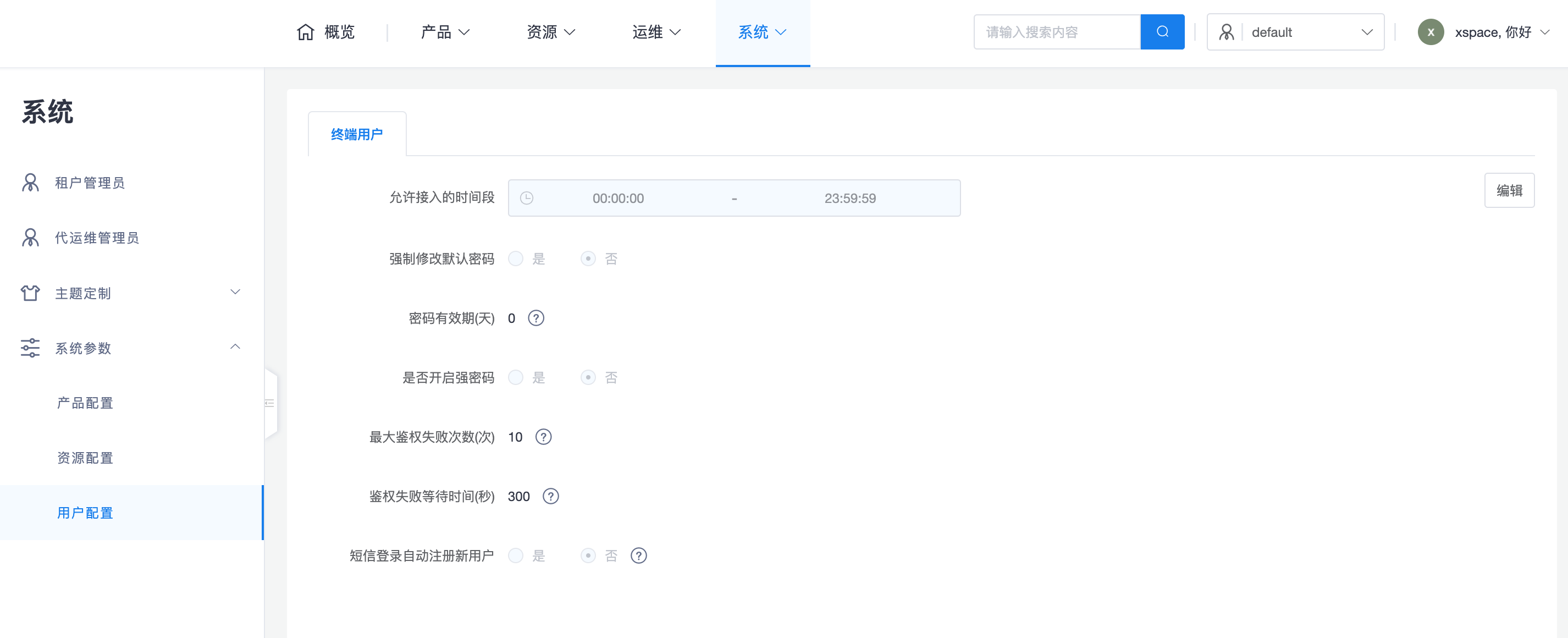
- Allowed Access Time Period: Supports configuring the valid time period during which users can log in to xSpace (e.g., 00:00:00 to 23:59:59). Login requests outside the allowed time period will be rejected, enabling strict control over working hours.
3.2 Password Policy
- Force Change Default Password: If enabled, new users must change their initial password upon first login.
- Password Expiration Period: Sets the mandatory password change cycle (e.g., 180 days).
- Strong Password Policy: Specifies combination restrictions for uppercase/lowercase letters, numbers, and special characters that passwords must contain.
3.3 Authentication and Auditing
- Maximum Authentication Failure Attempts: Limits the number of consecutive failed login attempts (e.g., 10 times). After exceeding the limit, the account will be temporarily locked.
- Authentication Failure Wait Time: Sets the cooling-off period for automatic unlocking after an account is locked (e.g., 300 seconds).
- Password Hashing Algorithm: Configures the encryption algorithm used by the system to store passwords (e.g., bcrypt10), ensuring the security of credentials in the database. ```