Policy Group Management
Before starting specific operations, it is recommended to first read the System Console -> Policy Group Management section. This section details the default policy group templates maintained by system administrators, which serve as the foundation for tenant-specific configurations.
Tenant administrators can browse these system default templates in the tenant console, but cannot directly edit the template content. Tenant administrators need to first copy a policy group from a policy group template, and then perform fine-grained policy editing and adjustments based on specific scenarios (such as office, R&D, outsourcing, etc.).
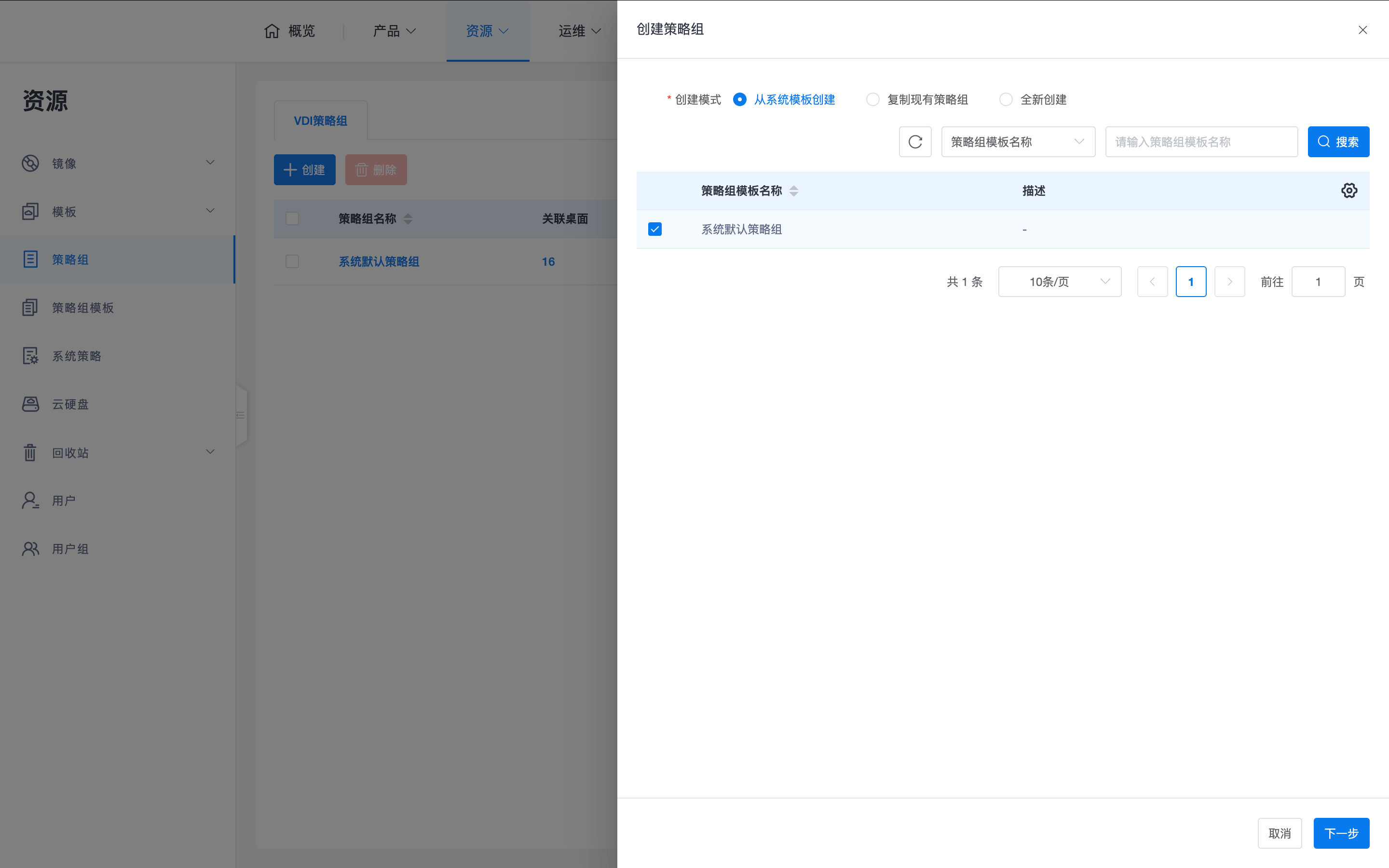
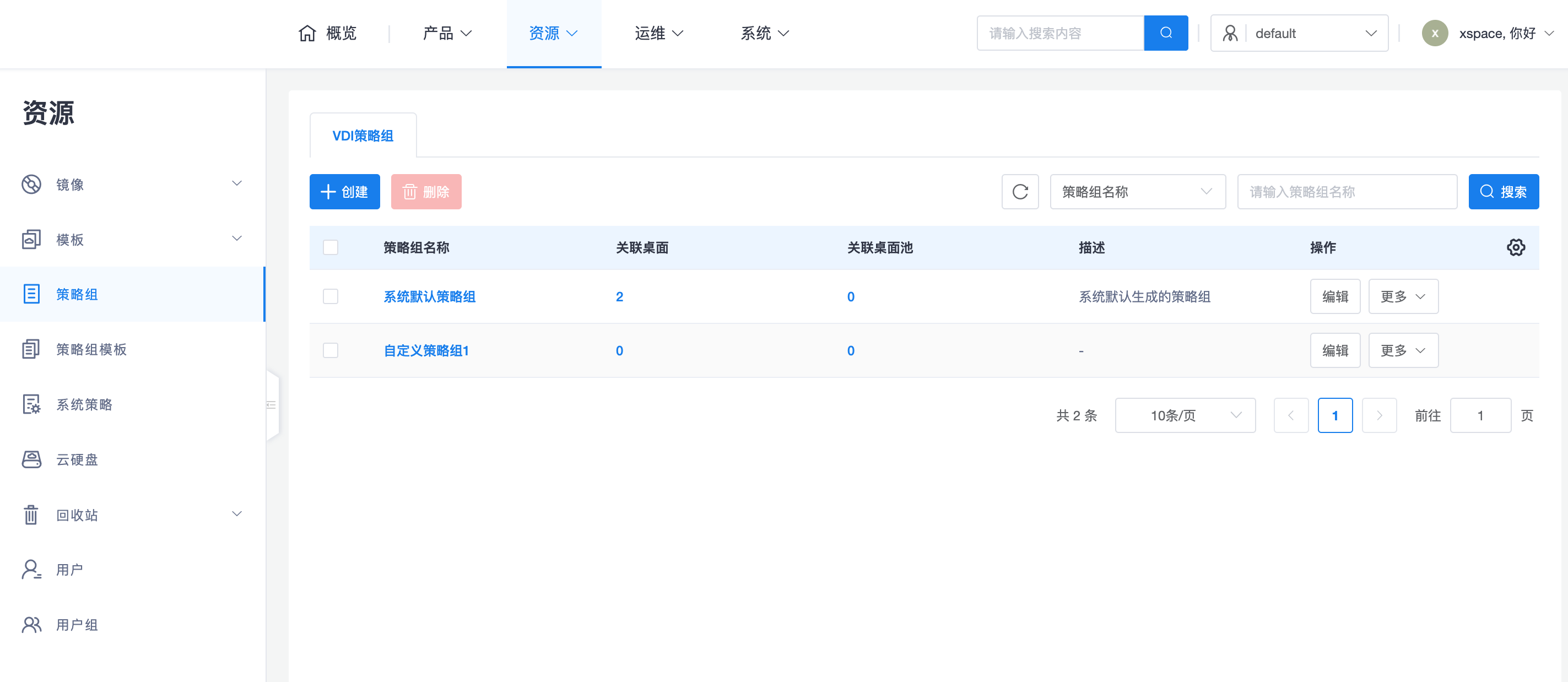
1. Data Loss Prevention (DLP) Policies
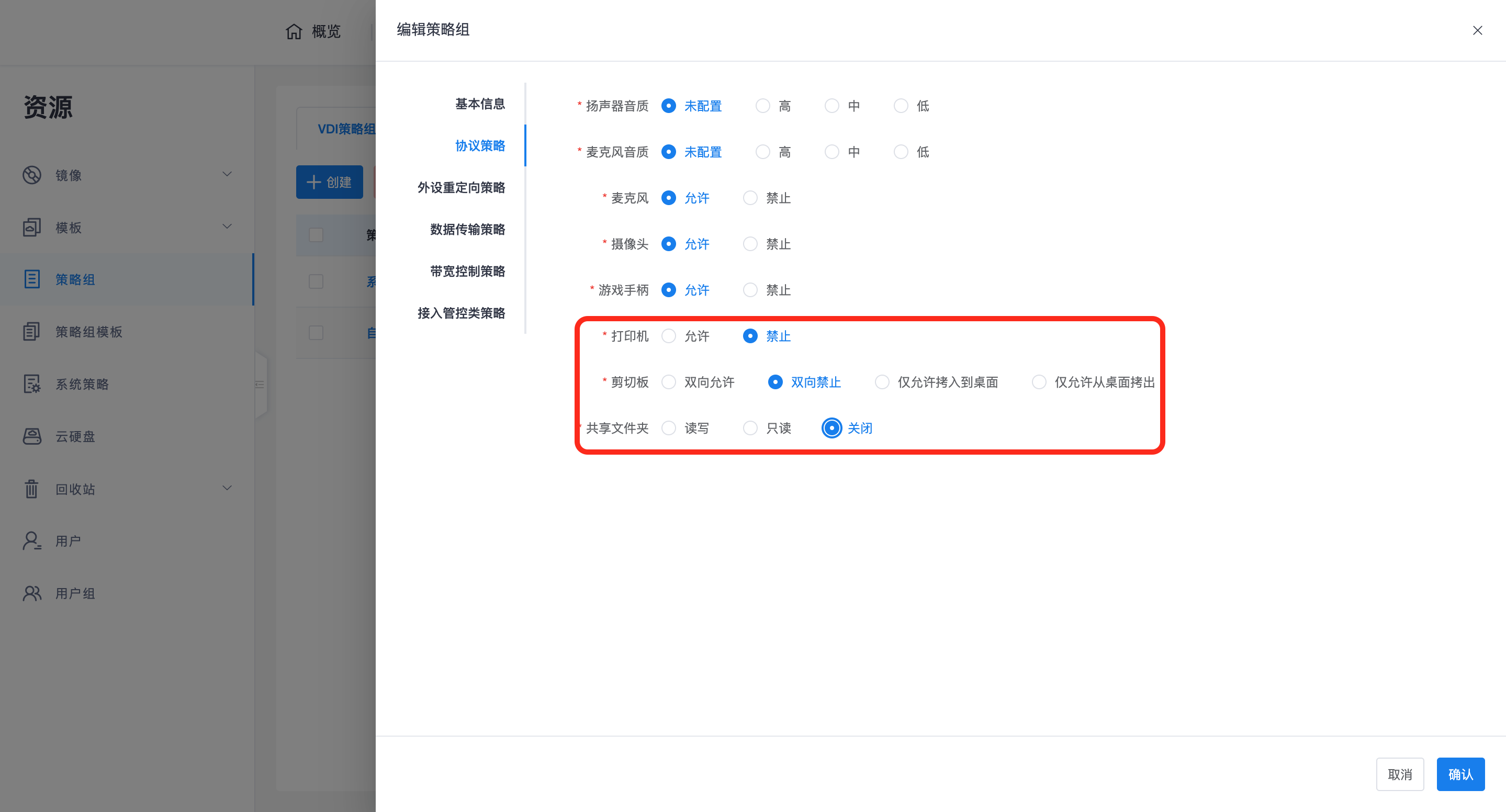
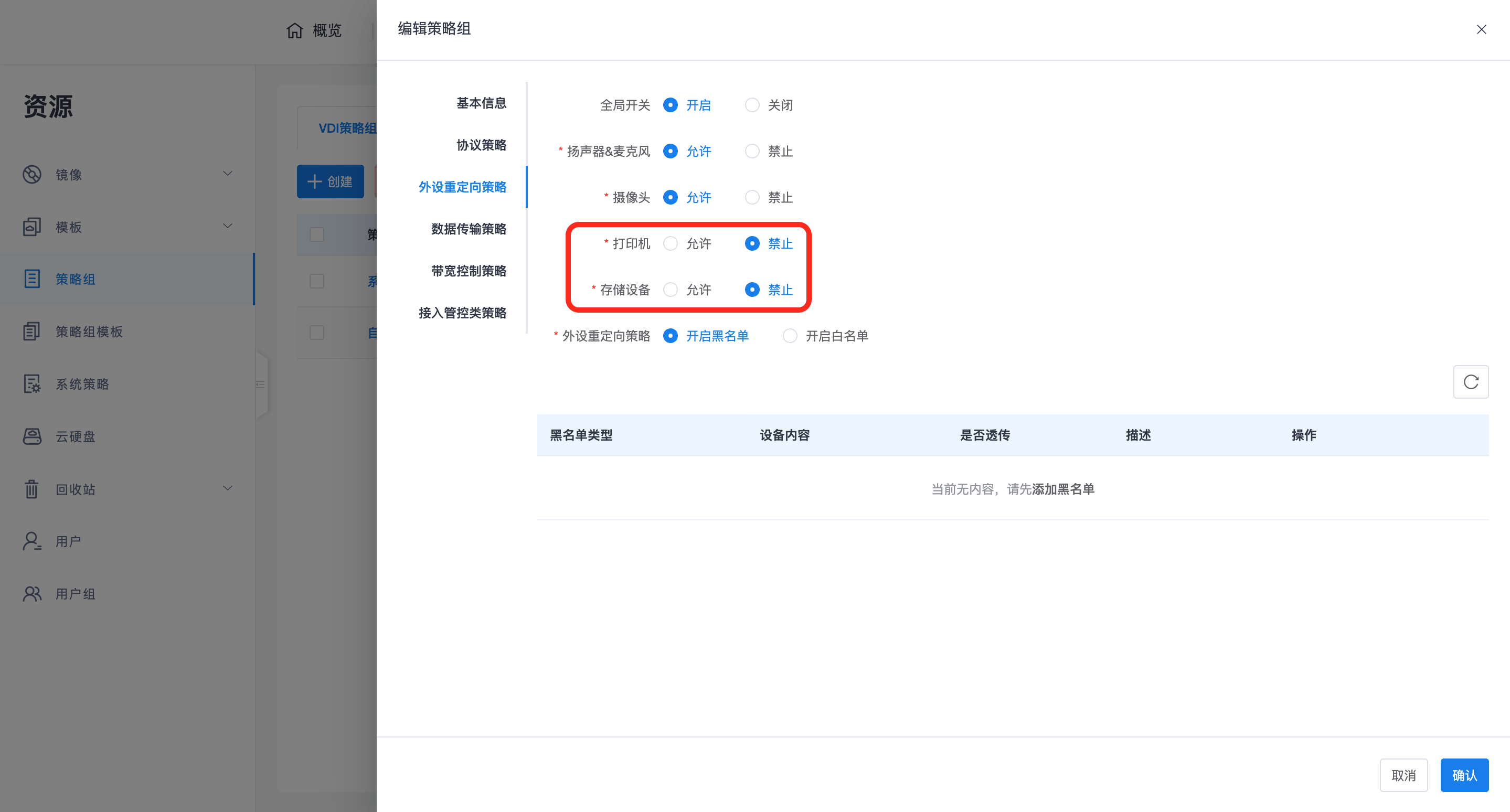
To strictly control cloud desktop data leakage, closed-loop prohibition must be implemented for all data transfer channels. It is recommended to configure item by item according to the following matrix to ensure data security:
| Dimension | Key Configuration Item | Strict Control Recommended Setting |
|---|---|---|
| Protocol Redirection | Printer | Prohibit |
| Protocol Redirection | Clipboard Redirection | Bi-directional prohibit (or allow only copying from terminal to desktop) |
| Protocol Redirection | Shared Folder | Close (or Read-only) |
| Peripheral Redirection | Global Switch | Close (or close printer and storage devices) |
| Peripheral Redirection | Printer | Close |
| Peripheral Redirection | Storage Device | Close |
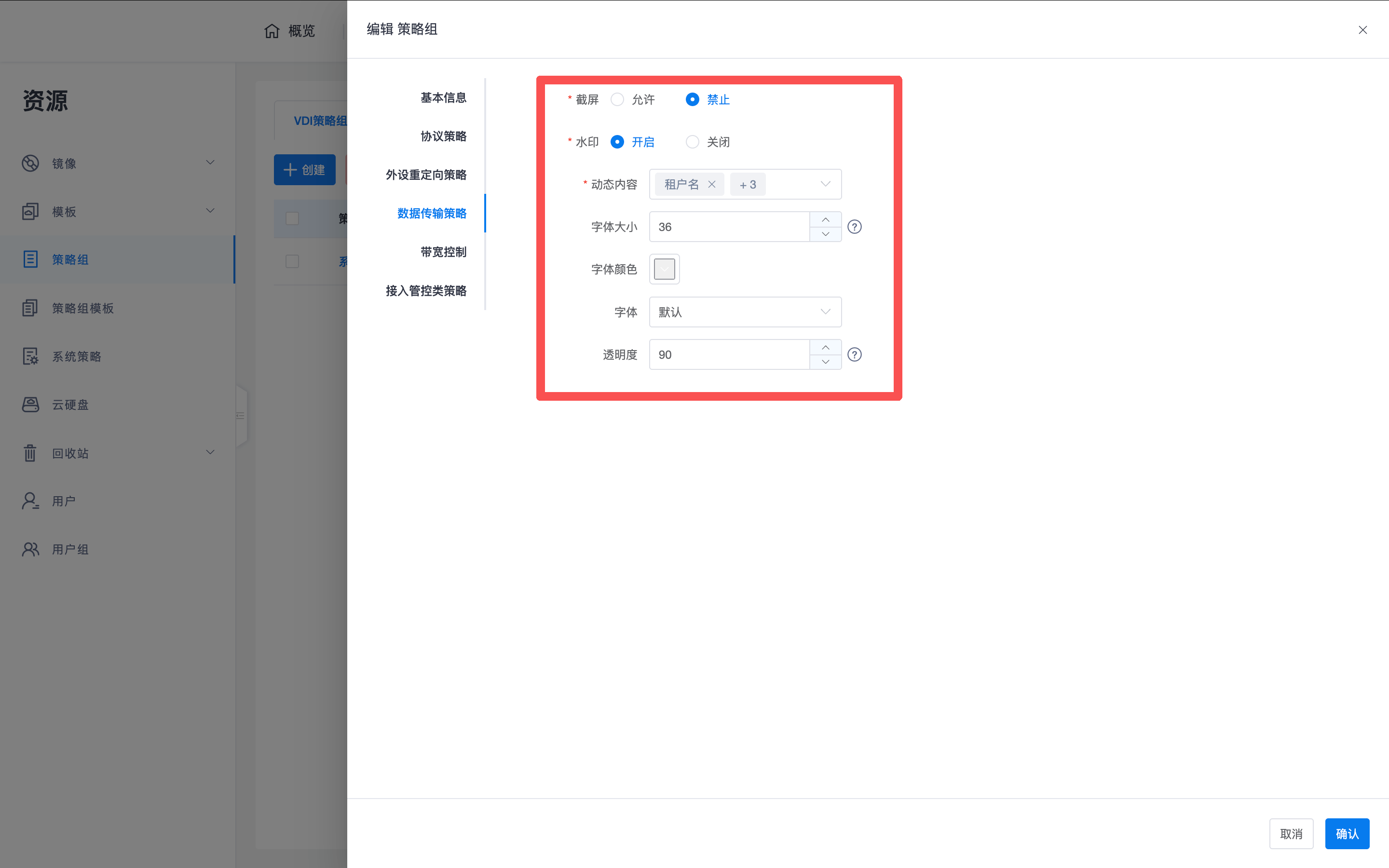
| Data Transfer Policy | Screenshot | Prohibit |
| Data Transfer Policy | Screen Watermark | Enable |
2. Client Interaction and Redirection Logic
Some policies are directly displayed on the client interface, allowing users to clearly understand their current permission status and avoid confusion due to unavailability.
2.1 Desktop Toolbar and Peripheral Status
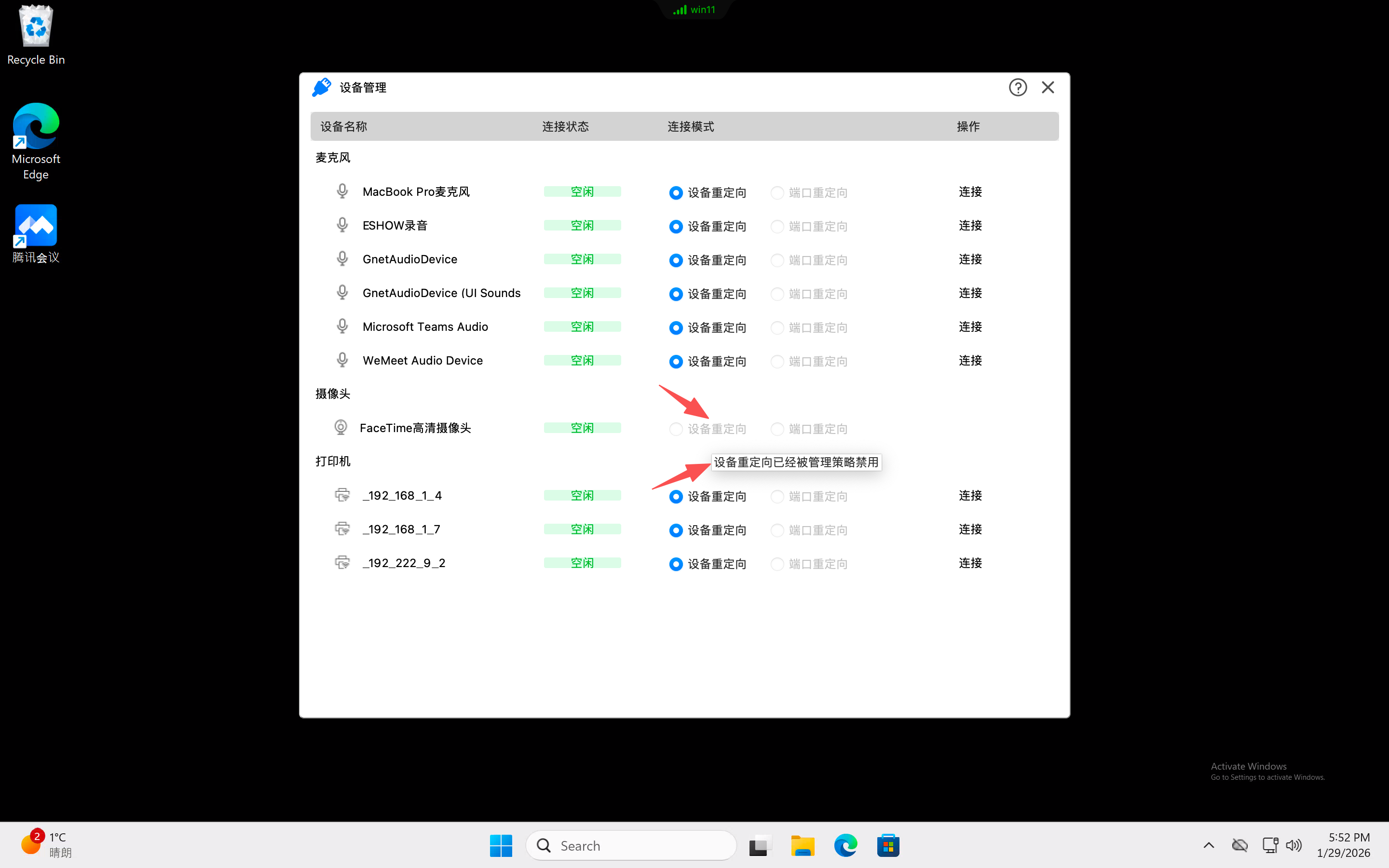
In the top floating toolbar of a connected desktop, users can view peripheral status through the "Device Management" interface:
- Policy Hint: If a peripheral device is prohibited from performing "device redirection" or "port redirection" due to policy control, this interface will clearly provide a hint.
- Transparent Management: Through this immediate feedback, users can quickly understand that the peripheral is restricted by administrator-set policies, thereby avoiding confusion due to inability to connect.
2.2 Clipboard and Watermark
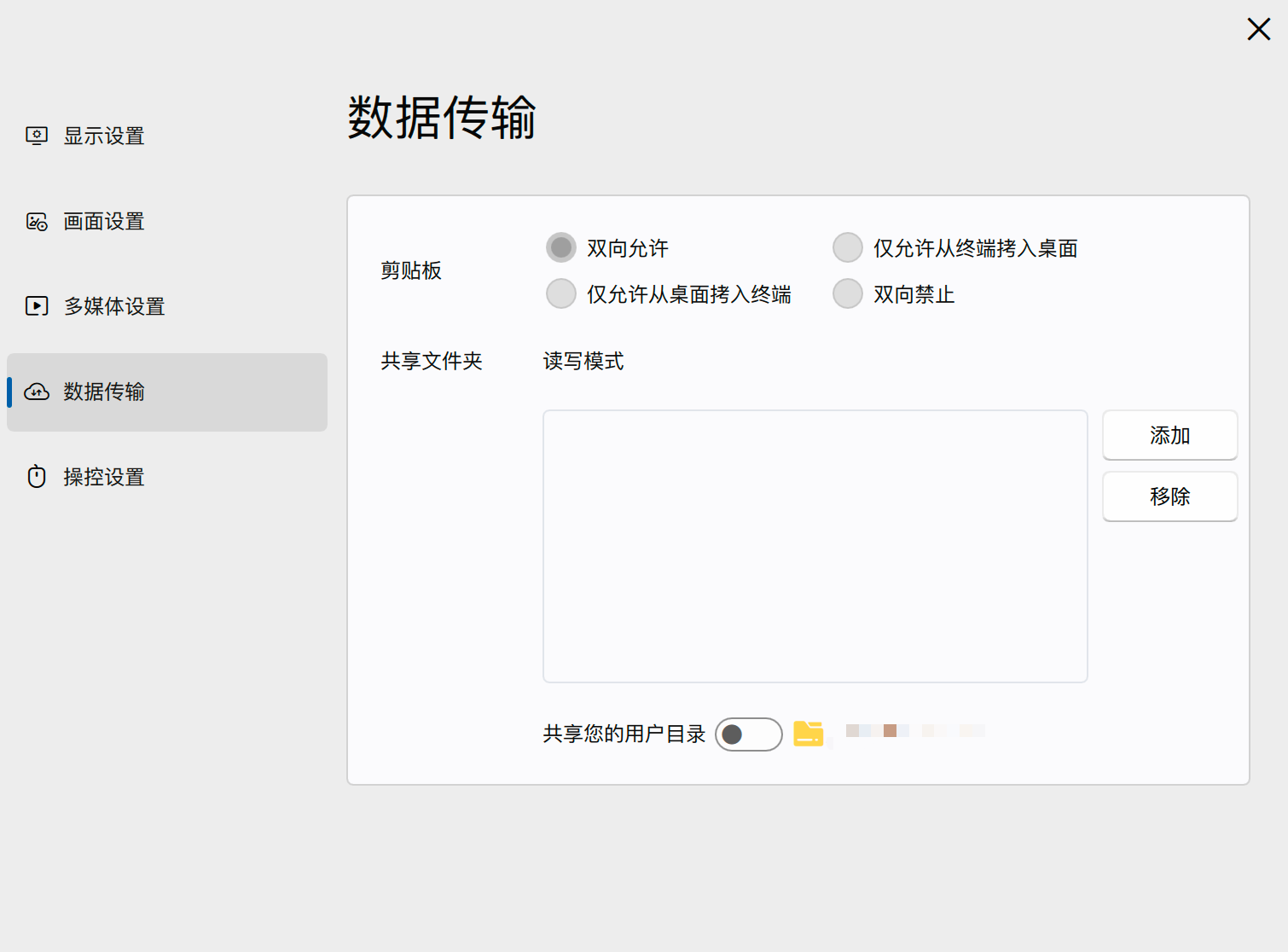
- Interactive Awareness: Clipboard policies will be displayed on the client, allowing end-users to understand their current copy-paste permissions.
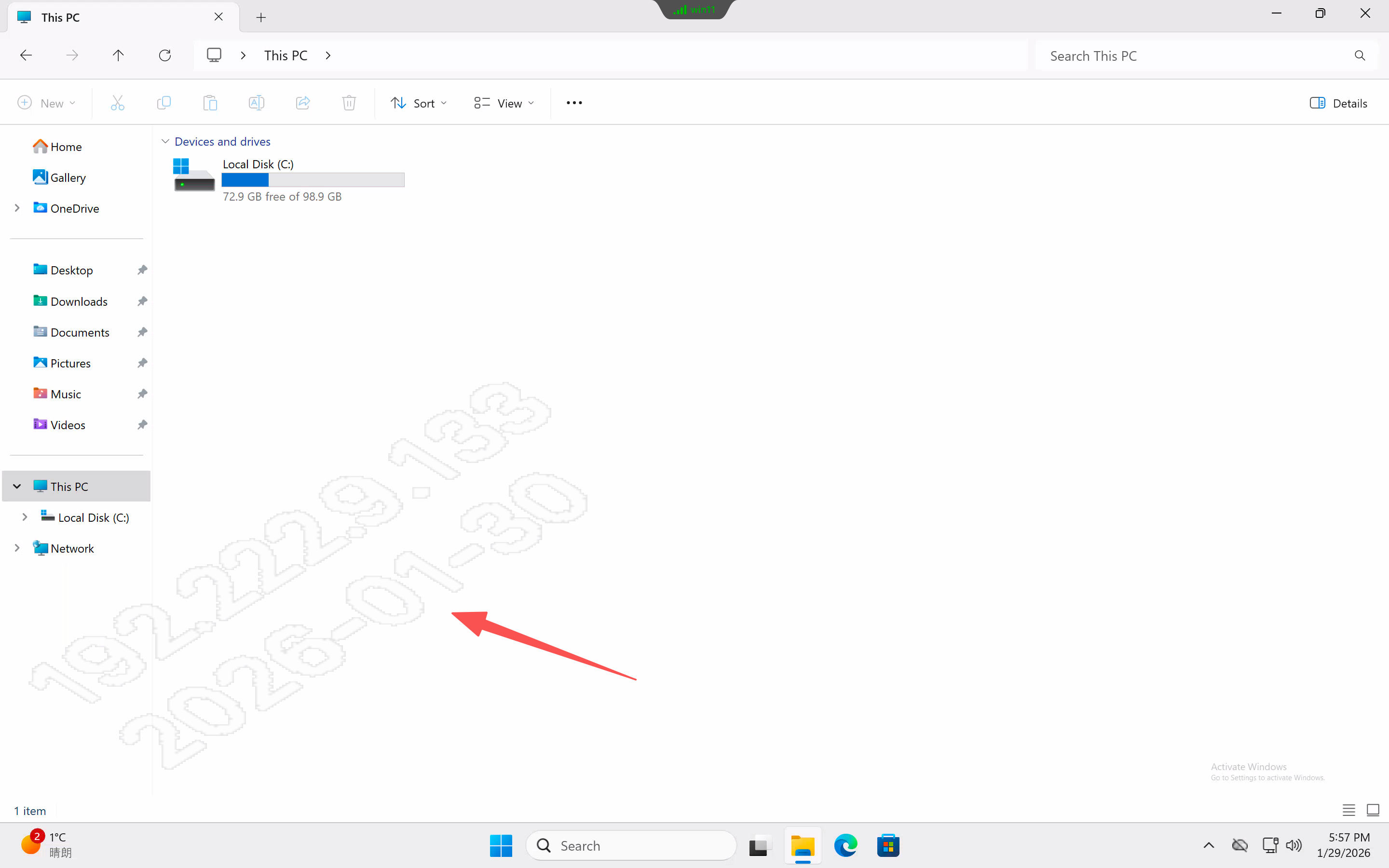
- Security Traceability: Once enabled, the watermark will directly overlay the desktop image, used to prevent illegal screen capture or photography.
2.3 Shared Folder Mapping
- Client Support: End-users (excluding thin client users) can manually add local client directories.
- Read/Write Permissions: If the policy is set to "read-only", users can only read local data into the desktop, but cannot write data back from the desktop, ensuring data security.
3. Thin Client USB Storage Logic
In a thin client environment, USB drive redirection behavior varies depending on the USB drive's formatting status:
- USB Data Directory (Shared Folder Method):
- Trigger Condition: The USB drive is formatted with a file system recognizable by local Linux and automatically mounted.
- Advantage: Appears as a network shared folder within the desktop, with better read/write performance. Recommended for priority use.
- Raw USB Device (Port Redirection Method):
- Trigger Condition: The USB drive is not formatted or formatted with a file system not recognizable by Linux, and cannot be locally recognized and mounted.
- Behavior: Can only be mapped to the desktop via port redirection.
4. Access Control Policies
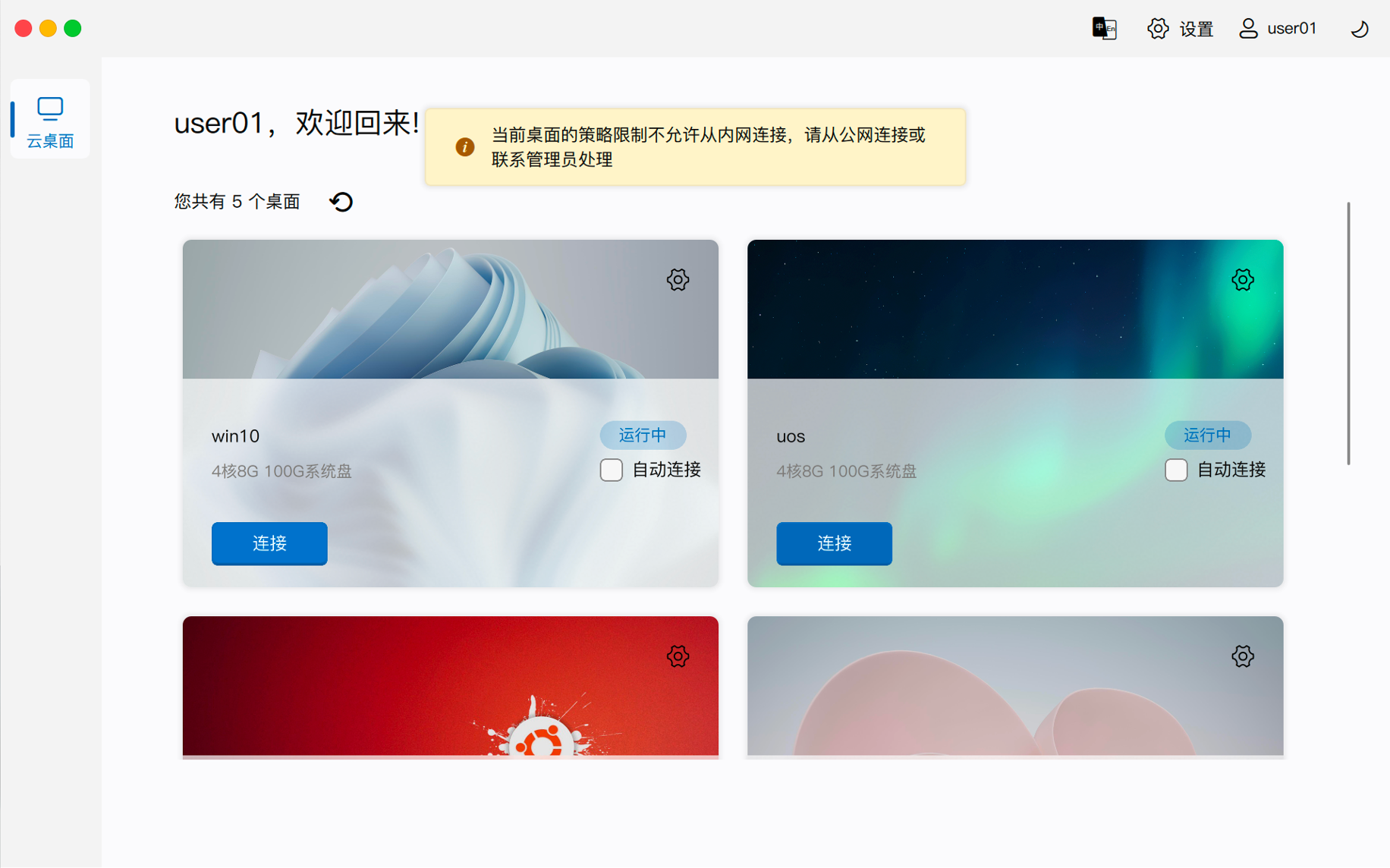
The system automatically determines the user's access environment based on the address used by the client to access the management component:
- Internal Network Access: The client uses the internal network address of the master management node to access.
- Public Network Access: The client uses the public network mapped address of the master management node to access, even if the client is actually on the internal network.
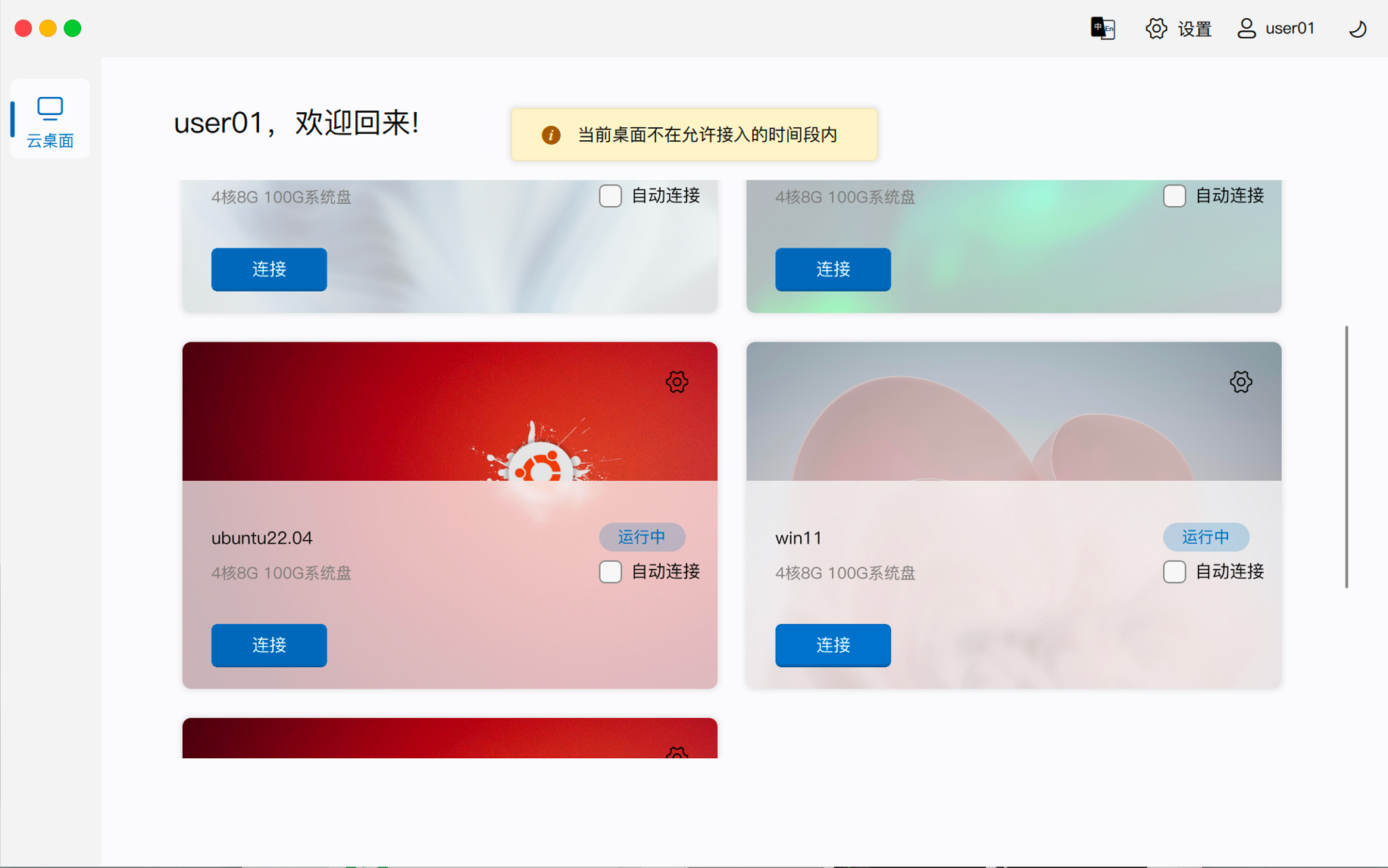
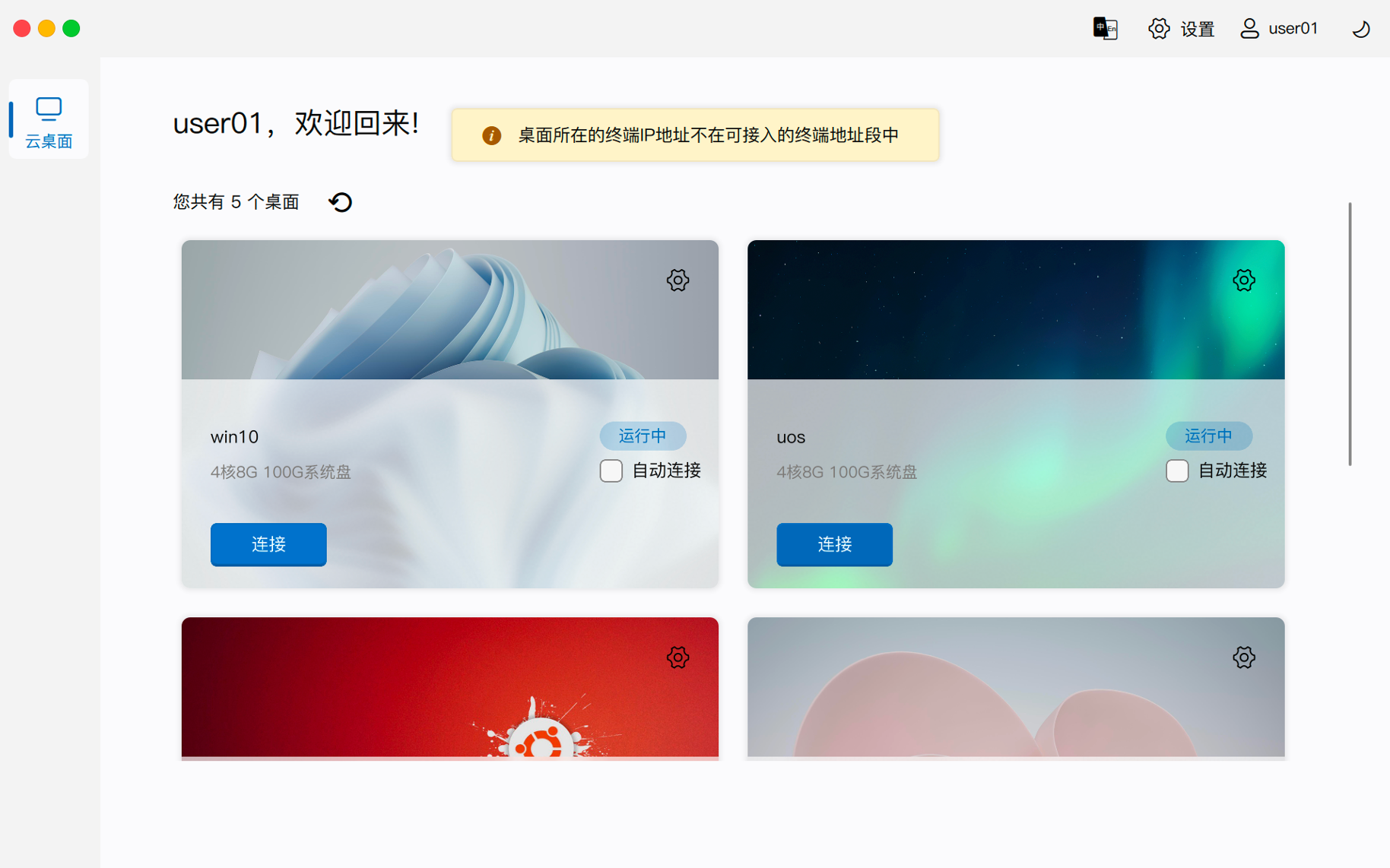
- Admission Restrictions: If the current access time period, access location, or client IP range requirements are not met, the system will refuse to return desktop connection information, and the client will be denied connection.
5. Compute Resource Scheduling
The "Release Compute Resources After Shutdown" policy is primarily used to manage resource occupation on different underlying cloud platforms:
- OpenStack Platform: If checked, when the desktop shuts down, CPU, memory, and GPU resources will be released through archiving and shelving, preventing idle resources from being occupied.
- ZStack Platform: The underlying platform natively supports automatic release capabilities, so no duplicate configuration is required here.
- Other Platforms: Depends on the cloud platform's own capabilities.
Note: After modifying a policy group, users usually need to log out from the client and reconnect to the desktop session for the changes to fully take effect. ```