Dedicated Desktop Pool Management
Dedicated Desktop Pool is a solution provided for users who require long-term fixed use of persistent desktops. This type of user has one or more dedicated, fixed desktop instances, and users are assigned to the same desktop environment each time they log in. Users can perform office, design, R&D, and other operations within it, and personal data can be persistently retained on the desktop.
1. Create Dedicated Desktop Pool
Go to "Products -> VDI Desktops -> Dedicated Desktop Pools" in the tenant console and click the "Create" button.
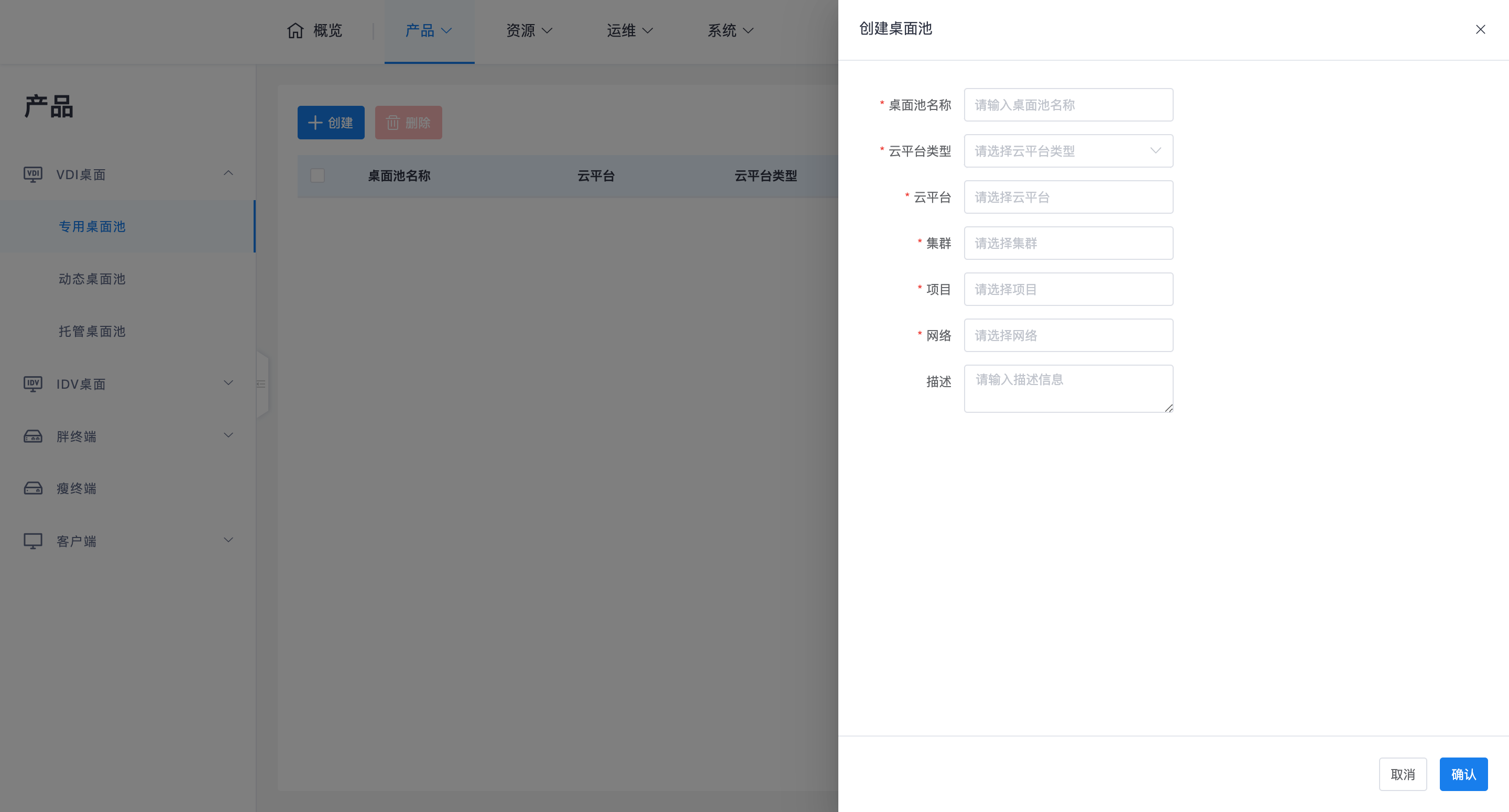
1.1 Core Configuration Parameter Description
- Basic Information: Requires selecting the cloud platform type, specific cloud platform instance, and target cluster. Subsequent created desktop virtual machine instances will run within the selected cluster.
- Project Resource Association:
- Select Existing Project: Select an idle project resource. If there are existing virtual machine resources in the project, the desktop pool will automatically synchronize and convert them into cloud desktops. The synchronization process varies depending on the number of instances, usually completing in about 1 minute.
- Automatically Create Project: This function is only supported by some cloud platforms (e.g., OpenStack, ZStack).
- OpenStack Platform: The naming rule for automatically created projects is
desktop_pool_name-8_random_characters. - ZStack Platform: The naming rule for automatically created groups is
group_prefix-desktop_pool_ID.
- OpenStack Platform: The naming rule for automatically created projects is
- Important Note: Regardless of whether an existing project is selected or a project is automatically created, do not easily delete projects or groups used by a desktop pool from the underlying cloud platform, otherwise it will lead to synchronization anomalies.
- Network Restriction: You can select one or more networks that the project can access. The purpose of this configuration is to further limit the range of networks available when creating desktops within the pool.
2. Create Dedicated Desktop
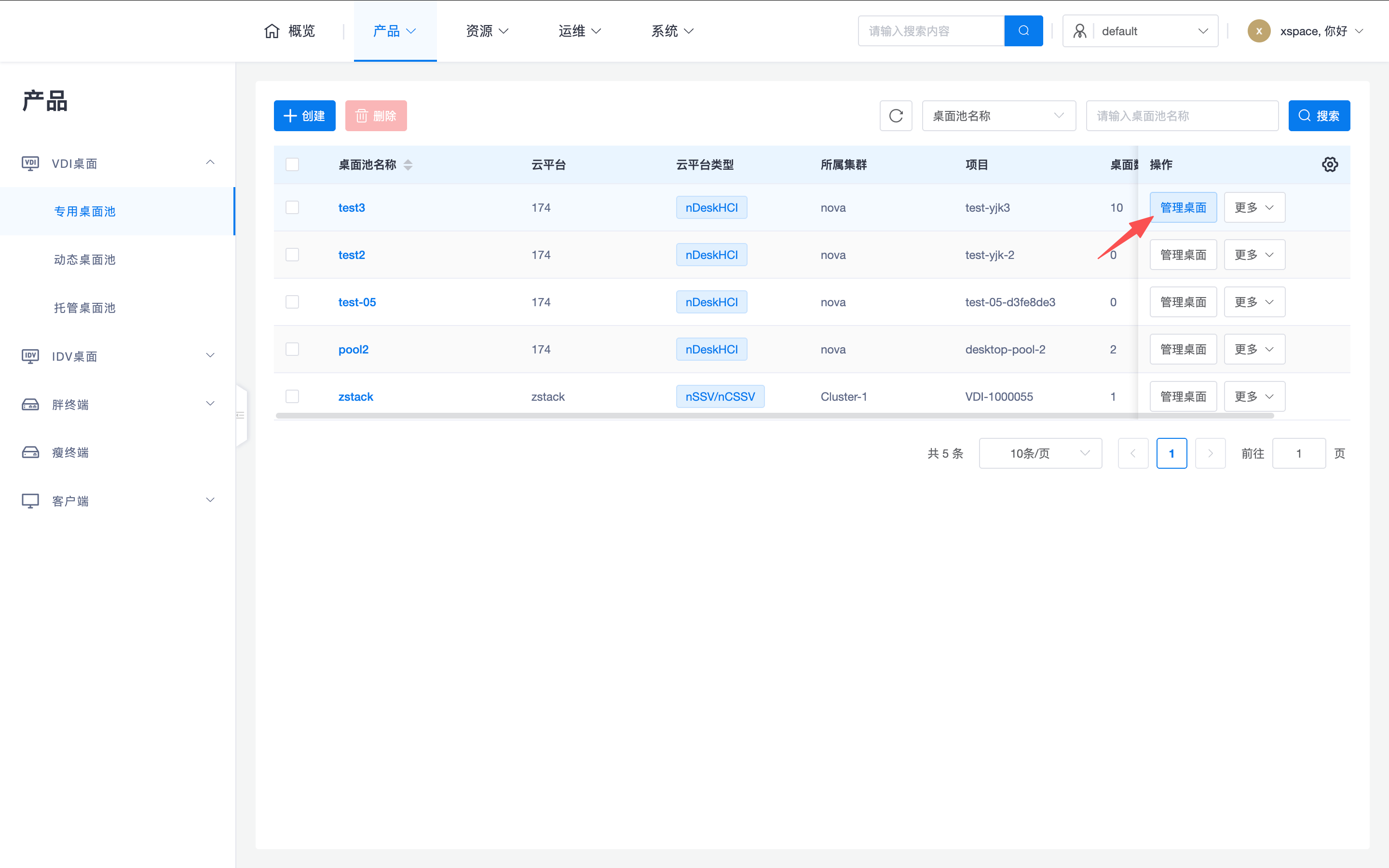
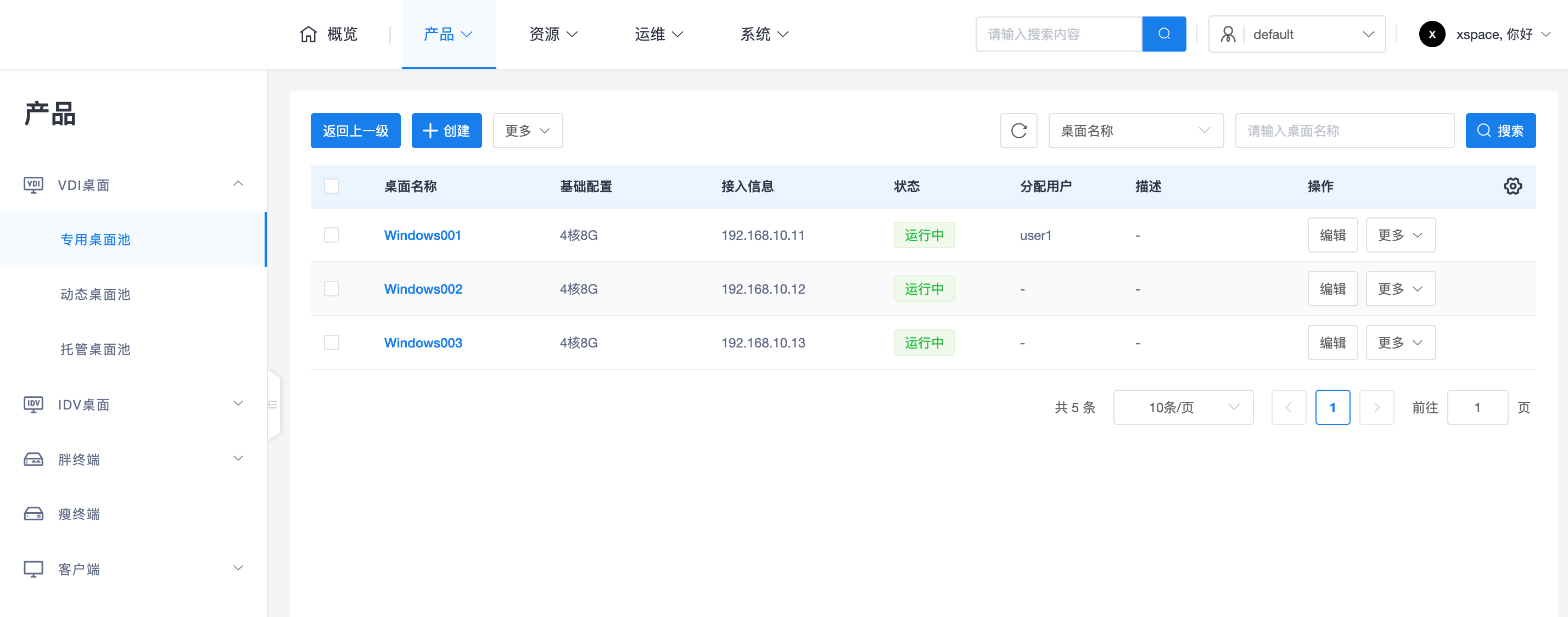
Click the "Manage Desktops" button on the right side of the dedicated desktop pool list to enter the desktop management interface for that desktop pool.
2.1 Configuration Information
Click the "Create" button on the page to complete the configuration through a wizard-driven interaction. The system supports the following three creation logics:
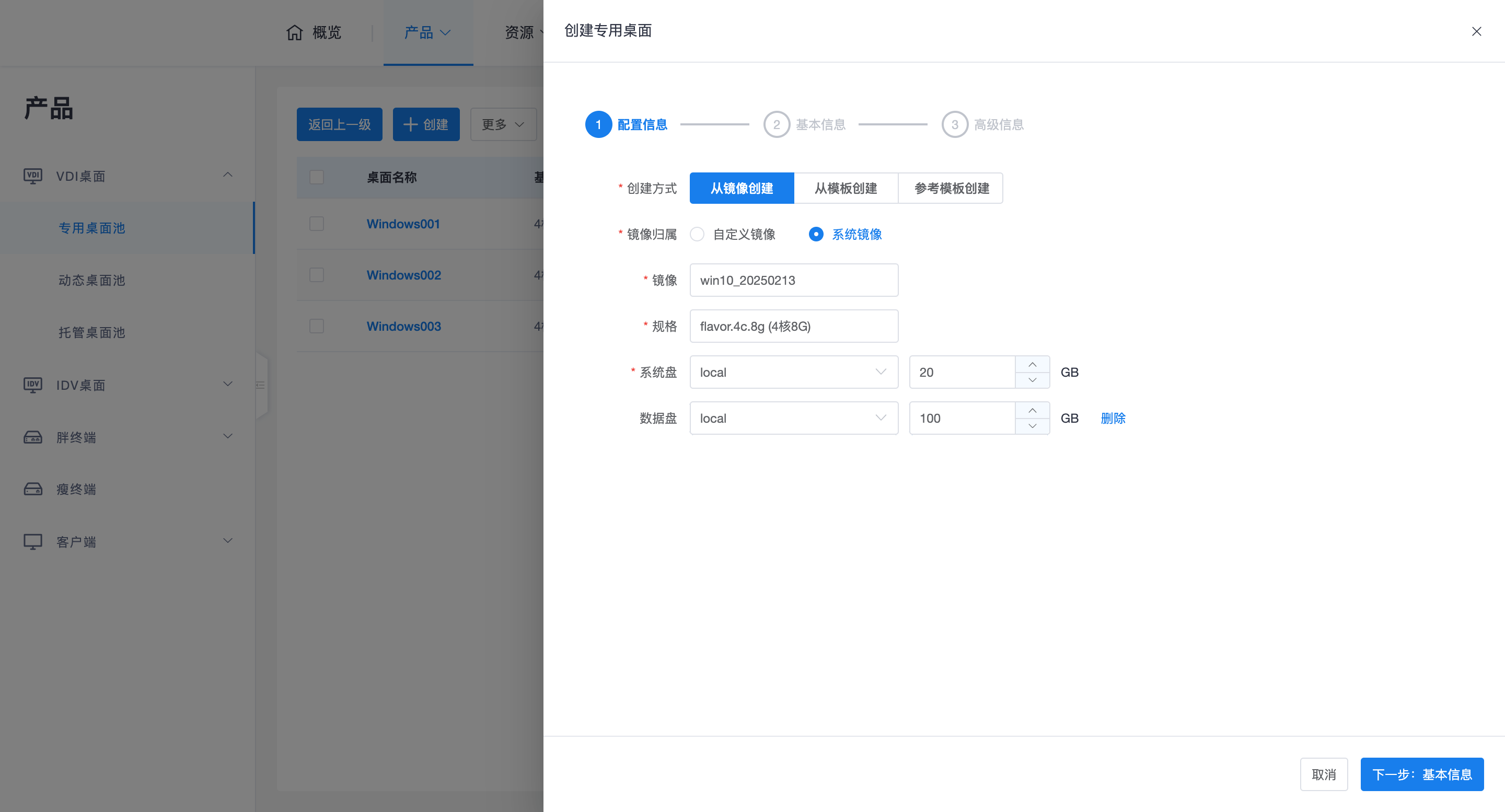
- Create from Image: Only available when the cloud platform supports images. Supports selecting system images and custom images. Administrators need to manually configure parameters such as flavor, system disk (size not less than image size), and data disk.
- Create from Template: Requires the system to have a preset template. Desktop configuration fully inherits from the template, and no parameters in the template can be modified during creation.
- Create from Reference Template: The system will use template parameters as initial pre-filled items, but allows tenant administrators to further adjust parameters during creation according to actual needs.
Note: Unavailable images or templates (e.g., in maintenance, belonging to other tenants, lost, etc.) will be automatically filtered by the system.
Security Credentials: The OS username and password of the selected image or template must be non-empty and correct, to prevent the desktop from being unable to connect from the client due to incorrect initial password.
2.2 Basic Information
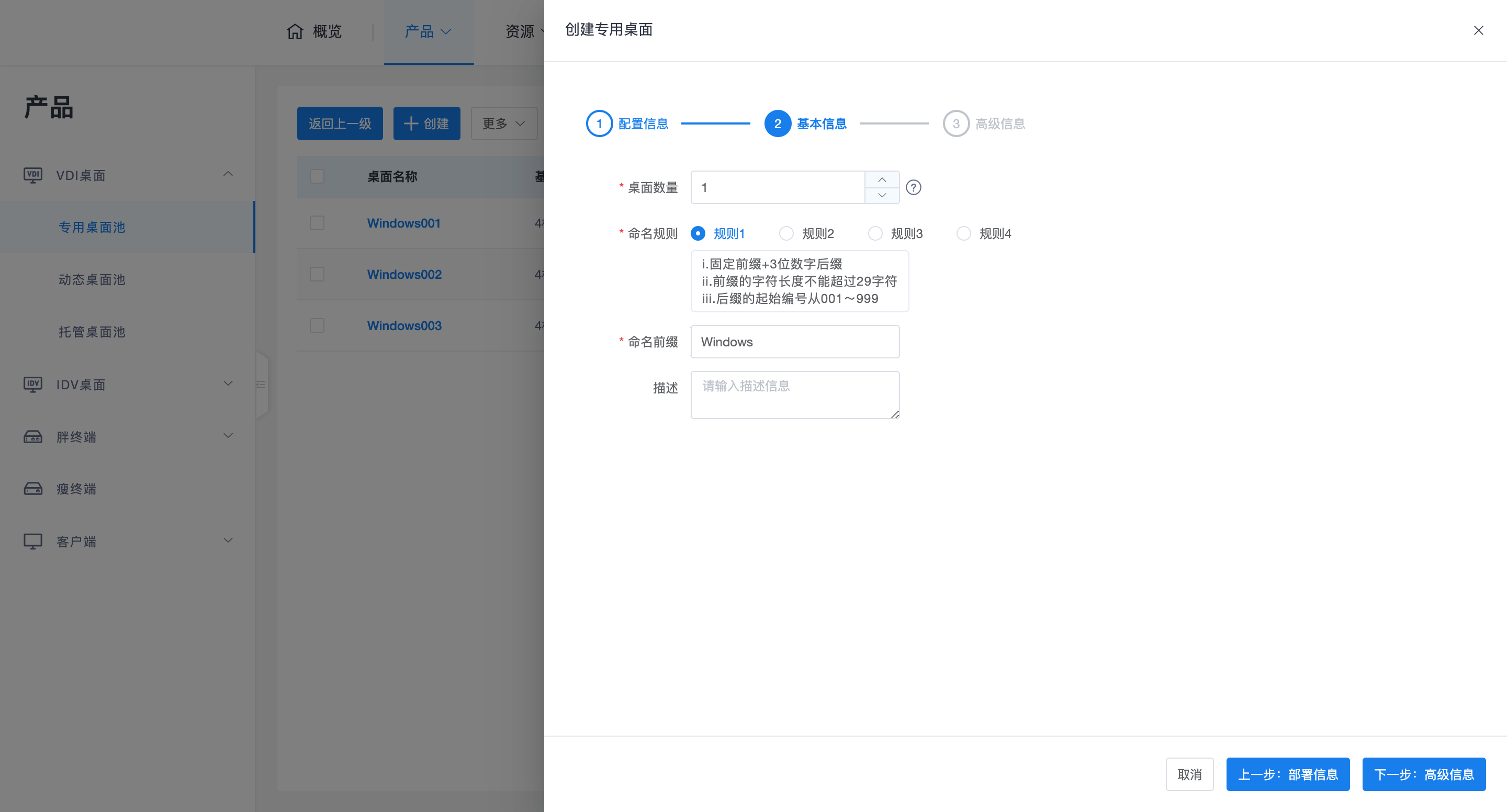
- Batch Creation: Supports one-time batch creation by filling in "Number of Desktops".
- Naming Rules: Provides four flexible rules:
- Fixed Prefix + 3 Digits: e.g.,
PC-001. - Prefix + 5 Random Letters + 3 Digits: Adds duplicate name defense.
- Tenant Name + 3 Digits: Named by tenant ownership.
- Fixed Name: Suitable for single, precise naming.
- Fixed Prefix + 3 Digits: e.g.,
2.3 Advanced Configuration
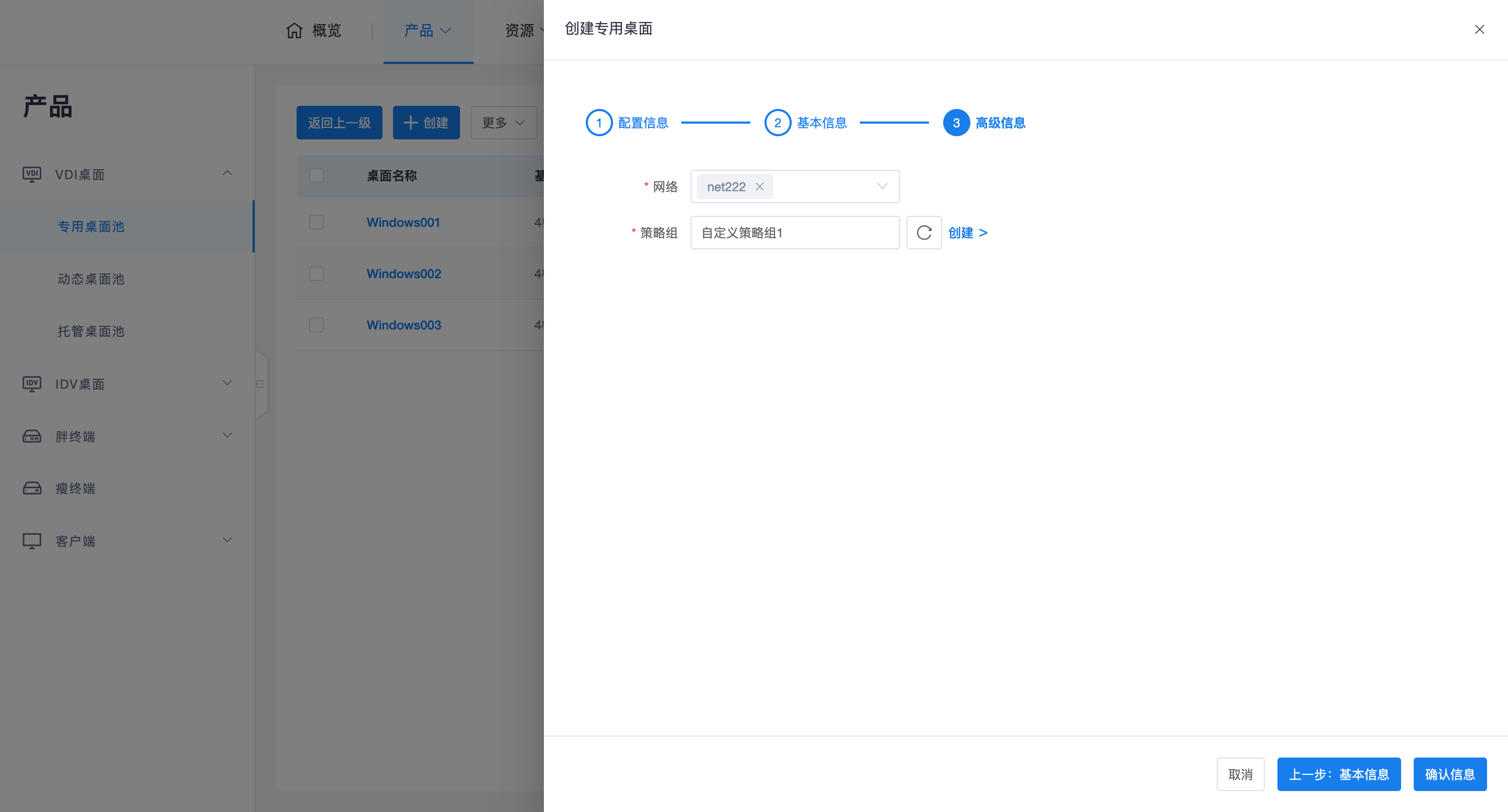
- Network and Policy: Select the desktop's network and associated policy group.
- Special Reminder: If multiple networks are selected, confirm whether the cloud platform or project is configured with "internal network access segments" or "public network access segments", otherwise use multi-network configuration with caution.
- Automatic Domain Join: Set whether the newly created desktop automatically joins the domain. See Automatic Domain Join section.
3. Maintain Dedicated Desktop
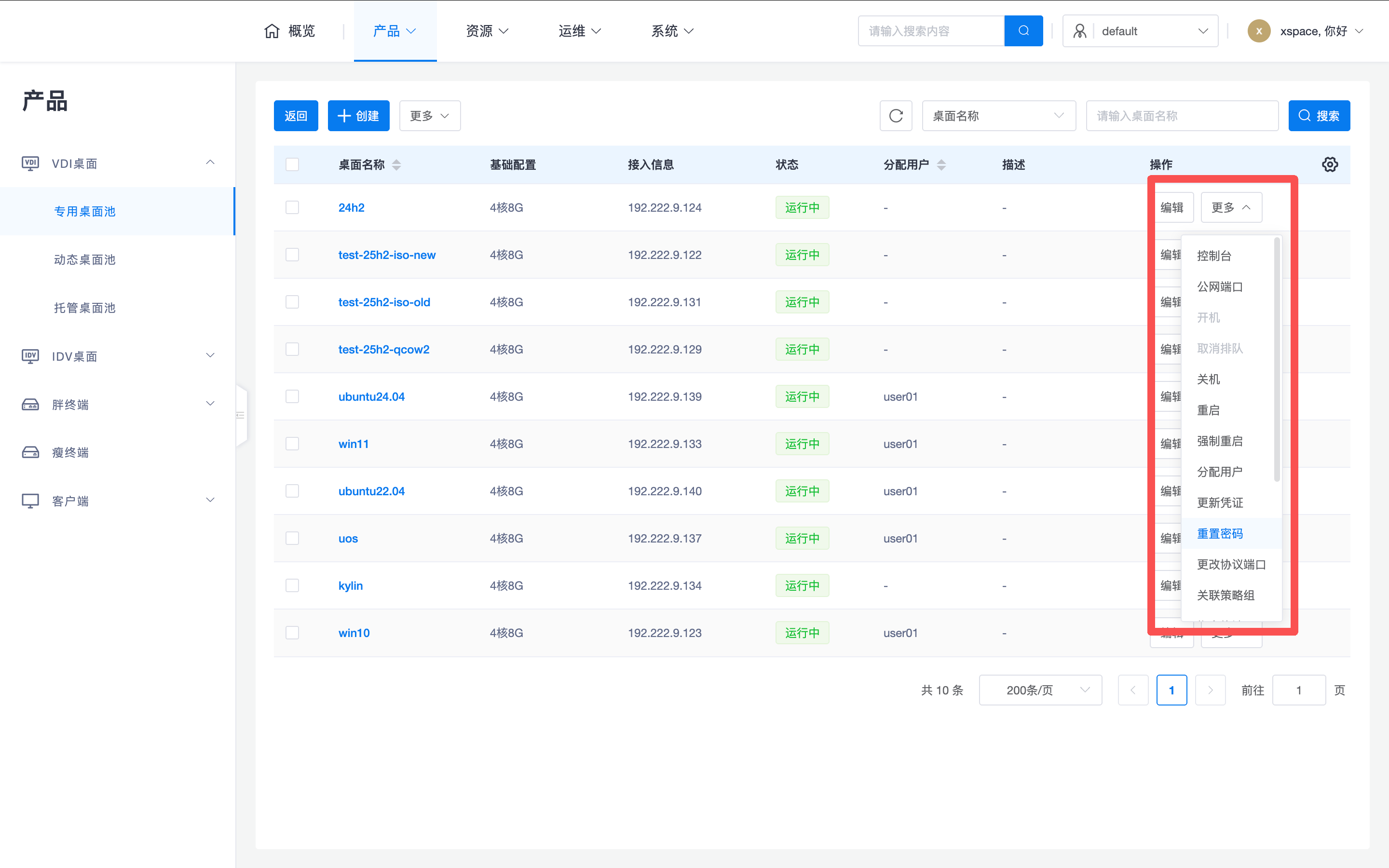
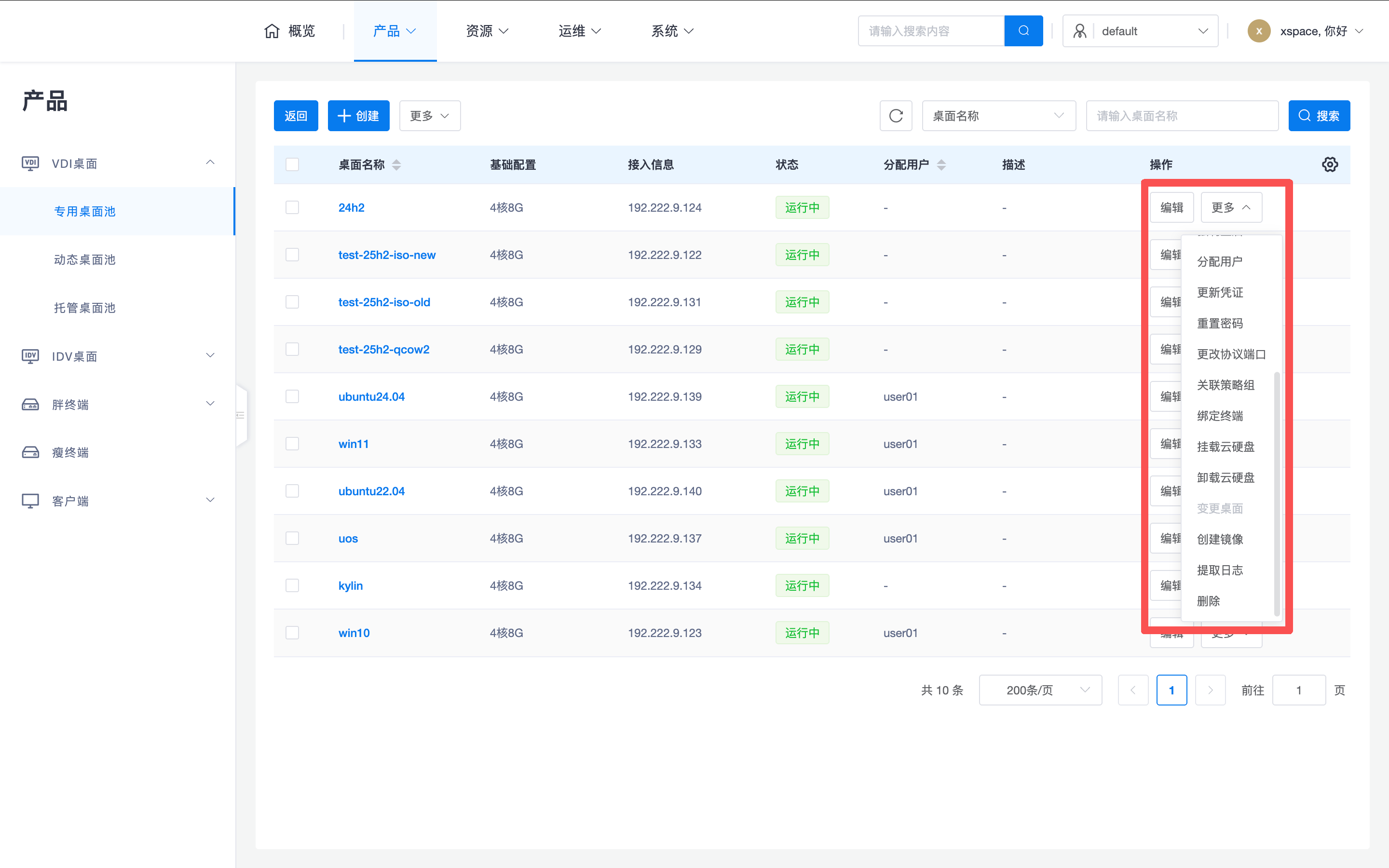
For existing cloud desktops, clicking the "More" button in the table allows for the following fine-grained maintenance operations (there are many operation buttons, scroll down to see more):
3.1 Account and Access Control
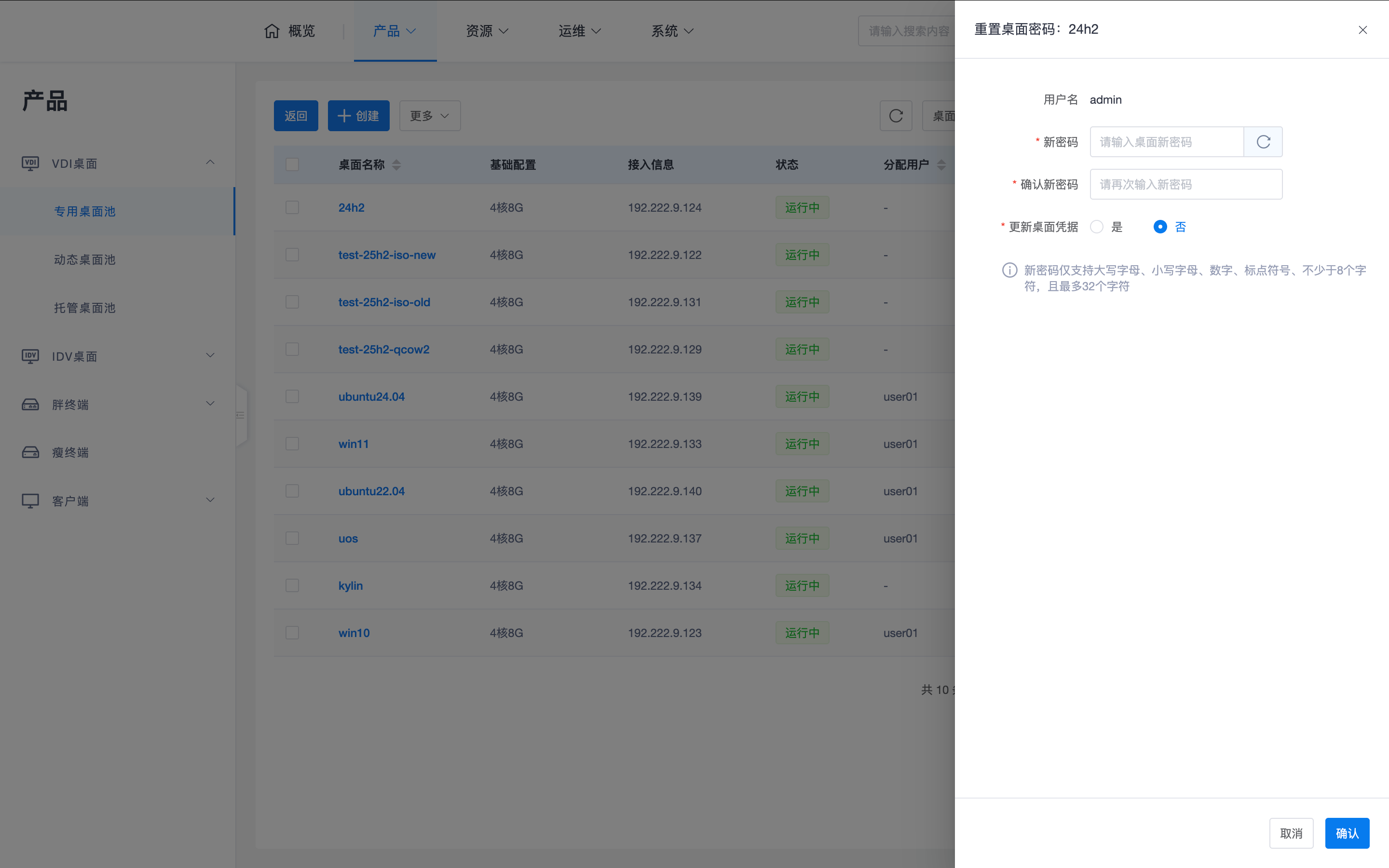
- Reset Password: Directly resets the OS password via the virtualization layer (QGA interface).
- Precondition:
qemu-guest-agentmust be pre-installed in the virtual machine. - Synchronization Option: You can choose whether to "Update Desktop Login Credentials" simultaneously. If checked, the desktop login credentials in the management component database will be updated; if unchecked, only the OS password inside the virtual machine will be modified.
- Precondition:
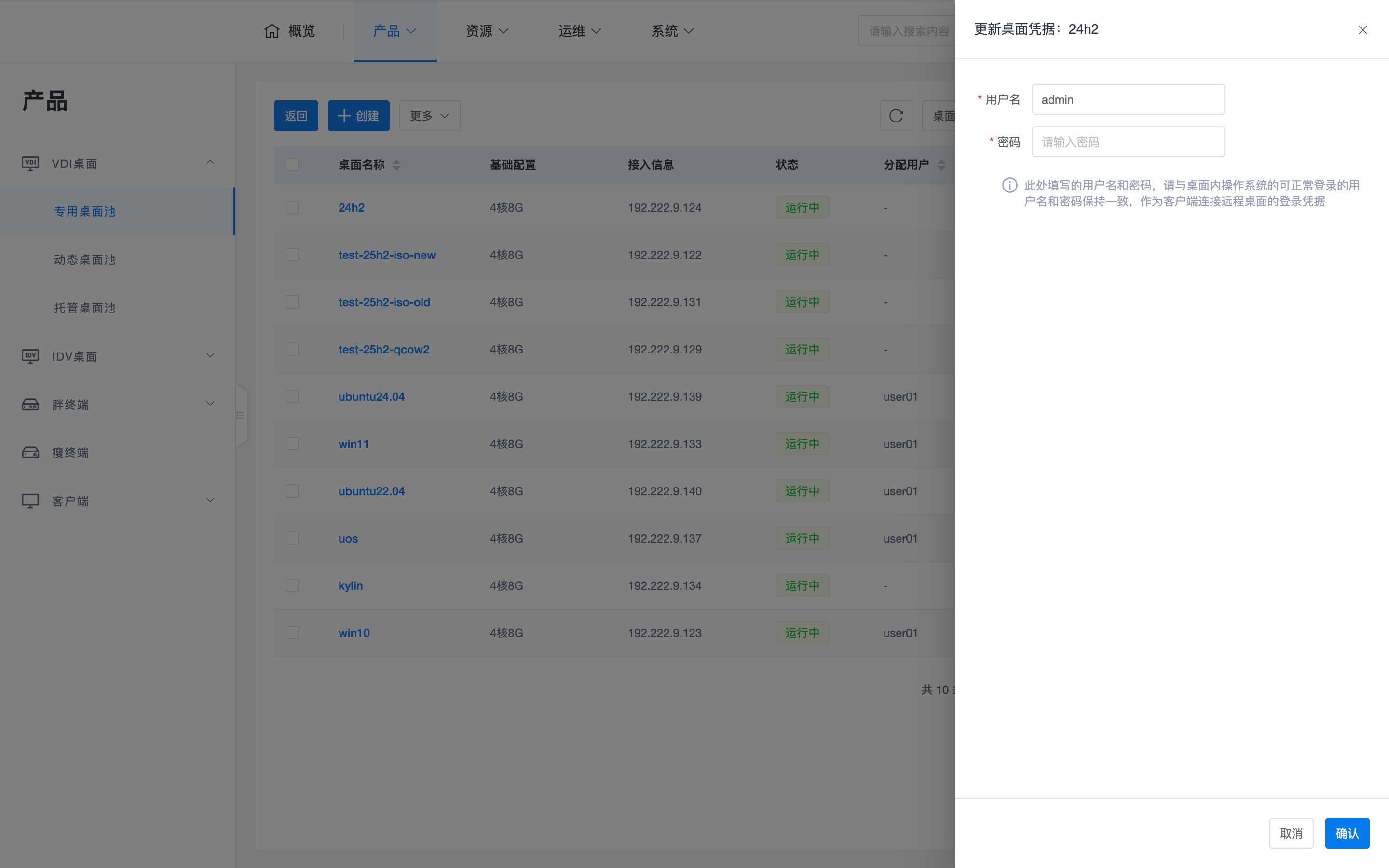
- Update Credentials: Manually modify the desktop OS login username (supports domain format) and password recorded by the management component. This is the core basis for achieving desktop SSO password-less login when desktop "domain account login" is not enabled.
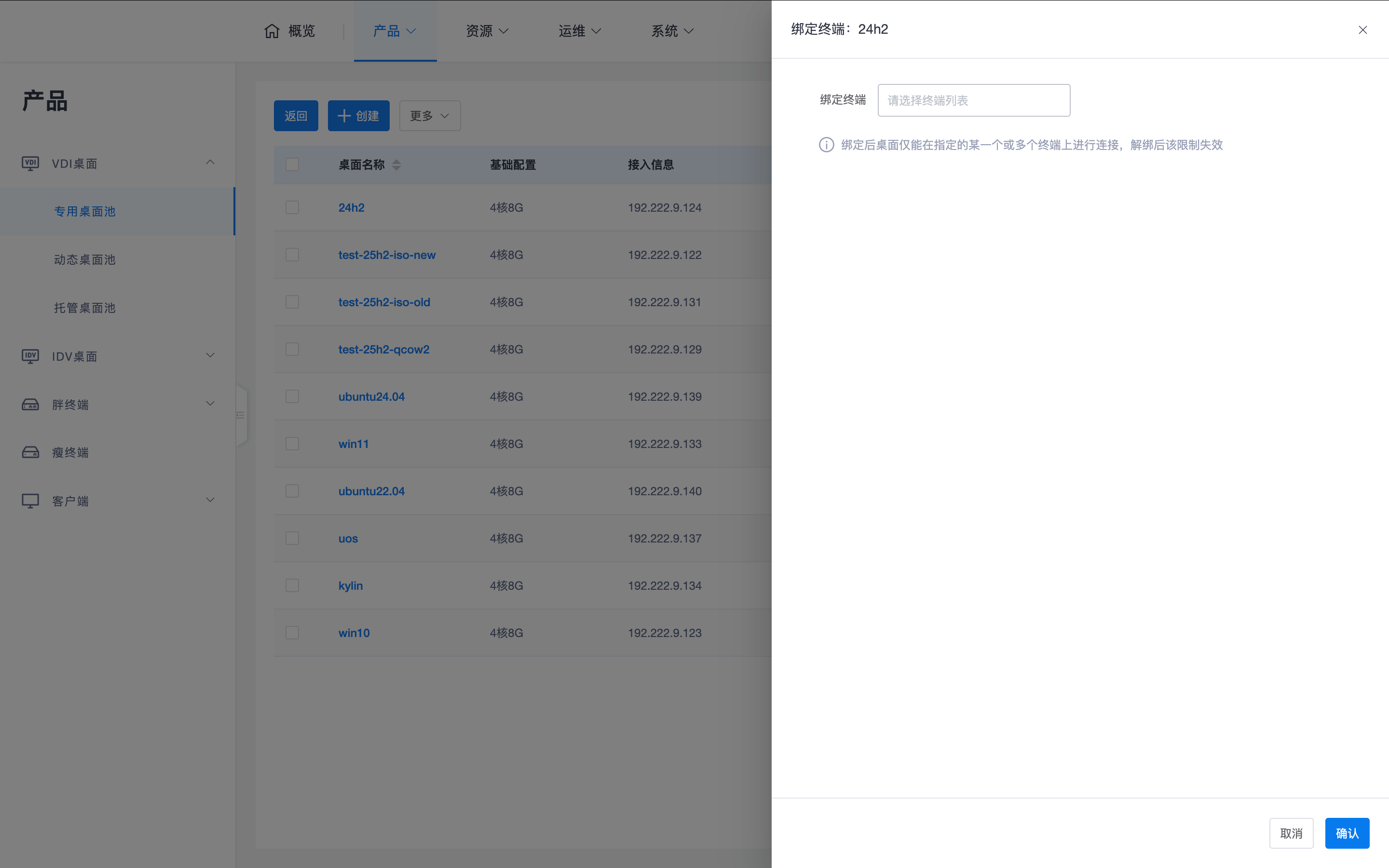
- Bind Terminal: Restricts connection to this desktop to only one or more specific terminal devices. If binding is enabled, even if the assigned user successfully authenticates on a non-specified terminal, the system will reject the connection request, achieving strong "person-machine-terminal" security control.
3.2 O&M Operations
- Console (VNC): Access the virtual machine's display via a browser. Primarily used for initial deployment, HSR agent maintenance, and other scenarios.
- Limitations: Currently only supported by OpenStack and ZStack. The console will display a black screen when vGPU is mounted or GPU passthrough is used, which is a limitation of underlying virtualization technology and is normal.
- Display Recovery: If a Windows desktop has been connected via the HSR protocol, the VNC console will remain black; a desktop restart is required, and it must not be connected from a client for the VNC display to recover.
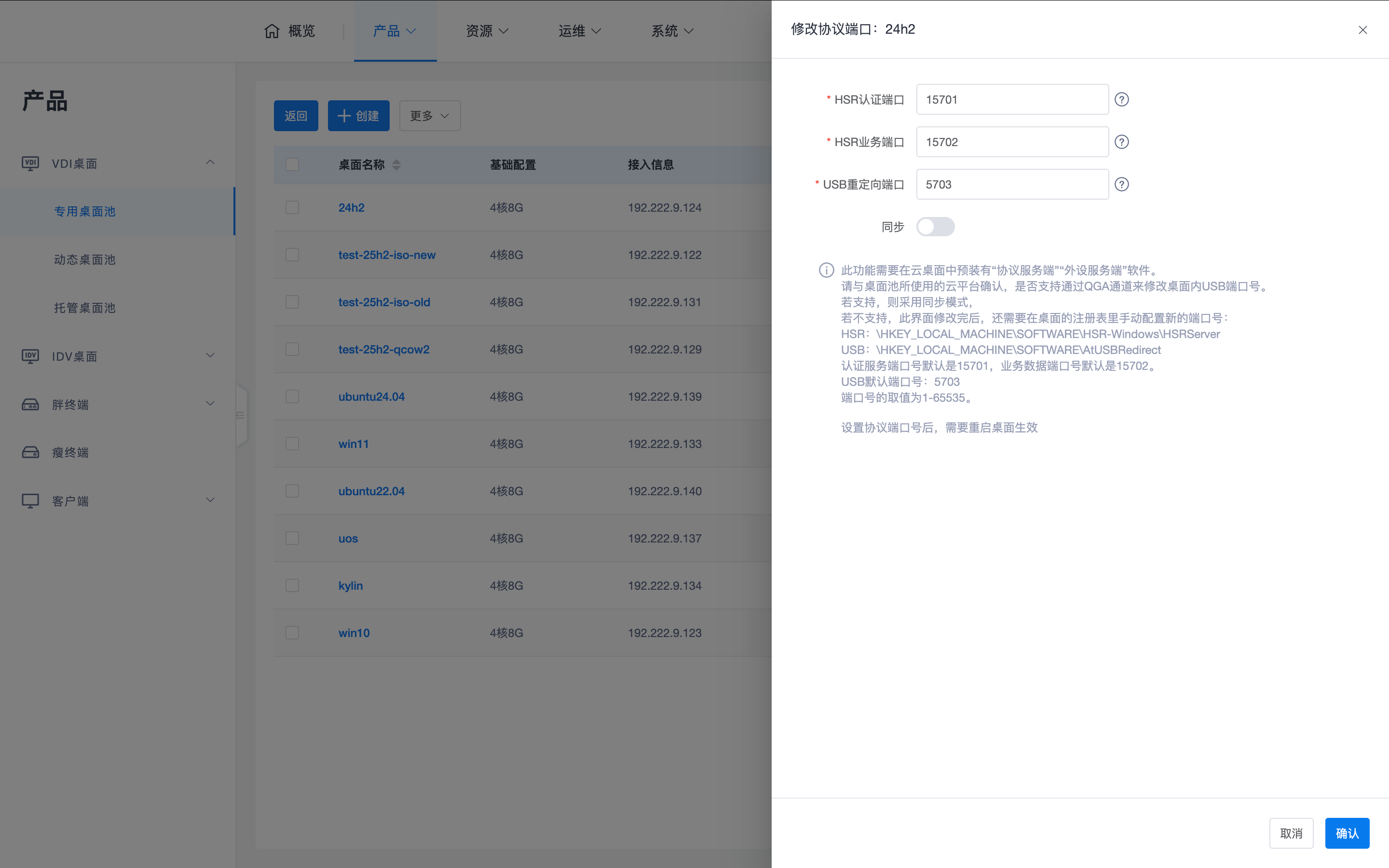
- Change Protocol Port: Defaults to 15701, 15702, 5703. Only needs to be changed here if the desktop's internal registry or other port configurations have been specially modified.
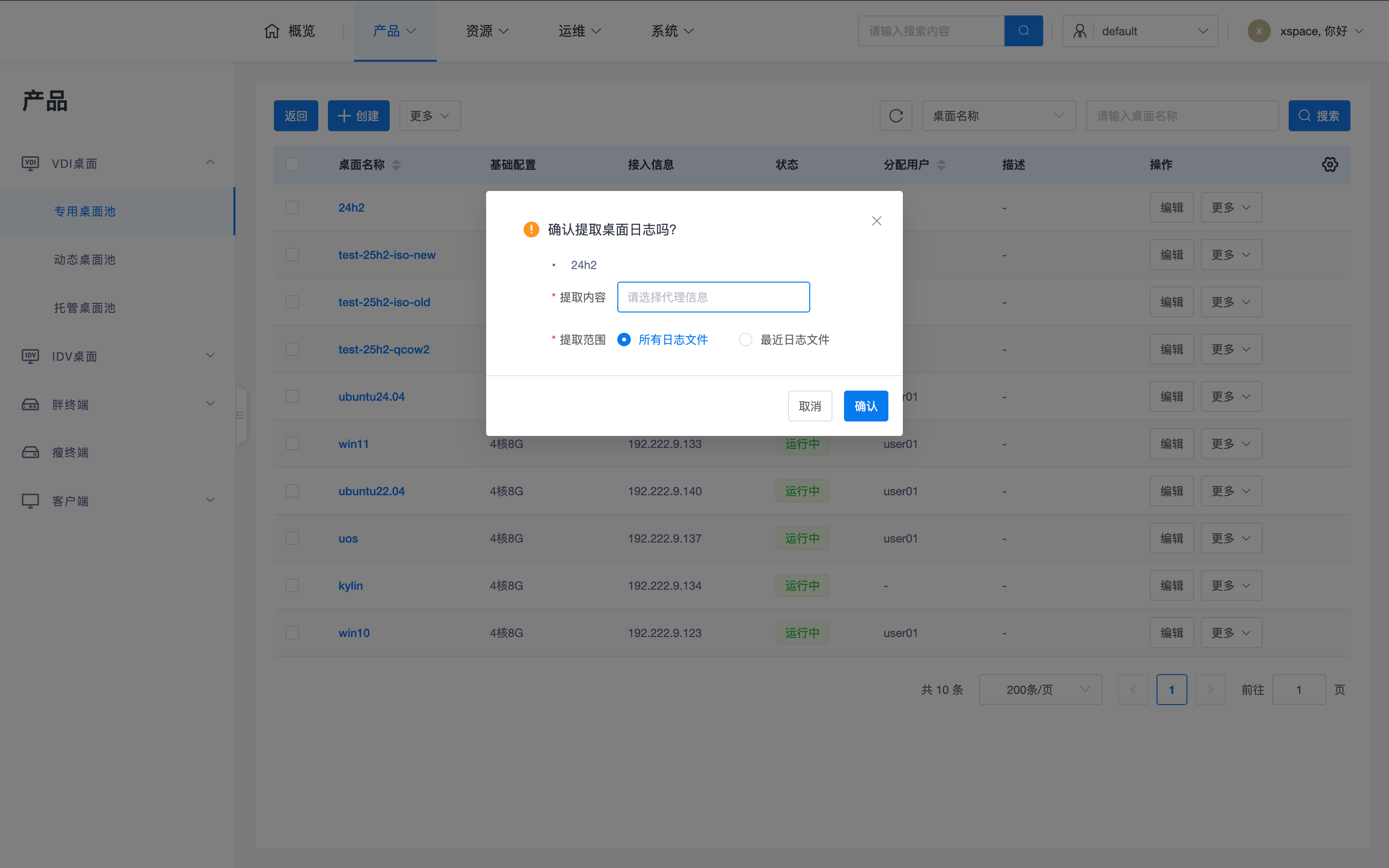
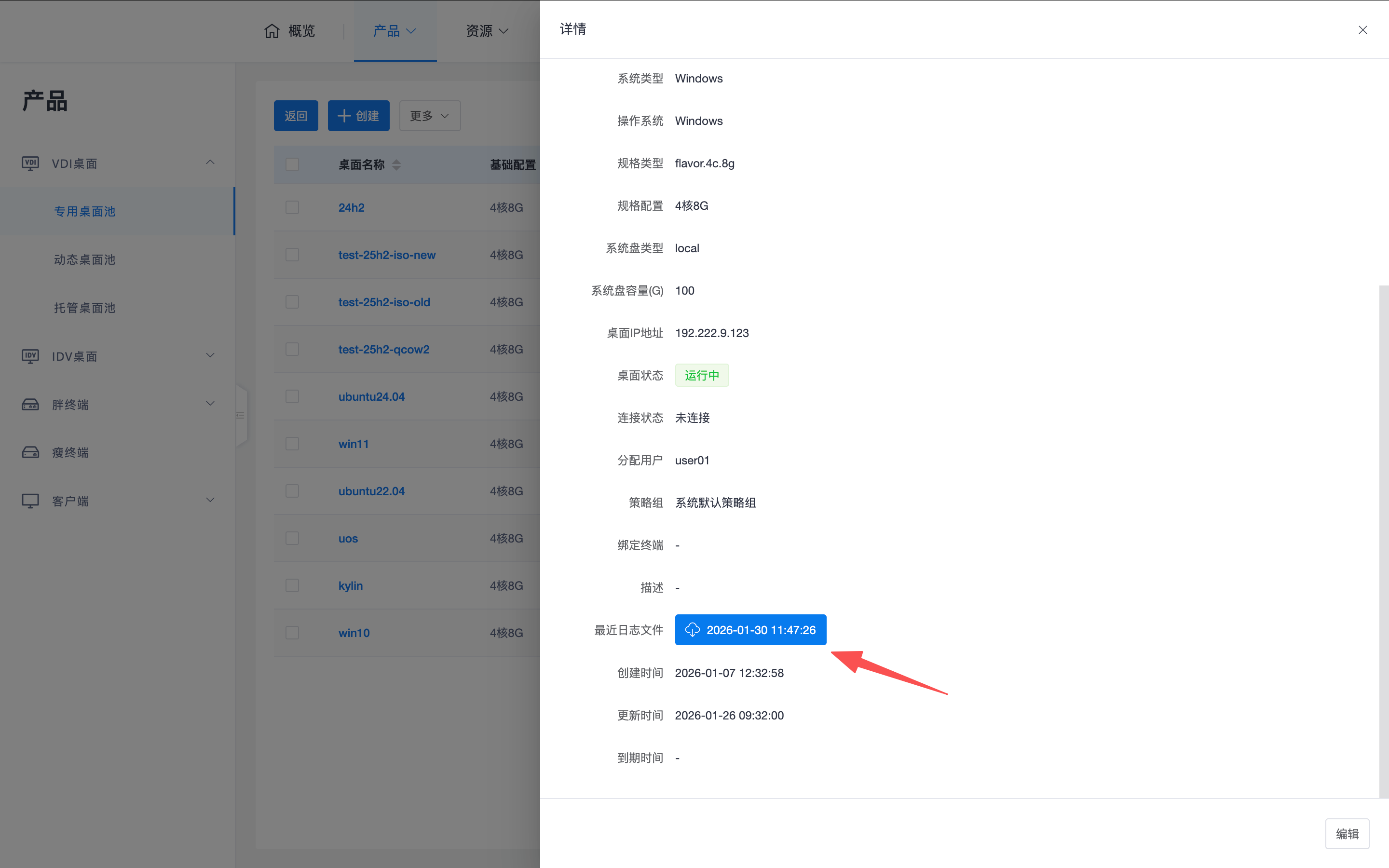
- Extract Logs: When the Mole agent in the desktop is online, desktop system logs can be extracted with one click. After completion, the extracted log file can be downloaded from the bottom of the desktop details "Basic Information" page.
3.3 Storage and Specification Changes
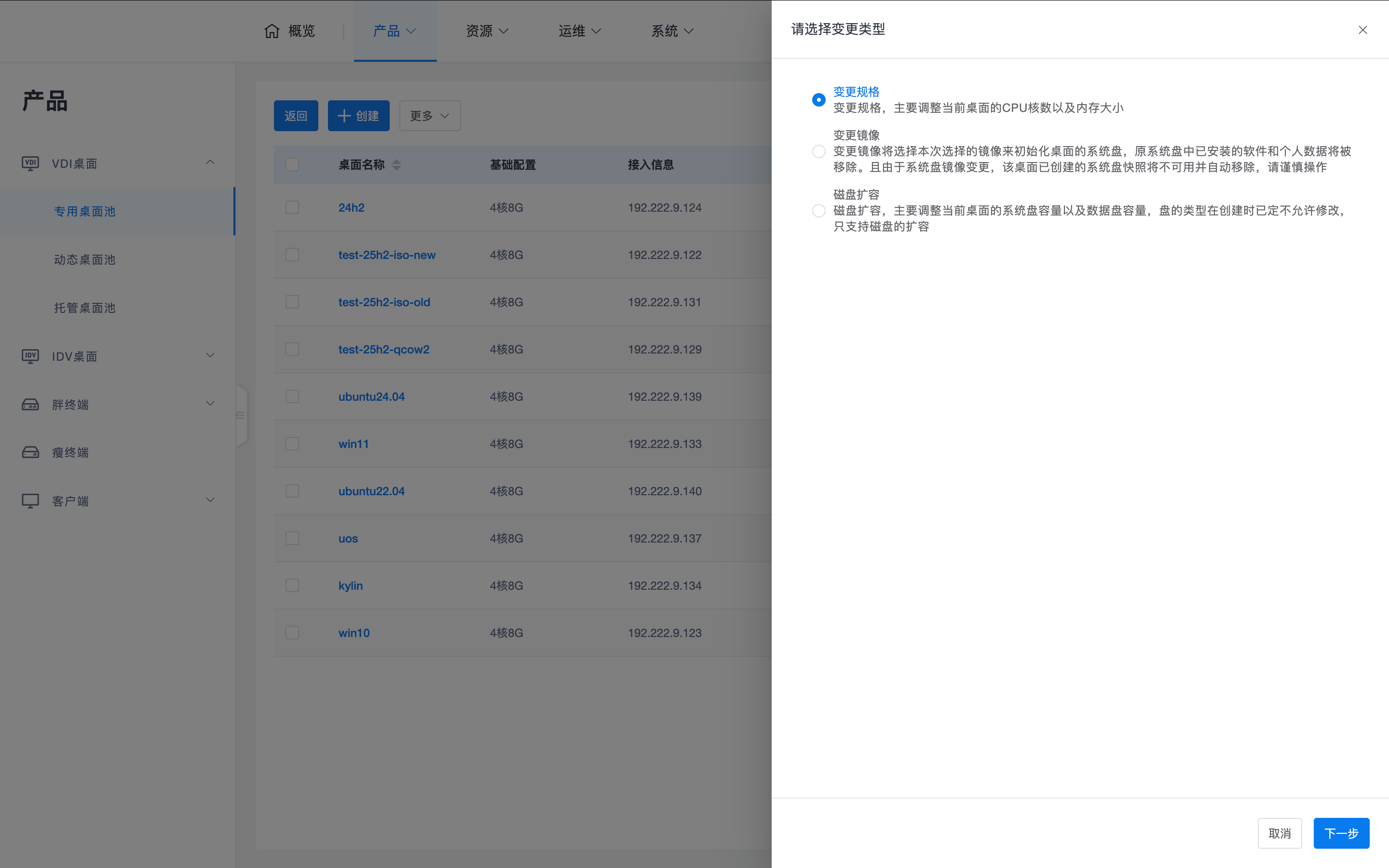
- Change Desktop: Only supported when powered off (currently only for OpenStack). Supports changing flavor, image, and disk expansion.
- Expansion Restrictions: Local storage desktops support system disk and existing data disk expansion, but do not support directly adding a new data disk if there was no data disk originally.
- Subsequent Operations: After disk expansion is completed in the tenant console, only the physical disk space has increased. Please be sure to refer to the Cloud Desktop Disk Expansion section and complete the logical expansion of partitions and filesystems inside the desktop.
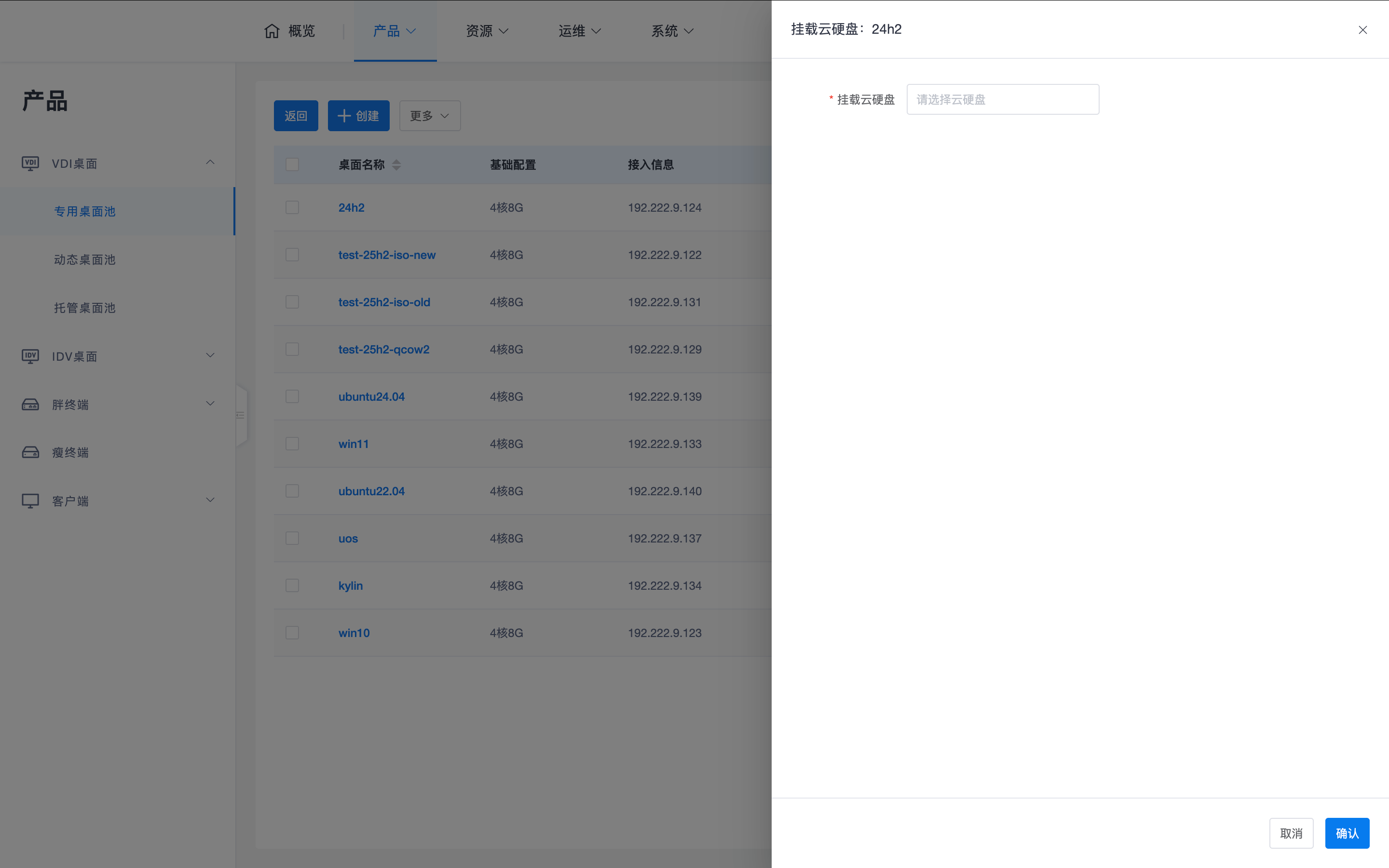
- Mount/Unmount Cloud Disk: Cloud desktops support a "system disk + 0 or 1 data disk" structure, not multiple data disks. If the desktop currently has no data disk, an existing cloud disk can be mounted (OpenStack only).
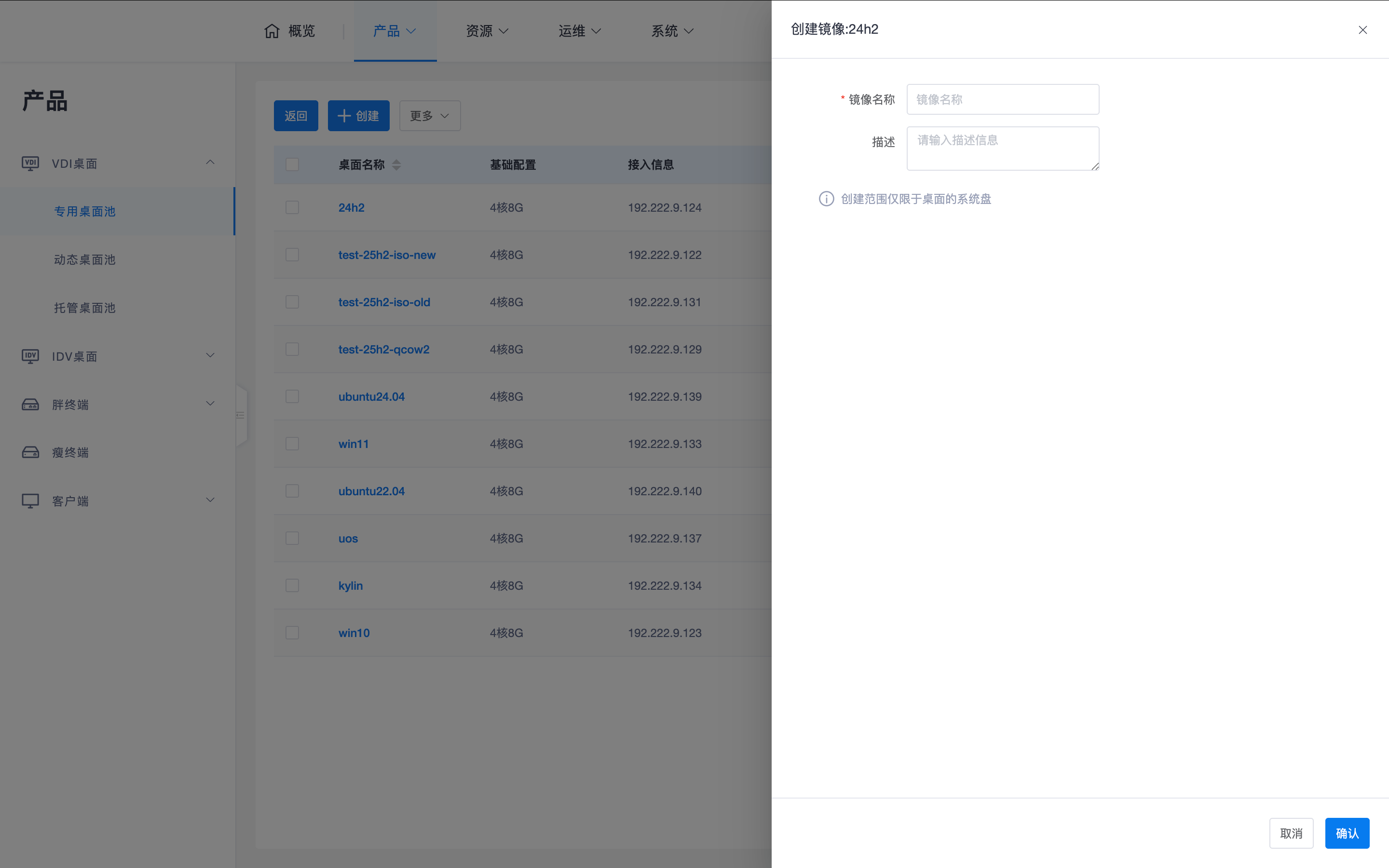
- Create Image/Template: Recreate a custom image or template from the current desktop's system disk for subsequent quick cloning. This button displays differently as "Create Image" or "Create Template" depending on cloud platform capabilities.
4. Desktop Details and Task Troubleshooting
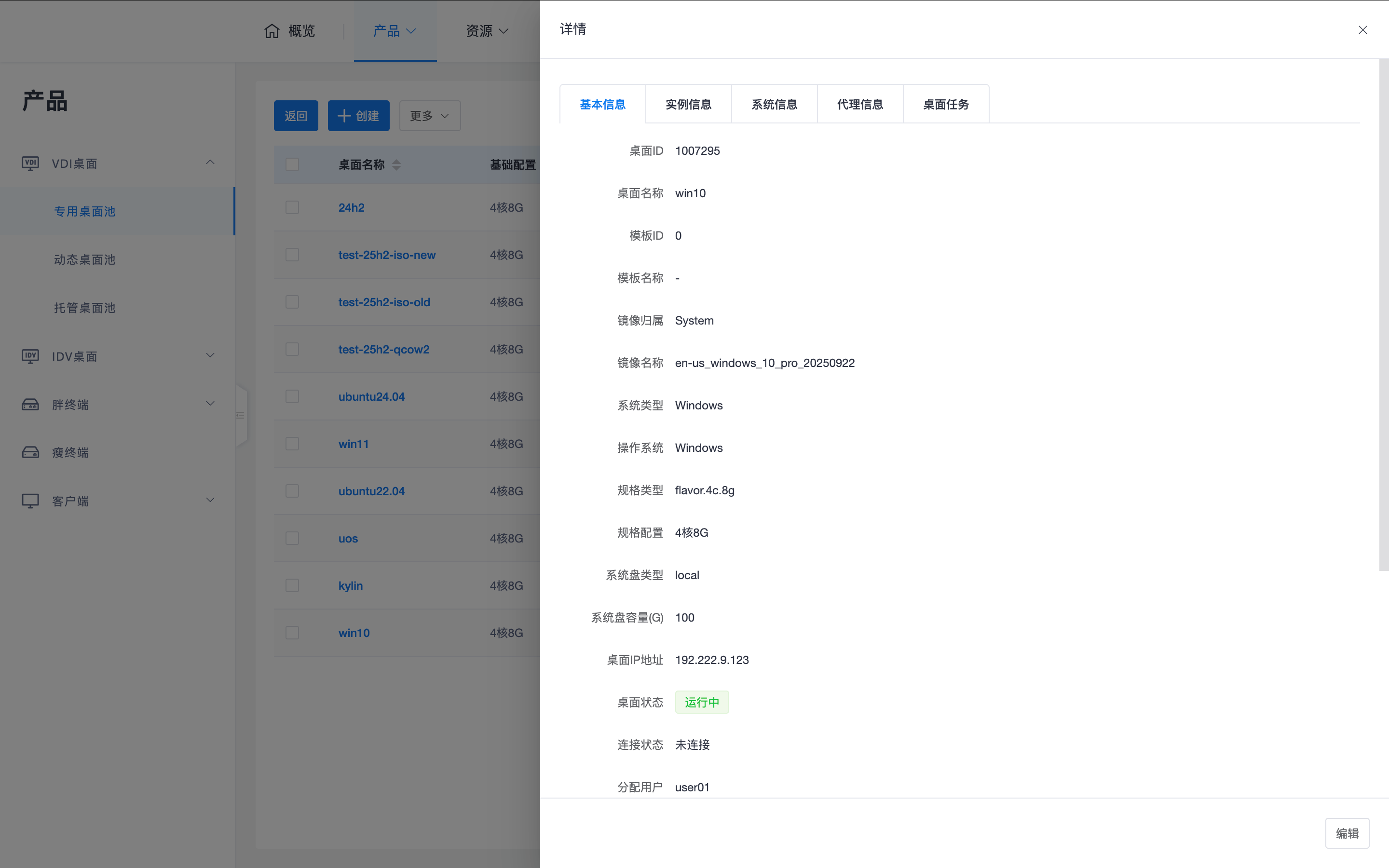
Click the desktop name in the desktop list to enter the details page, which is the core entry point for administrators to perform daily fault diagnosis.
4.1 Agent Component Monitoring (Agent Status)
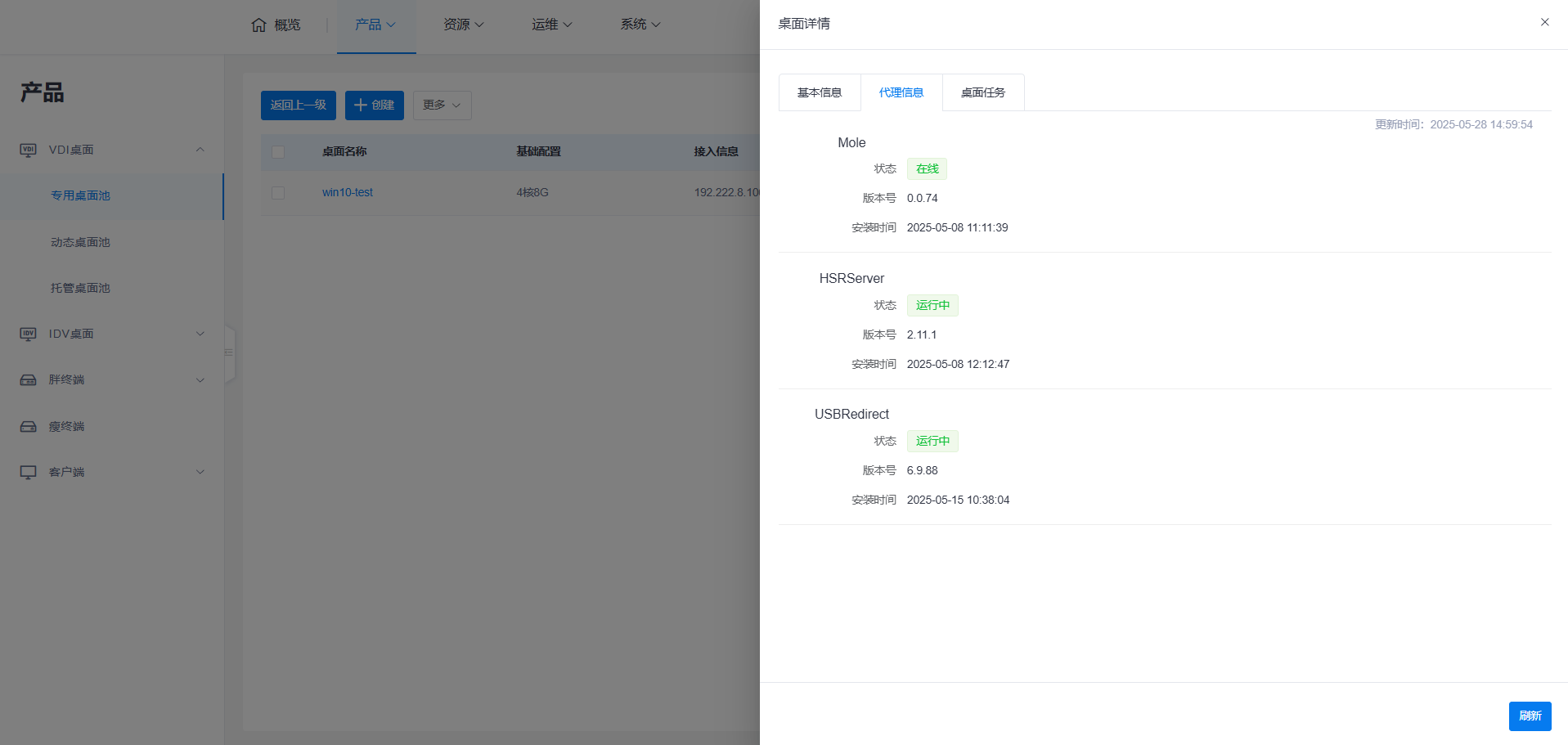
Administrators need to focus on confirming the running status of the following three components:
- Mole: Core management agent. If offline, "Extract Logs" cannot be executed, and other component statuses will become "Unknown".
- HSRServer: Protocol connection agent. If abnormal, users will not be able to connect to the desktop via the xSpace client.
- HSRUsbRedirect: Peripheral redirection agent. If abnormal, the USB peripheral port redirection service will fail.
4.2 Task Details and Troubleshooting
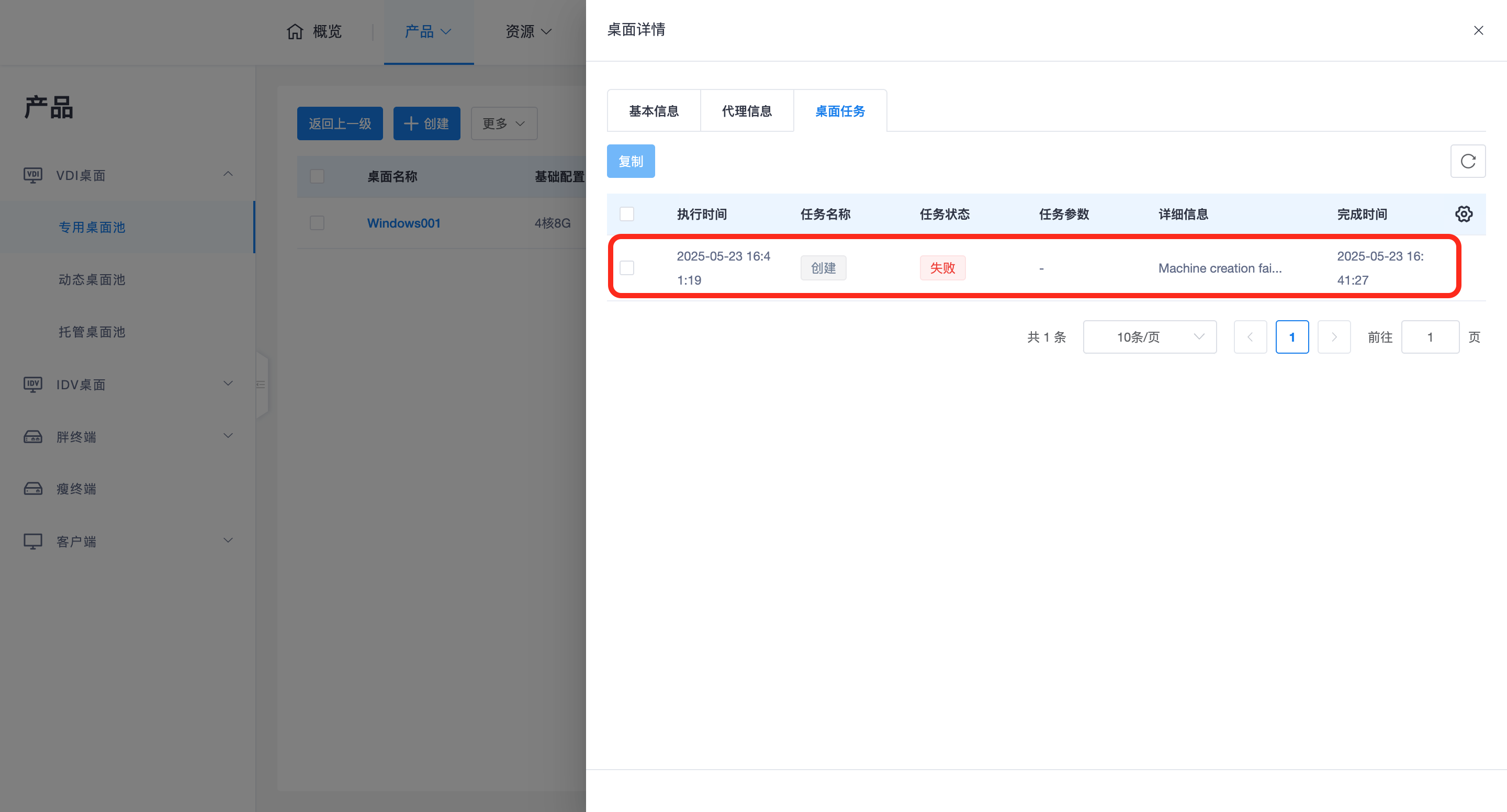
- Task Tracking: On the "Desktop Tasks" page, you can view the time, task name, result, and underlying details of all operations including creation, power on, and password reset.
- Fault Feedback: If a task fails, hover over "Details" to view the full error text. Administrators should copy the text using the copy button and provide it to AI analysis or vendor technical personnel.
5. Assignment and Deletion Rules
5.1 Batch Assignment Logic
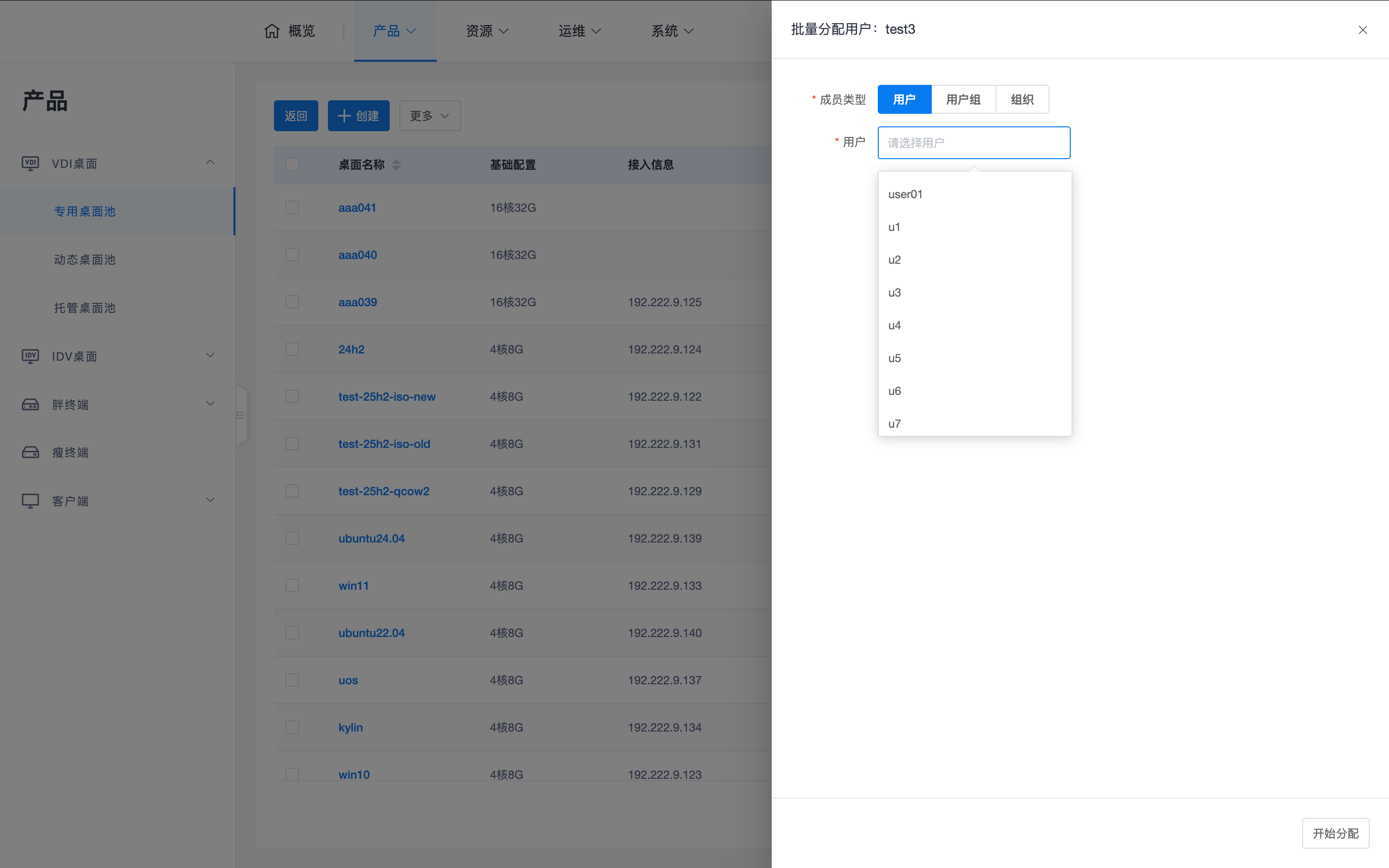
The system processes selected users, user groups, and organizations by taking their union, and automatically assigns a healthy desktop to each user who currently does not have a desktop in the pool (ensuring one desktop per person). If multiple desktops need to be assigned to a single user, use the "Assign User" operation for a single desktop in the desktop list.
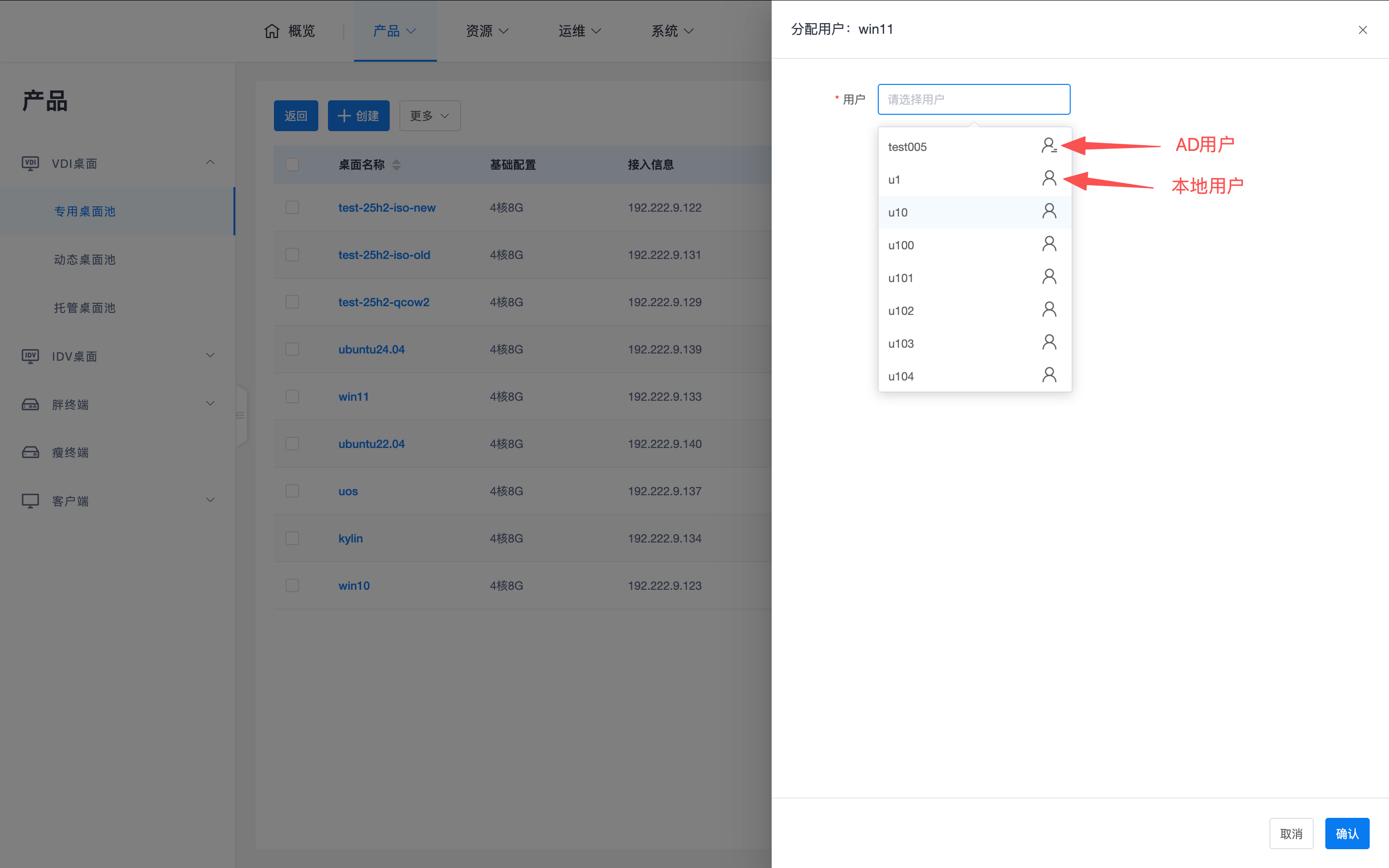
- User Type Identification: In the user selection dropdown list, you can quickly distinguish user sources by the icon at the end of the username.
- AD User: Icon with two short horizontal lines at the bottom right.
- Local User: Displays a regular user icon with no extra horizontal lines.
5.2 Deletion Rules
- Automatic Recycle Bin: After a desktop is deleted, it first goes into the "Recycle Bin" for storage, supporting recovery from accidental deletion.
- Pool Deletion Precondition: To delete an entire dedicated desktop pool, all desktops within the pool (including those in the recycle bin) must first be completely deleted, ensuring all resources are thoroughly cleaned up. ```