Hosted Desktop Pool Management
Hosted desktop pools are a solution for uniformly managing existing physical or virtual desktops within the xSpace system. By creating hosted desktop pools, administrators can add remote desktops with installed agents to the desktop pool and assign them to end-users.
This mode supports various desktop forms, including physical PCs, laptops, and cloud desktop virtual machines deployed on Citrix or VMware platforms. Typical application scenarios include:
- Resource Reuse: Considering transition and cost issues, transforming existing hardware assets into uniformly managed cloud desktops.
- High-Performance Computing: Integrating high-performance design workstations or compute nodes into resource scheduling to maintain their original hardware performance advantages.
Note: For requirements on supported operating system versions and CPU architectures for hosted desktops, please refer to Product Overview -> Technical Architecture -> Agent -> 3. Supported Operating Systems and CPU Architectures section.
1. Create Hosted Desktop Pool
Go to "Products -> VDI Desktops -> Hosted Desktop Pools" in the tenant context and click the "Create" button.
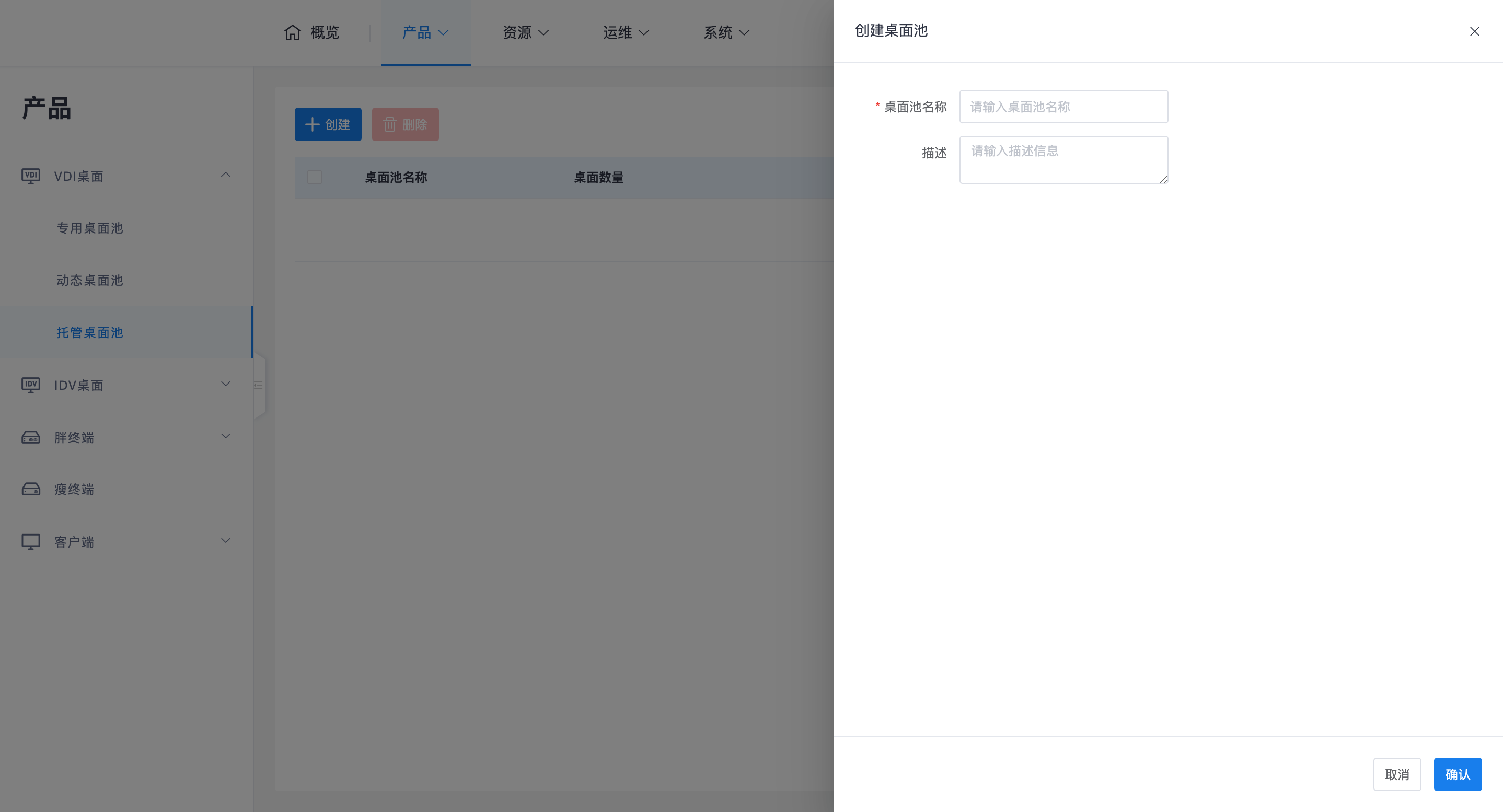
Hosted desktop pools primarily act as a "directory" or "grouping" role. Administrators can create multiple desktop pools for categorization and management based on machine location attributes, platform, or classification.
2. Add Hosted Desktop
Click the "Manage Desktops" button on the right side of the hosted desktop pool list, enter the management interface, then click the "Add" button.
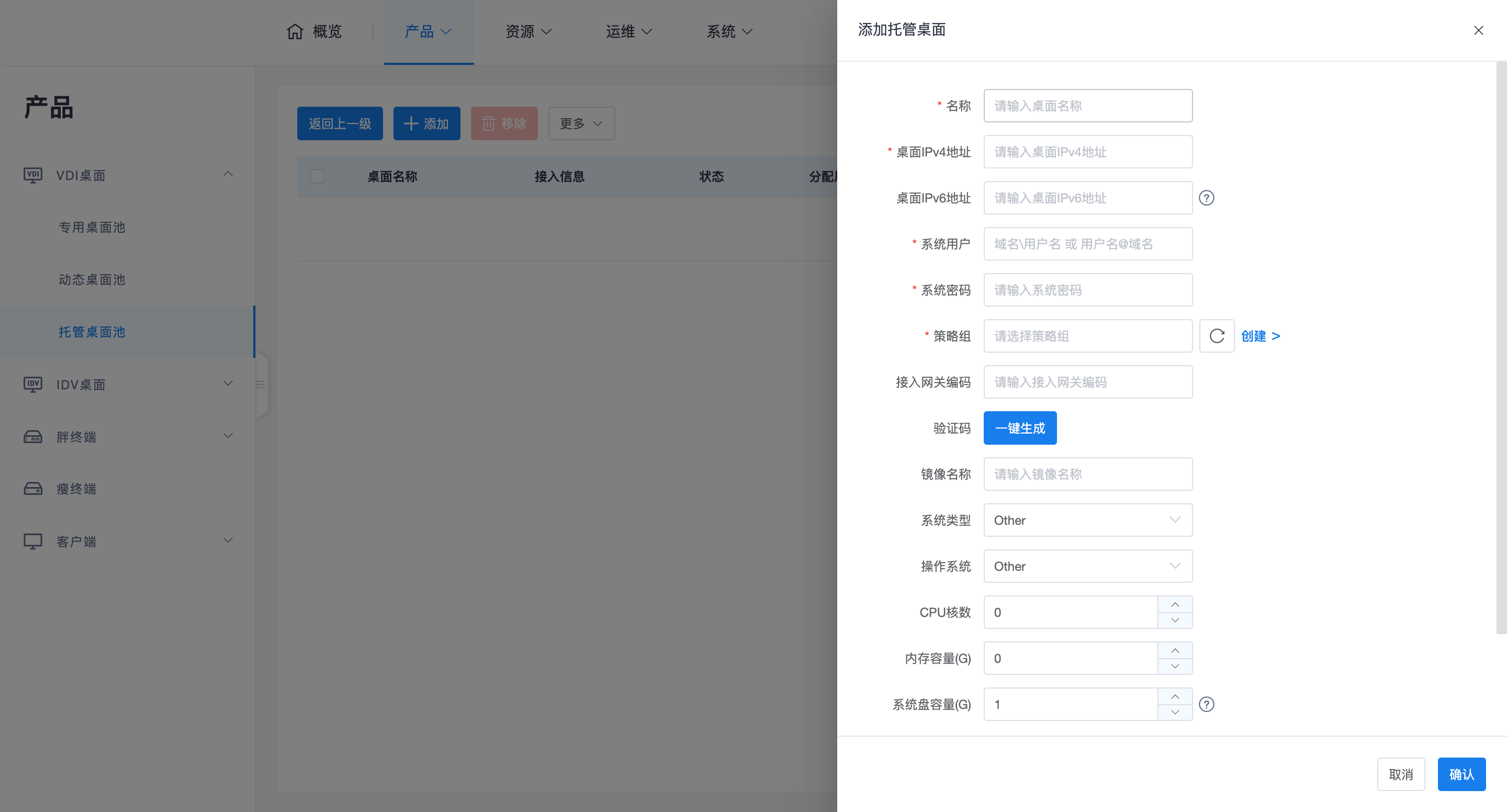
2.1 Core Configuration Parameter Description
To ensure normal display and connection of desktops on the client, please fill in as much attribute information as possible:
- Access Information (Connection Core):
- IP Address: The IPv4/IPv6 address of the desktop. If the desktop is on the internal network and needs public network access (and does not go through the SDWAN access gateway), the mapped public network address should be entered here.
- System User and Password: The login credentials for this desktop, which determine the connection parameters. If modification is needed, it can be done via the "Update Credentials" button in the list.
- Access and Policy:
- Policy Group: Determines the control rules applied to this hosted desktop.
- Access Gateway Code: Associates with the public network access forwarding service. Please refer to the Installation Deployment -> Deploy SDWAN Gateway relevant sections for configuration.
-
Authentication (Verification Code Mechanism):
- Hosted desktops cannot automatically identify themselves via cloud platform APIs. Therefore, when adding, a "One-click Generate" verification code needs to be clicked.
- When configuring the Mole agent on the hosted desktop, this verification code must be entered to complete the matching, so that the management component can identify which hosted desktop this Mole belongs to.
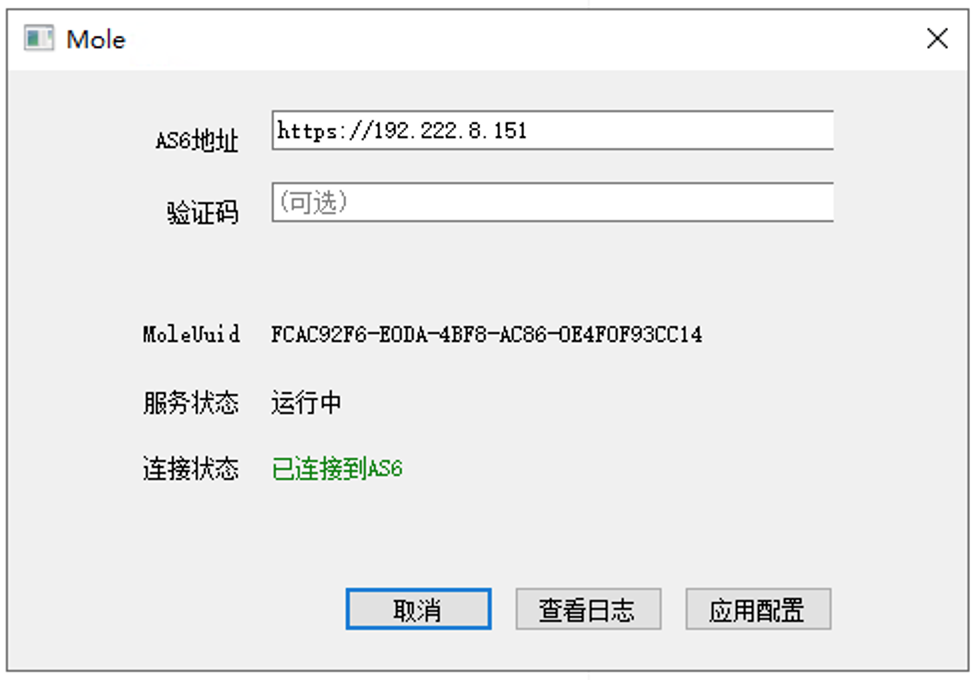
- Validity Period: The verification code is valid for 1 hour. After expiration, it can be re-generated on the edit page.
-
Display Attributes (Affecting Presentation):
- System Type and Operating System: Affects the icon and LOGO displayed on the client desktop card.
- Hardware Specifications (CPU/Memory/Disk): Only for information display on the client card, does not affect actual physical performance.
3. Assignment and Release Logic
3.1 User Assignment
Click the "More -> Batch Assign Users" button in the table header.
- Logic: The system de-duplicates the selected users, user groups, and organizations, and assigns one hosted desktop to each user.
- Permission Description: Hosted desktops can be directly assigned to specified end-users for access via the HSR protocol.
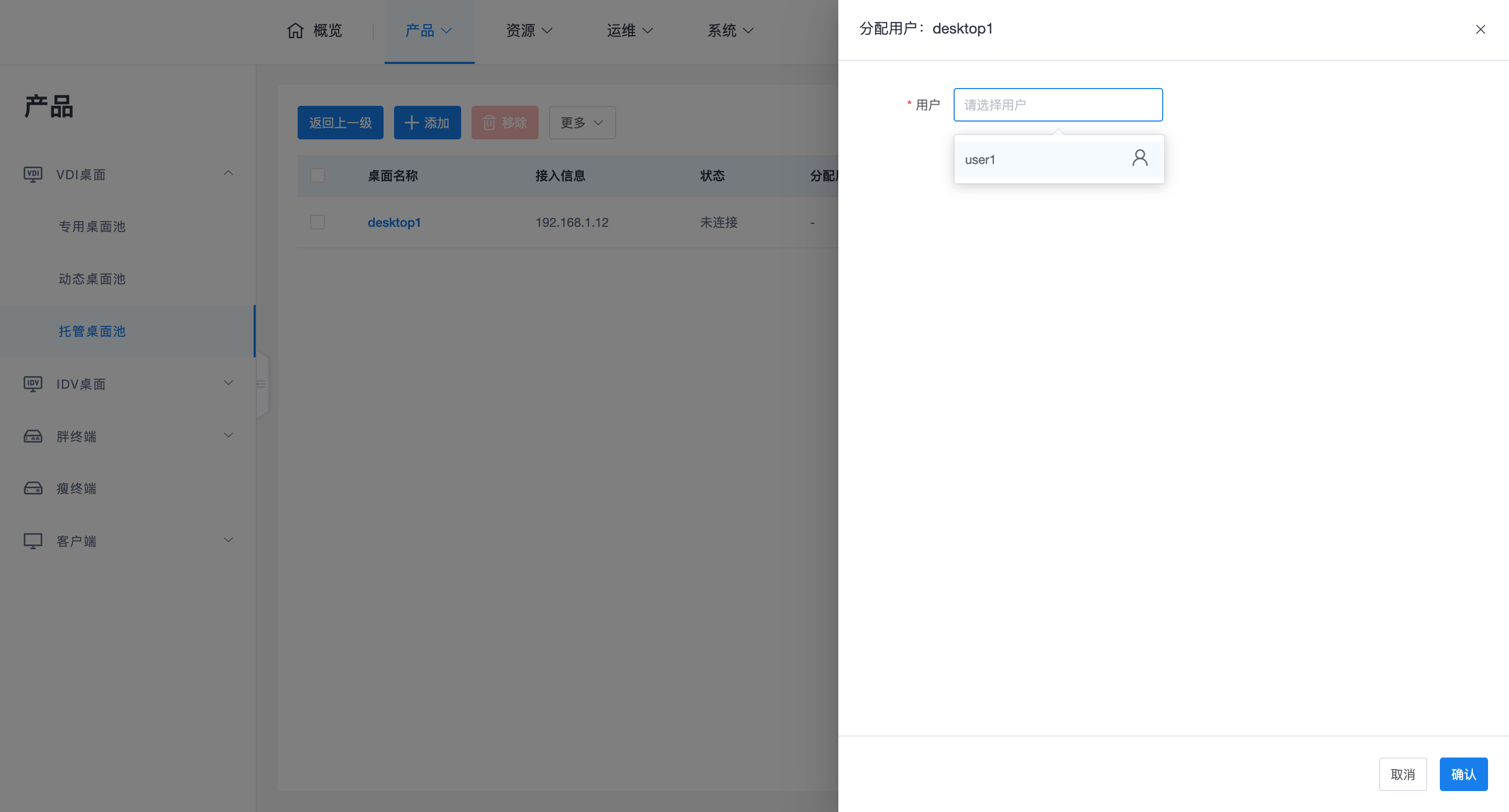
3.2 Removal Rules
Since hosted desktops are existing resources, the system does not support "Create" or "Delete" VM operations, only "Add" and "Remove" functions. The removal operation only deletes the record in the management system, does not affect the operation of the desktop system, and does not enter the recycle bin.
4. Maintenance and Troubleshooting
- View Details:
- Clicking the desktop name will pop up a sidebar to view basic information, task records, and the status of internal agents (Mole, HSRServer, etc.).
- Port Mapping Description:
- If public network access is required and the port has been mapped, and the mapped port is not the default value (TCP 15701/15702/5703), you need to fill in the public network mapped port via the "Change Protocol Port" button.
- Agent Requirements:
- The desktop must have the cloud desktop agent software package pre-installed (at least including HSRServer).
- The desktop address and protocol agent port must be accessible.