Dynamic Desktop Pool Management
Dynamic desktop pools (also known as floating desktop pools) provide a solution for users whose work tasks are temporary and non-persistent. Such users typically appear in scenarios like window services, call centers, and course learning, usually working with a single software application within the desktop.
The core logic of dynamic desktops is "prepare in advance, claim on demand, destroy after use". This not only effectively prevents various failures arising from long-term system operation but also completely erases user activity traces, preventing personal data and privacy leaks.
1. Create Dynamic Desktop Pool
Go to "Products -> VDI Desktops -> Dynamic Desktop Pools" in the tenant context and click the "Create" button.
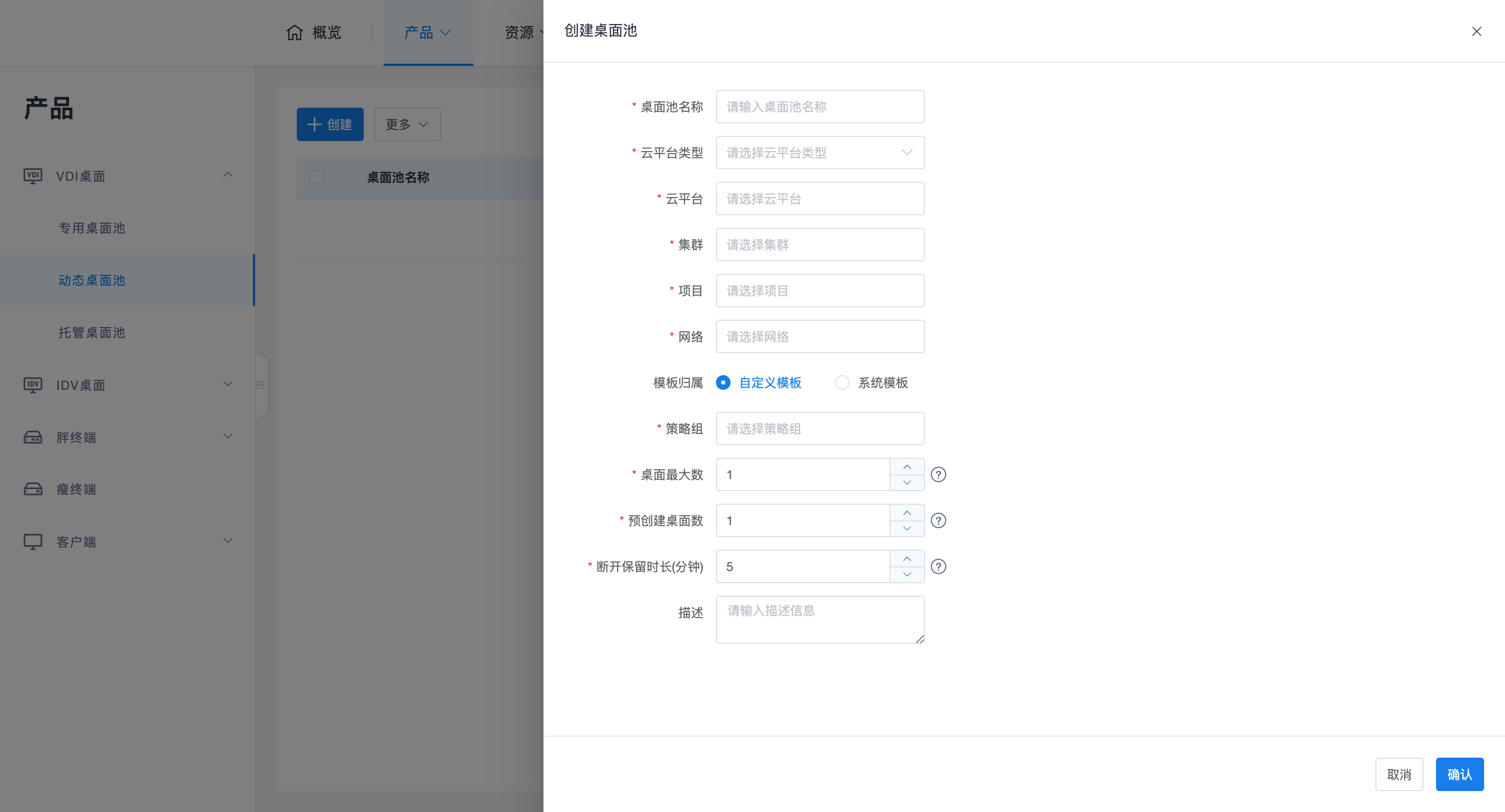
1.1 Core Configuration Parameter Description
- Base Resource Association: Requires selecting a cloud platform type, a specific cloud platform instance, and a target cluster. Subsequent created desktop VM instances will run within the selected cluster.
- Project Resource Association:
- Select Existing Project: Select an idle project resource. It is recommended to use idle projects to create dynamic desktop pools.
- Automatically Create Project: This function is only supported by some cloud platforms (e.g., OpenStack, ZStack).
- OpenStack Platform: The naming rule for automatically created projects is
desktop_pool_name-8_random_characters. - ZStack Platform: The naming rule for automatically created groups is
group_prefix-desktop_pool_ID.
- OpenStack Platform: The naming rule for automatically created projects is
- Important Note: Regardless of the method chosen, projects or groups used by a desktop pool should not be easily deleted from the underlying cloud platform, otherwise it will lead to synchronization anomalies.
- Network Settings: Network configuration is supplementary to the template. All dynamically generated desktops will connect to the network selected here.
- Associate Template: This is the most core concept of dynamic desktop pools. The template determines the unified style of all desktops within the pool, including core attributes such as the image and flavor used.
- Lifecycle Parameters:
- Maximum Desktop Count: Defines the capacity limit of the desktop pool, preventing uncontrolled consumption of underlying resources.
- Pre-created Desktop Count: Refers to the number of idle desktops prepared in advance by the system when no users are connected, to achieve rapid delivery.
- Disconnected Retention Duration: Refers to the buffer duration during which the system retains the desktop after a user disconnects, without triggering destruction and reclamation.
2. Pre-preparation Logic for Pool Desktops
To achieve rapid claiming of dynamic desktops, the system introduces an automatic replenishment mechanism:
- Quantity Limit: The pre-created quantity must be greater than or equal to 1, and cannot exceed the maximum desktop count of the pool.
- Dynamic Replenishment: When an idle desktop is claimed by a user, the number of idle desktops awaiting claim decreases. An internal timer regularly checks and automatically triggers a new creation process to restore the number of idle desktops to the "pre-created" setting.
3. User Assignment and Claiming Logic
3.1 User Assignment
Click "More -> Assign" in the dynamic desktop pool operation column.
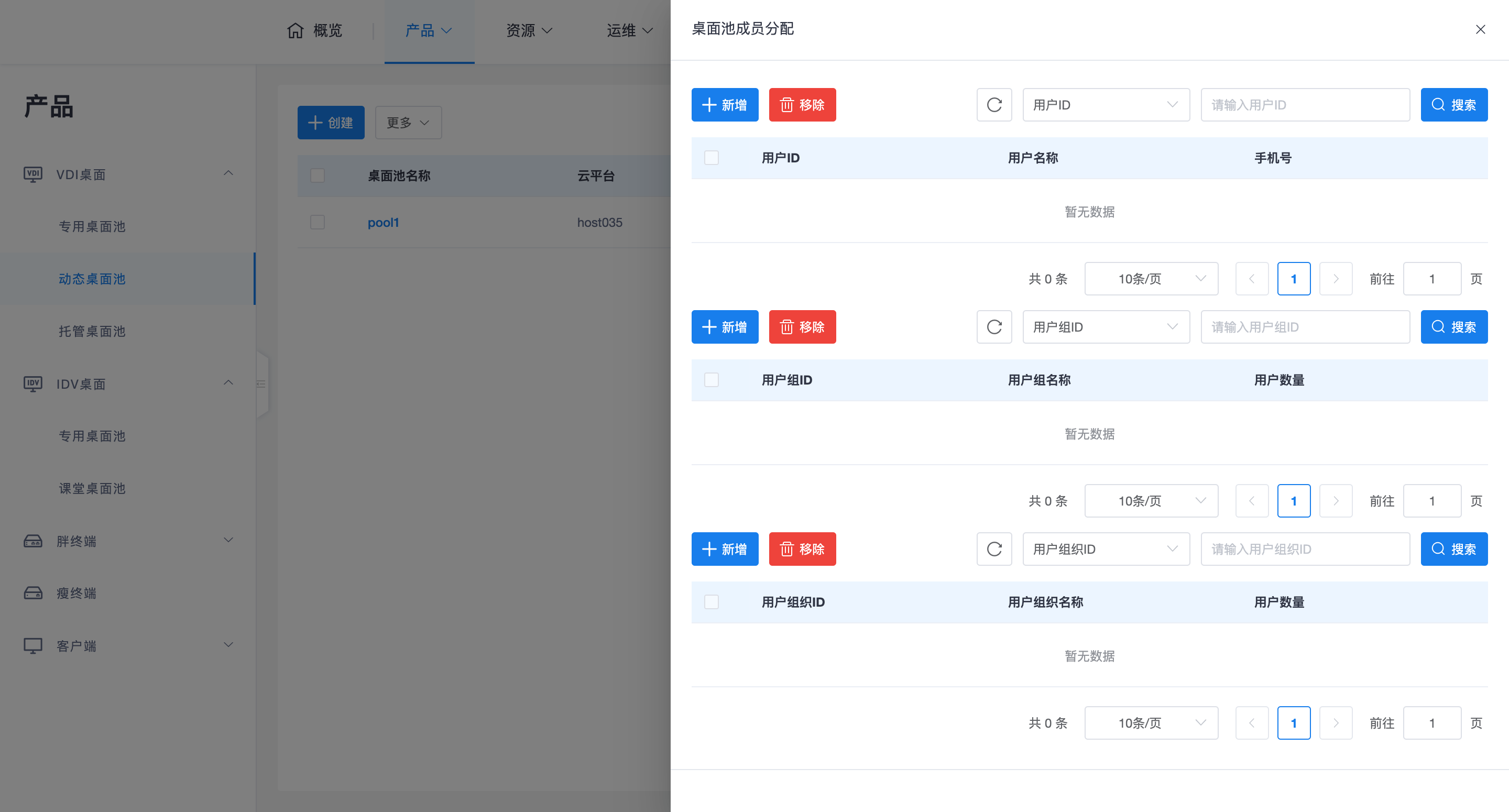
- User Set: Supports assigning to multiple users, user groups, and organizations (including sub-organizations) simultaneously. The system will de-duplicate and summarize these selections to generate the final de-duplicated user set.
- Claiming Rules: Users within this set are all authorized to dynamically apply for one and only one dynamic desktop from this dynamic desktop pool. If a user needs multiple desktops, they need to be added to different dynamic desktop pools.
3.2 Client Claiming Process
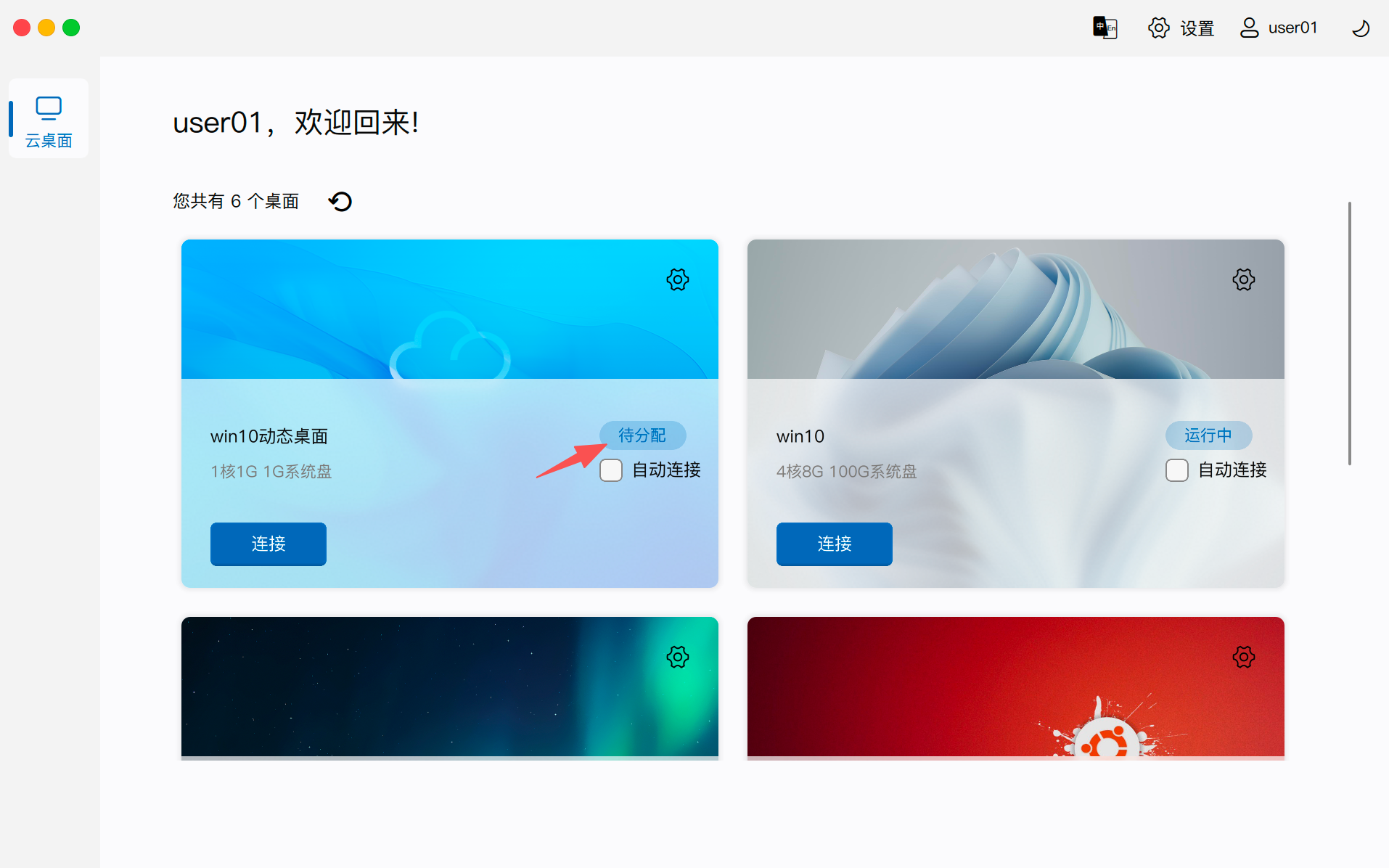
- Status Display: After logging in to the client, users will see a dynamic desktop card with "Unassigned" status.
- On-Demand Application: Only when the user clicks "Connect" will the backend assign an idle desktop to that user. This prevents dynamic resources from being prematurely occupied and wasted if the user switches to another desktop.
- Connection Assurance: During normal use by the user, the desktop remains assigned to that user and data is not reset. If the desktop pool is full, clicking connect will prompt the user to wait.
4. Release and Restoration Logic
- Destruction and Reclamation: The system only calls the cloud platform API to directly delete and destroy the virtual machine after the user has not used it for a long time (exceeding the disconnected retention duration).
- Data Clearing: By directly deleting the virtual machine, user data remnants and usage traces are completely erased, protecting personal privacy.
- Buffer Design: Not adopting "destroy immediately upon disconnection" is to handle situations where the user restarts the system or network is briefly interrupted, avoiding interruption of work progress due to premature reclamation.
5. Logic for Changing Templates
After modifying the template associated with the dynamic desktop pool:
- Smooth Transition: Existing desktops (occupied or pre-prepared) will retain the old template state and will not be immediately rebuilt. As these old desktops are destroyed, new desktops for "replenishment" will automatically use the new template.
- Force Update: If immediate refreshing of idle desktops is required, click the "Recreate" button.
- Logic: The system will delete desktops that failed to create and idle desktops inconsistent with the current template, and then replenish the pre-created quantity according to the new template.
6. Maintenance and Operations
Maintenance operations for dynamic desktops are relatively streamlined:
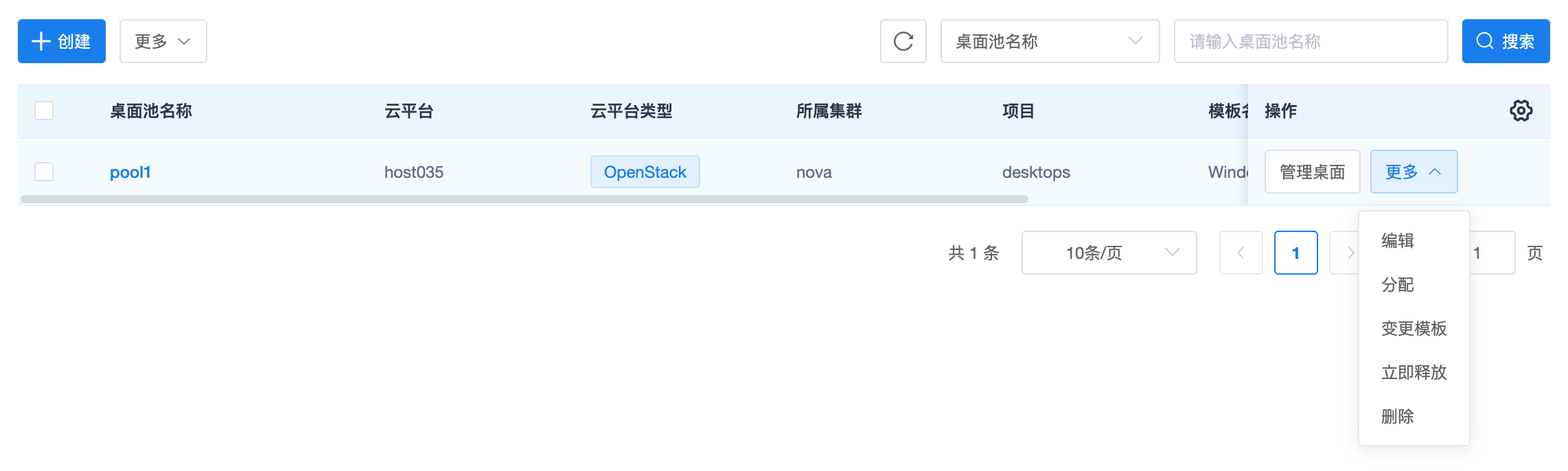
- Core O&M: Includes console, power on, power off, restart, forced restart, and log extraction. Functions are consistent with dedicated desktops.
- Immediate Release: Does not wait for the desktop's disconnected retention duration. Immediately reclaims and destroys desktops that users have disconnected from, for rapid manual resource reclamation.
- Deletion Rules: Dynamic desktops do not enter the recycle bin when destroyed; they are directly deleted by calling the underlying cloud platform API.
6.1 Best Practices
- Image Pre-creation: Mole must be configured to point to the management component in the image/template, and all agent (Mole, HSRServer, USBRedirect) versions must be upgraded in advance. Avoid relying on automatic version upgrades after creation to ensure immediate desktop delivery.
- Persistent Master Image: It is recommended to use a dedicated desktop as the master image to create images or templates for dynamic desktops, ensuring that instance data can be persistently saved during configuration, avoiding the virtual machine being deleted halfway through image creation.