Cloud Desktop Disk Expansion: In-OS Partition Extension Guide
After disk expansion is completed in the cloud platform or tenant console, it only means that the "physical" disk space of the virtual machine has increased. You must enter the cloud desktop operating system to manually complete the expansion of the partition and filesystem for the new capacity to take effect.
1. Core Principles and Precautions
- One-Way Expansion: The system only supports increasing disk capacity; it does not support reducing disk capacity.
- Management Scope: Disk expansion operations performed in the cloud platform/tenant console only increase the system disk or data disk capacity of the virtual machine and do not involve adjustments to logical partitions within the operating system.
2. Windows Desktop Operation Guide
2.1 Regular Expansion Steps
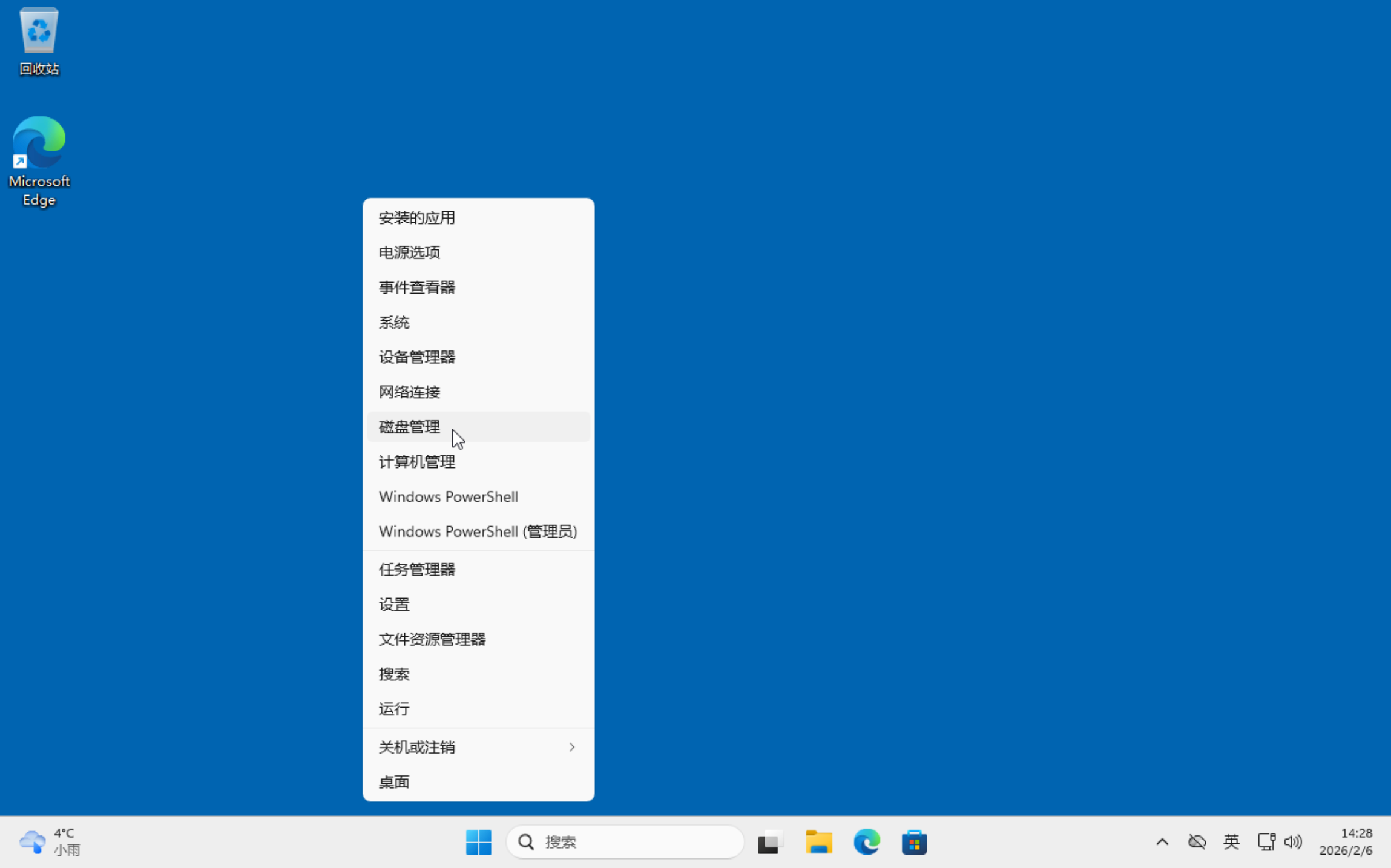
- In the Windows desktop, right-click "This PC" and select "Manage", then go to Disk Management.
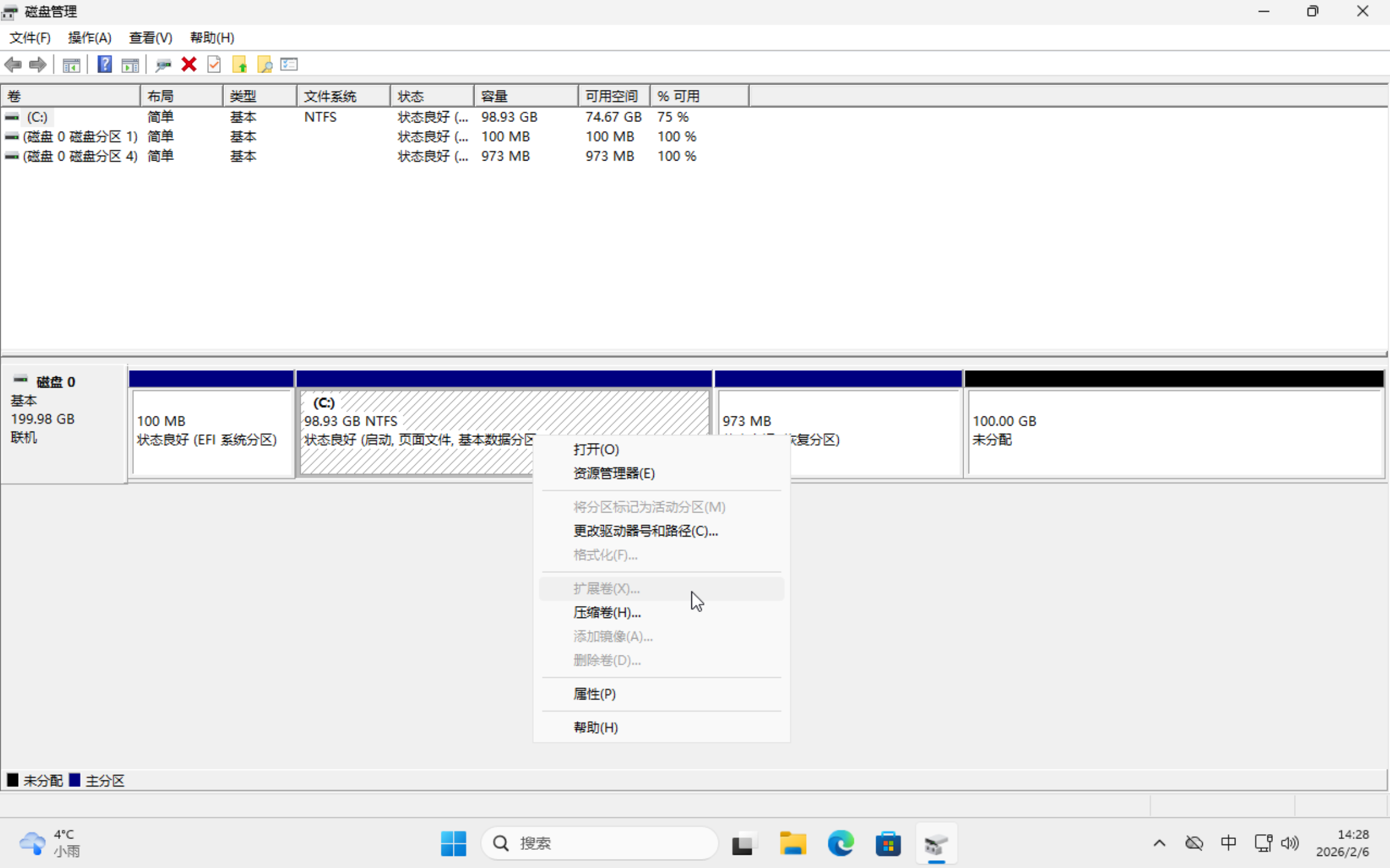
- Select the system disk (usually C drive) or data disk (usually D drive) that needs to be expanded.
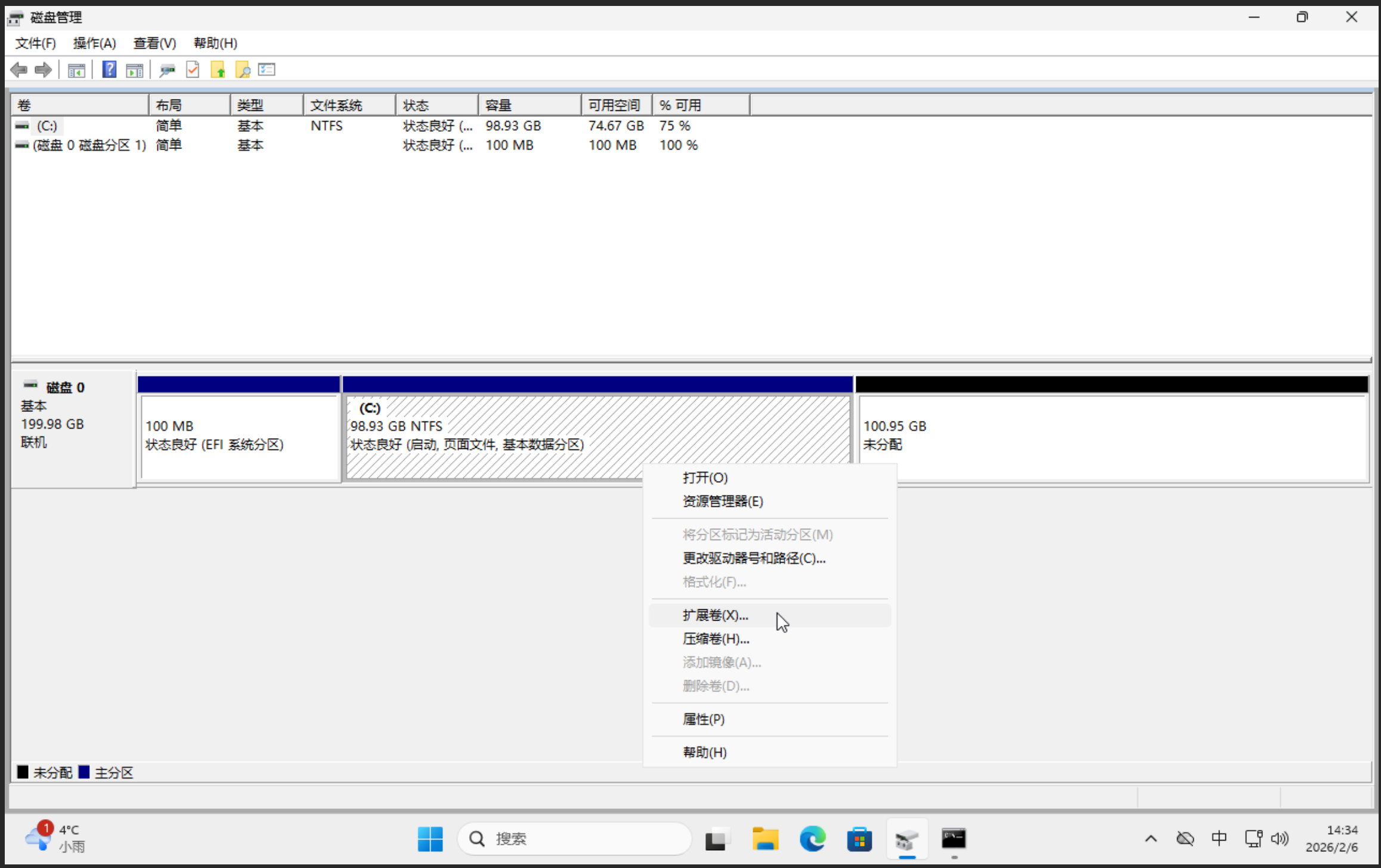
- Right-click the corresponding partition, select "Extend Volume", and follow the wizard to complete the capacity merging.
2.2 Special Handling: Delete Recovery Partition
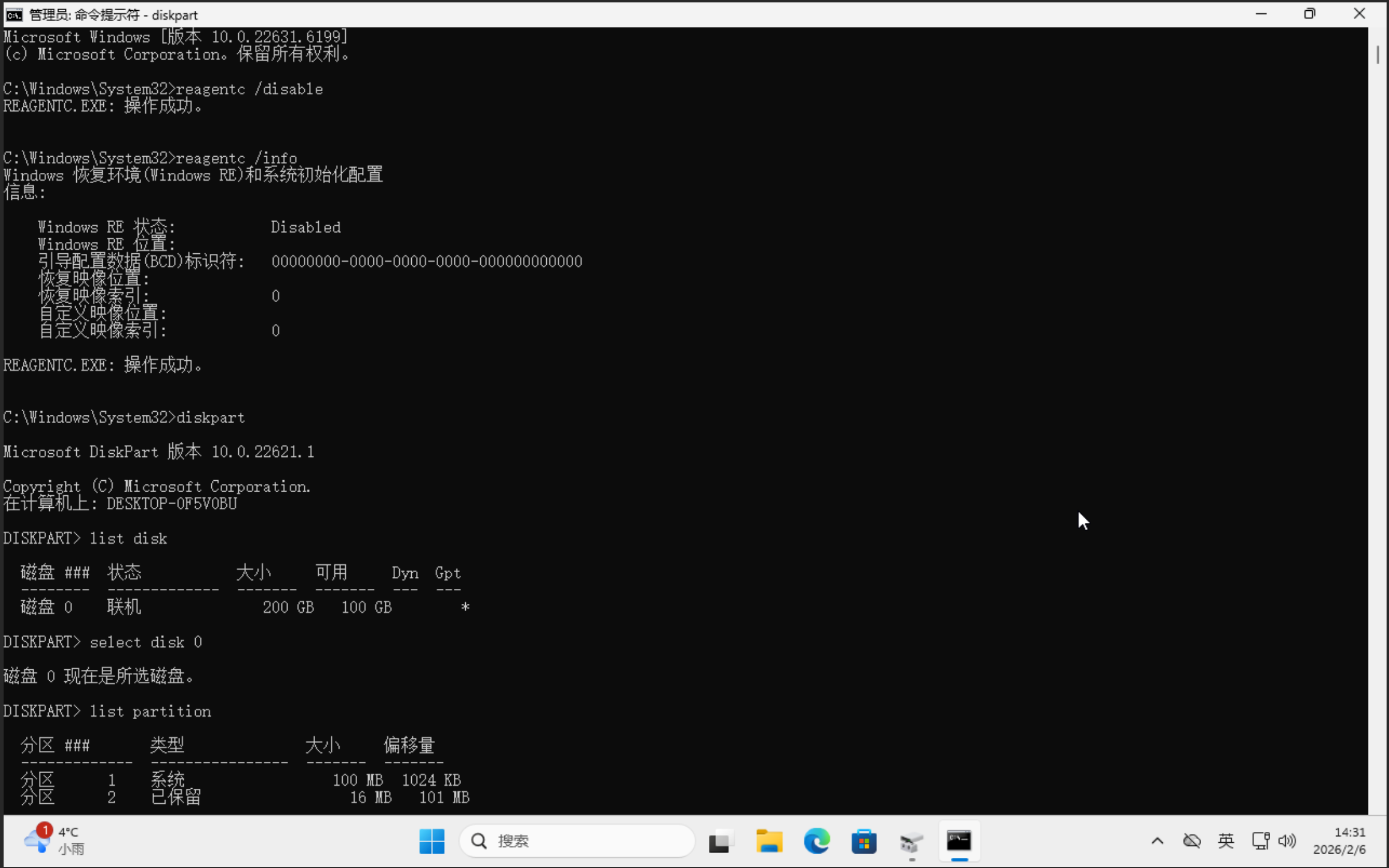
If there is a "recovery partition" immediately adjacent to the C drive at the back, the "Extend Volume" option will be grayed out and unavailable. In this case, you need to first delete the recovery partition by following these steps:
-
Open Command Line (CMD/PowerShell) with Administrator Privileges.
-
Disable Windows Recovery Environment:
reagentc /disable
- Confirm Successful Disablement:
reagentc /info
- Delete Partition Using Diskpart Tool:
diskpart
list disk
select disk 0
list partition
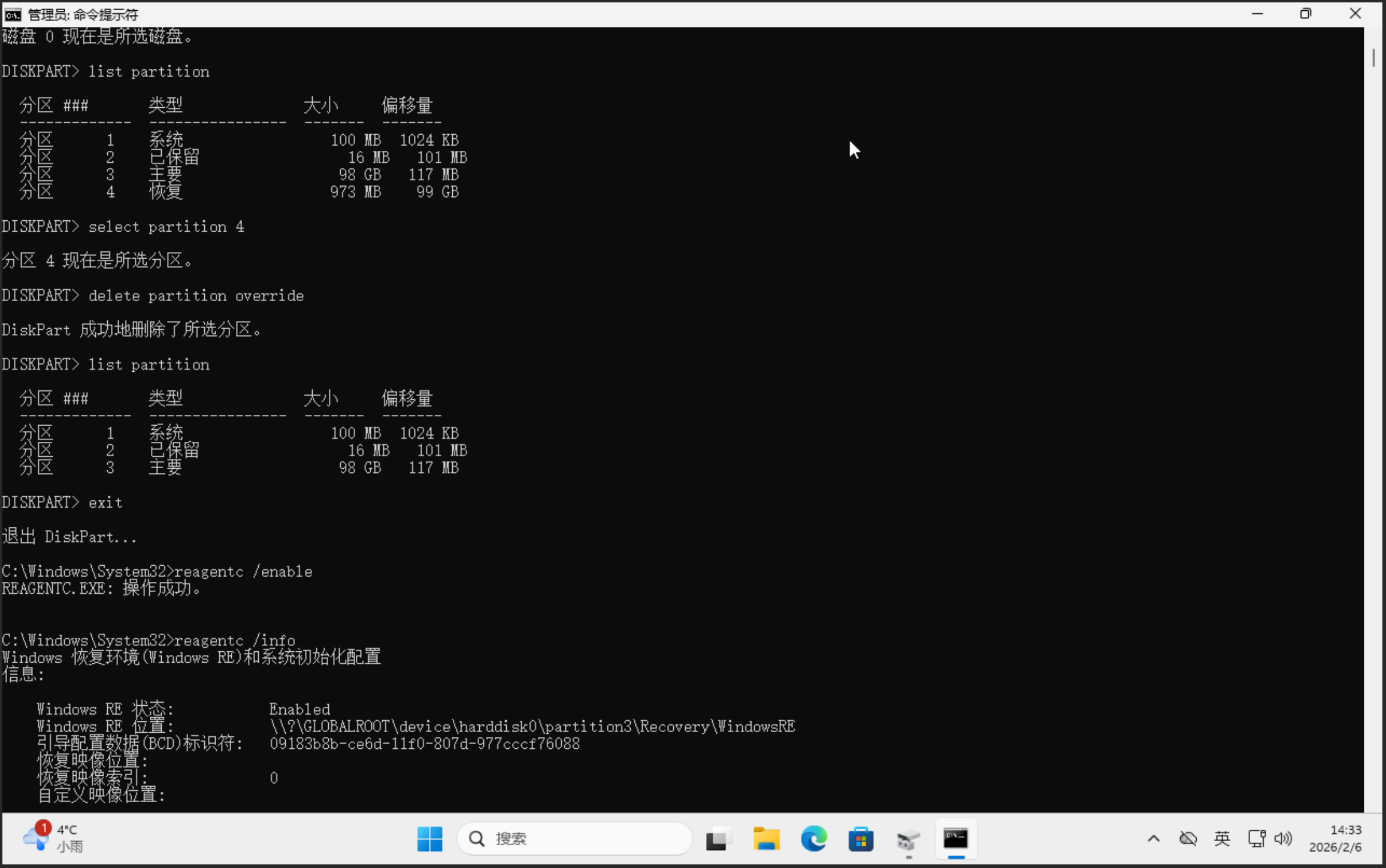
select partition [Enter recovery partition number here, e.g., 4]
delete partition override
exit
- Re-enable Recovery Environment (Optional):
reagentc /enable
reagentc /info
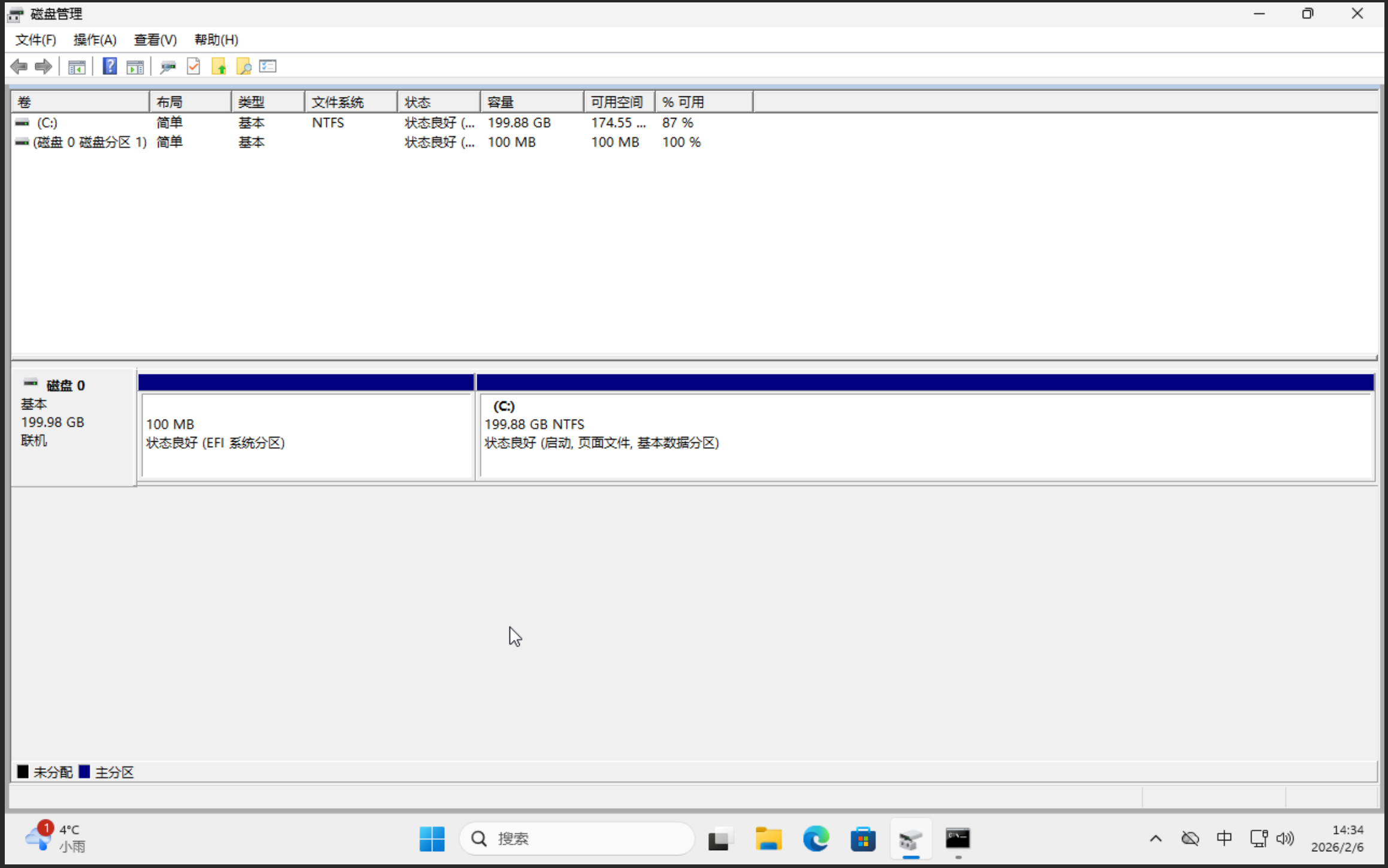
- Subsequent Operations: Return to the "Disk Management" interface. The C drive should now be able to perform "Extend Volume".
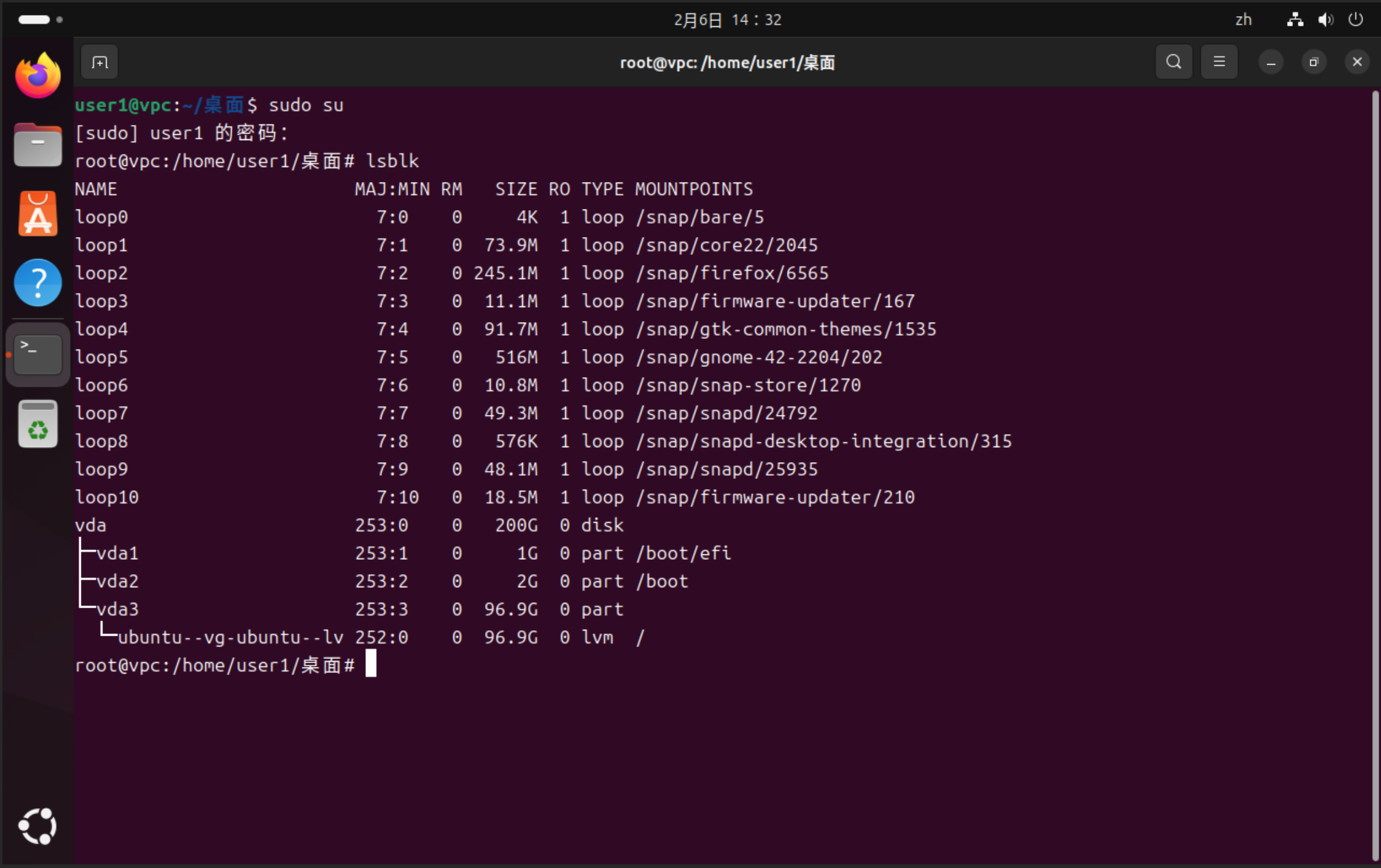
3. Linux Desktop Operation Guide (LVM Management)
Since our pre-built Linux images use LVM (Logical Volume Manager) for disk management, expansion needs to follow the "partition -> physical volume -> logical volume" chain sequentially.
3.1 Partition Extension
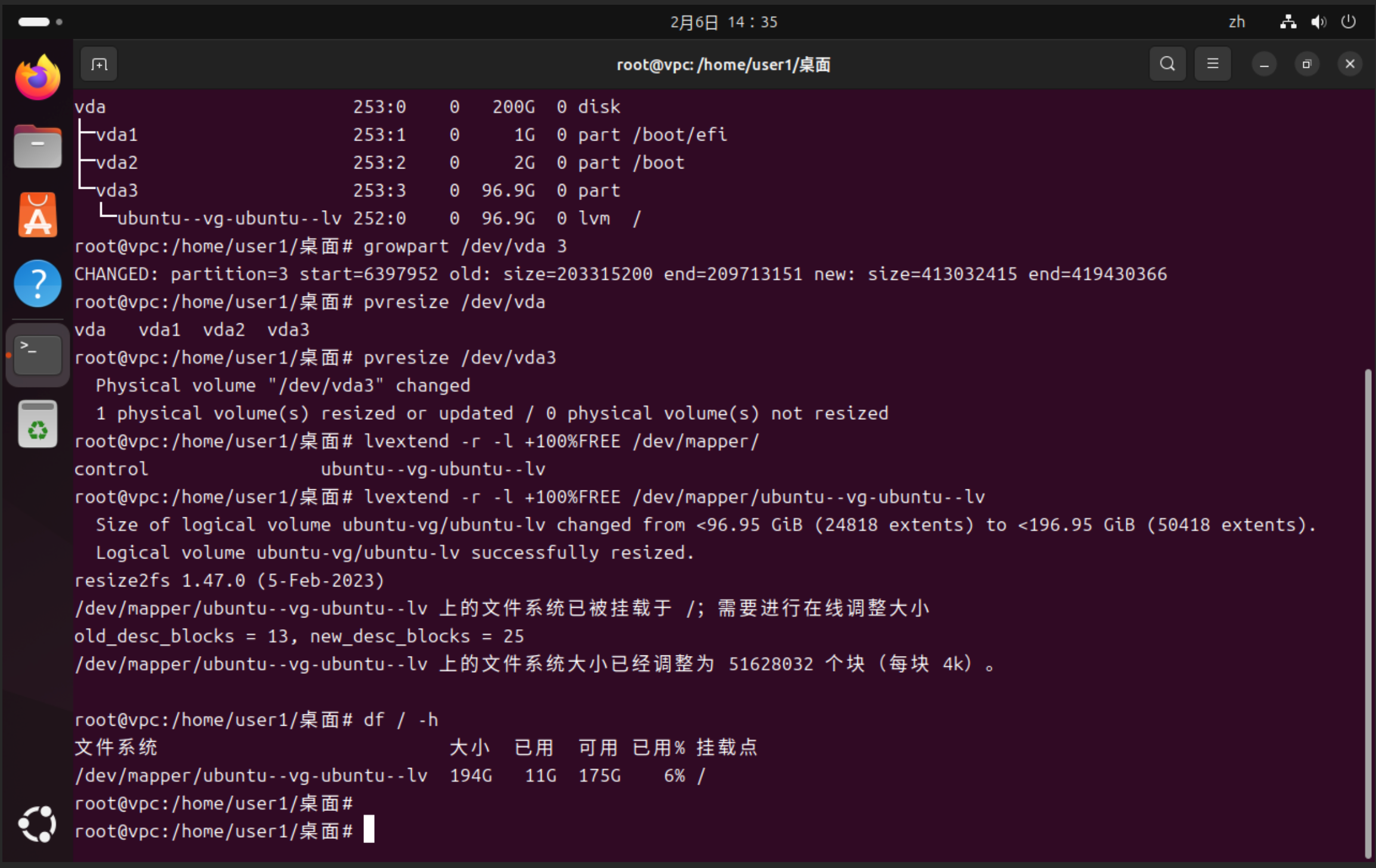
Use growpart to extend the physical partition (assuming the system disk is /dev/vda and the LVM partition number is 3):
sudo growpart /dev/vda 3
3.2 PV (Physical Volume) Extension
Notify LVM that the underlying physical volume space has changed:
sudo pvresize /dev/vda3
3.3 LV (Logical Volume) and Filesystem Extension
Use the lvextend command. The -r parameter will simultaneously trigger online filesystem expansion:
# Taking the logical volume path corresponding to the root directory as an example
sudo lvextend -r -l +100%FREE /dev/mapper/vg0-lv_root