Client Version Management
System administrators can manage cloud terminal (client) installation packages through the client version management function, and realize automatic pushing and upgrading to end users.
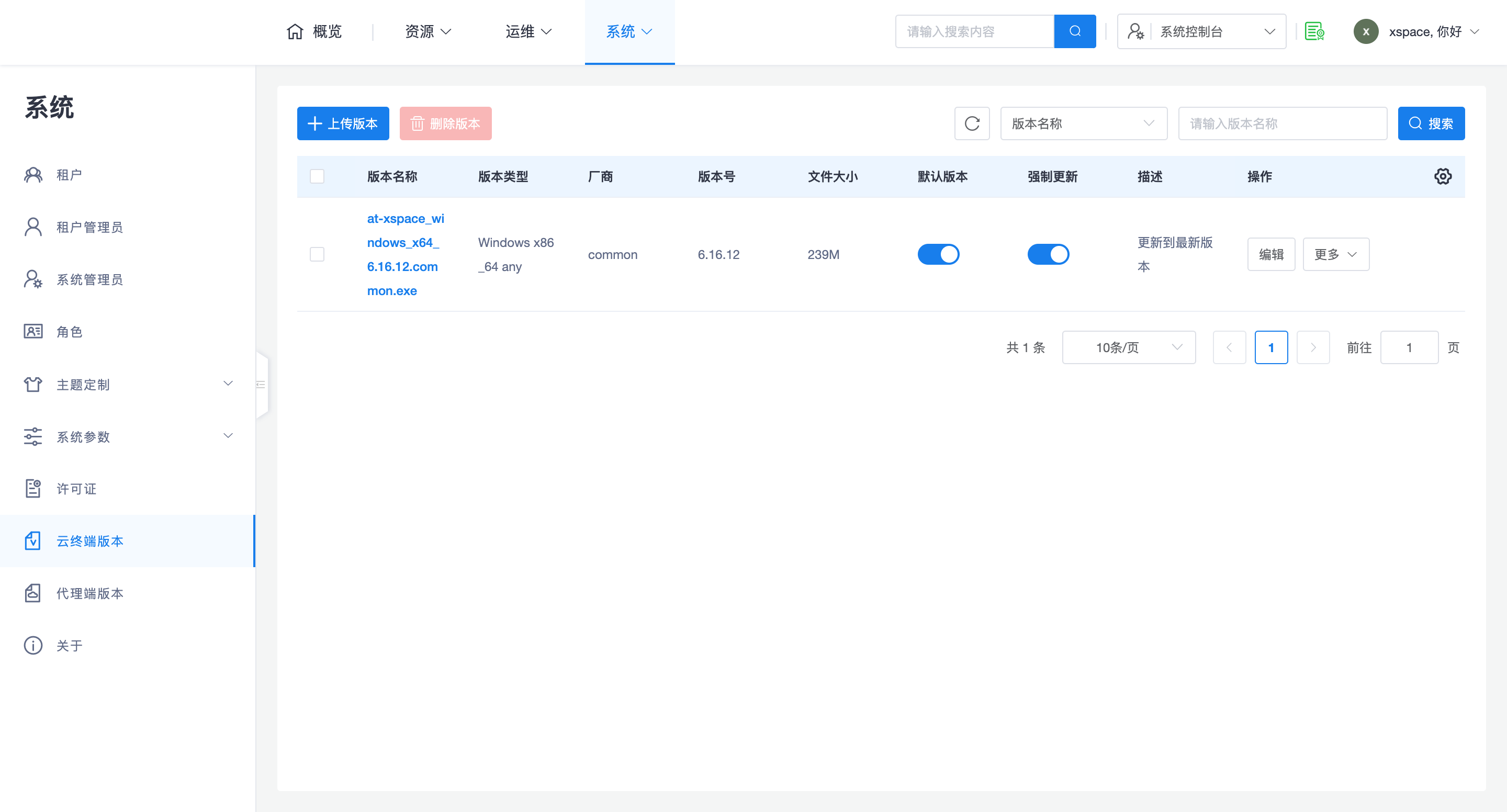
System administrators can access "System -> Cloud Terminal Versions" in the system console to view the list of currently uploaded client installation package versions.
1. Core Logic Description
- Reference Technical Architecture: For client types and supported OS and CPU architectures, please refer to the Product Overview -> Technical Architecture -> Client section.
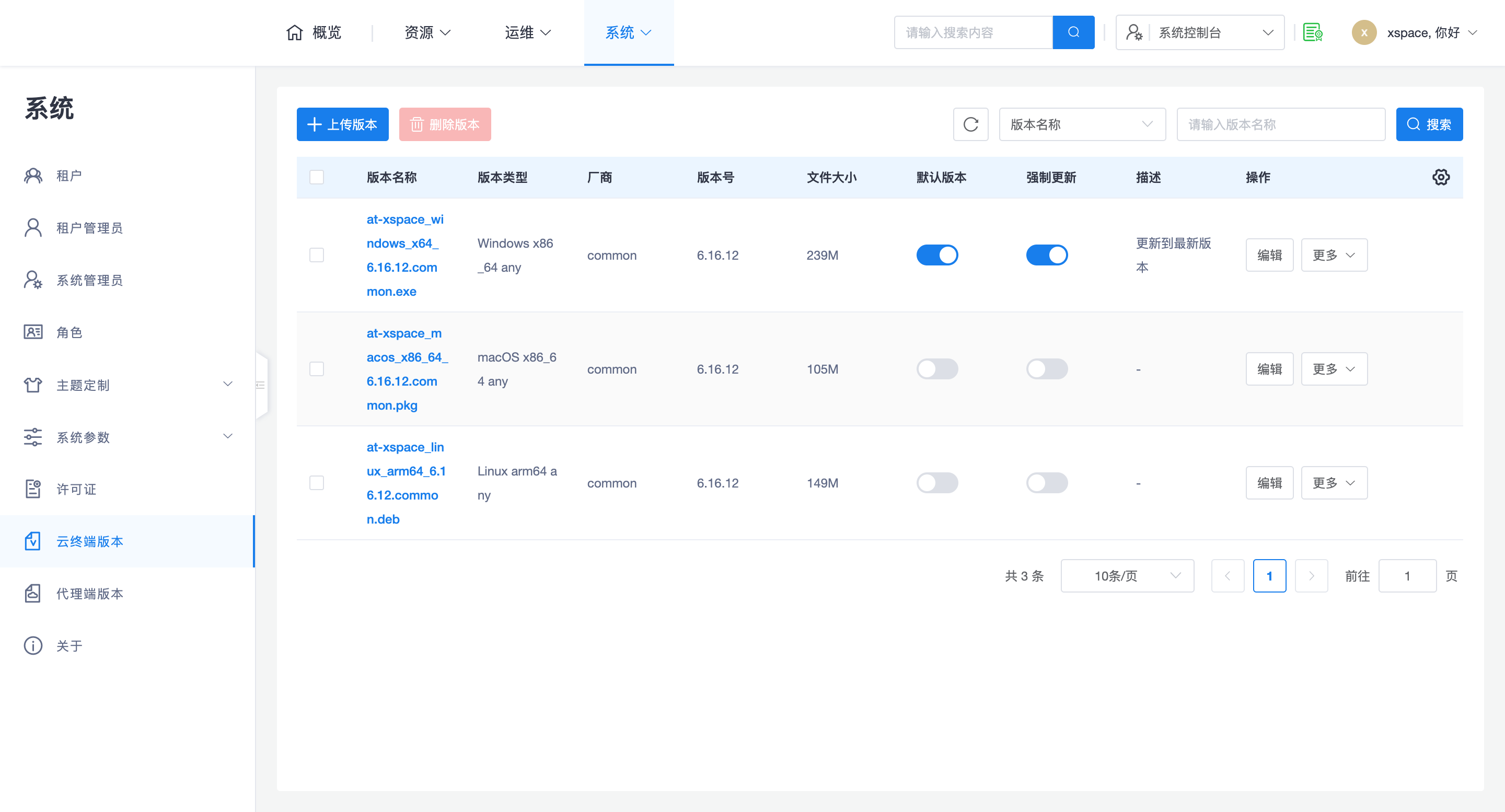
- Upload on Demand: Administrators should upload corresponding versions based on actual project requirements. For example: if a certain site only uses thin clients with RK3568 chips, only the corresponding ARM Linux version installation package needs to be uploaded.
- Default Version Mechanism:
- Effective Rules: Multiple versions of the same client can be uploaded, but only one default version can be set for each type of client.
- Independence: Default settings for different client types (e.g., Windows client vs. Linux thin client, or different CPU architectures) do not interfere with each other.
- Upgrade Prompt: Only installation packages set as "Default Version" will prompt users for an upgrade when the client starts and detects a version mismatch.
- Forced Update Description:
- Feature Behavior: If "Force Update" is checked, users must complete the version upgrade to continue logging in and using the system. If users refuse the upgrade, PC clients and mobile apps will exit, and thin clients will restart.
- Usage Recommendation: Forced upgrades affect user experience and are generally only recommended to be enabled when there are version compatibility issues (e.g., not upgrading will prevent normal use).
2. Upload and Version Settings
2.1 Upload Operation
Click "Upload Version" to add a new installation package file.
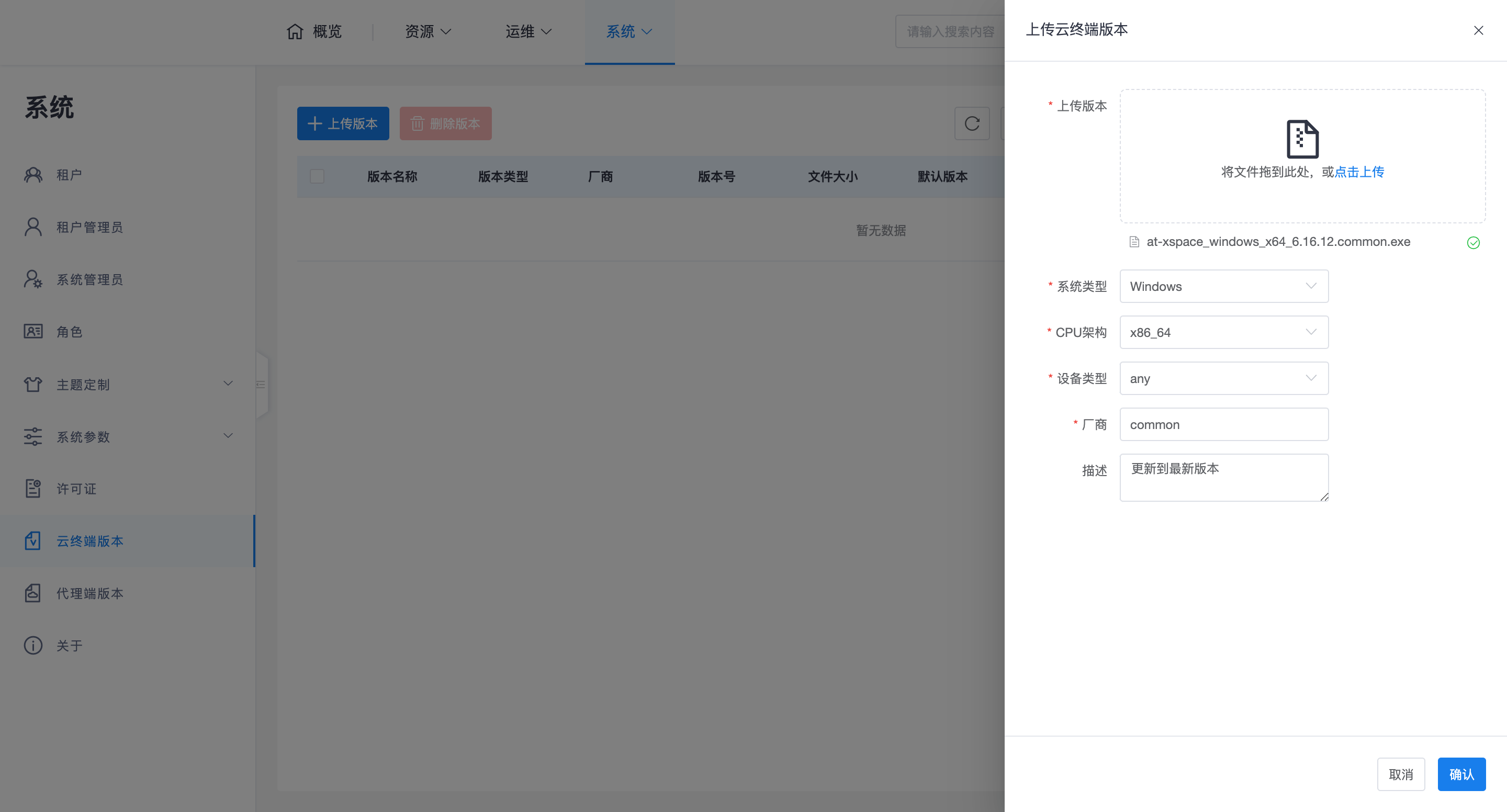
- Automatic Form Filling Mechanism: Information such as system type, CPU architecture, device type, and vendor does not need to be manually entered during the upload process.
- Confirmation Process: Please wait until the version file is 100% uploaded and a green checkmark appears. At this point, the frontend will automatically fill in the relevant parameters. The administrator only needs to intervene manually if the content is incorrect, and finally click Confirm.
2.2 Version Update Trigger
- Trigger Method: The client only checks for version updates during startup.
- Thin Client Characteristics: Thin clients usually need to be restarted to trigger the version upgrade check process.
3. Download Center
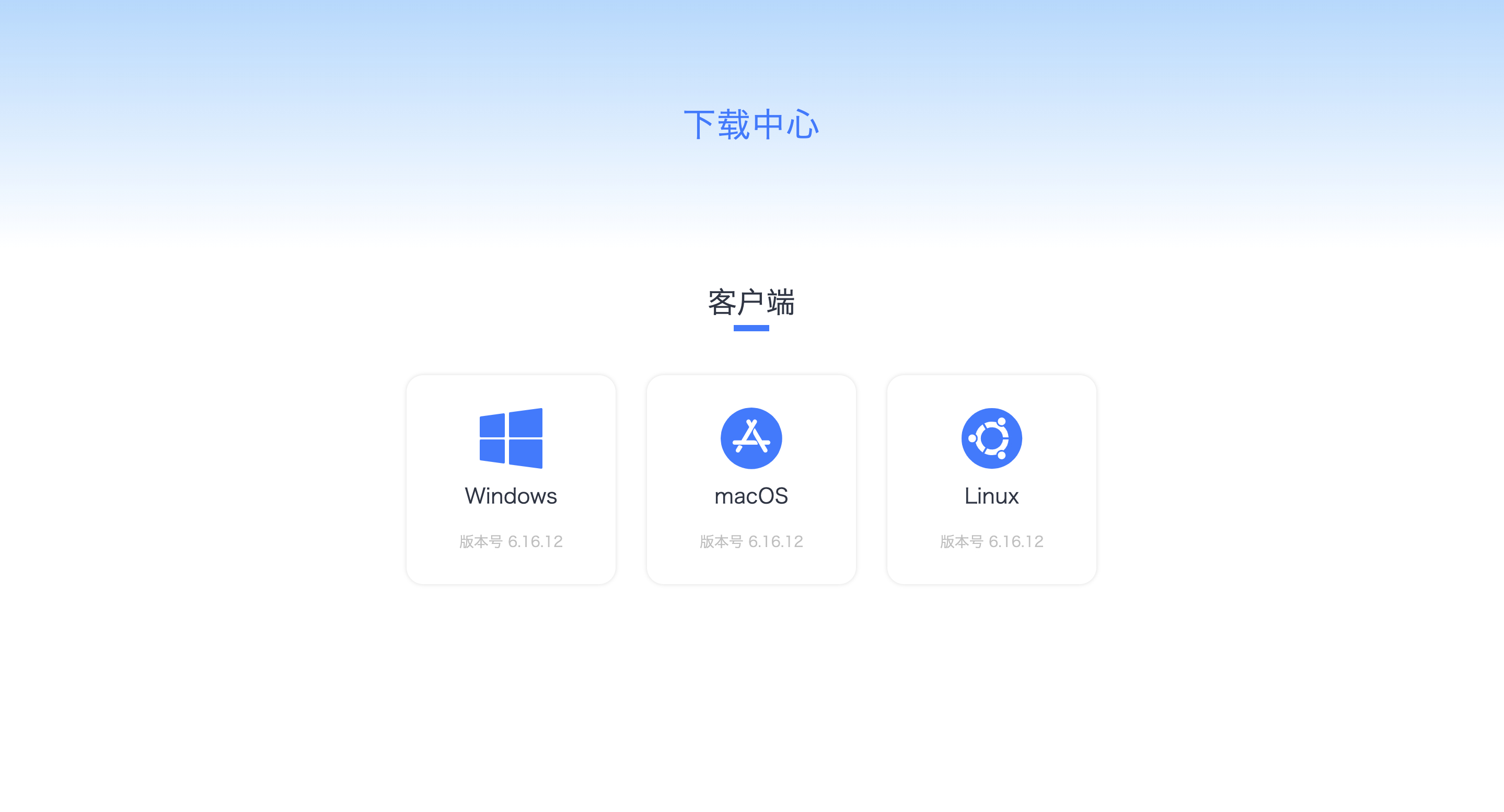
End users can manually download and install packages through the "Download Center" provided on the management webpage.
- Access Address:
- System Console Page: Access
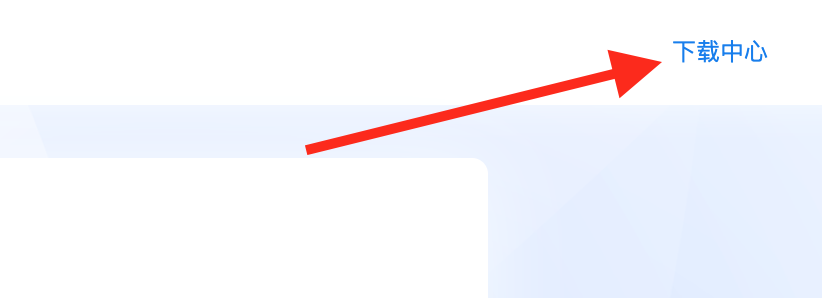
https://x.x.x.x/admin, click the "Download Center" link in the upper right corner of the page. - Tenant Console Page: Access
https://x.x.x.x/tenant, click the "Download Center" link in the upper right corner of the page. - Direct URL: Directly access
https://x.x.x.x/pages/download.
- System Console Page: Access
- Display Rules: The Download Center page only displays client installation packages uploaded by the system administrator and set as the default version. If the administrator has not uploaded any client installation packages, the Download Center will not display any downloadable links.
End users can select the corresponding version from the download center page based on their device's system architecture for download and installation.