Agent Version Management
System administrators can access "System -> Agent Versions" in the system console to view the list of currently uploaded agent installation package versions.
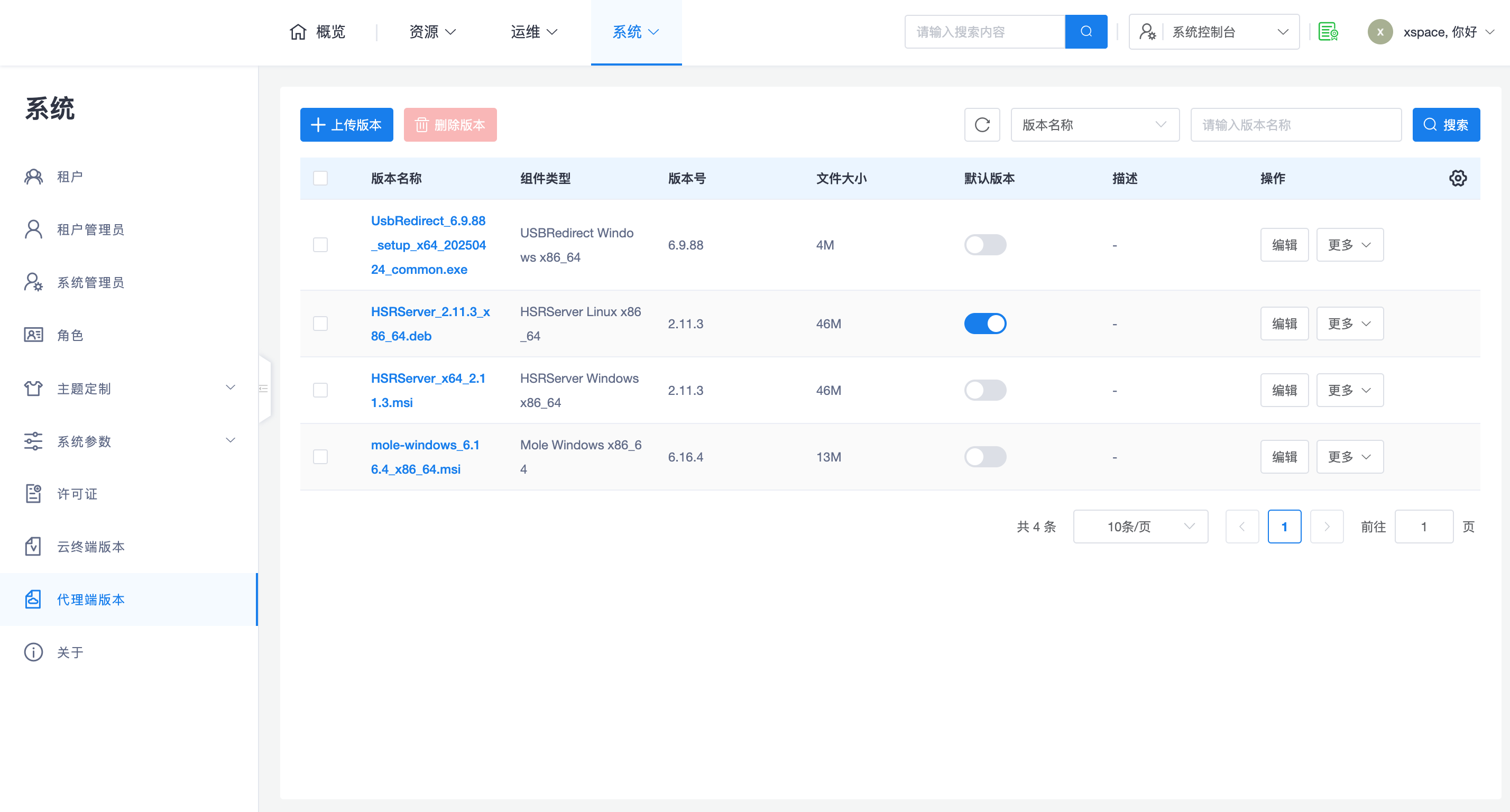
Agent software packages are silently updated inside the cloud desktop, requiring no manual intervention from end-users. Updates are automatically triggered when the Mole service inside the cloud desktop restarts or when the operating system restarts.
Precondition: The cloud desktop needs to have the Mole component pre-installed and configured with the correct management component address. It is generally recommended to pre-install and configure the Mole component in the base image.
1. Core Logic Description
- Reference Technical Architecture: For a detailed breakdown of the agent's composition and functions, please refer to the Product Overview -> Technical Architecture -> Agent section to fully understand the role of each agent and the supported OS, CPU architectures.
- Upload on Demand: Administrators can upload corresponding versions based on actual project requirements. For example, if all cloud servers are X86 architecture, there is no need to upload ARM versions; if only Windows desktops are deployed, there is no need to upload Linux agents.
- Multi-language Support: When uploading Windows agents, you can select Simplified Chinese, Traditional Chinese, or English versions based on the image's language environment; Linux agents do not distinguish between language environments.
- Default Version Mechanism:
- Effective Rules: Only agent versions set as "Default" will be obtained and upgraded by cloud desktops.
- Restrictions: When multiple versions exist, the system only allows 0 or 1 version to be set as the default.
2. Upload and Automated Processing
- Automatic Form Filling Mechanism: When uploading version files, for input fields such as version number, component type, system type, CPU architecture, and kernel version number, it is recommended to wait until the file is 100% uploaded and a green checkmark appears. At this point, the frontend will automatically identify and fill in the content. Administrators only need to verify and confirm, and unless the automatic filling is incorrect, no manual intervention is required.
3. Update and Trigger Mechanism
- Automatic Upgrade Process: Upgrades rely on the Mole service within the desktop. When the Mole service starts (by restarting the desktop or manually restarting the service), Mole queries the management component to compare if there is a default update version. If so, Mole automatically downloads and silently installs relevant components (including Mole itself, HSRServer, and USBRedirect).
- Restart Policy (Windows):
In the Windows agent configuration, "Restart Immediately" can be selected.
- Effect: If selected, the agent will automatically restart the desktop OS after the update is complete.
- Note: If multiple components are selected for immediate restart and are updated simultaneously, the desktop may restart multiple times until all component versions are updated.
- Linux Update Characteristics: Linux desktops do not require an operating system restart after agent updates; only agent-related services are automatically restarted.
- Linux USBRedirect Kernel Matching Mechanism: The Linux version of the USBRedirect component is deeply related to the operating system kernel version. Version information must be accurate during upload. When Mole obtains versions, it automatically matches and obtains the corresponding USBRedirect agent version based on the current cloud desktop's kernel version number.
4. O&M Monitoring
Administrators can monitor upgrade progress in the following ways:
- View Details: In the "Desktop Details -> Agent Details" page, view the currently installed version number and service status.
- Manual Refresh: Click the Refresh button in the lower-left corner of the page to manually get the latest status reported by the management component's Mole and confirm if it meets expectations.