Theme Customization
System administrators can access "System -> Theme Customization" in the system console to personalize the visual appearance of the management interface, including the display style of both the system console and the tenant console.
1. Customization Dimensions and Permission Logic
The system supports theme definition for System Console and Tenant Console separately:
- System Theme:
- Control Path: Access "System -> Theme Customization -> System Theme".
- Control Logic: Defined by the system administrator, directly affecting the system administrator's operating interface.
- Tenant Theme:
- Control Path: Access "System -> Theme Customization -> Tenant Theme".
- Inheritance Mechanism:
- Global Preset: Parameters set by the system administrator here will serve as the default visual scheme for all tenants.
- Tenant Personalization: If a tenant administrator customizes the theme in their tenant console, the tenant's settings will take precedence. If the tenant makes no modifications, they will automatically inherit the default scheme set by the system administrator.
2. Key Configuration Items Description
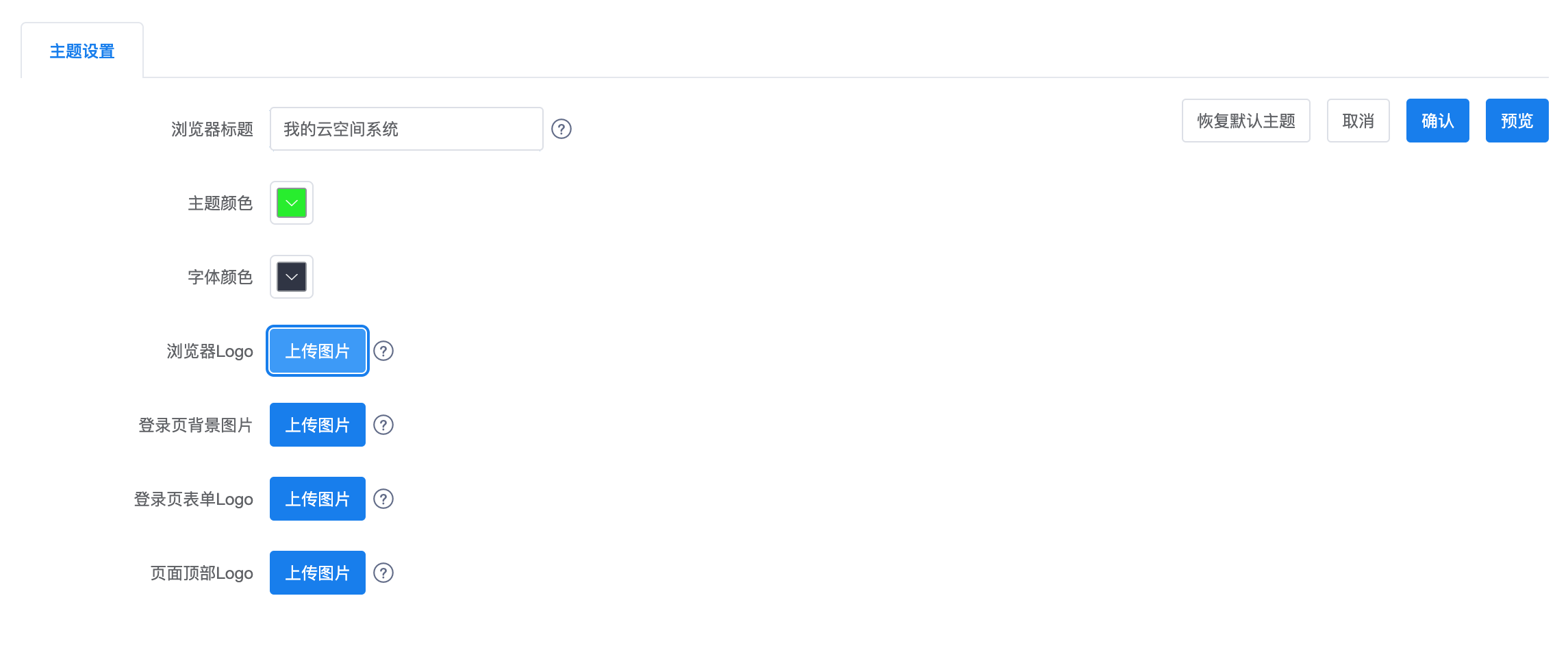
Based on interface functions, theme customization covers everything from browser titles to visual elements:
| Configuration Item | Description | Applicable Scope |
|---|---|---|
| Browser Title | Modify the text content displayed on the browser tab page | System/Tenant Theme |
| Theme Color | Set the main color tone of the interface (buttons, highlight states, sidebar, etc.) | System/Tenant Theme |
| Font Color | Set the default display color of interface text | System/Tenant Theme |
| Browser Logo | Modify the small icon (Favicon) on the left side of the browser tab page | System/Tenant Theme |
| Login Page Background Image | Customize the full-screen background image of the user login interface | System/Tenant Theme |
| Login Page Form Logo | Modify the product or enterprise Logo displayed above the login box | System/Tenant Theme |
| Page Top Logo | Modify the brand icon displayed in the upper left corner of the system after logging in | System/Tenant Theme |
3. Precautions and O&M Recommendations
- Image Specifications: When performing theme customization (e.g., uploading Logo or background images), please strictly follow the size and file format requirements prompted on the interface to ensure no stretching or blurriness occurs at different resolutions.
- Refresh to Take Effect: After modification, please refresh the browser page. Some settings may require logging out and logging back in to fully see the changes.
- Cache Handling: If the interface does not change promptly after operation, it is usually due to browser caching. Please try clearing the browser cache or viewing in incognito mode.
- Effect Preview: It is recommended to click the "Preview" button on the interface (as shown in the image) before official application to confirm that the color scheme meets visual requirements. ```