Policy Group Management
Policy groups are an important means for tenant administrators to implement various management policies on cloud desktops, such as function disabling, security control, data protection, and access restrictions. Tenant administrators can customize and summarize various control measures to build policy groups for various scenarios, ensuring that final desktop access complies with desired control objectives.
In each tenant context, the tenant administrator is responsible for editing policy groups and applying them to specific desktop or desktop pool objects. The system administrator is responsible for maintaining preset policy group templates in the system console for tenant administrators to reference and copy to generate policy groups.
1. Core Logic of Policy Groups
- Association Point: Policy groups are ultimately associated with desktop objects. When end-users use a desktop, they are controlled by the associated policy group.
- Single Association Principle: A desktop can only be associated with one policy group.
- Object Restrictions: Only desktops and dynamic desktop pools support associating with policy groups; objects such as users and terminals do not support direct association.
- Dynamic Pool Linkage: After a dynamic desktop pool is associated with a policy group, dynamically created desktops within the pool will automatically be associated with the corresponding policy group.
- Tenant Isolation: Policy groups are tenant-specific resources, and policy group configurations between tenants do not interfere with each other.
2. Policy Configuration Categories
Policy configurations are mainly divided into the following categories:
-
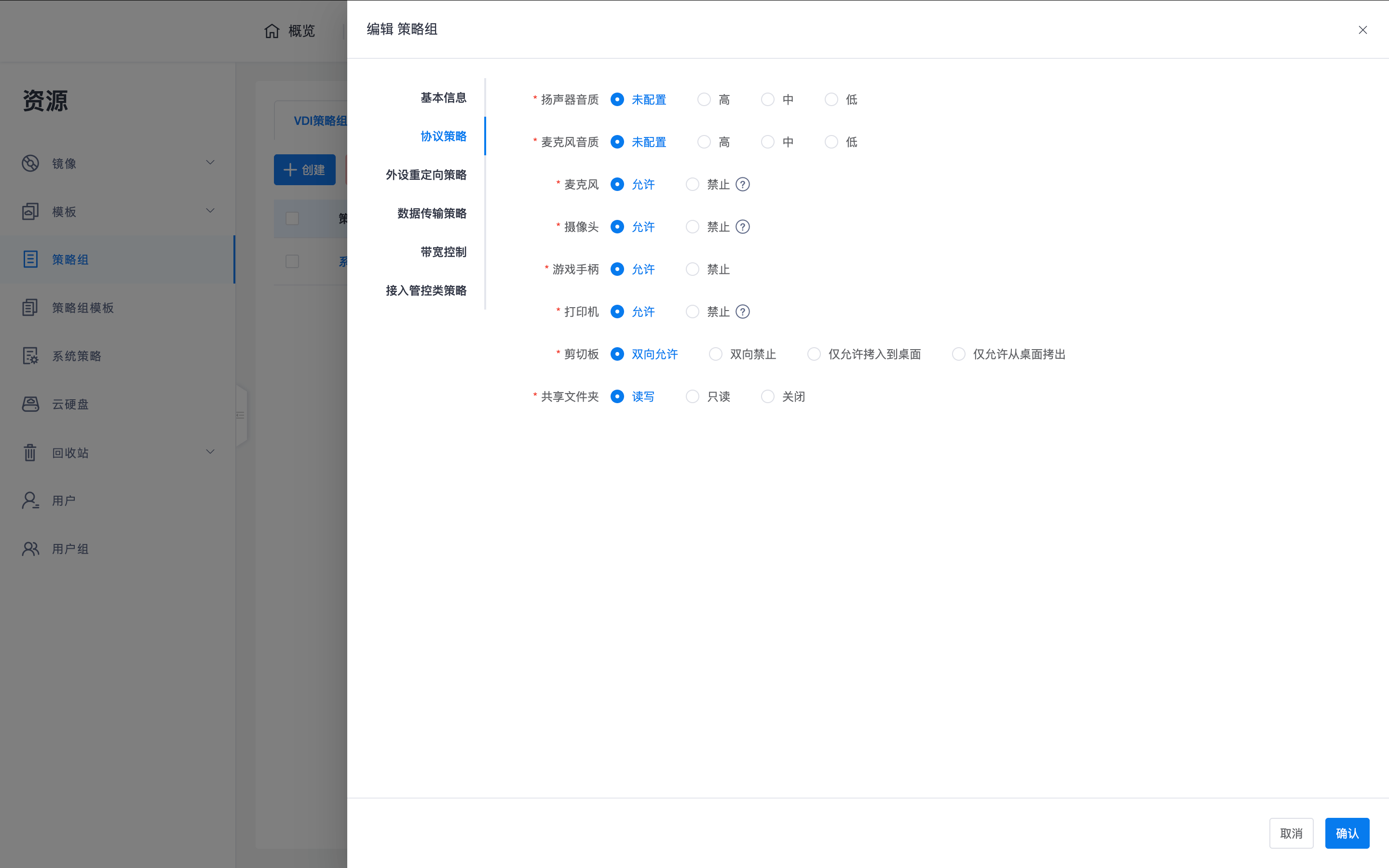
2.1 Protocol Policies:
- Nature of Control: This controls device redirection policies.
- Configuration Items: Supports configuring speaker/microphone audio quality (high, medium, low) and allowing or prohibiting cameras, game controllers, and printers.
- Permission Details: Supports clipboard control (bi-directional allow, bi-directional prohibit, allow only copy to desktop, allow only copy from desktop) and read/write control for shared folders.
-
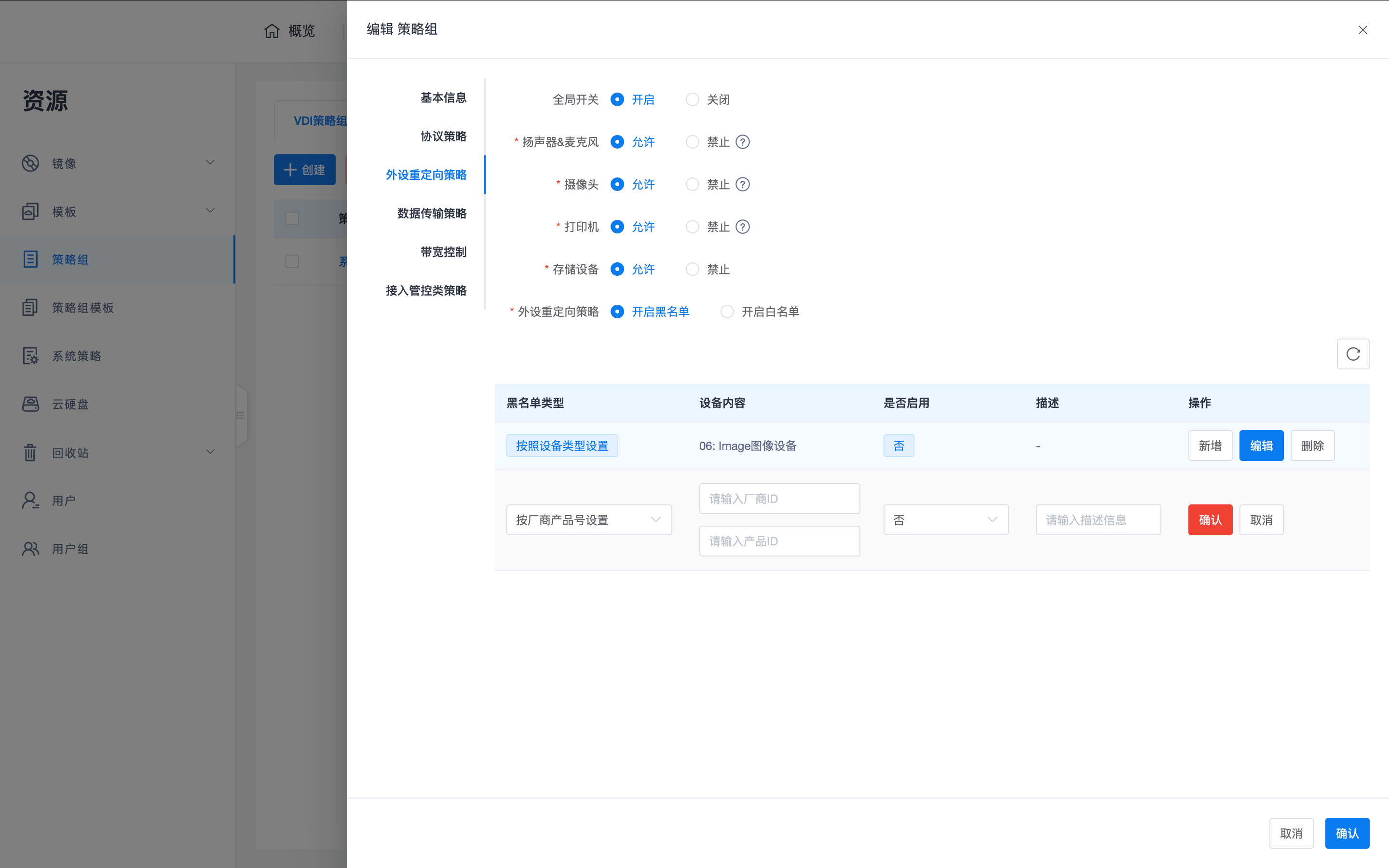
2.2 Peripheral Redirection Policies:
- Nature of Control: This specifically controls USB peripheral port redirection.
- Configuration Items: Provides a global switch and allows or prohibits speakers/microphones, cameras, printers, and storage devices.
- Fine-grained Filtering: Supports enabling blacklist or whitelist modes, and filtering by "device type" or "vendor/product ID (PID/VID)".
Note: For the difference between "device redirection" and "port redirection", please refer to the Product Overview -> Technical Architecture -> Component Composition -> 5.1 Remote Desktop Protocol Server (Data Plane) section.
-
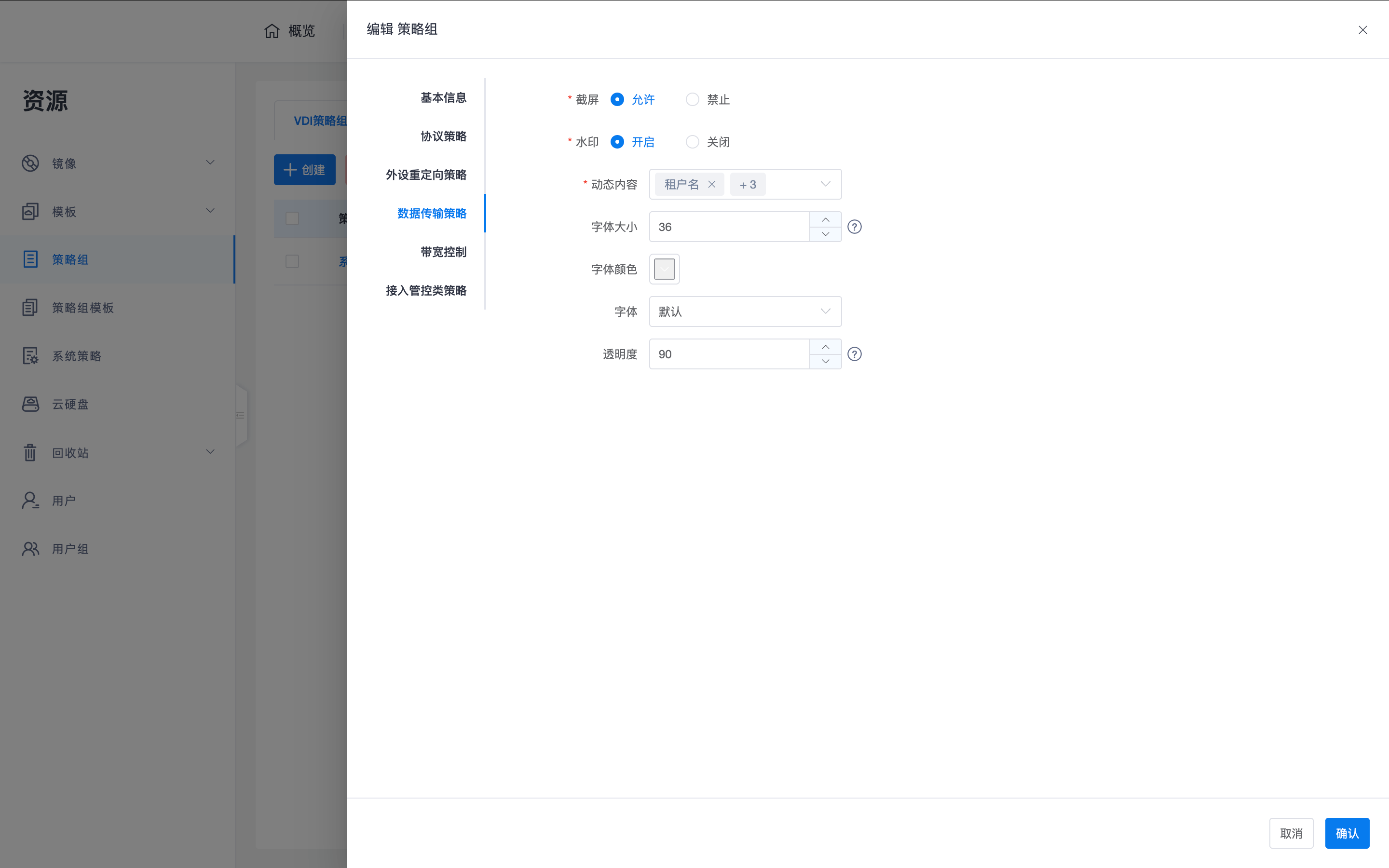
2.3 Data Transfer Policies:
- Screenshot Control: Supports allowing or prohibiting client screenshots.
- Dynamic Watermark: Supports enabling watermarks and customizing content (e.g., tenant name, username, IP, time), adjustable font size, color, transparency, and font type.
-
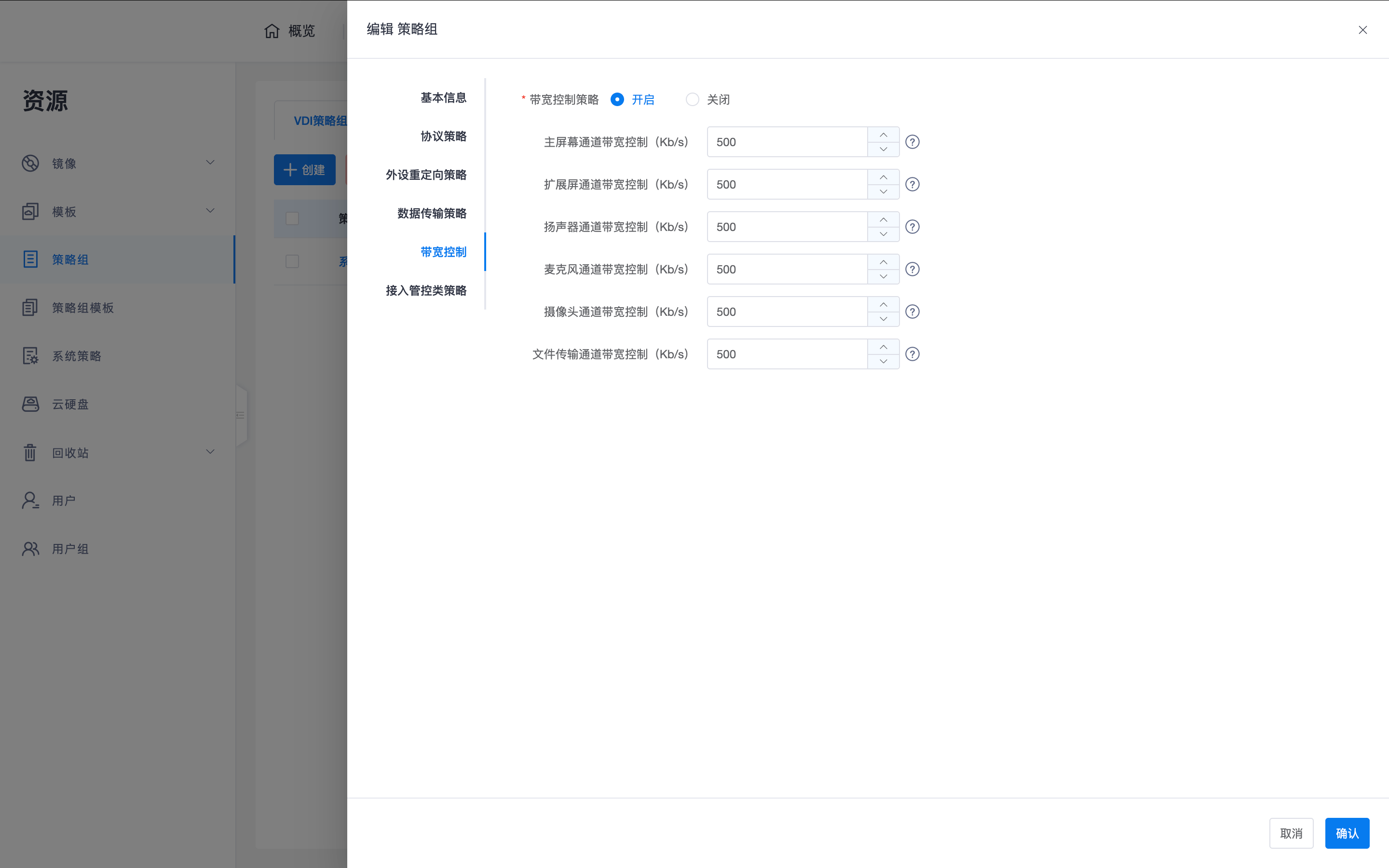
2.4 Bandwidth Control:
- Supports setting maximum bandwidth limits (Kb/s) separately for main screen, extended screen, speakers, microphones, cameras, and file transfer channels.
-
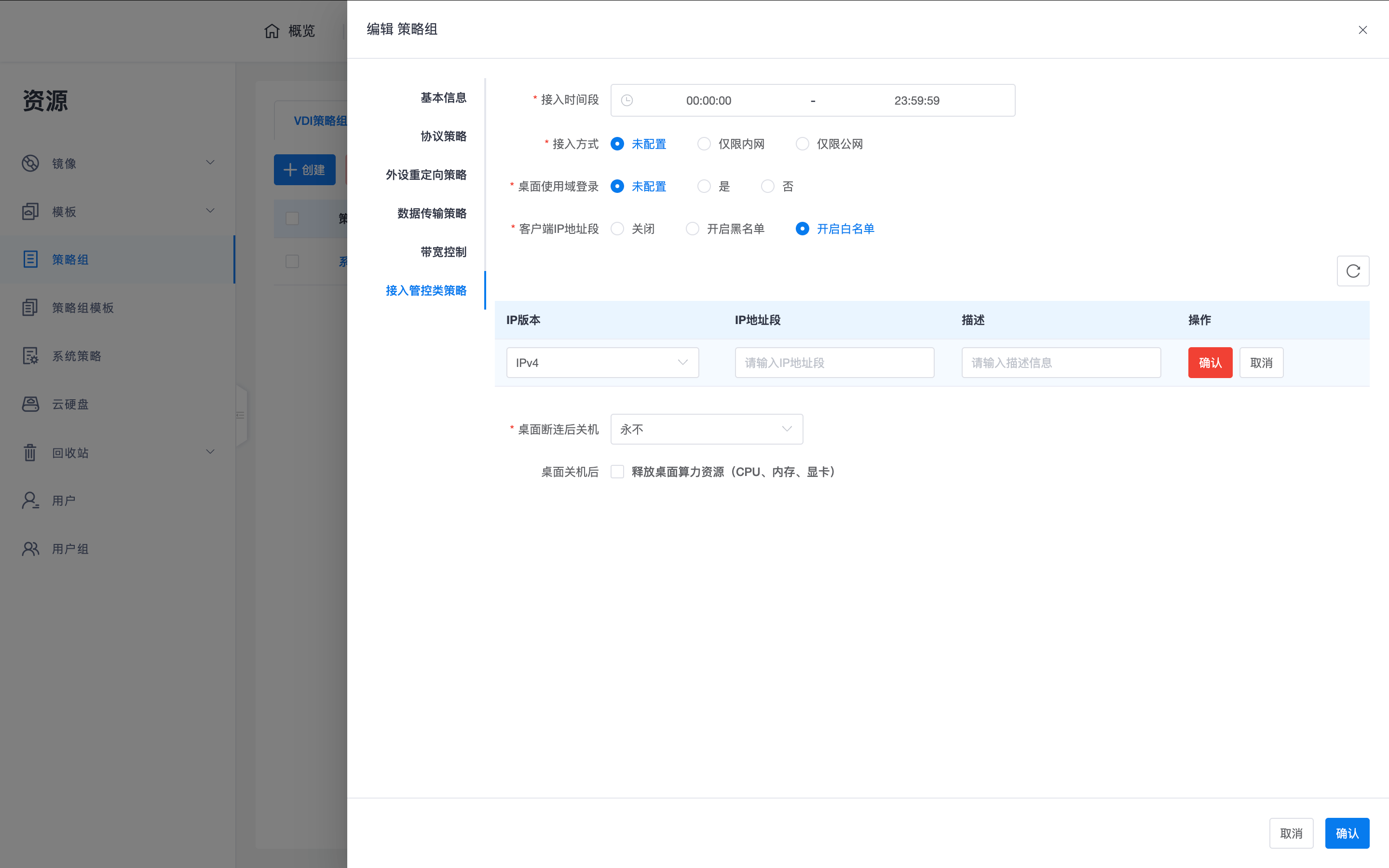
2.5 Access Control Policies:
- Supports setting access time periods, access methods (internal network only/public network only), and client IP address black/white lists.
- Supports setting whether the desktop must use a domain account for login, and policies for powering off or releasing resources (CPU, memory, graphics card) after desktop disconnection.
3. Operation Guide
3.1 System Administrator Operations
- Path: Access "Resources -> Policy Group Templates".
- Operations: Responsible for editing standardized policy templates, serving as a reference benchmark for tenant administrators to create policy groups.
3.2 Tenant Administrator Operations
- Policy Customization: In the tenant console's "Policy Management -> Policy Groups", enter policy parameters according to business needs.
- Binding Application:
- Desktop Pool Binding: Uniformly associate policy groups when creating or editing dynamic desktop pools.
- Desktop Association: On the desktop list page, click "Associate Policy Group" via row operations or batch table operations, and select the target policy group for association in the drawer interaction page that pops up on the right.
Tip: It is recommended to divide and define policy groups based on company department functions. For example, for R&D departments with extremely high security requirements, it is recommended to enable whitelist mode in "Peripheral Redirection Policies", allowing only necessary office peripherals to connect.