Image Management
Images are the core data resources used to create cloud desktops. They determine the internal operating system and basic data content of the created cloud desktop virtual machines.
About Template-Based Platforms:
For cloud platforms like SmartX and WxStack that only have the concept of "Templates" but no independent "Images", the template management at the business resource layer of these platforms is similar to the image management described in this chapter.
After adding a cloud platform to the xSpace management component and successful synchronization, image information can be viewed in two places:
-
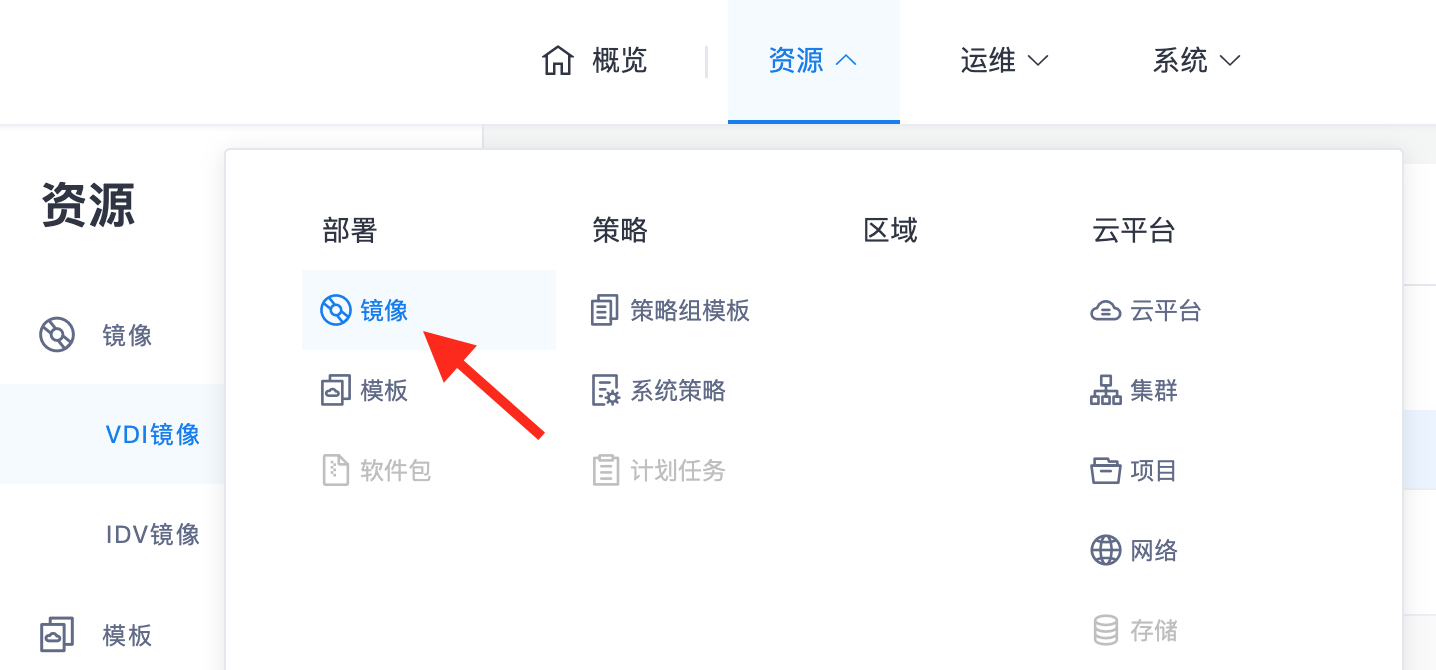
View Path One: Access "Resources -> Images -> VDI Images". This displays a list of all system VDI images from all cloud platforms (excluding tenant custom images).
-
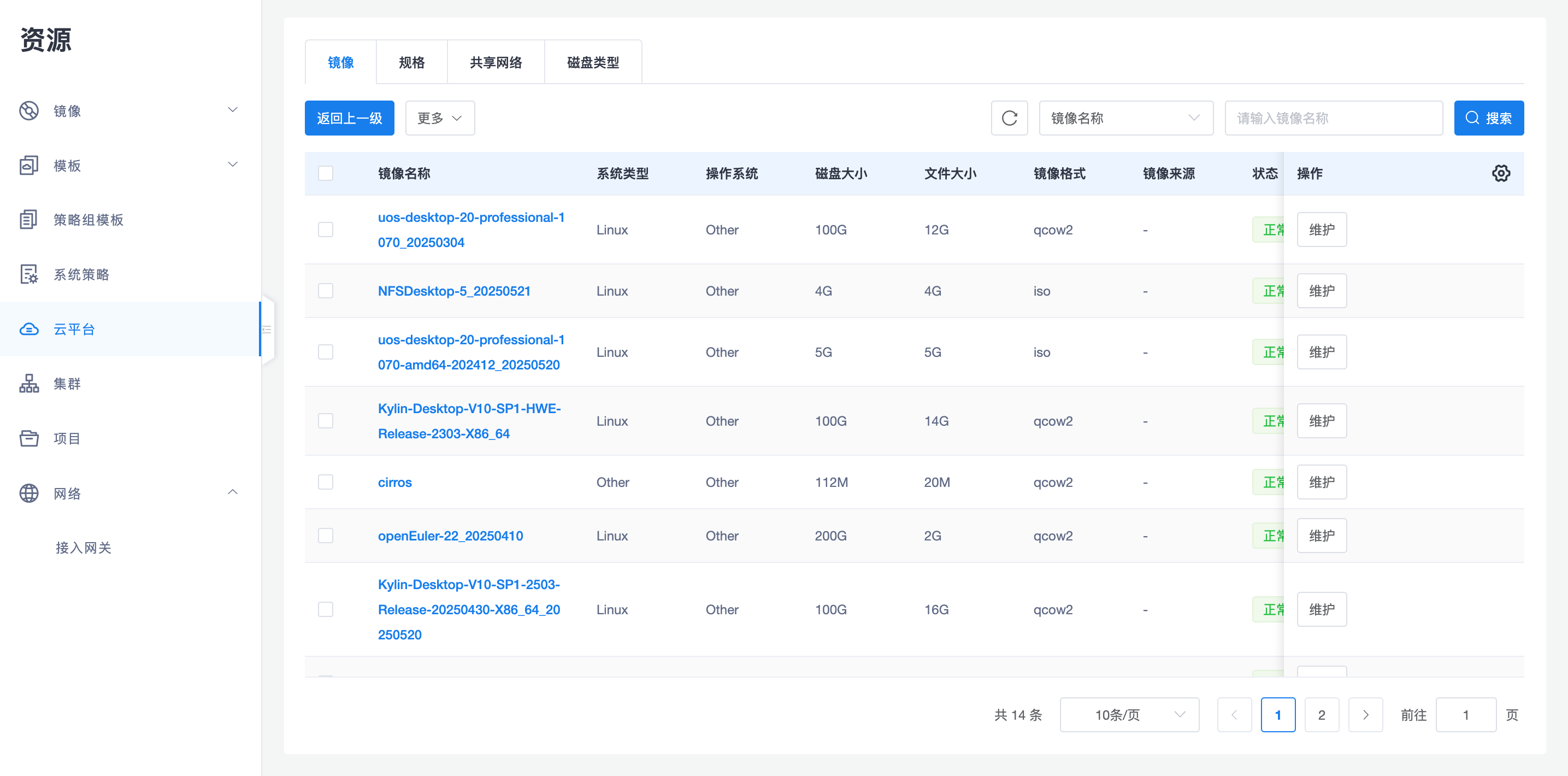
View Path Two: View within the management page of a specific cloud platform. This only displays the list of images synchronized from that specific cloud platform.
1. Core Underlying Attributes of Images
In the underlying cloud platform, the physical attributes of an image directly determine whether a cloud desktop virtual machine can boot and run normally. Administrators need to pay special attention to the following two points:
-
Boot Mode:
- Images are typically divided into BIOS (Legacy) or UEFI modes. The boot mode must match that of the created cloud desktop (virtual machine), otherwise it will not boot normally.
- VDI images released with the version mostly adopt the more advanced UEFI mode. If the underlying cloud platform does not support UEFI, specific images created in Legacy mode must be used. Please refer to the creation instructions document in the same directory as the image file for details.
- Special Handling: On platforms like ZSphere that do not provide an interface to directly modify the image's boot mode, you must first create a VM from the image, modify its Boot Mode in the VM configuration, and then save that VM as an image to copy the hidden boot attribute to the image.
-
Virtual Graphics Card (Video Card):
- The virtual graphics card attribute of the image must be set to virtio. Using the original
cirrusis strictly forbidden to ensure optimal graphics performance and compatibility.
- The virtual graphics card attribute of the image must be set to virtio. Using the original
2. Business Layer Attribute Extension (OS Type & Distro)
The OS Type and OS Distro of an image are extension fields for underlying resources based on cloud desktop business requirements.
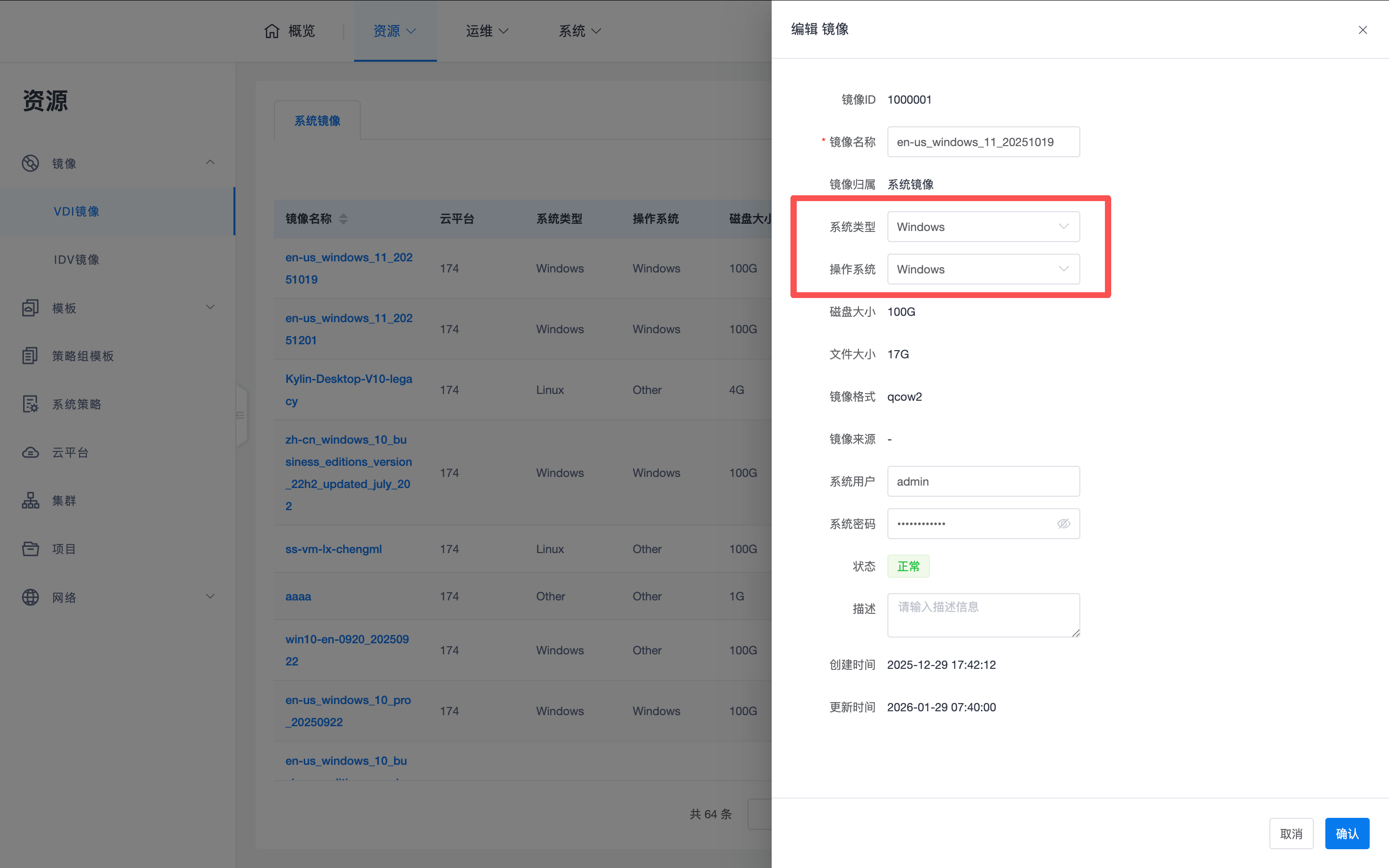
- Modification Location: These two attributes can only be modified on the following business pages; they cannot be directly modified in the image list within the cloud platform:
- System Console -> Resources -> Images -> VDI Images -> System Images.
- Tenant Console -> Resources -> Images -> VDI Images -> Custom Images.
- Display Effect: These fields determine the operating system icon displayed on the client desktop card and connection page.
- Priority Logic: If the Agent (Mole) inside the cloud desktop is running normally and connected to the management component, Mole will report the real system information from within the desktop. Since the information reported by Mole is more accurate, it has the highest priority and will override the attributes preset in the image.
3. Login Credential Management (OS User/Password)
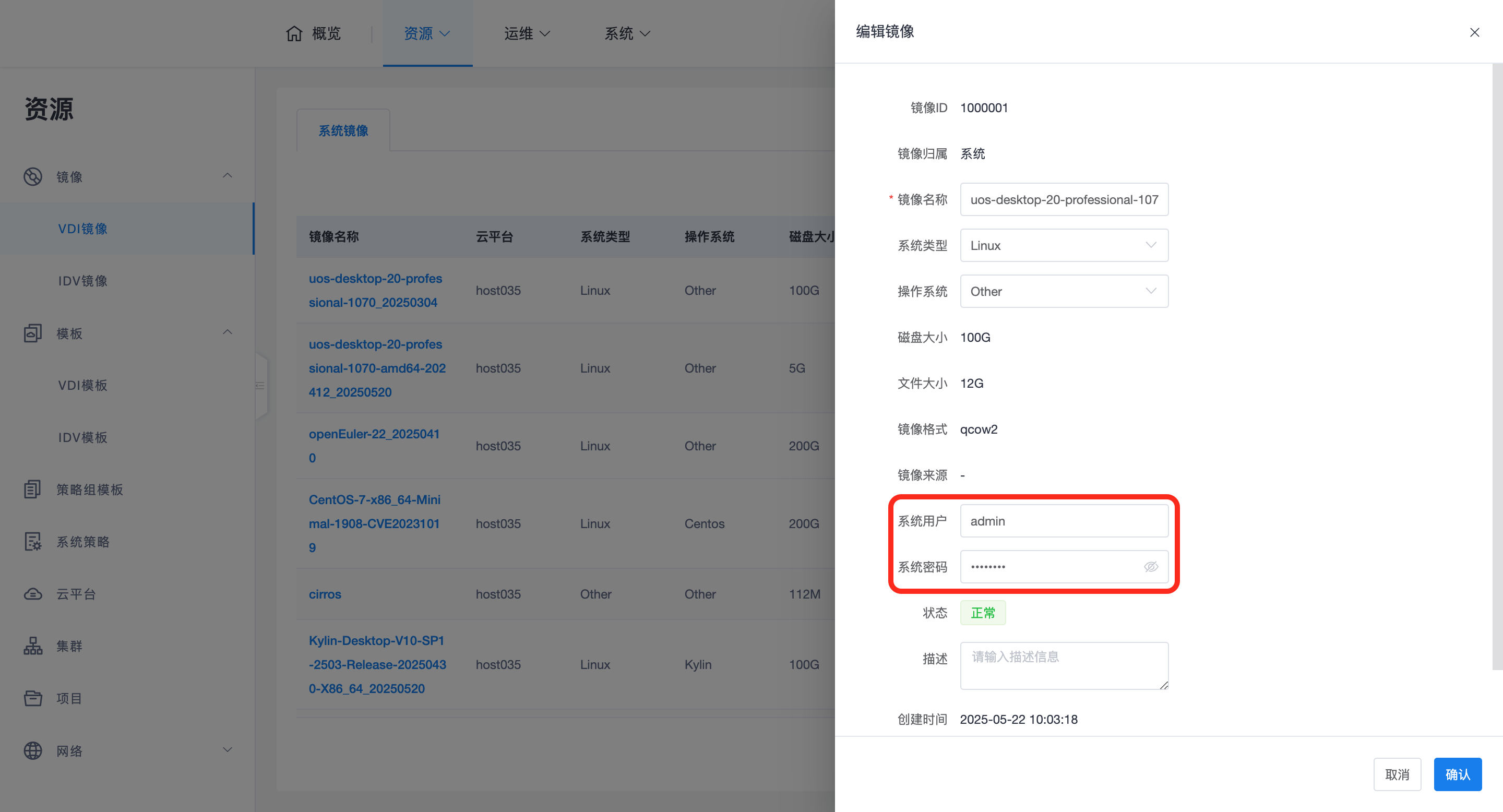
When editing an image, you can set the "System User/System Password", which corresponds to the preset login credentials in the image's operating system.
3.1 Modification Location
These two attributes can also only be modified on the following business pages; they cannot be directly modified in the image list within the cloud platform:
- System Console -> Resources -> Images -> VDI Images -> System Images.
- Tenant Console -> Resources -> Images -> VDI Images -> Custom Images.
3.2 Credential Synchronization and Update
- Initial Copy: When a cloud desktop is created or synchronized from the underlying platform, the system copies the OS username and password from the image used by the desktop to the desktop object.
- Update Mechanism: If the image password is changed after the desktop is created, existing desktops will not automatically synchronize updates. Administrators can synchronize updates by deleting and recreating the desktop, or by clicking the "Update Credentials" button in the desktop operations.
3.3 Priority and Effective Scenarios
- Automatic Login: As long as the desktop does not require AD account login, the client will automatically extract the OS account/password from the desktop object during connection for silent login, eliminating the need for the user to enter a password.
- Priority Order: Cloud Desktop Object Custom Credentials > Image Preset Credentials.
- AD Domain Mode: If the cloud desktop is configured for AD account login, the OS login credentials saved on the desktop object will be ignored. The client will attempt to log in to the desktop's internal system using the AD account/password entered by the user at client login.
Note: For some hyper-converged or cloud platforms that do not have the concept of "images", all the above definitions and functions regarding boot mode, virtual graphics card, and login credentials will also apply to and take effect on "template" resources.