Manage Cloud Platform Resources
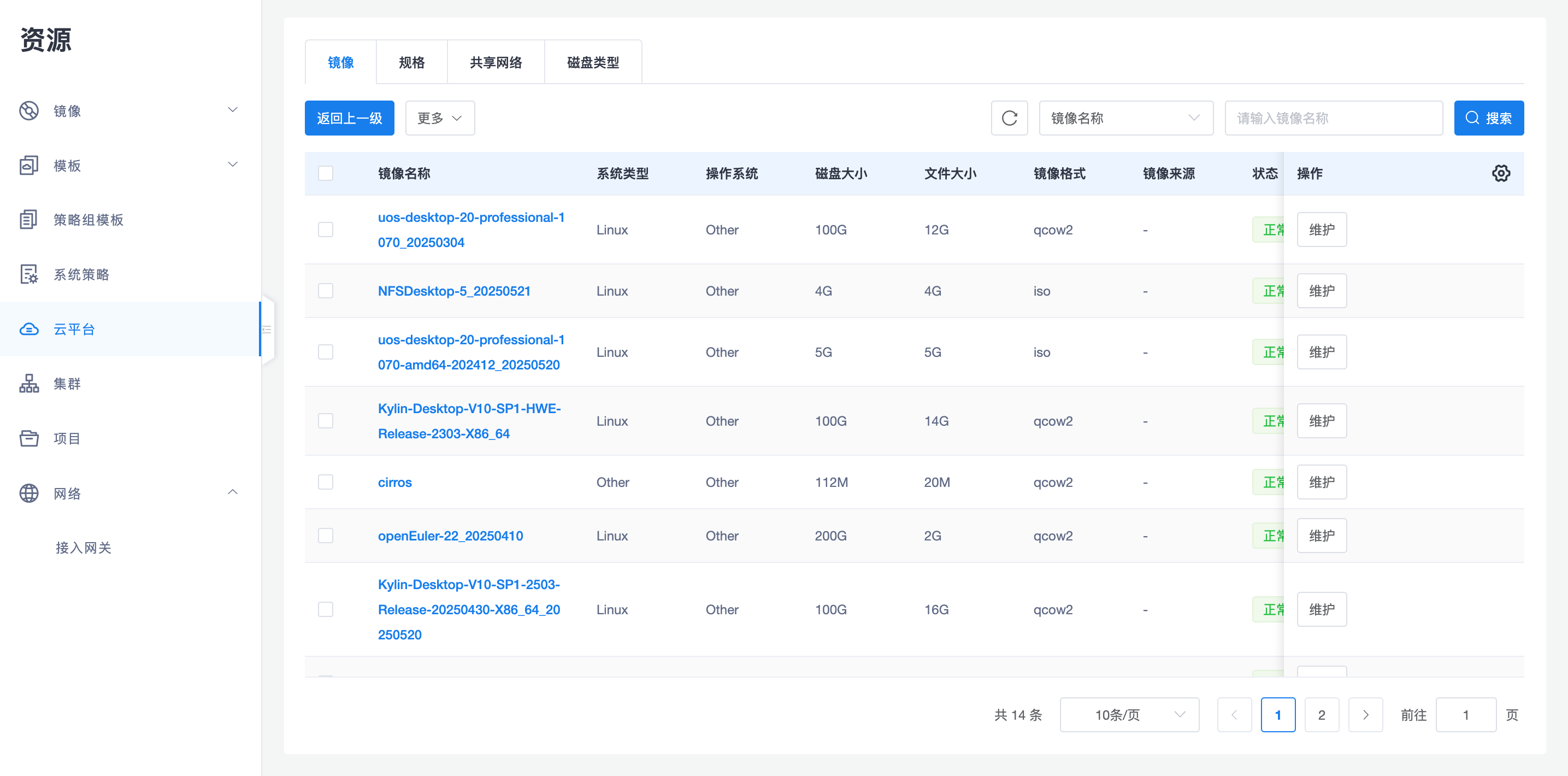
After the cloud platform is successfully synchronized, administrators can use the "Manage" entry to perform fine-grained business-level control over managed underlying resources (such as templates, images, flavors, shared networks, disk types, etc.).
1. Resource Management Entry Point
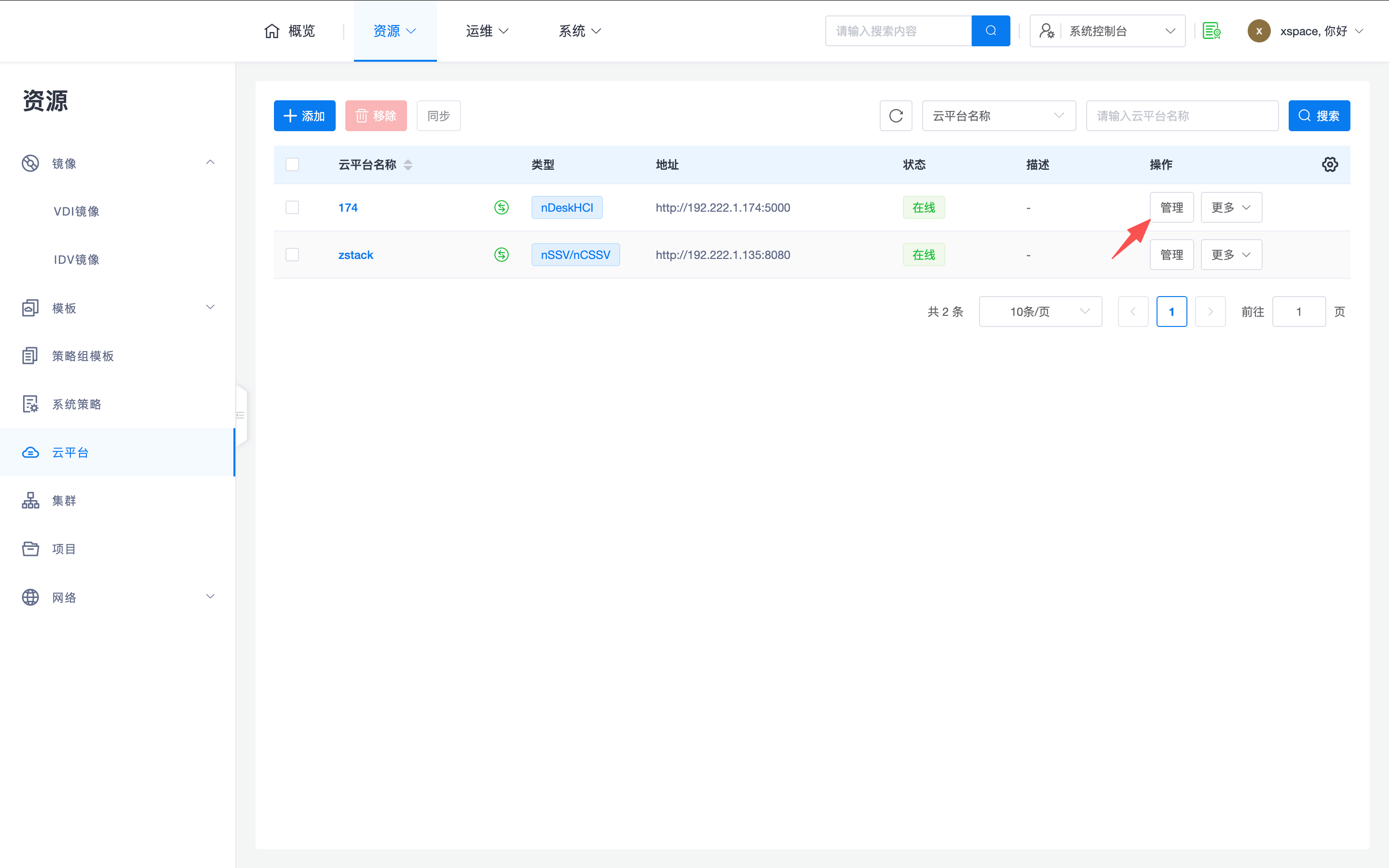
In the "Resources -> Cloud Platforms" list, click the "Manage" button on the right side of the corresponding cloud platform to enter the resource management interface for that platform.
Note:
- The resource tabs supported by different types of cloud platforms are not entirely the same. For details, please refer to the Cloud Platform Overview -> 1.2 Platform Model and Capability Difference Table section.
- The technical concepts corresponding to the same resource name may differ across different platforms.
2. General Management Mechanism
2.1 Maintenance and Unmaintenance
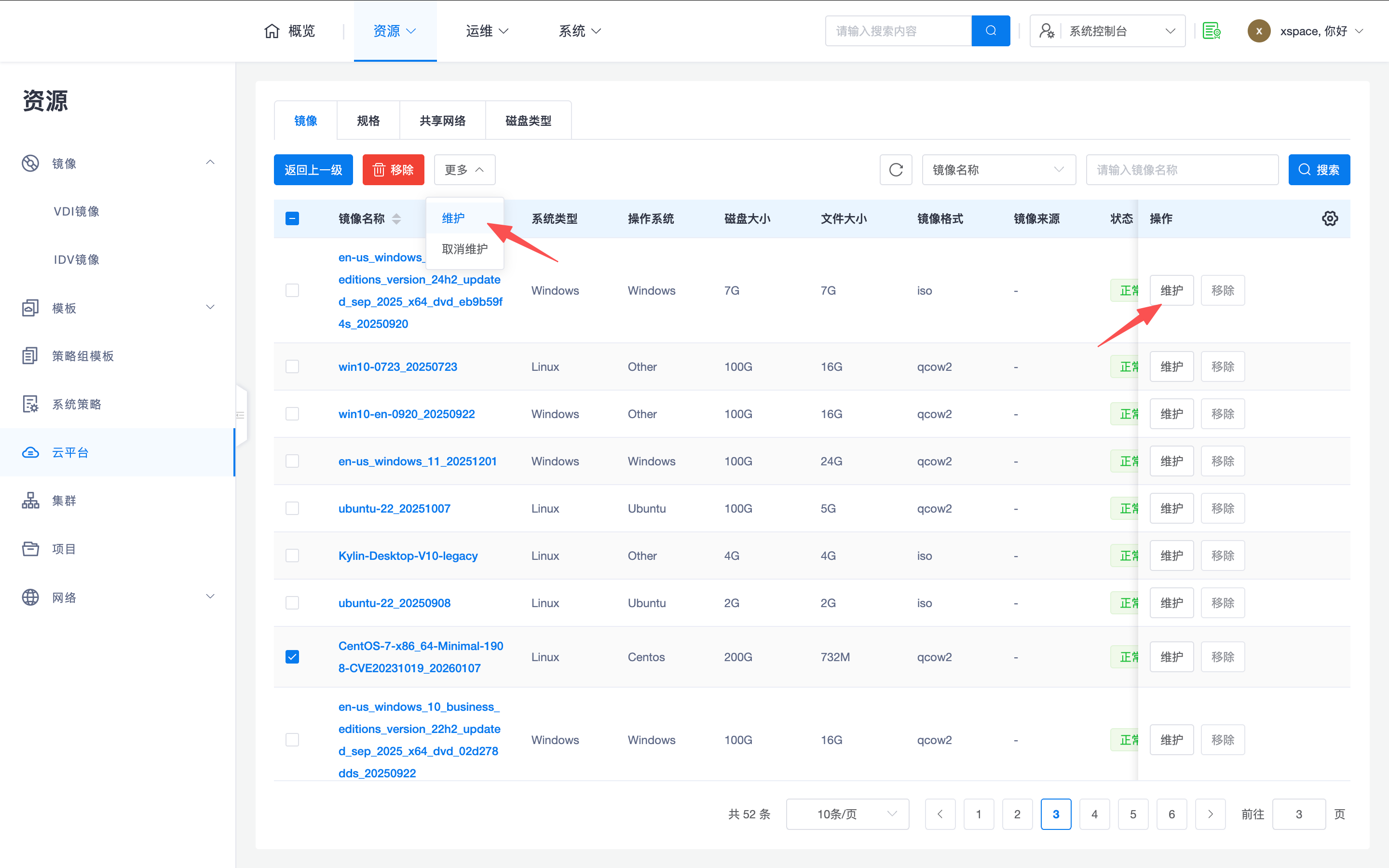
All resource objects in the management interface (templates, images, flavors, networks, disk types, clusters, nodes, projects, instances, cloud disks, etc.) support the "Maintenance" operation:
- Business Isolation: After a resource is set to "in maintenance", it will be hidden from the desktop business layer, cannot be newly used, and already used resources are not affected.
- Management Value: For example, underlying cloud platforms often have a large number of images or flavors not related to desktop business. Through the maintenance mechanism, the selection list when creating desktop pools can be shortened, reducing the risk of administrator misselection and improving O&M efficiency.
2.2 Resource Status: Lost
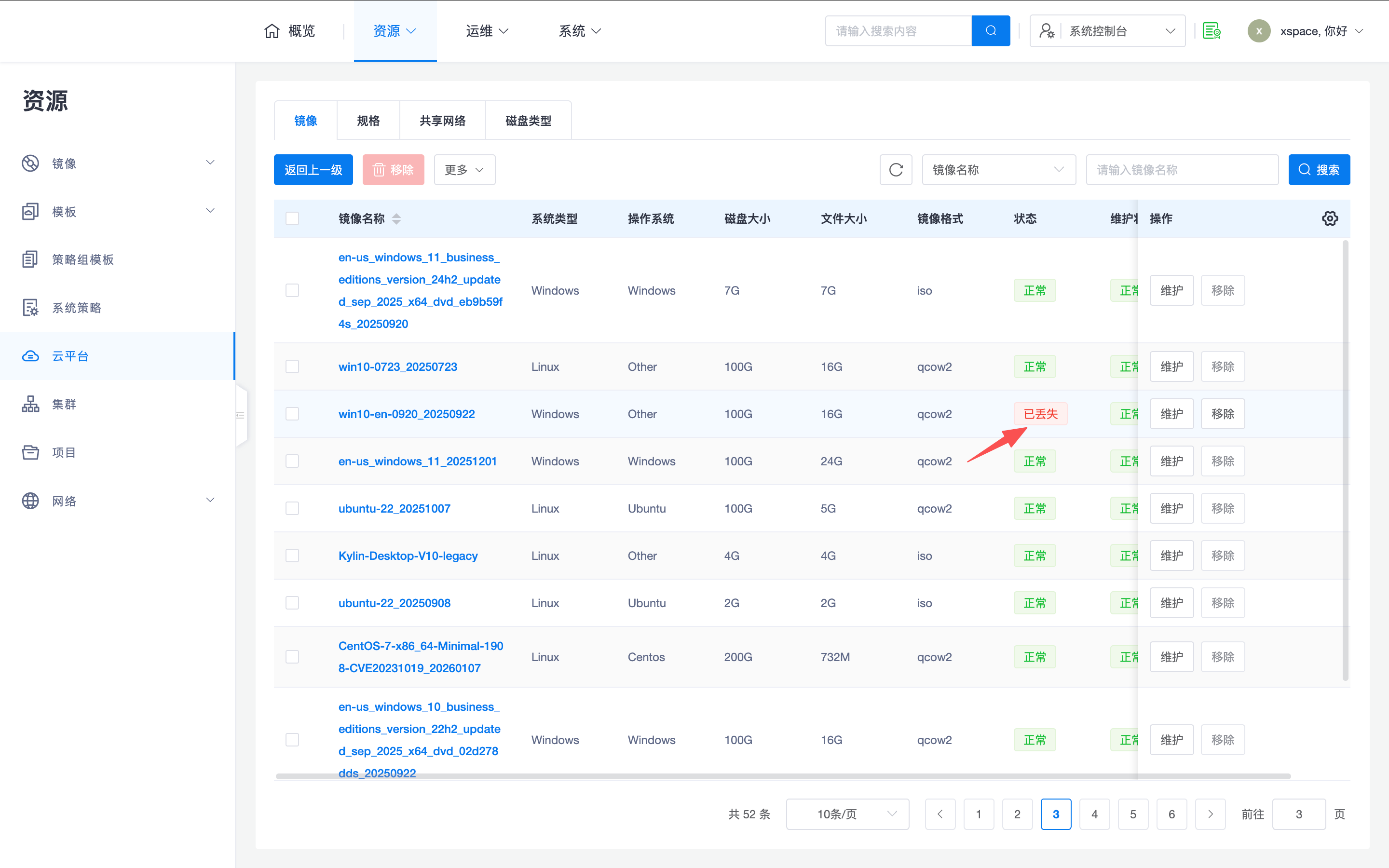
If a resource object is recorded in xSpace but is found to have been physically deleted from the underlying cloud platform during subsequent synchronization, the system will mark its status as "Lost".
- Manual Synchronization: When a resource is found to be in "Lost" status, it is recommended to first perform a manual resource synchronization in the system console to confirm whether the status anomaly was caused by synchronization delays or network fluctuations.
- Underlying Verification: If the status remains "Lost" after manual synchronization, you need to log in to the underlying cloud platform management backend to verify whether the corresponding resource has actually been deleted.
- Remove Record: If it is confirmed that the underlying resource has indeed been physically deleted and is no longer needed, you can manually "Remove" its record from the xSpace management page.
- Resource Replenishment: If the business still requires this resource, you need to replenish the resource in the underlying platform, re-synchronize, and perform corresponding business layer resource replacement.
2.3 GPU Management for Flavors and Templates
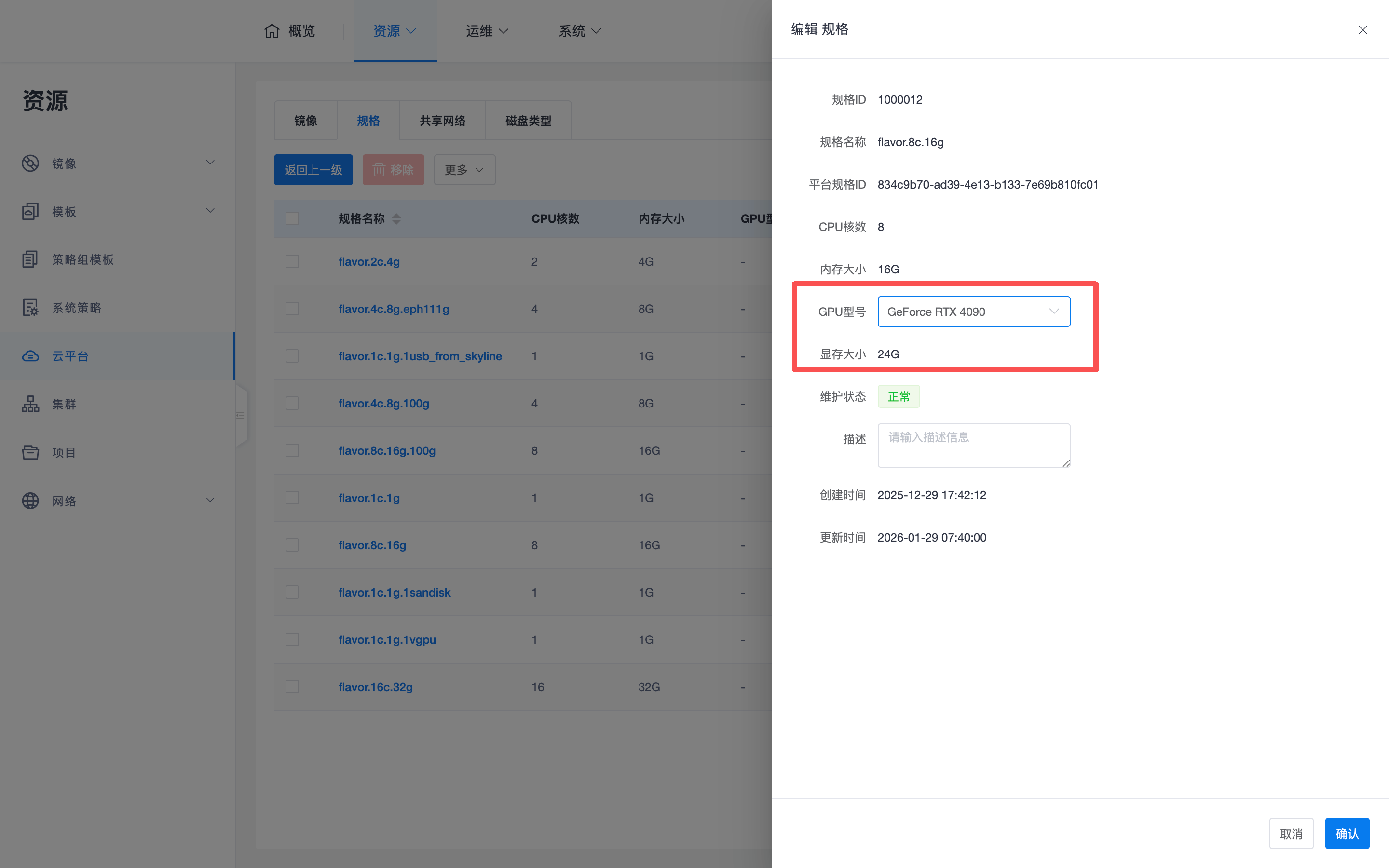
Currently, the system manages underlying GPU resources through flavors and templates. Due to limitations of some underlying platform APIs, administrators can manually edit GPU resource information in flavors or templates. Currently, the GPU model and video memory size information added to flavors and templates is only used for displaying desktop configuration information on the tenant console and client, and for controlling graphics card resource over-subscription.
3. Platform Resource Feature Description
3.1 Disk Type and Mount Control
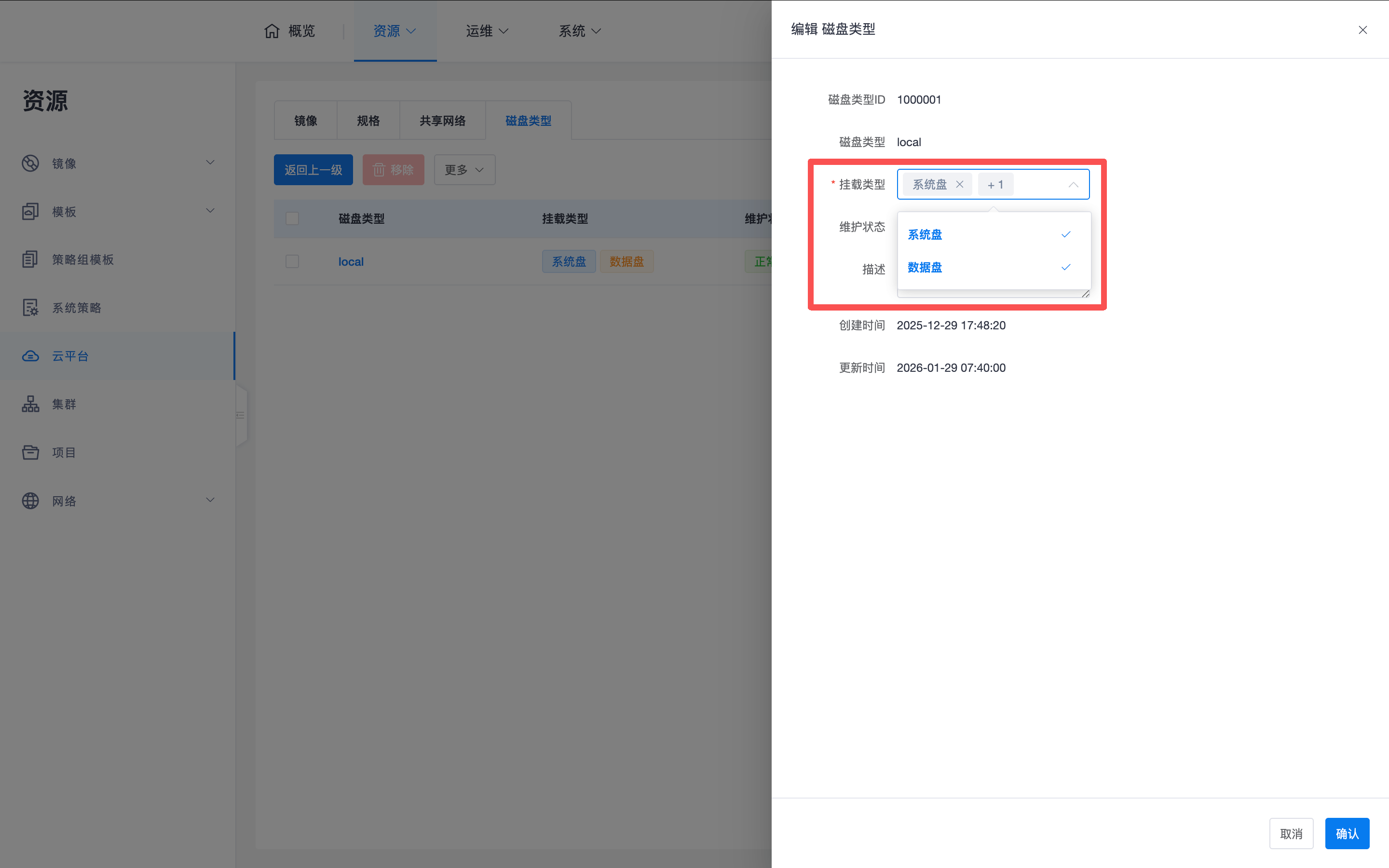
In "Disk Type" management, in addition to the maintenance switch, "Mount Type" fine-grained control is also supported:
- Default Configuration: By default, it can be used for both system disks and data disks.
- Filtering Logic: Administrators can manually specify whether this disk type is "only for system disks" or "only for data disks". When creating cloud desktops, the system will automatically filter the disk type list based on this configuration.
3.2 Difference Between Image/Template and Business Layer Image
The system distinguishes between "underlying resources" and "business layer resources" in two dimensions:
- Resources within Cloud Platform: Refers to all original resources directly synchronized from the cloud platform.
- Image/Template under Resource Menu: This is a business-level encapsulation. The system filters out maintained and lost items. Administrators can set business extension attributes such as OS type, distribution, preset username, and password for images here. For example, in the system console's resource menu, only system images (available to all tenants) are displayed; in the tenant console, custom images (only available to this tenant) and system images (available to all tenants) are displayed separately.
4. Cluster and Project Synchronization Logic
To accurately control resources, system administrators need to understand the ownership and synchronization relationships between different objects. When manually updating specific resources (such as desktop status), operations must be performed at the corresponding ownership level.
- Cloud Platform Side Synchronization: After triggering synchronization in the cloud platform list, newly discovered projects/clusters will automatically enter xSpace, changed objects will be automatically updated, and objects deleted from the underlying platform will be marked as "Lost".
- Cluster Side Synchronization: When entering the specific "Cluster" menu to perform synchronization, the system will synchronize the node status within that cluster, but will not synchronize the cluster itself. If the cloud platform has not yet managed node resources, this operation will complete immediately.
- Project Side Synchronization: When entering the specific "Project" menu to perform synchronization, the system will synchronize instances (corresponding to cloud desktops), private networks, and cloud disks within that project.
- O&M Tip: If you need to manually refresh the real-time status of a cloud desktop (e.g., power on/off status synchronization), you need to find the "Project" to which the desktop belongs and perform the synchronization operation.
5. Project Differentiated Configuration
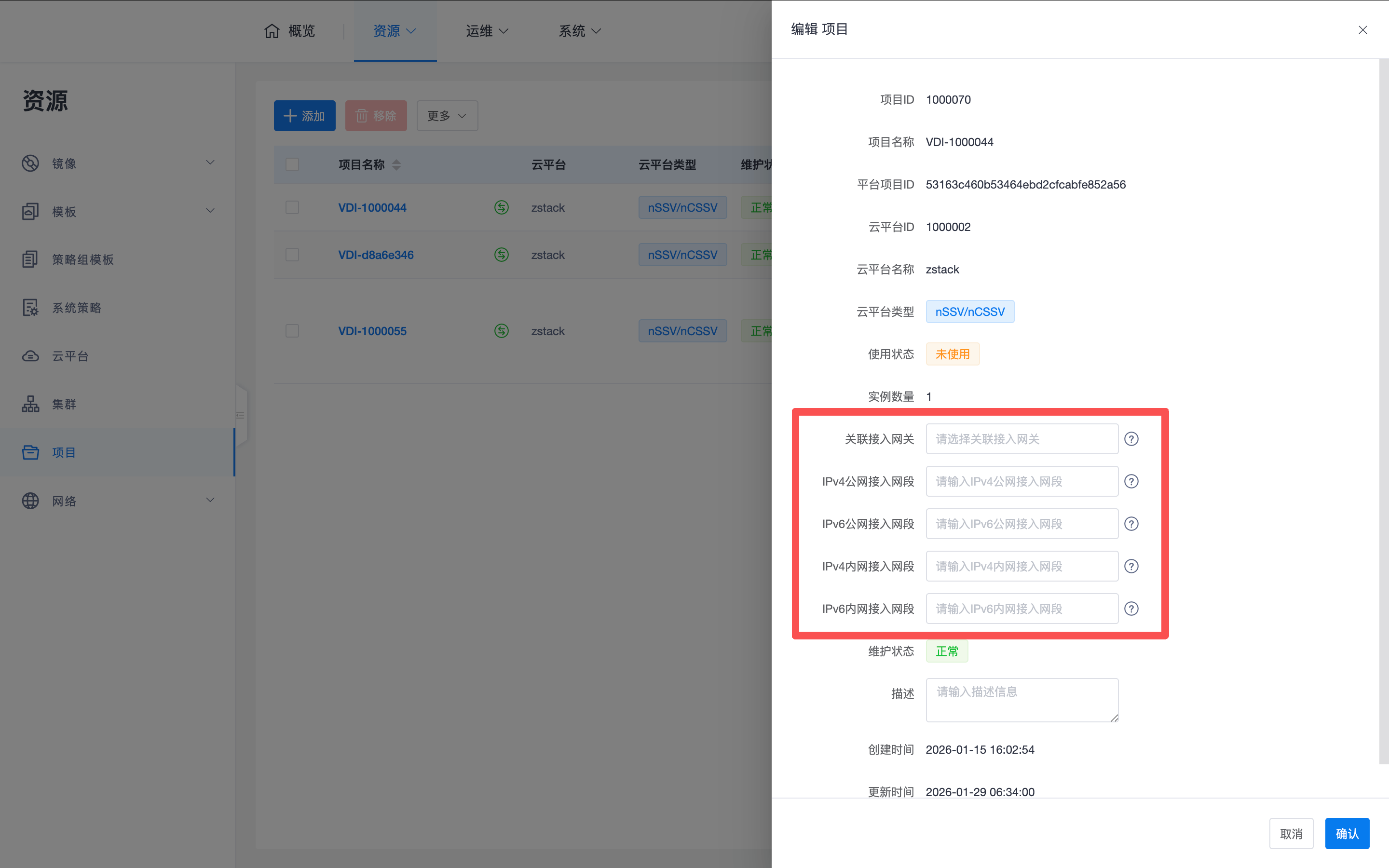
At the project dimension, the system supports overriding general network settings of the cloud platform to achieve more granular resource isolation and access control.
- Configuration Content: In the project's editing interface, you can independently configure "Associate Access Gateway", "IPv4/IPv6 Internal Network Access Segment", and "Public Network Access Segment".
- Application Logic: This design allows administrators to customize different network access paths for different projects (Project < Cloud Platform) under the same cloud platform. Desktops created under this project will ultimately apply the project-level differentiated configuration first.
Note: It is recommended to clean up "maintained" images and flavors immediately after the first synchronization, retaining only the resources required for cloud desktop business, to reduce the probability of errors.