Add ZStack Cloud Platform
The xSpace management component integrates with ZStack's API interfaces to manage underlying computing resources. Supported products include ZStack Cloud Platform and ZSphere Virtualization Platform.
1. Pre-requisites
1.1 System Parameter Configuration
Before integrating with ZStack/ZSphere, the time zone check switch must first be enabled in the underlying cloud platform to prevent API calls from failing due to time inconsistencies (manifesting as the added ZStack platform in xSpace being offline).
-
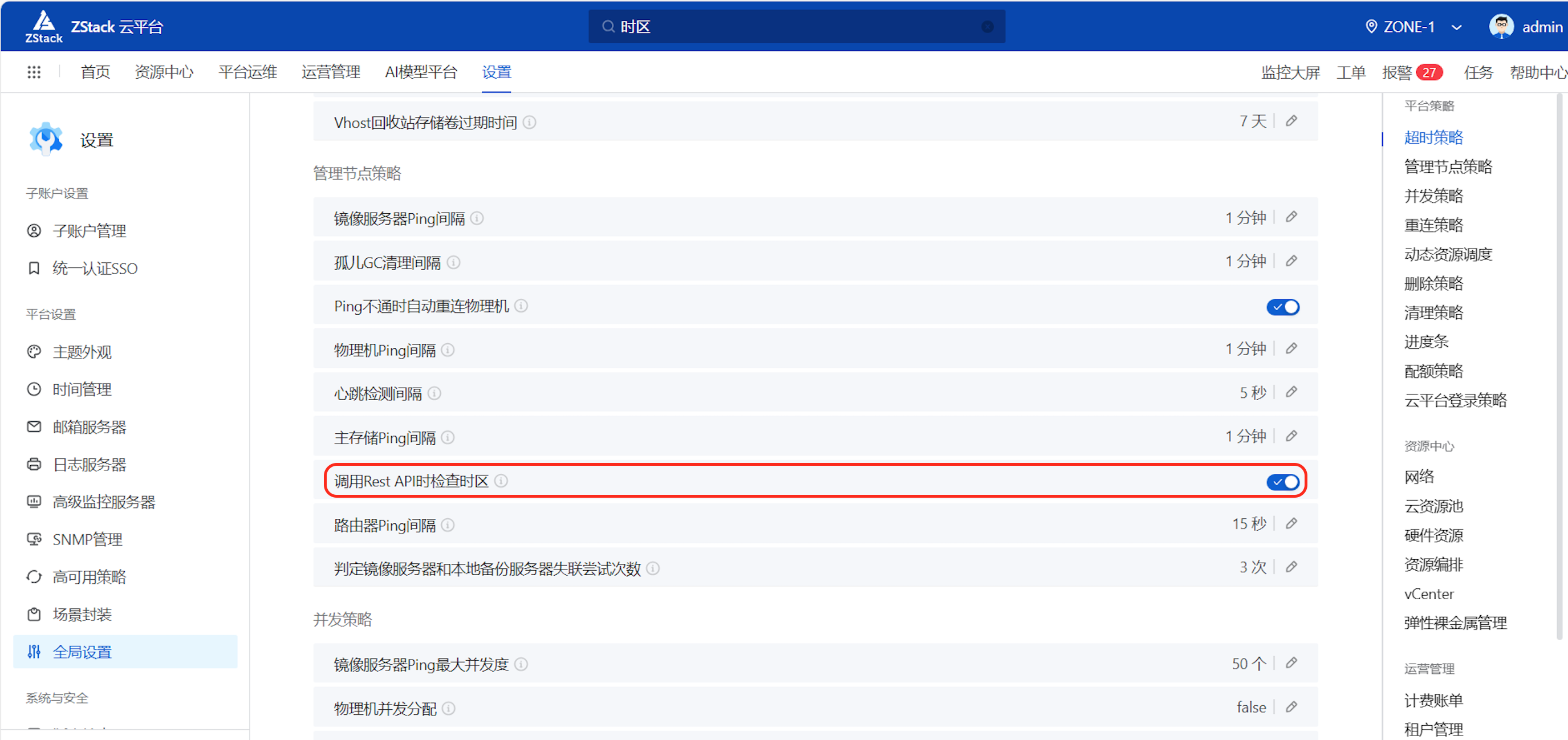
ZStack Cloud Platform Configuration: Access "Settings -> Platform Settings -> Global Settings -> Advanced Settings -> Management Node Policy", and enable "Check time zone when calling REST API".
-
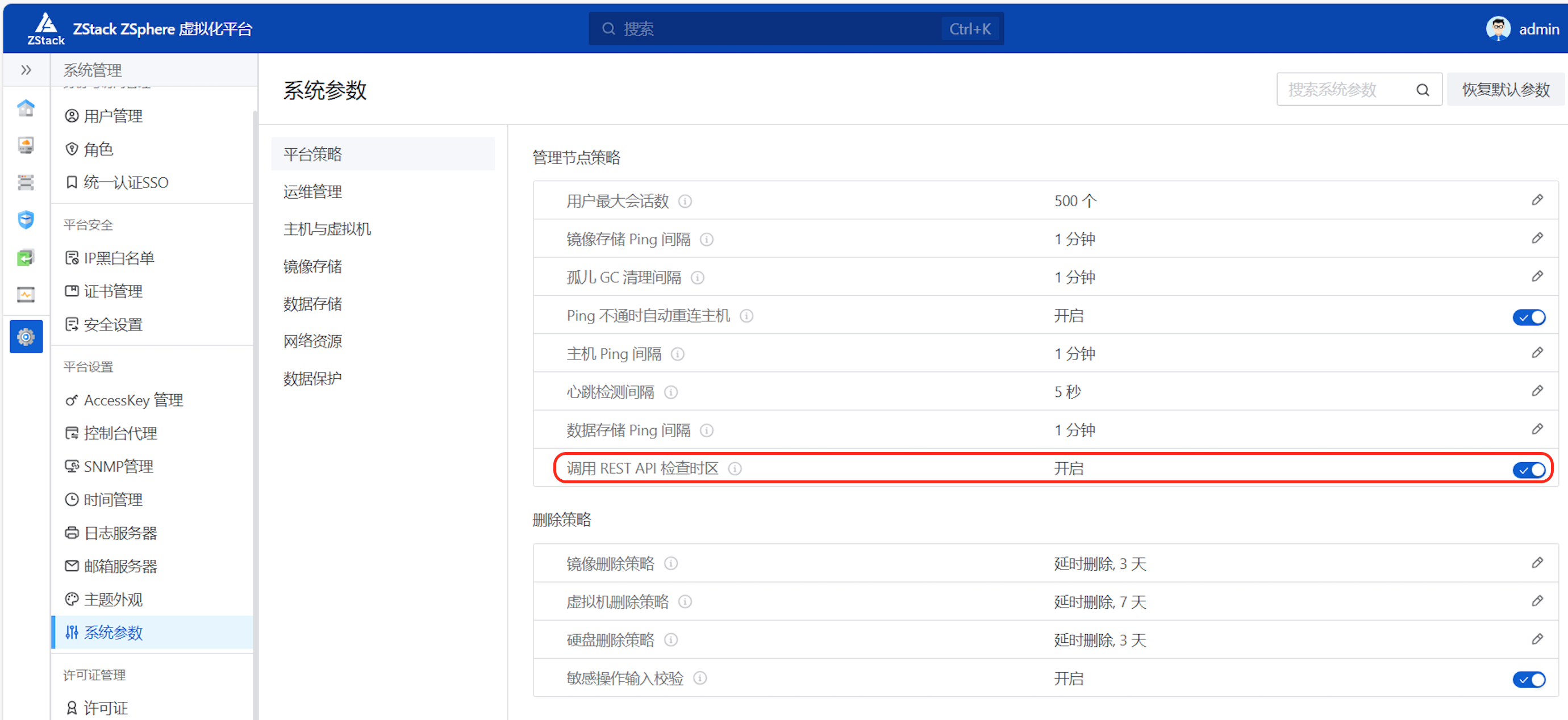
ZSphere Platform Configuration: Access "System Management -> Platform Settings -> System Parameters -> Platform Policy -> Management Node Policy", and enable "Check time zone when calling REST API".
1.2 Obtain Access Key (AccessKey)
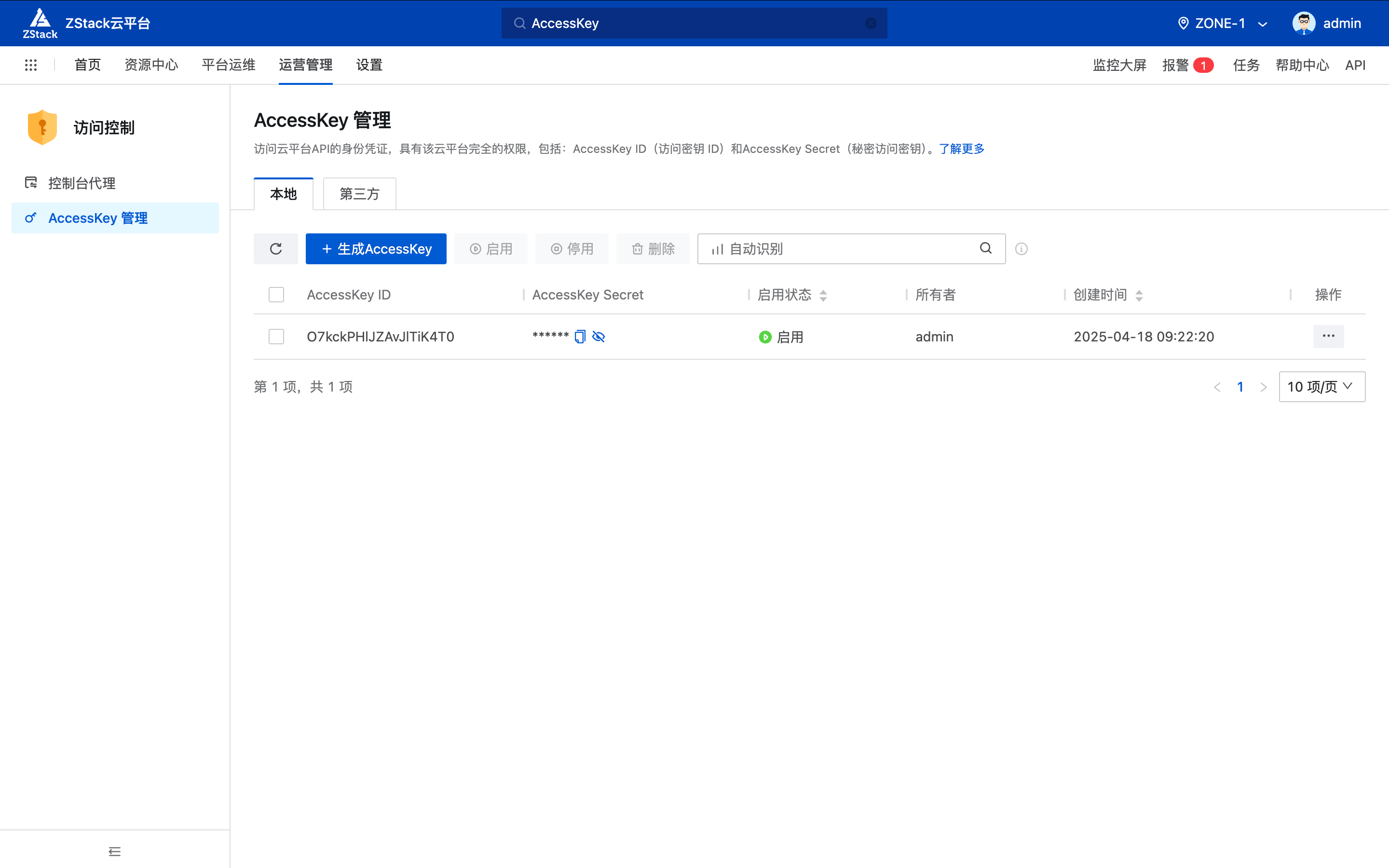
ZStack platform integration does not use usernames and passwords; instead, it uses AccessKey ID and AccessKey Secret for authentication.
- Acquisition Path: Log in to the ZStack platform, and go to "Operations Management -> AccessKey Management" page.
- Operation Suggestion: You can create a new AccessKey or use existing key pairs. Please keep the Secret secure, as it will not be fully viewable again once you leave the creation page.
2. Core Mapping Logic: Host Groups and Projects
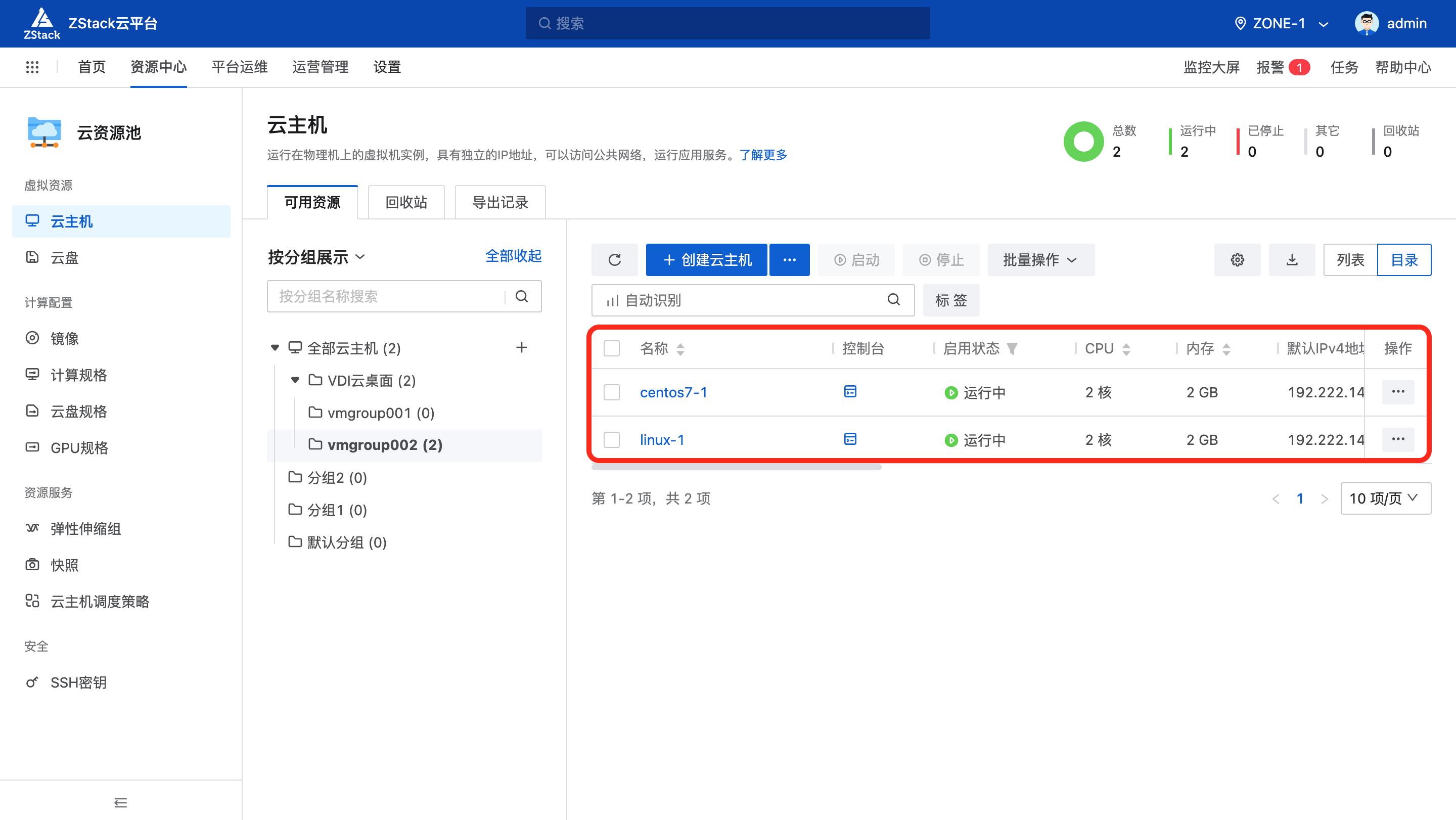
ZStack's Host Group corresponds to xSpace's Project. In actual operation and maintenance, you can choose one of the following two modes as needed:
2.1 Mode One: Automatic Project Creation (Recommended)
When creating a desktop pool in xSpace, if "Automatic Project Creation" is selected, the system will automatically generate corresponding groups in the underlying ZStack, eliminating the need for manual pre-preparation.
- Naming Convention: The automatically created group name will be
group_prefix-desktop_pool_ID.
2.2 Mode Two: Manage Existing Groups
If you need to use existing host groups, please ensure they meet the following conditions:
- Naming Match: The group name must start with the configured "Group Prefix" (e.g.,
VDI).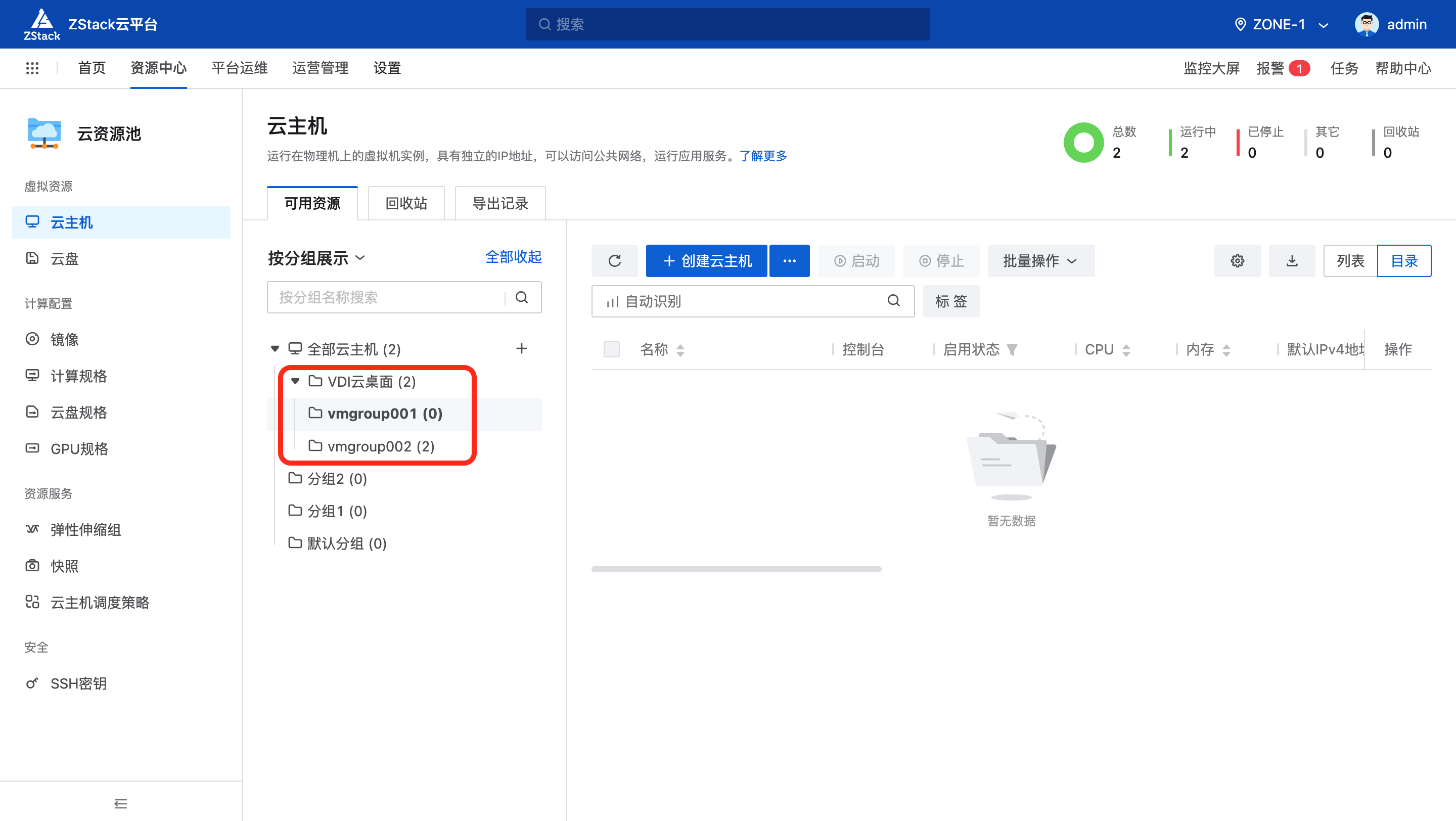
- Existing Resource Synchronization: You can pre-create hosts within these groups, which will be managed as cloud desktop resources after synchronization.
Precautions
Both automatically created and existing managed groups will be automatically deleted from ZStack when the desktop pool is deleted.
Please do not manually create groups in ZStack that conform to the
VDI-8_digit_numberformat to avoid naming conflicts.Please do not manually delete groups in the underlying ZStack platform that are already in use by desktop pools.
3. Operation Process
3.1 Access Interface
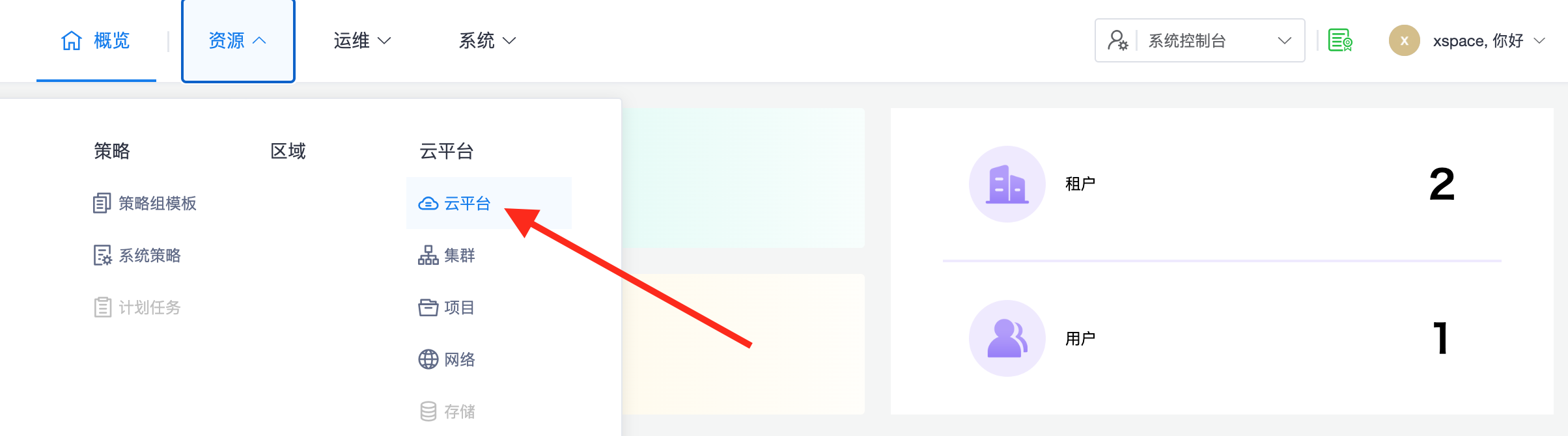
Log in to the xSpace system console and access "Resources -> Cloud Platforms".
3.2 Initiate Addition
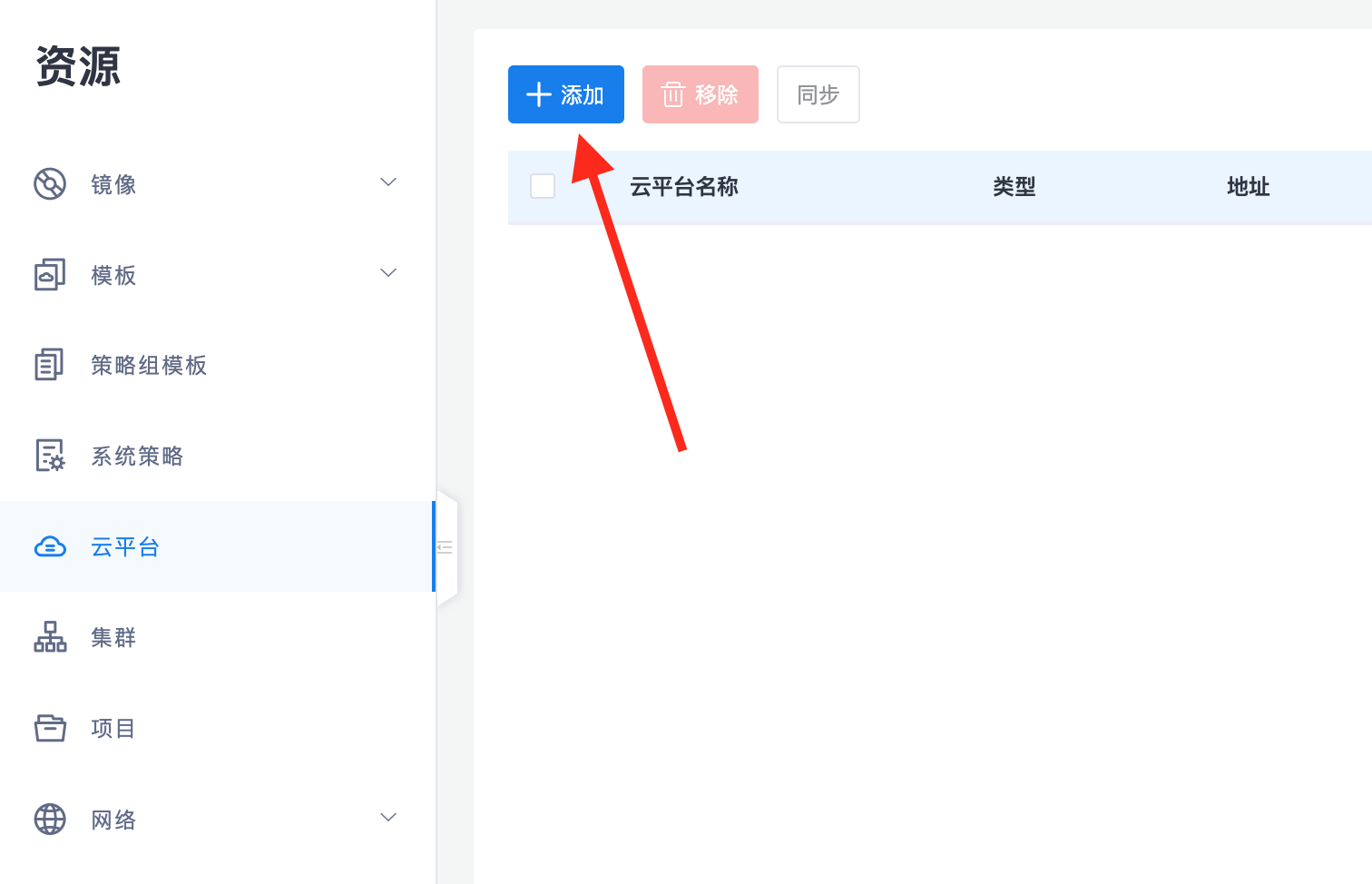
Click the "Add" button in the upper left corner of the page.
3.3 Configure ZStack Attributes
Enter the API access parameters. Note that AK/AS key pairs must be used here, and ensure the group prefix is consistent with your planning.
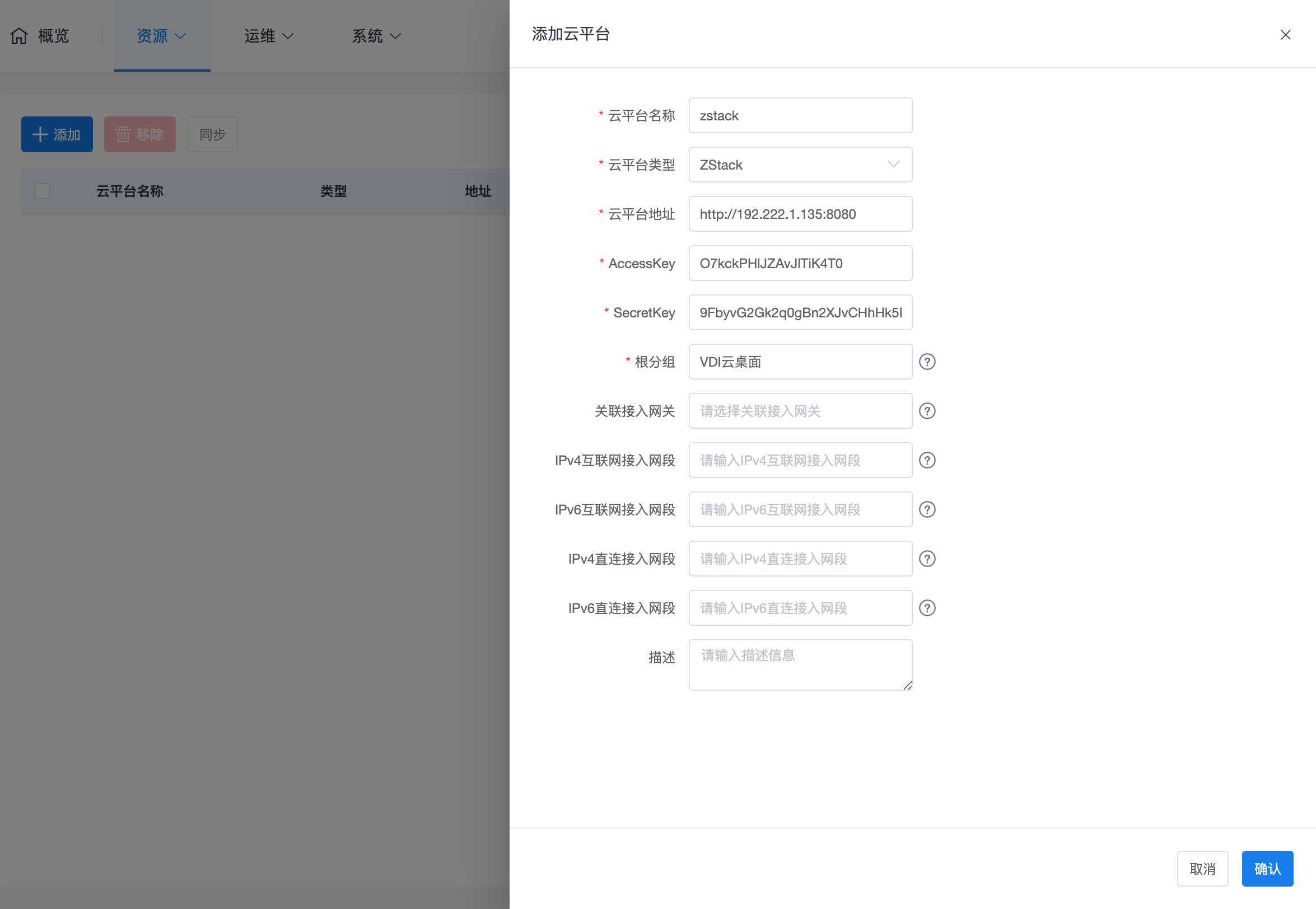
- Cloud Platform Address: The API access address of the ZStack management node (default port is typically 8080).
- AccessKey ID: The AccessKey ID obtained from the ZStack platform.
- AccessKey Secret: The corresponding AccessKey private key.
- Group Prefix: Identifier for filtering and management (default value is
VDI). - Management Web Address: Please manually enter the management web portal address of the ZStack cloud platform (on the ZStack platform, the default port is typically 5000). > Note: Since this address cannot be obtained via API interface, it must be manually filled in by the administrator. The system relies on this address to construct the VM console URL when opening the cloud desktop console. Incorrect configuration will prevent the desktop console from opening correctly.
4. Core O&M Notes
4.1 Security Isolation
Ensure that the management component and access gateway virtual machines are placed in groups without the VDI prefix, to prevent accidental synchronization into the business system.
4.2 Logical Consistency
The design logic regarding "Project ↔ Host Group/VM Group/Business Group" and "group prefix filtering" also applies to SmartX and WxStack cloud platforms.
Note: For automatic synchronization mechanisms, progress monitoring, and troubleshooting after adding a cloud platform, please refer to Cloud Platform Overview -> 3. Resource Synchronization and Management Mechanism section.