Overview
When the xSpace management component has been installed and deployed, and the post-installation verification results are normal, you can access and log in to the management backend via a browser. Please enter the master node's address to open the management backend's login page based on your environment context: https://x.x.x.x.
Login Entry Point Description:
When opening
https://x.x.x.xfrom a browser, it defaults to accessing the System Console login page:https://x.x.x.x/admin.If you wish to access the Tenant Console entry point, please enter:
https://x.x.x.x/tenantorhttps://x.x.x.x:44331in the browser address bar.For newly deployed environments, the default management account is
xspace, and the password can be obtained from the vendor.Security Advice: After the first login, it is recommended to change the default password to a private password and keep it confidential.
On the System Console entry interface, please log in with the system administrator's account and password to perform global system-level operation and maintenance management tasks. The overview page seen after successful login contains a total statistical overview of all managed resource objects in the entire xSpace system.
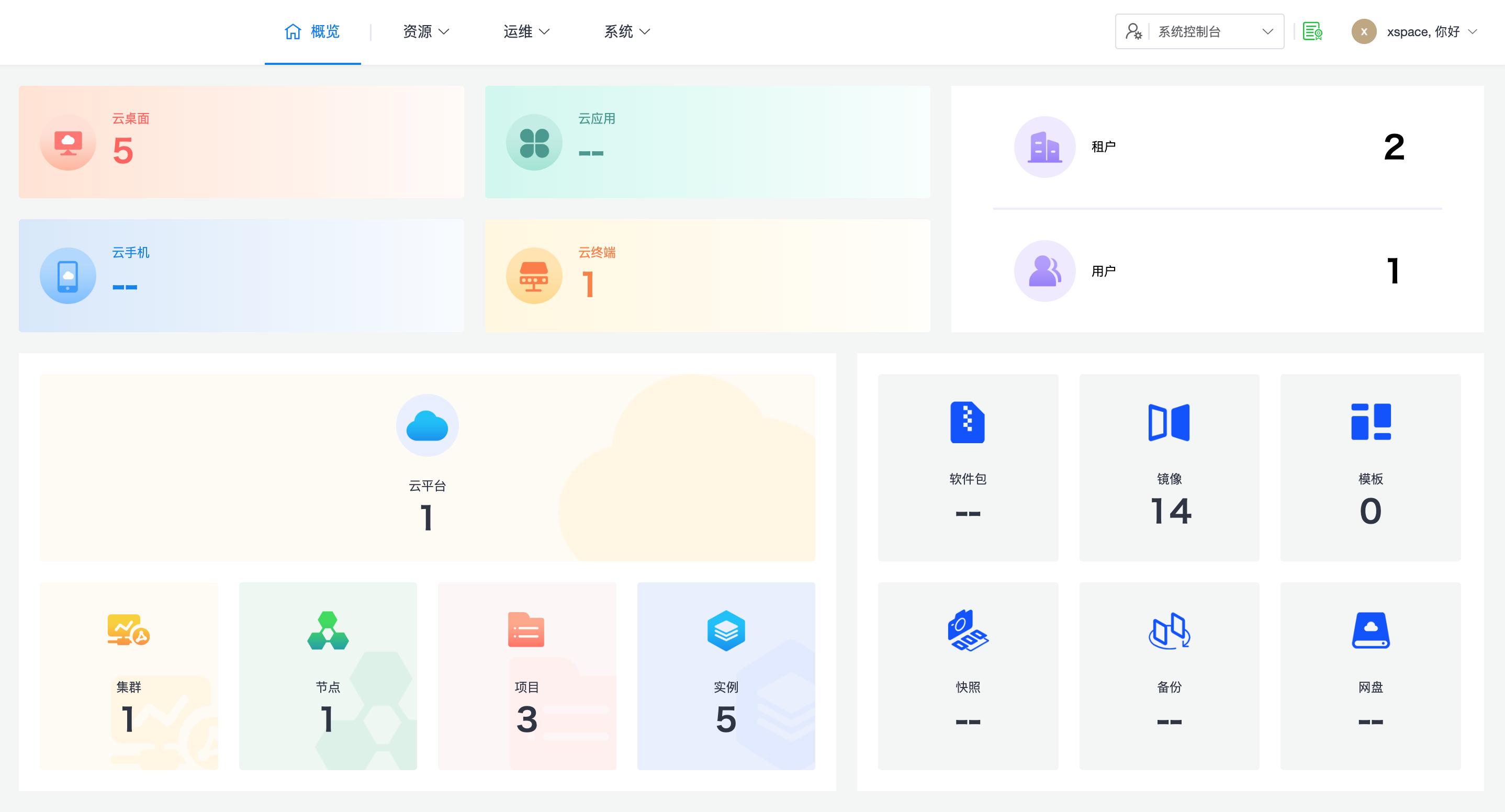
Version View: Click "System -> About" to view the currently installed software version information. If technical issues need to be reported to the vendor later, please attach the on-site version information.
1. Core Concepts
The core object concepts of the xSpace management component and their interrelationships are shown in the figure below:
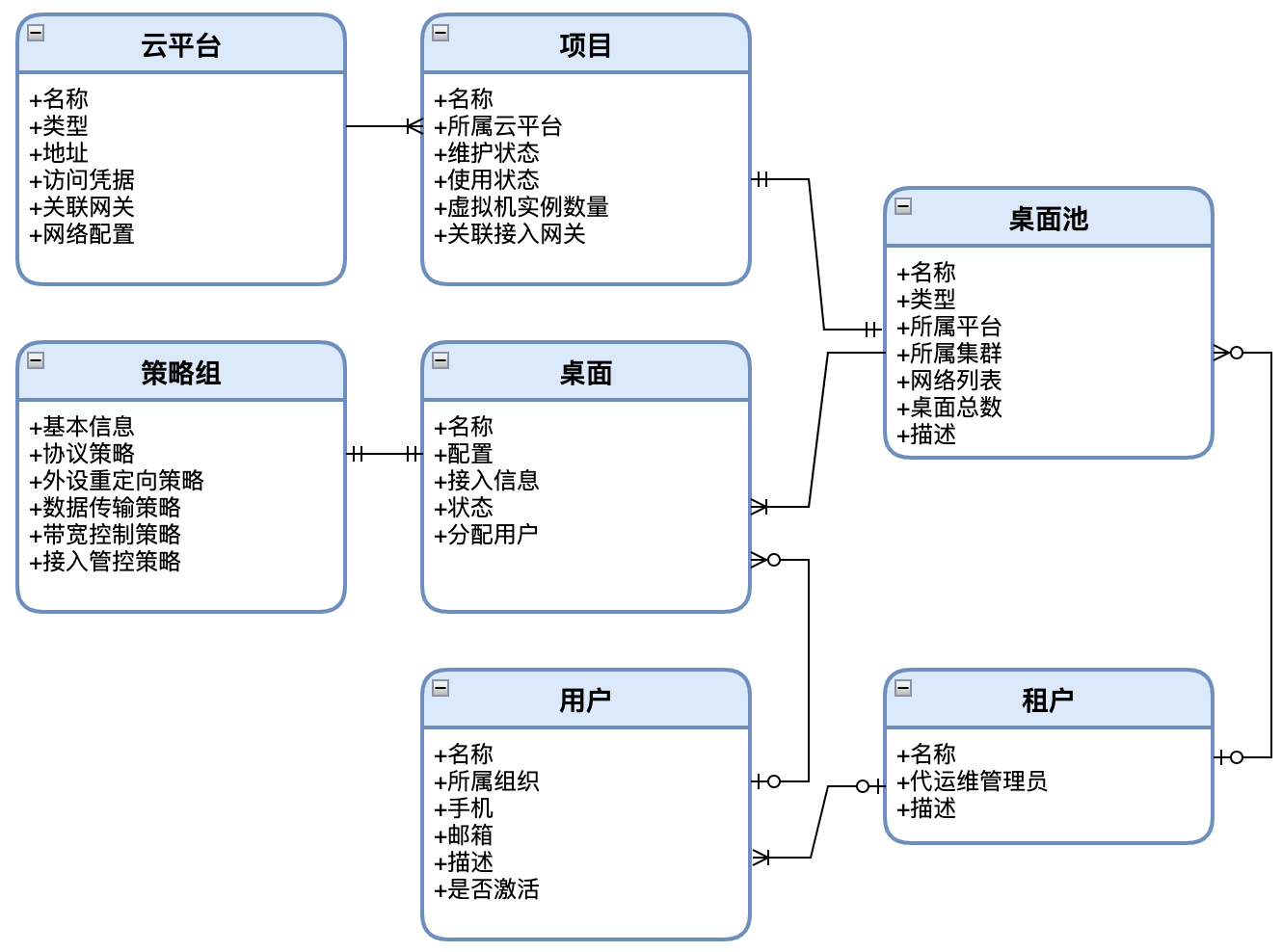
1.1 Resource Abstraction: Projects
xSpace supports integrating with various open-source and commercial underlying hyper-converged/cloud platforms.
- Unified Abstraction: The logical grouping mechanisms of virtual machines in these cloud platforms (e.g., projects, groups, business groups, host pools, etc.) are uniformly abstracted by the xSpace management component into the concept of "Projects".
- Resource Introduction: After system administrators add these "Projects" into xSpace, various forms of desktop pools can be created under each tenant, based on these "Project" resources.
1.2 Desktop Pool Forms
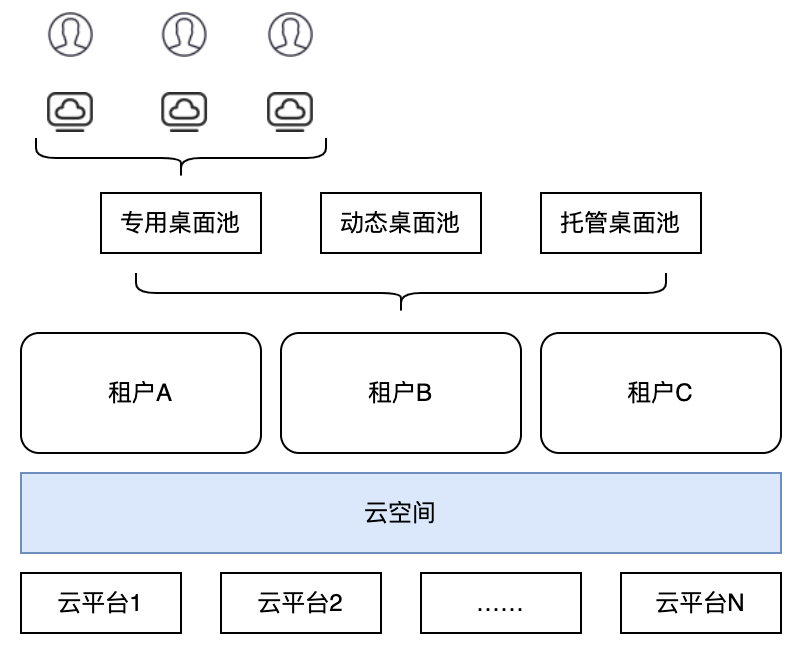
The system supports creating different forms of desktop pools to meet the needs of various scenarios:
- Dedicated Desktop Pool: Desktop resources are statically allocated to specific users, and the operating system is not reset.
- Dynamic Desktop Pool: Desktop resources are dynamically allocated and reclaimed; used desktops are dynamically destroyed and reset.
- Hosted Desktop Pool: Hosted desktop pools do not rely on specific projects.
1.3 Multi-Tenancy and Permission Model
- Independent Namespace: Each tenant can have a completely independent user namespace, where user resources are exclusive to a specific tenant. User names under different tenants can be the same but do not conflict with each other.
- Authentication Integration: Different tenants can integrate and authenticate with different AD domains.
- Policy Control: Administrator control over desktop permissions is defined in the form of policies/policy groups and applied to the end-user desktops.
2. Main Responsibilities of Administrators
2.1 System Console Main Operations (System Admin)
Responsible for global system-level operation and maintenance and resource scheduling:
- Cloud Platform and Project Management
- Base Image and Template Management
- Role Permissions and Tenant Management
- Software Version and System Parameter Configuration
2.2 Tenant Console Main Operations (Tenant Admin)
Responsible for specific business operations within the tenant:
- Resource Management: Desktop pools, desktops, terminal management.
- Users and Permissions: User management, policy group management.
- Content Assets: Custom image and template management.
- Monitoring O&M: Session management, log viewing, configuration parameter adjustment.