Management Component Configuration
After the installation, configuration, and service startup of the access gateway software are complete, the gateway information needs to be synchronized with the vendor's SDWAN controller, and the final registration and association completed in the xSpace management backend.
1. Information Collection and Feedback
After the SDWAN access gateway is installed, please collect the following information and provide it to vendor technical support to obtain the SDWAN Tenant ID (UUID):
-
Management Component Access Point: The public IP address and port provided by the management component for clients (default port is
TCP 44301). -
Access Gateway Public Network Information: The public IP address and mapped ports of the access gateway (must include fixed ports:
UDP 901,902,903). -
Access Gateway Cluster Code:
- Format Requirements: String containing only English letters, numbers, and hyphens (-).
- Length Limit: No more than 32 characters.
- Function Description: Multiple access gateways using the same code will automatically form a cluster to achieve load balancing.
-
SDWAN Tenant ID (Optional):
- If you are adding a gateway or cluster to an existing xSpace system, please provide the original SDWAN Tenant ID.
- If this is the first time adding a gateway to this xSpace system, there is no need to provide it.
Feedback Result: After processing, the vendor will provide you with an "SDWAN Tenant ID" in UUID format.
2. Management Component Backend Configuration
After obtaining the "SDWAN Tenant ID", please configure it in the system console according to the following steps.
2.1 Global Parameter Configuration
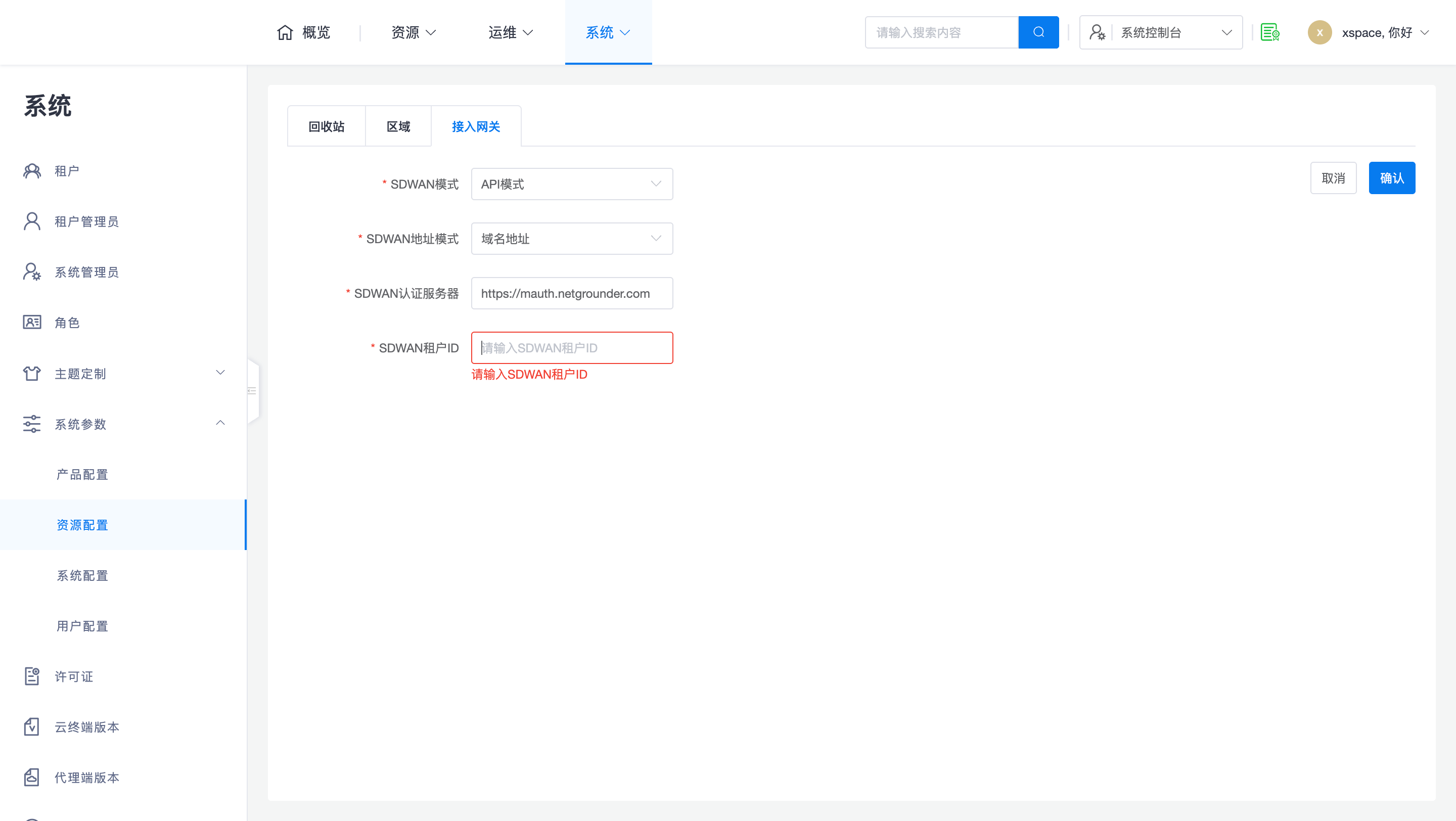
- Operation Path: Go to System -> System Parameters -> Resource Configuration -> Access Gateway page.
- Perform Operation:
- Fill in the UUID provided by the vendor in the SDWAN Tenant ID input field and save.
- Other fields can remain at their default values.
Note: This is only required during the initial configuration. For subsequent expansion, you can query the existing SDWAN Tenant ID on this page.
2.2 Register Access Gateway Cluster
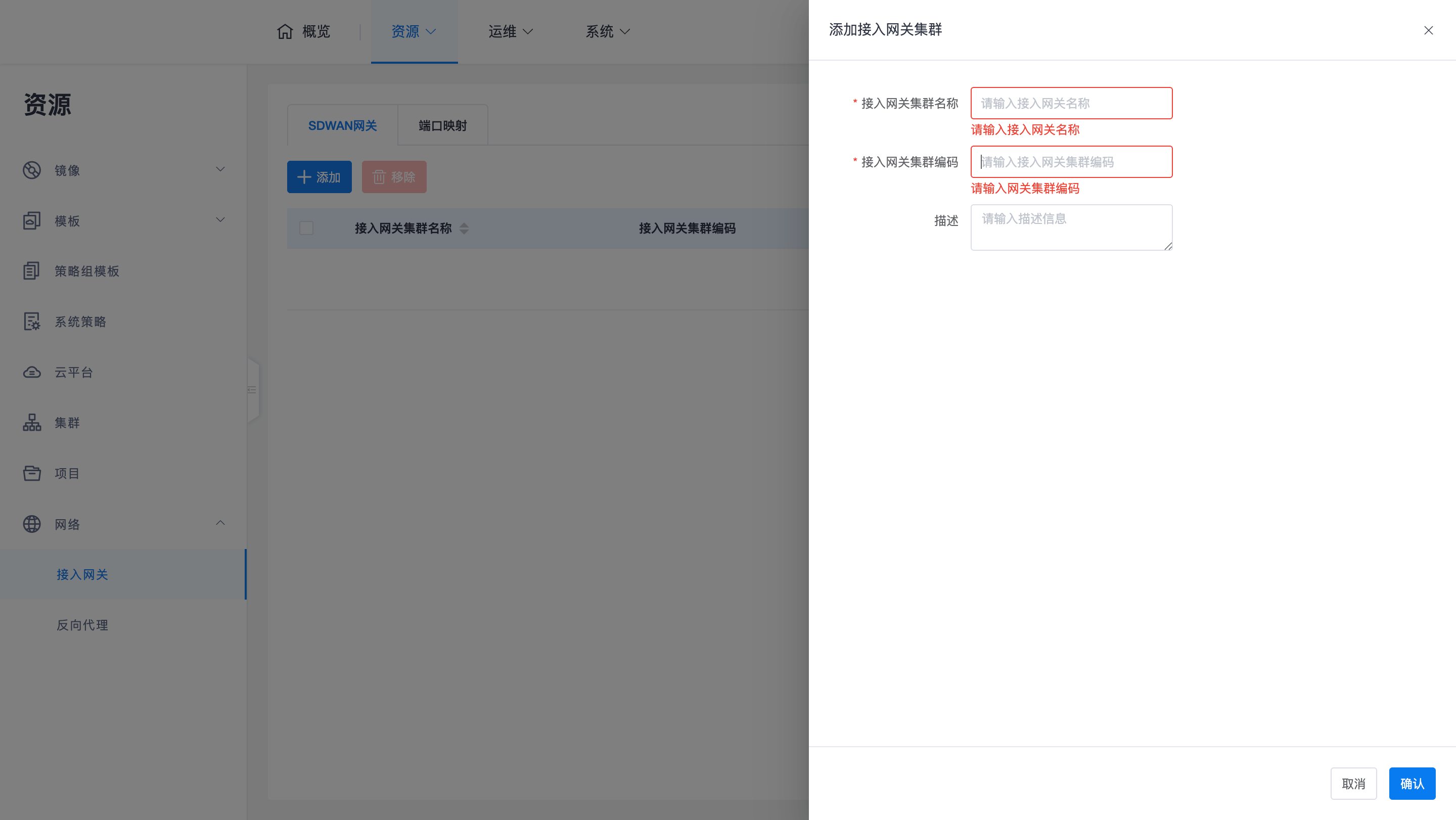
- Operation Path: Go to Resources -> Network -> Access Gateway -> SDWAN Gateway page.
-
Perform Operation: Click the Add button.
- Name: Custom (e.g., "Beijing R&D Center Cluster").
- Cluster Code: The code entered must strictly match the access gateway cluster code previously provided to the vendor.
Note: Since the specific public network addresses and port information for each access gateway are already registered with the vendor controller, you only need to configure the cluster code here, and the system will automatically synchronize the detailed information of the gateways in that cluster.
3. Associate Business Resources
Based on the actual deployment plan, associate the created SDWAN gateway cluster with the corresponding resources:
-
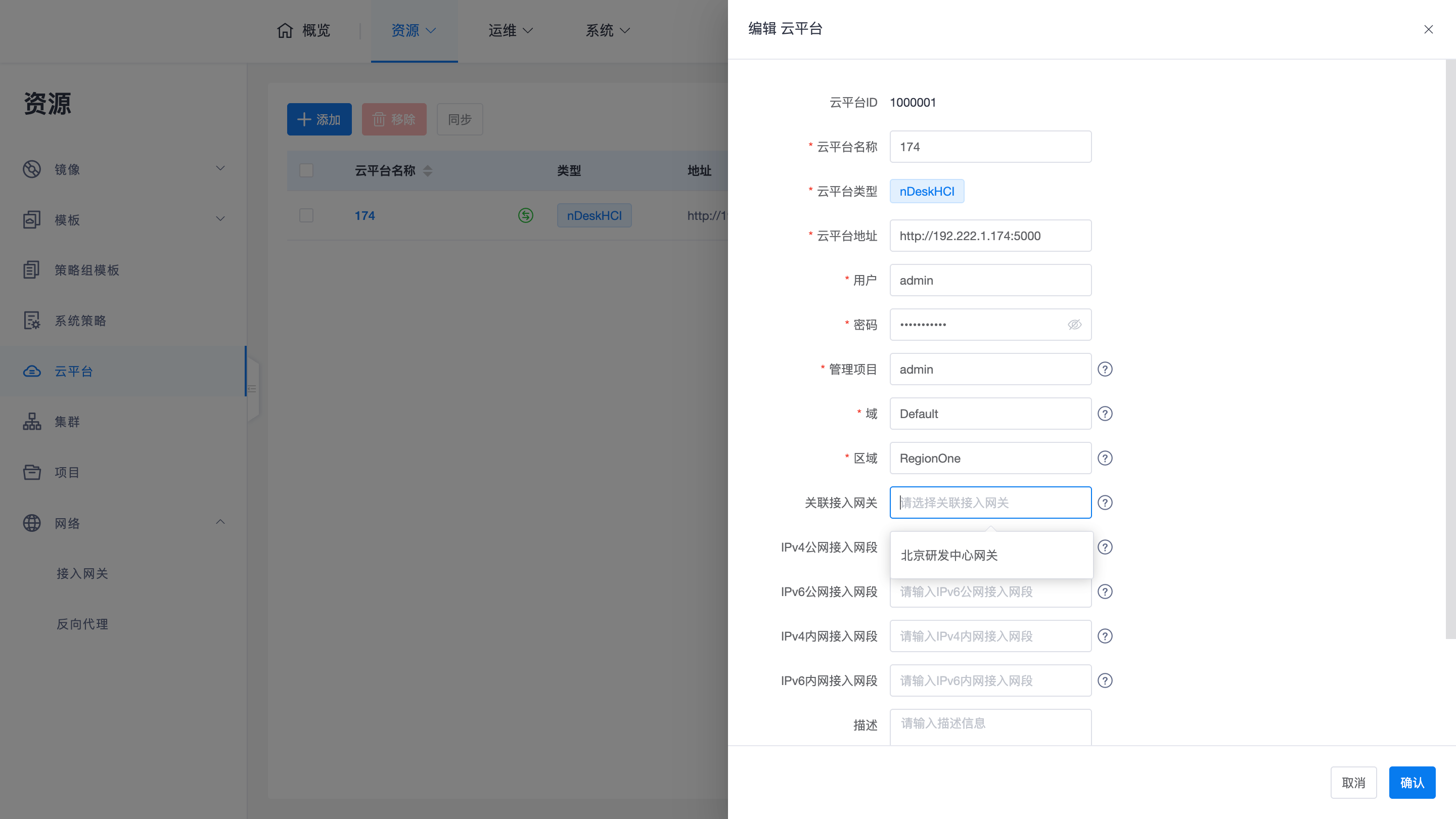
Associate Cloud Platform:
All desktops under this platform will access through this gateway cluster by default.
-
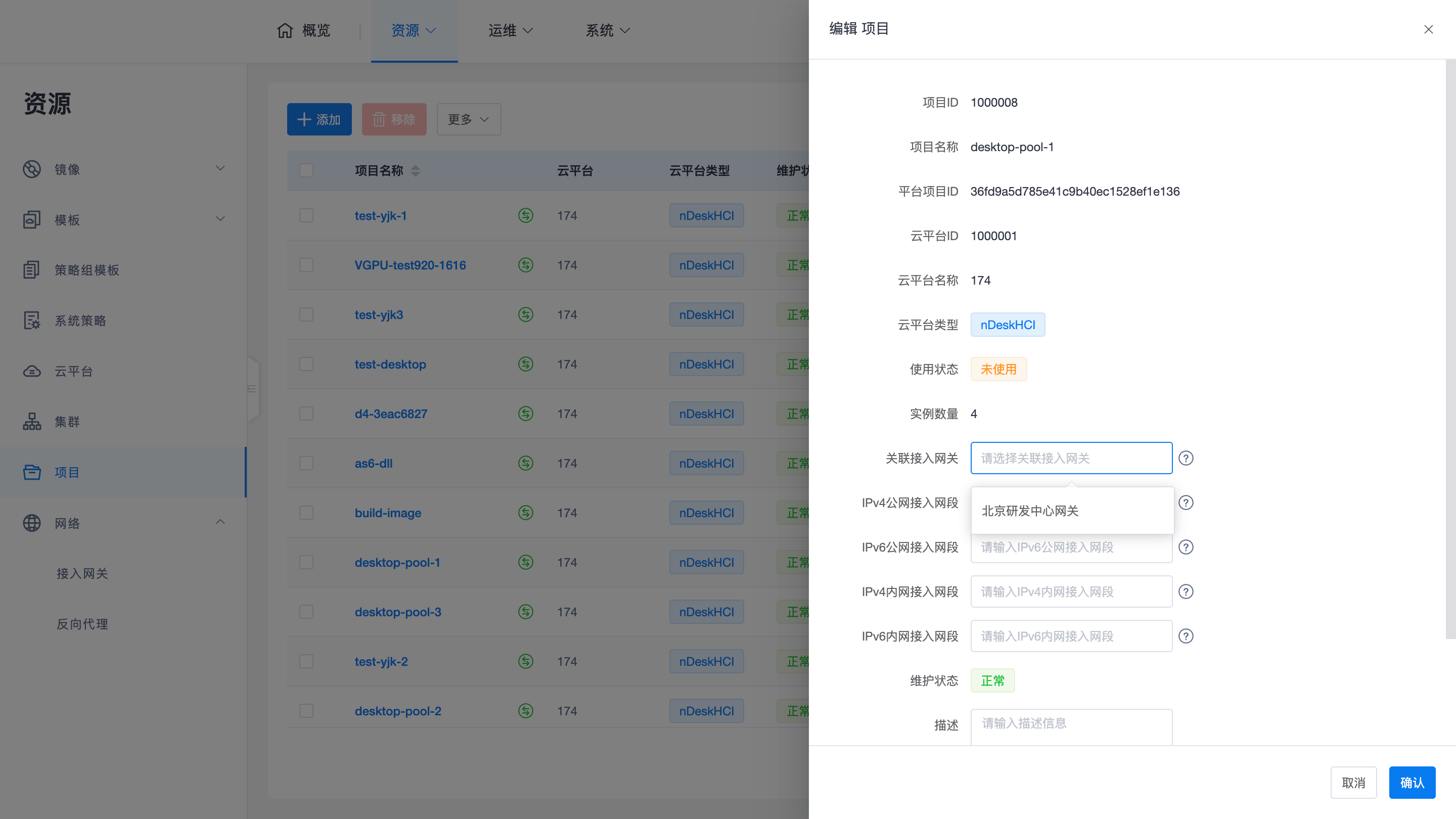
Associate Project:
Desktops under this project will access through this gateway cluster.
-
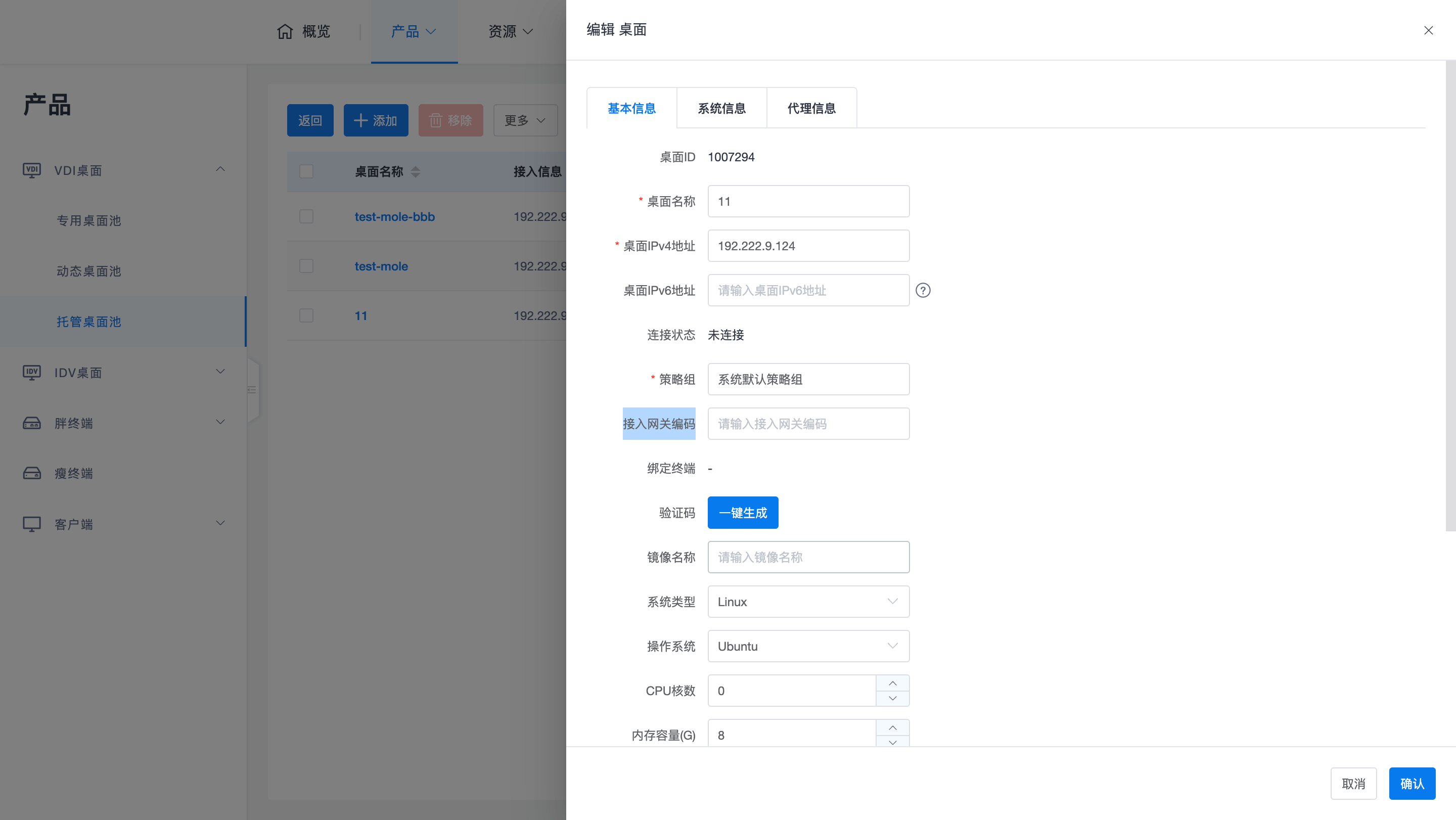
Associate Hosted Desktop:
Only this specific desktop will access through this gateway cluster. The Access Gateway Cluster Code needs to be entered directly in the configuration interface.
4. Forwarding Priority Rules
When multiple levels of resources are configured with an SDWAN gateway, the system follows the "proximity principle / smaller scope first":
Hosted Desktop Configuration > Project-level Configuration > Cloud Platform-level Configuration
Example: If the "cloud platform" to which a desktop belongs is associated with Cluster A, but its "project" is associated with Cluster B, the desktop will ultimately use Cluster B for traffic forwarding. ```