About Licenses
The default installed xSpace management component provides a 2-month trial period and supports managing a maximum of 10 cloud desktops. If you need to increase the number of desktop instances or extend the usage period, please log in to the system console and operate in the "System -> License" interface.
1. Precautions and Application Trigger Conditions
Under the following circumstances, please apply for and update your license in a timely manner:
- License Expiry: The system will remind you on the system console 15 days before the license expires.
- Quota Limit: The total number of currently managed cloud desktops (including all scenarios such as dedicated, dynamic, and hosted) has reached the license limit.
- Machine Code Change:
- Changes to the virtual machine specification configuration (e.g., CPU, memory) or virtual network card of the xSpace management component.
- Changes to the configuration of any one of the 3 nodes in the cluster will result in a change in the machine code.
Tip: The license only limits the maximum number of cloud desktops that the system can manage; it does not differentiate between tenants and does not limit the number of concurrent connections.
2. License Activation Process
2.1 Business Preparation
Before performing technical operations, please first obtain a trial or commercial activation code through the business process.
2.2 Activation Steps
Select the appropriate activation method based on the network environment where the management component is located:
Option A: Online Environment
Note: "Online" here means that the computer accessing the system console via a web browser can access the xSpace license online activation website on the Internet.
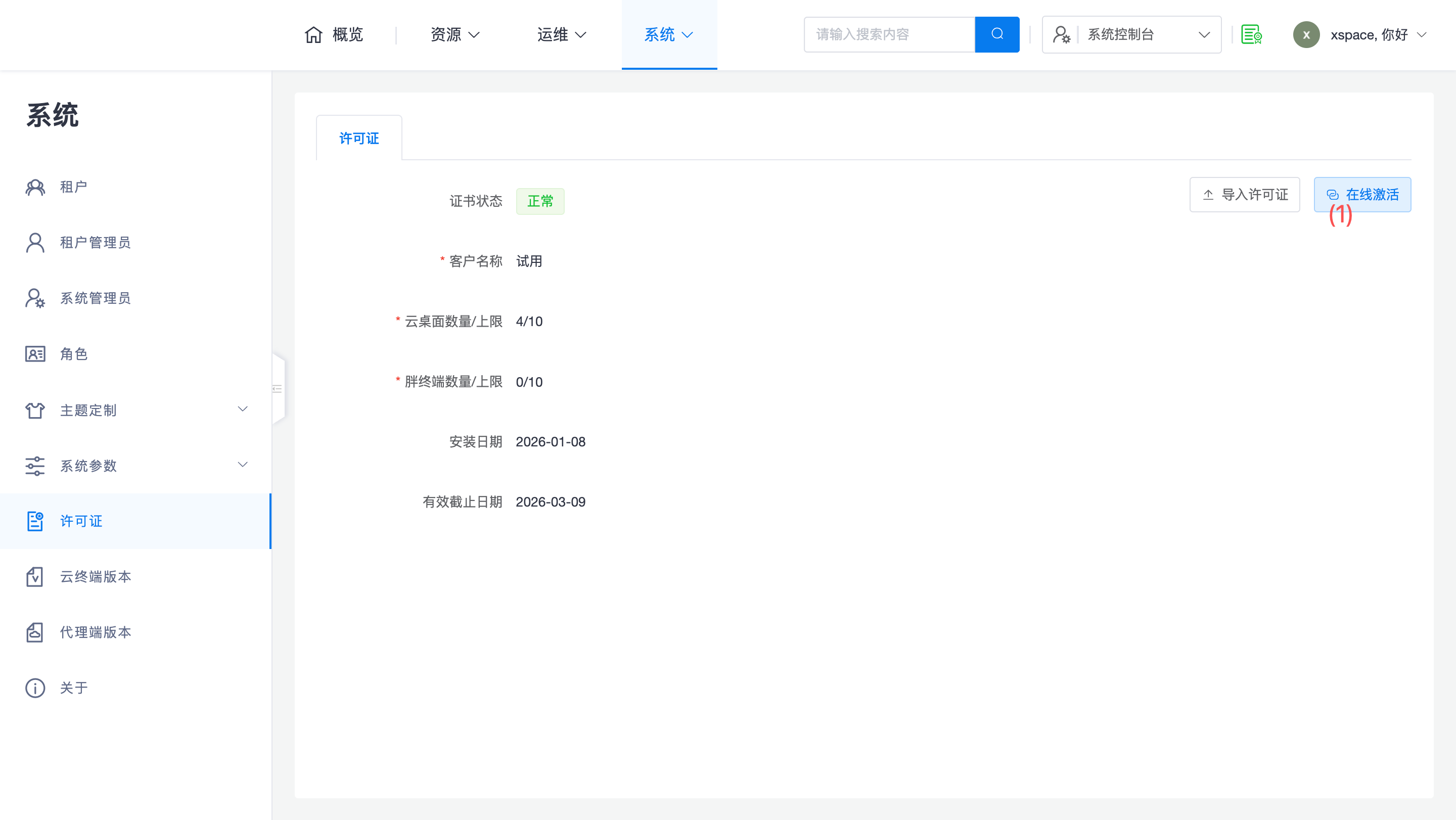
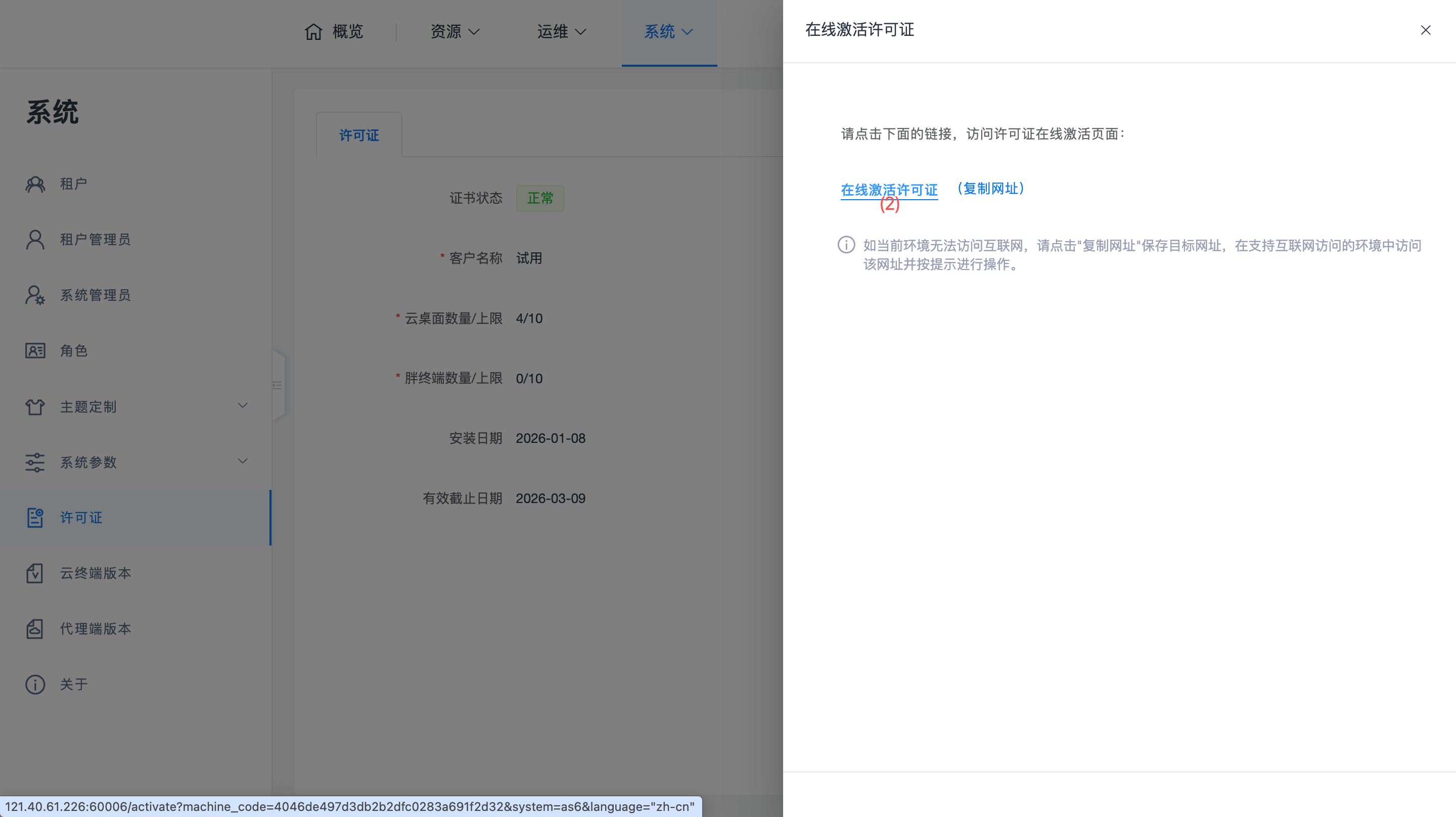
- Online Activation: On the system console license page, click [Online Activation]. The system will redirect to the authorization activation website.
- Enter Activation Code: On the authorization website, enter the activation code provided by business in the "Activation Code" input box and click Activate.
- Download License: In "Historical Activation Records", click [Download Authorization File] and save the
.licformat license file.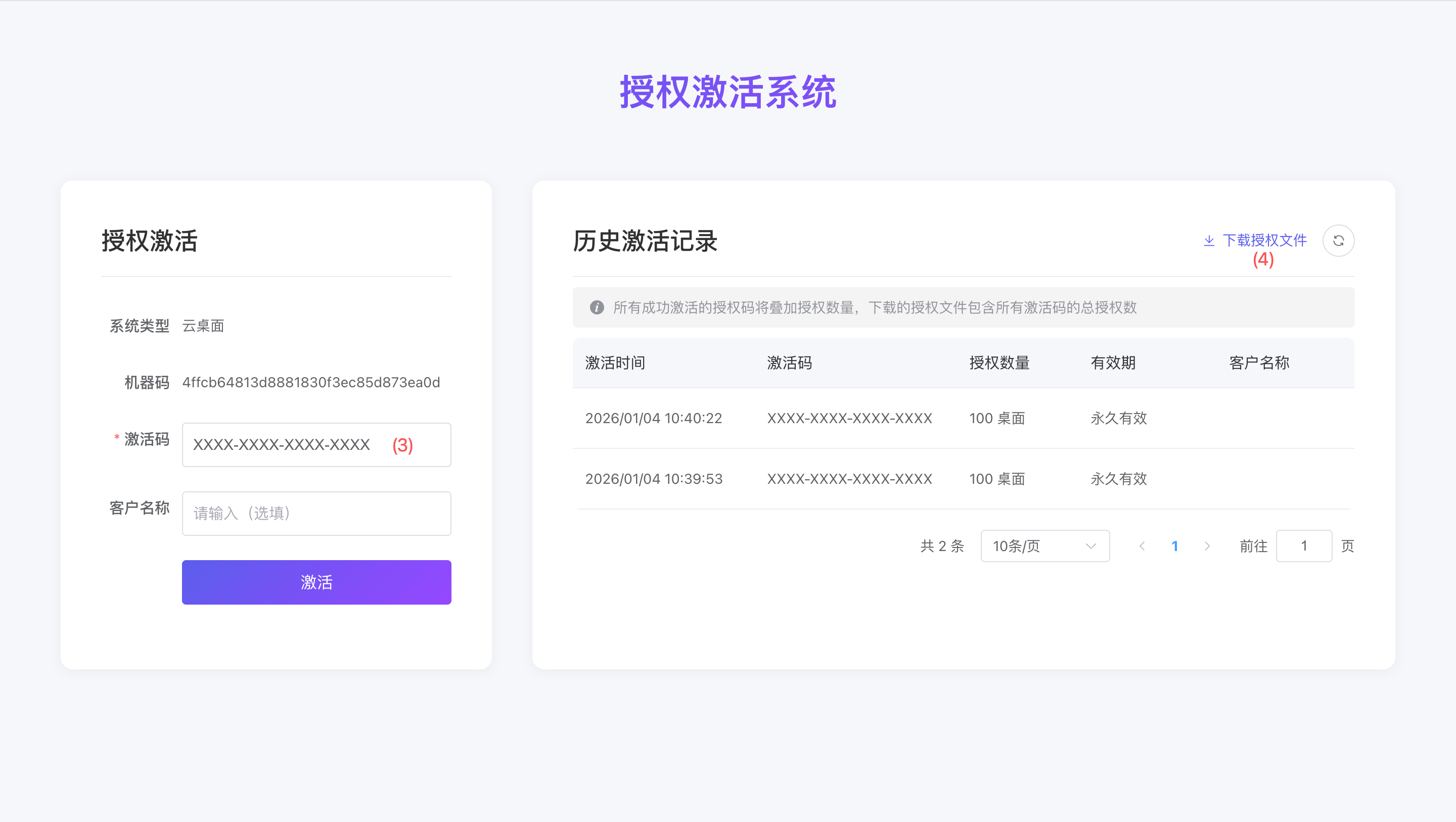
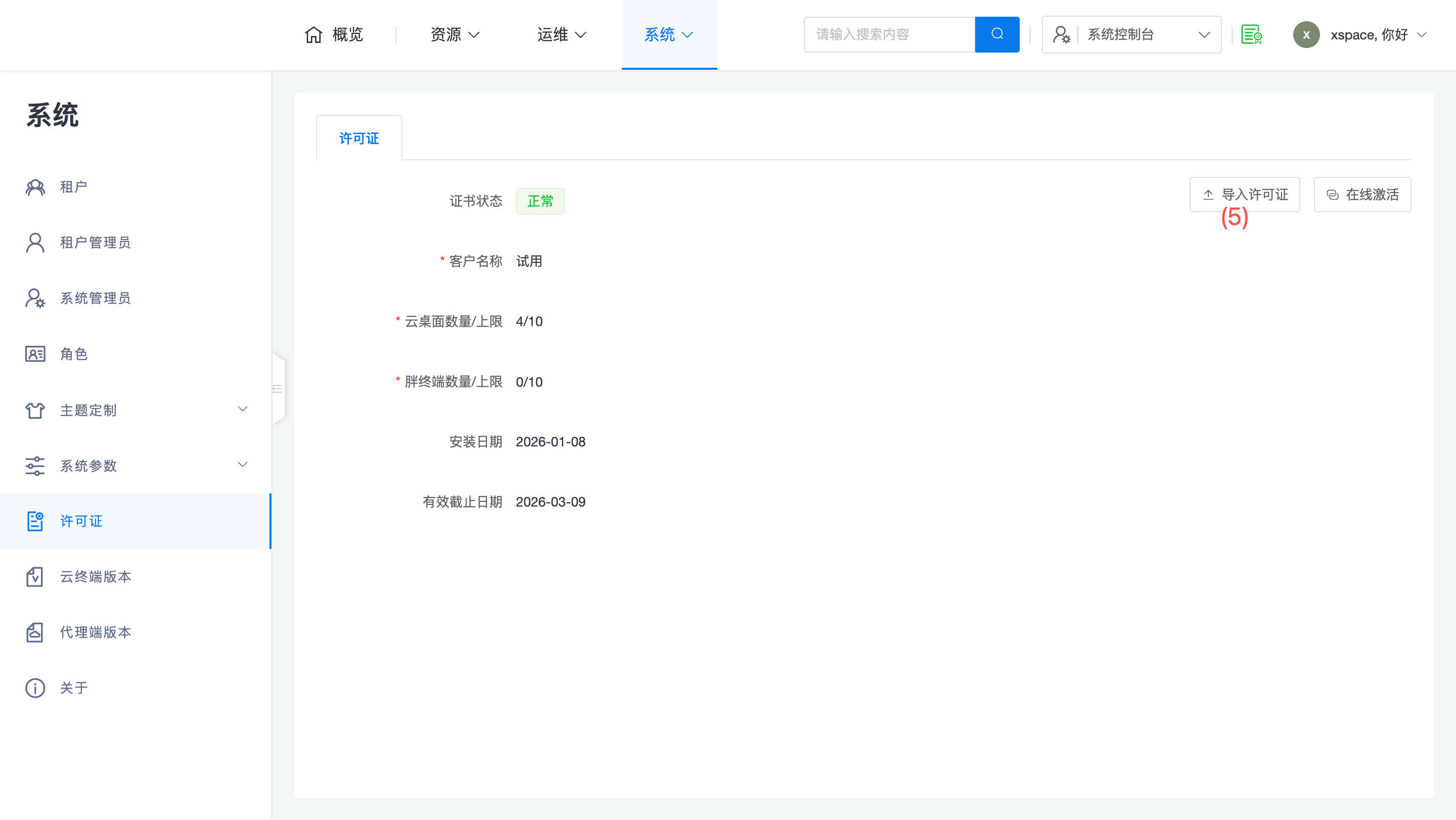
- Import License: Return to the system console, click [Import License] and upload the downloaded file.
Option B: Offline / Internal Network Environment (Manual Transfer Operation)
- Copy Full Address: When clicking "Online Activation" on the system console to jump, fully copy or record the URL in the browser's address bar.
Note: The URL contains the unique machine code of the current environment, so the URL must be complete.
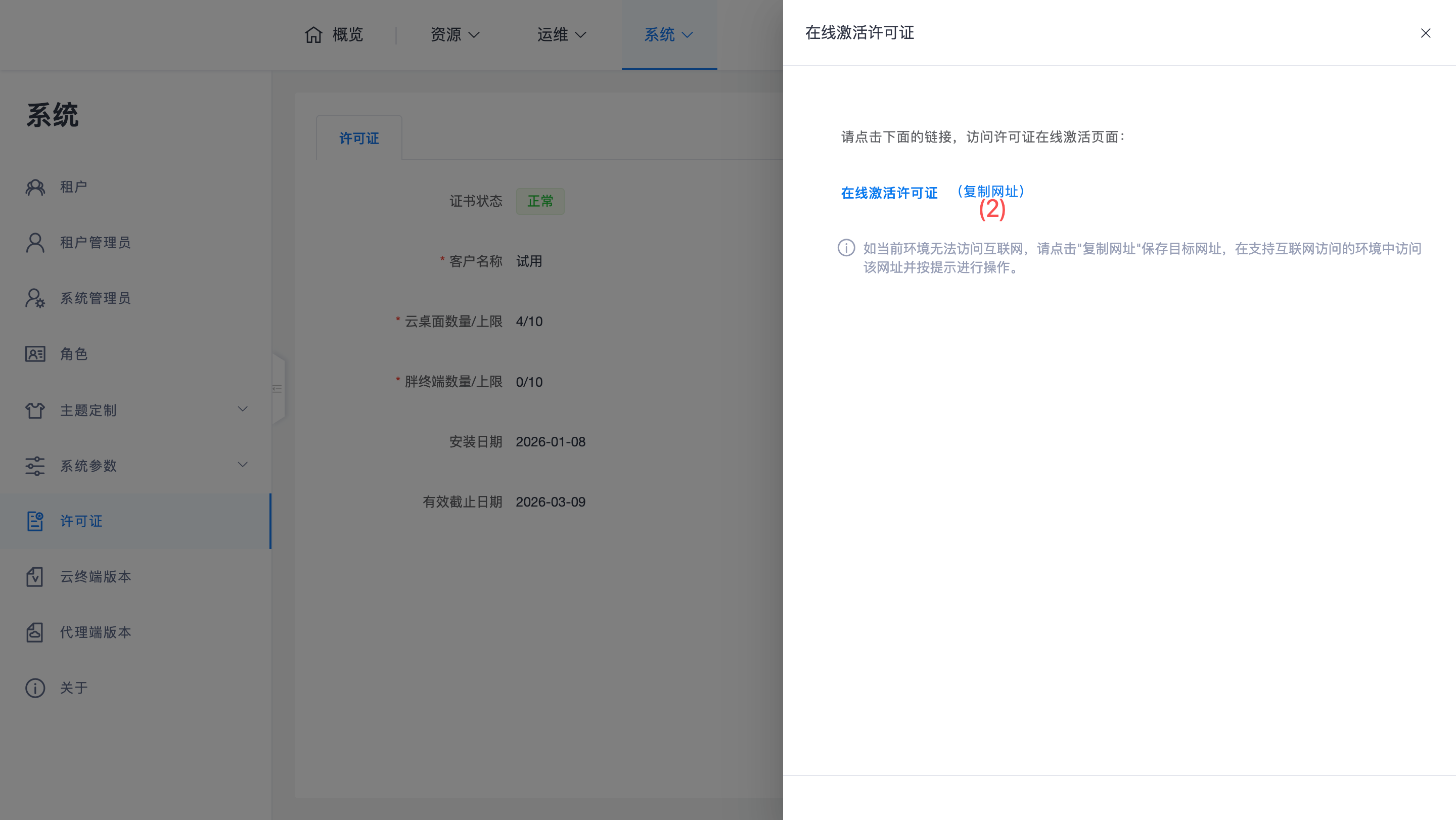
- Download from Another Location: Find a computer with internet access and visit the full URL copied above.
- Activate and Download: On the authorization website, enter the activation code and download the license file. Copy the file to the internal network via a medium (such as a USB drive, CD, etc.).
- Import License: On the internal network system console, click [Import License] to complete the update.