Management Component VM Creation and Configuration Guide
After preparing the openEuler 22.03 image, the creation and initial configuration of the management component virtual machines need to be completed on the cloud platform.
1. Create Virtual Machines
Create three virtual machines on the cloud platform based on the openEuler 22.03 image for installing the AS6 management component. The configuration requirements are as follows:
- Processor (CPU): At least 8 cores.
- Memory (RAM): At least 16 GB.
- System Disk: 200 GB.
Note: Please select the correct openEuler image based on the architecture. Use x86_64 architecture images on cloud platforms based on Intel or Hygon servers, and aarch64 architecture images on cloud platforms based on Kunpeng or Phytium servers.
1.1 Node Role Planning
For example, three virtual machines created on the cloud platform are as follows:
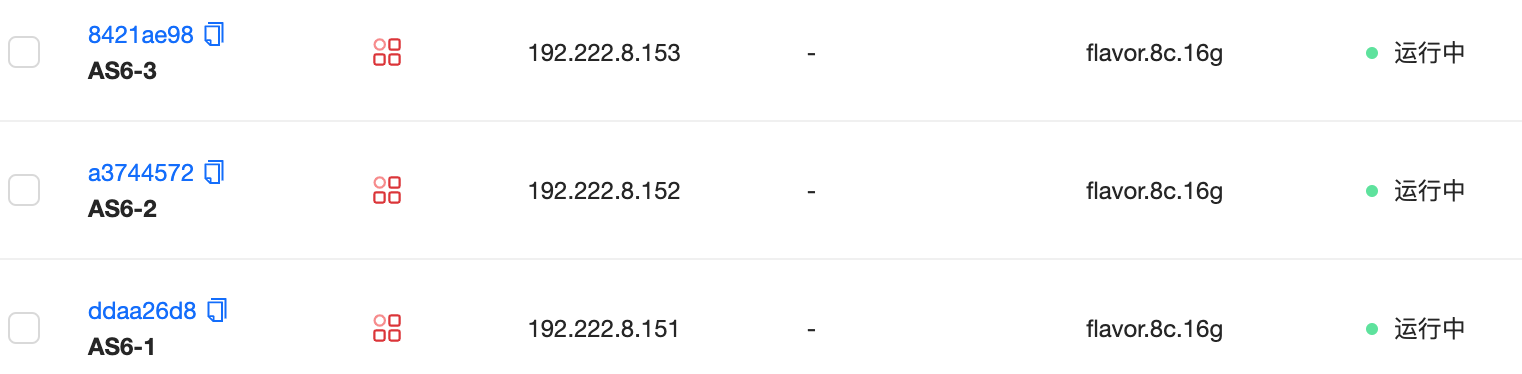
The IP addresses and node role planning for the three virtual machines to be used for installing the xSpace management component are as follows:
| IP Address | Node Role |
|---|---|
| 192.222.8.151 | Master Node |
| 192.222.8.152 | Slave/Worker Node |
| 192.222.8.153 | Slave/Worker Node |
2. Verify Internal VM Configuration
After the openEuler virtual machines are created, please log in to each virtual machine via SSH to perform an initial check.
2.1 View CPU Cores per Node
[root@localhost ~]# nproc
8
2.2 View Total Memory Size per Node
[root@localhost ~]# free -mh
              total        used        free      shared  buff/cache   available
Mem:            15Gi       9.7Gi       1.1Gi       312Mi       4.9Gi       5.4Gi
Swap:          7.9Gi       649Mi       7.3Gi
Note: When creating a virtual machine with 16GB of memory, the total memory seen inside the virtual machine may be slightly less than 16GB. This is normal, and our installation package will ignore this discrepancy during the deployment environment check.
2.3 View Disk Capacity per Node
[root@localhost ~]# lsblk
NAME                MAJ:MIN RM   SIZE RO TYPE MOUNTPOINTS
vda                 252:0    0   200G  0 disk
├─vda1              252:1    0   600M  0 part /boot/efi
├─vda2              252:2    0     1G  0 part /boot
└─vda3              252:3    0 197.9G  0 part
  ├─openeuler-root 253:0    0   150G  0 lvm  /
  ├─openeuler-swap 253:1    0   7.9G  0 lvm  [SWAP]
  └─openeuler-home 253:2    0    40G  0 lvm  /home
[root@localhost ~]# df / -h
Filesystem                  Size  Used Avail Use% Mounted on
/dev/mapper/openeuler-root  147G   48G   92G  35% /
Requirement: Confirm that the total capacity is 200G, and the space allocated to the root filesystem (openeuler-root) is no less than 150G.
2.4 View NICs and IP Addresses per Node
[root@localhost ~]# ip addr
1: lo: <LOOPBACK,UP,LOWER_UP> mtu 65536 qdisc noqueue state UNKNOWN group default qlen 1000
    link/loopback 00:00:00:00:00:00 brd 00:00:00:00:00:00
    inet 127.0.0.1/8 scope host lo
       valid_lft forever preferred_lft forever
    inet6 ::1/128 scope host
       valid_lft forever preferred_lft forever
2: ens3: <BROADCAST,MULTICAST,UP,LOWER_UP> mtu 1442 qdisc fq_codel state UP group default qlen 1000
    link/ether fa:16:3e:51:6a:ab brd ff:ff:ff:ff:ff:ff
    inet 192.222.8.151/20 brd 192.222.15.255 scope global dynamic noprefixroute ens3
       valid_lft 38656sec preferred_lft 38656sec
    inet 192.222.8.151/32 scope global ens3
       valid_lft forever preferred_lft forever
    inet6 fe80::f816:3eff:fe51:6aab/64 scope link noprefixroute
       valid_lft forever preferred_lft forever
Note: The naming style of virtual network cards may not be the same on servers of different architectures. For example, on ARM architecture virtual machines, the default network card name is usually
enp1s0, while for X86 it is typicallyens3orens192.
2.5 View DNS Server Configuration per Node
[root@localhost ~]# grep ^nameserver /etc/resolv.conf
nameserver 114.114.114.114
nameserver 1.1.1.1
nameserver 8.8.8.8
Note:
114.114.114.114and others are public DNS servers. If the environment does not allow internet access, please be sure to change them to available DNS server addresses within the local area network.
2.6 Network Interconnectivity Check
Ensure that the three virtual machines can ping each other. Try from node 151:
ping 192.222.8.152
ping 192.222.8.153
3. System Language and Time Zone Settings
Before starting the AS6 management component installation, please configure unified system time, time zone, and language according to business requirements.
3.1 Key Notes on Clock Synchronization (NTP) Configuration
- Configuration Object: NTP only needs to be manually configured on the Master Node.
- Synchronization Logic: During the subsequent cluster installation process, the slave nodes will automatically configure and use the master node as their clock synchronization source.
Check and verify on the master node:
[root@localhost ~]# grep ^server /etc/chrony.conf
server 10.1.1.1 iburst
Verify synchronization status:
[root@localhost ~]# systemctl restart chronyd
[root@localhost ~]# chronyc activity
200 OK
1 sources online
0 sources offline

[root@localhost ~]# chronyc sources -v
MS Name/IP address         Stratum Poll Reach LastRx Last sample
===============================================================================
^* 10.1.1.1                      2  10   233   314   -555us[ +162us] +/-   59ms
3.2 Set System Time Zone
- Configuration Object: The time zone only needs to be manually set on the Master Node.
- Synchronization Logic: Subsequent installation deployment scripts will automatically set the time zones of all slave nodes to be consistent with the master node.
- Default Time Zone: The openEuler image provided in the version release directory defaults to the Asia/Shanghai time zone. If deploying in China, you can skip the step of setting the time zone.
If you need to adjust to another time zone (taking Paris as an example), execute the following commands:
# View current system time zone status
timedatectl status

# List all available time zones and filter the target time zone
timedatectl list-timezones | grep -i paris

# Set system time zone
timedatectl set-timezone Europe/Paris
3.3 Set System Language (Optional)
Setting the system language is optional. The openEuler image provided in the version release directory defaults to a Chinese environment. If you need to modify it using system commands, refer to the following:
# View current system language
localectl

# Manually set language to English environment
localectl set-locale LANG=en_US.UTF-8
Advanced Tip: You can also choose not to modify the operating system language, and flexibly specify it through parameters when executing the AS6 component deployment script later:
- Use the
-- -Eparameter: Set the component to an English language environment.- Use the
-- -Zparameter: Set the component to a Chinese language environment.
3.4 Notes on System Restart
Regarding the settings for NTP, time zone, and language mentioned above, the relevant生效 logic is as follows:
- NTP (Clock Synchronization): No system restart required. The service takes effect immediately after executing
systemctl restart chronyd. - Time Zone: No system restart required. The system clock adjusts immediately after
timedatectlmodification. - Language (Locale):
- If the OS language is modified via
localectl: System restart is recommended to ensure all background services and logs fully switch to the new language environment. - If specified via deployment script parameters (
-- -Eor-- -Z): No system restart required, the script will automatically handle the component's runtime environment.
- If the OS language is modified via
Friendly Reminder: After ensuring that all node resources are in place, disk partitioning meets requirements, and clock/network configurations are normal, you can proceed with the subsequent installation package upload and deployment work.